Viva Wallet integration
1. Prerequisites
The EBS-RO application version must be 5.13.0.0 or later, and the Retail module must be installed.
Ensure you have a VIVA merchant account on the viva.com website, where you will receive a Merchant ID available in the API Access section.
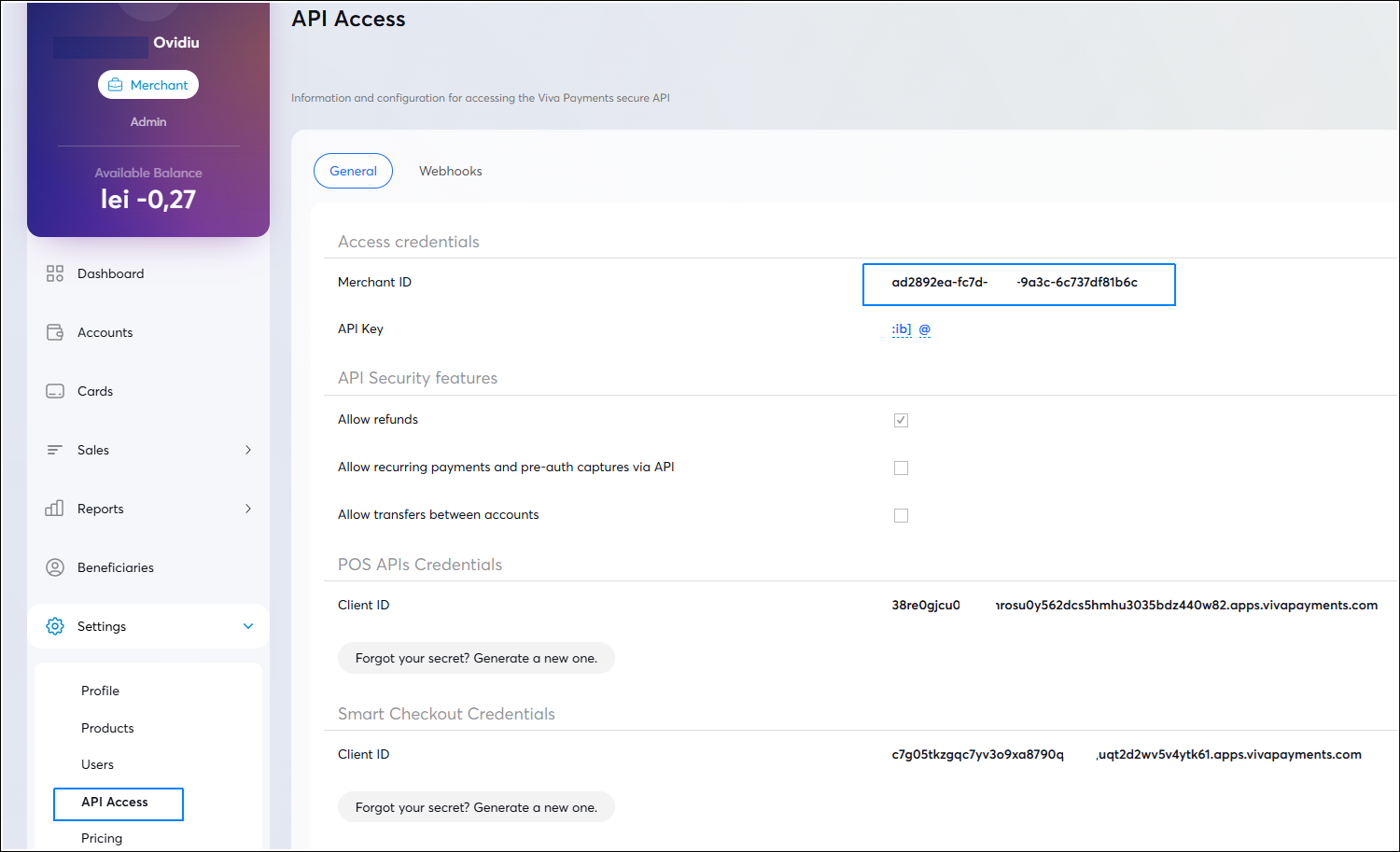
Ensure you have the POS terminal (or application—e.g., on Android) for which you identified the Terminal ID (POS Code) in Settings > About.
Ensure that the POS terminal is connected to the internet.
2. Settings
2.1. Company parameters
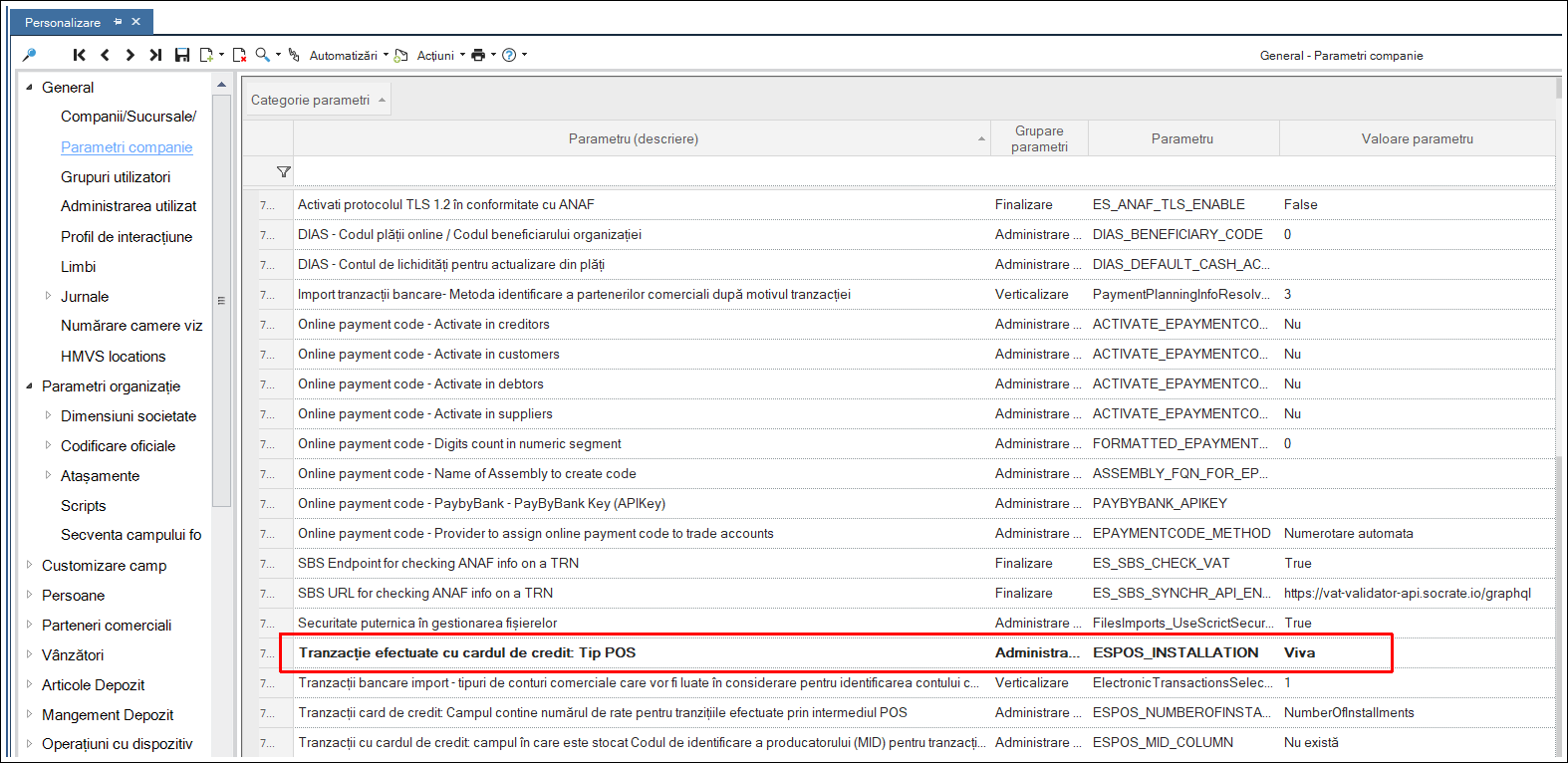
Go to Configuration and Tools > Configuration… > General > Company Parameters
Look for the section Online transaction parameters.
In Credit card transactions: POS type, select: Viva.
Save.
2.2. Bank parameter
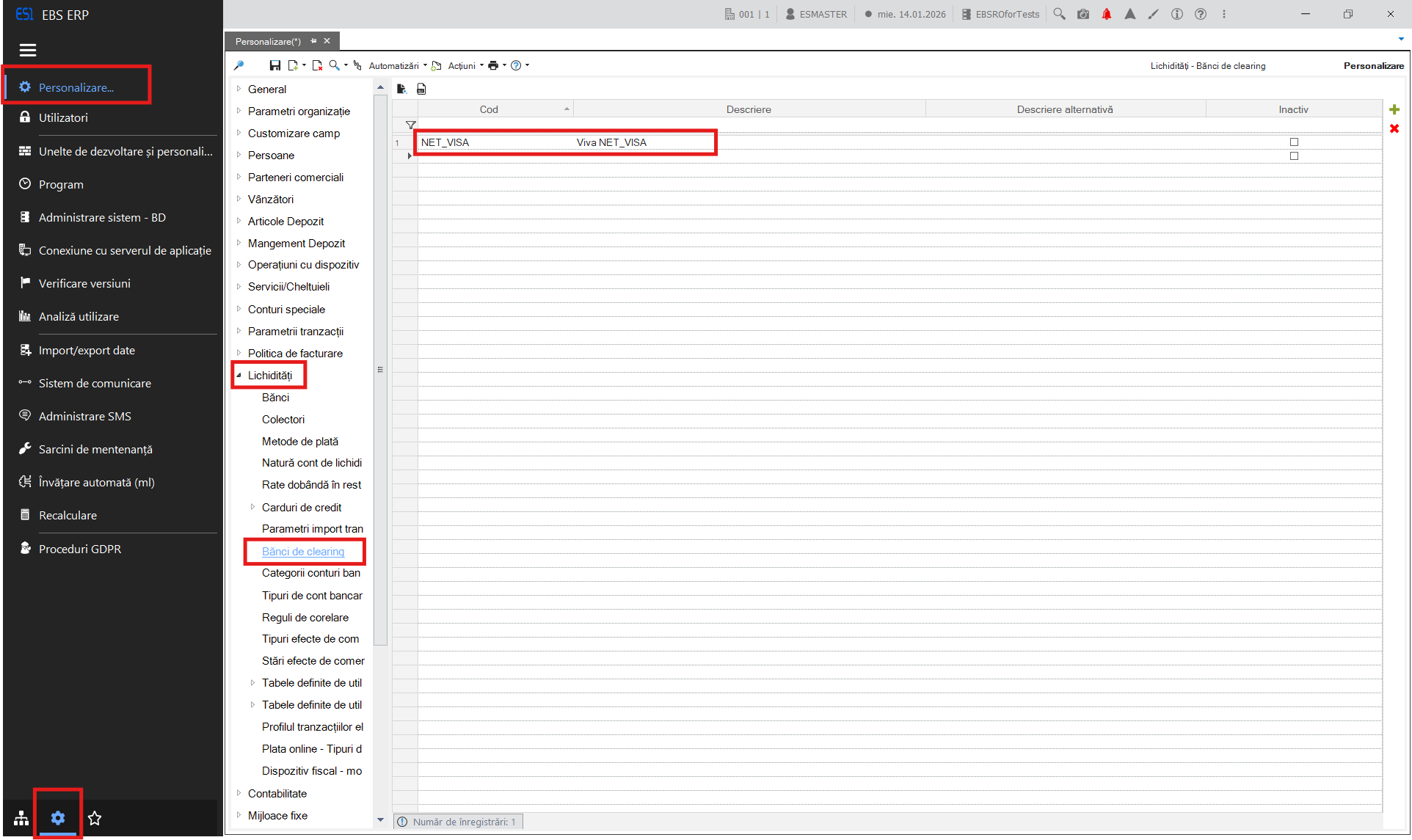
Go to Configuration and Tools > Configuration… > Liquidity > Clearing Banks
Add:
Code : NET_VISA
Description: Viva NET_VISA
- Save.
2.3. Communication profile
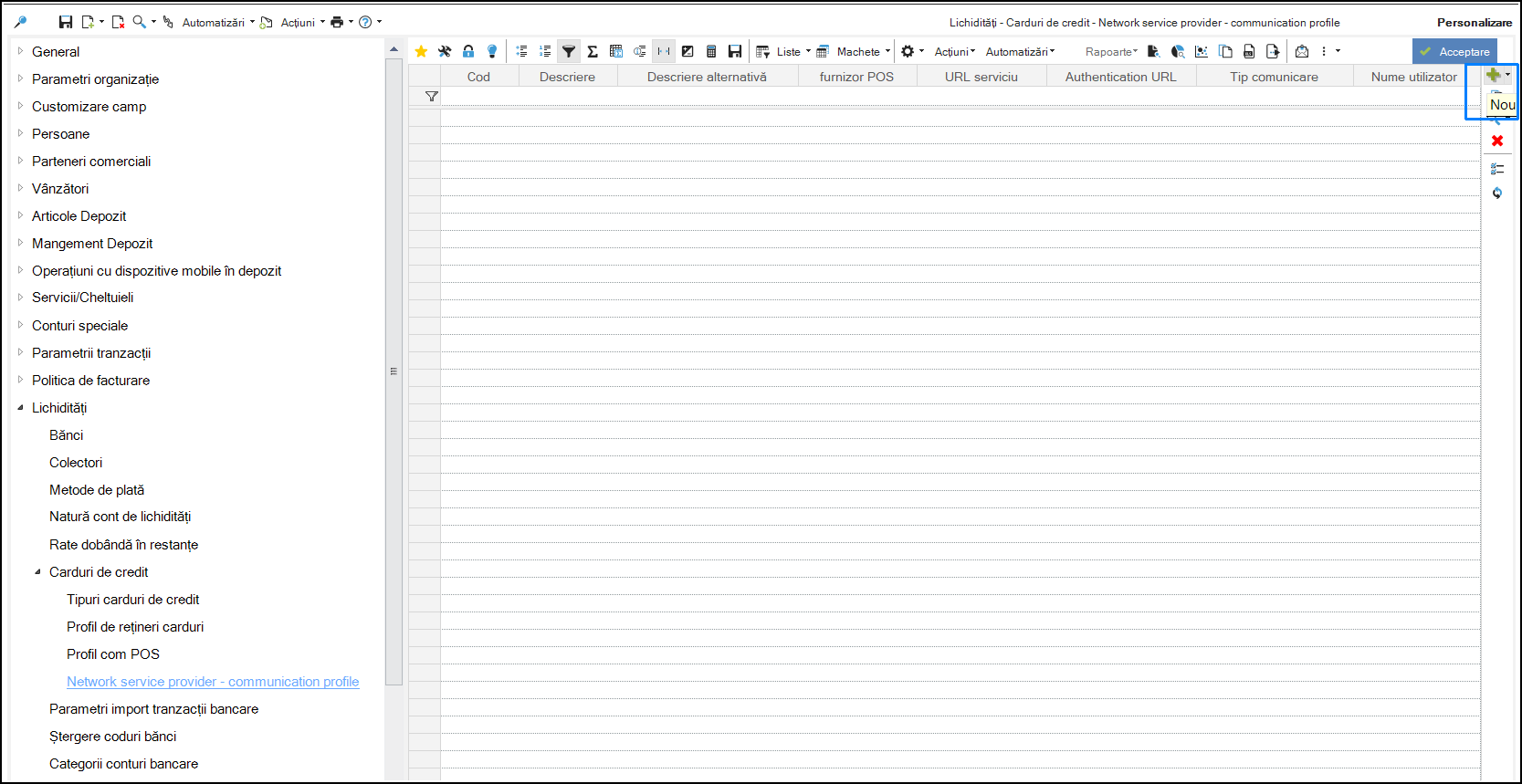
- Go to Configuration and Tools > Configuration… > Liquidity > Credit Cards > Network service provider – communication profile and Add a new profile (using the + button).
- Set:
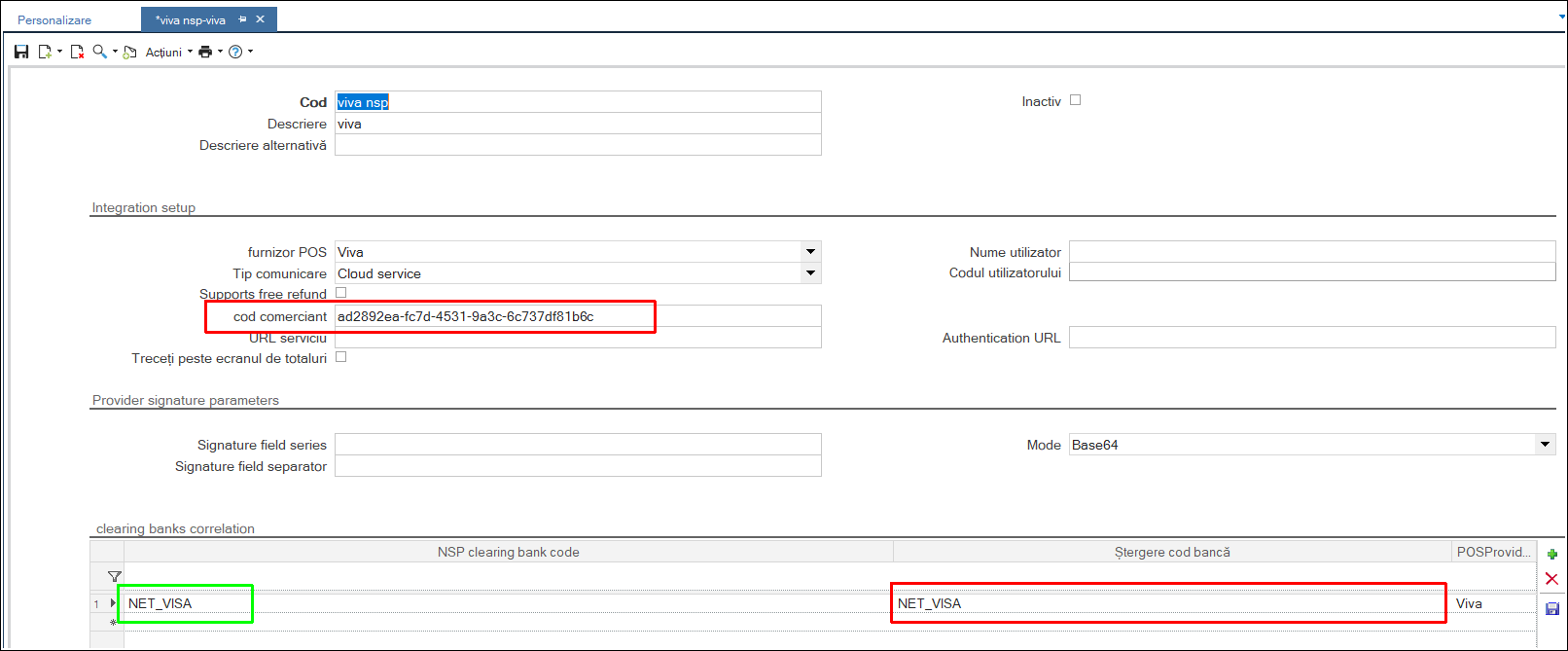
Code: Code NSP
Description: Viva network service provider
Merchant code: enter the merchant code from your Viva account, section API Access
Mode: Base64
Clearing bank code: NET_VISA - select from the line (arrow to the right of the field)
NSP Clearing bank code: NET_VISA - enter manually.
- Save.
2.4. Configure POS
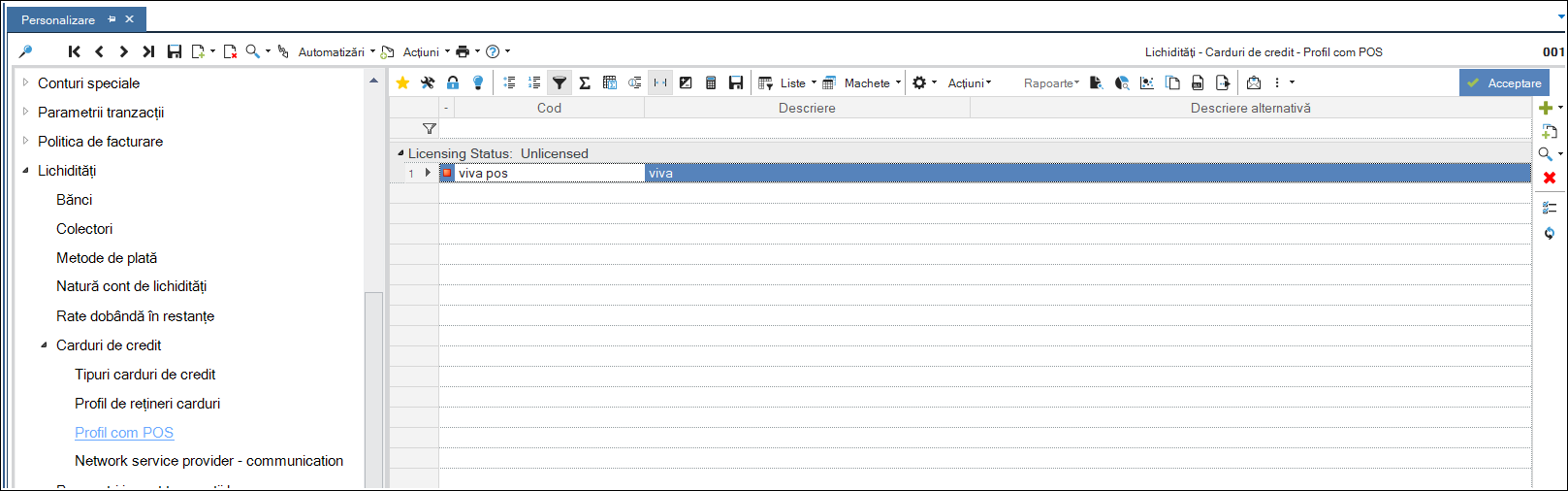
- Go to Configuration and Tools > Configuration… > Liquidity > Credit Cards > COM POS Profile
- Set:
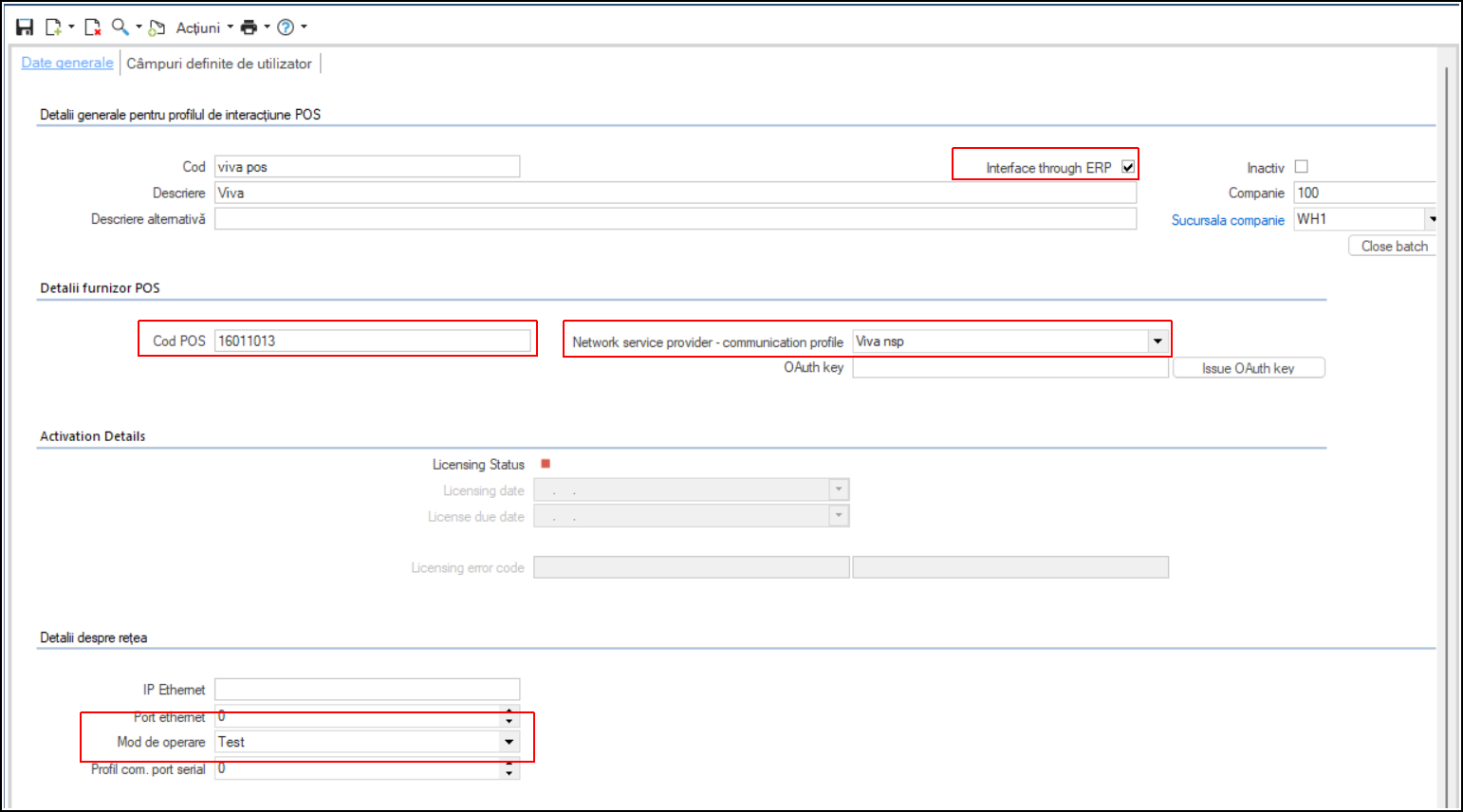
Code: Viva POS
Description: Viva
POS code: Terminal ID from the POS terminal.
- Save.
2.5. Settings Retail document series
Go to the Sales > Retail Sales > New Transaction section.
From the Document Series field, right-click, Display:
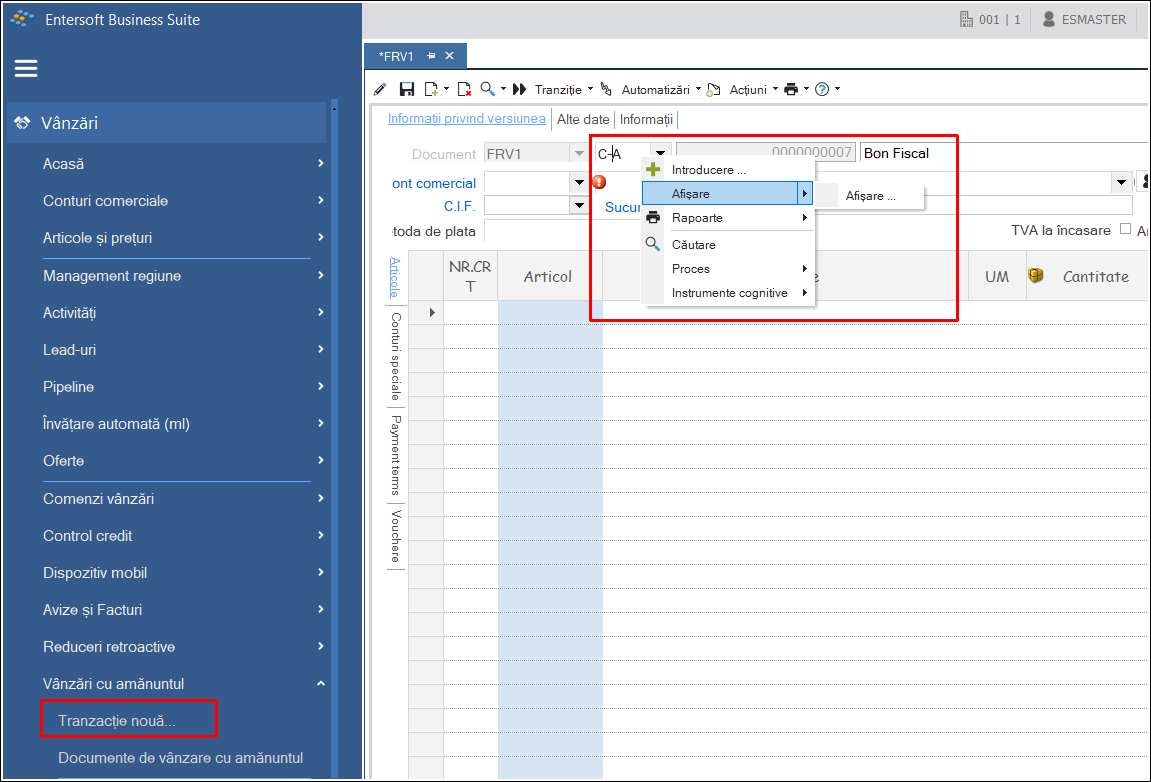
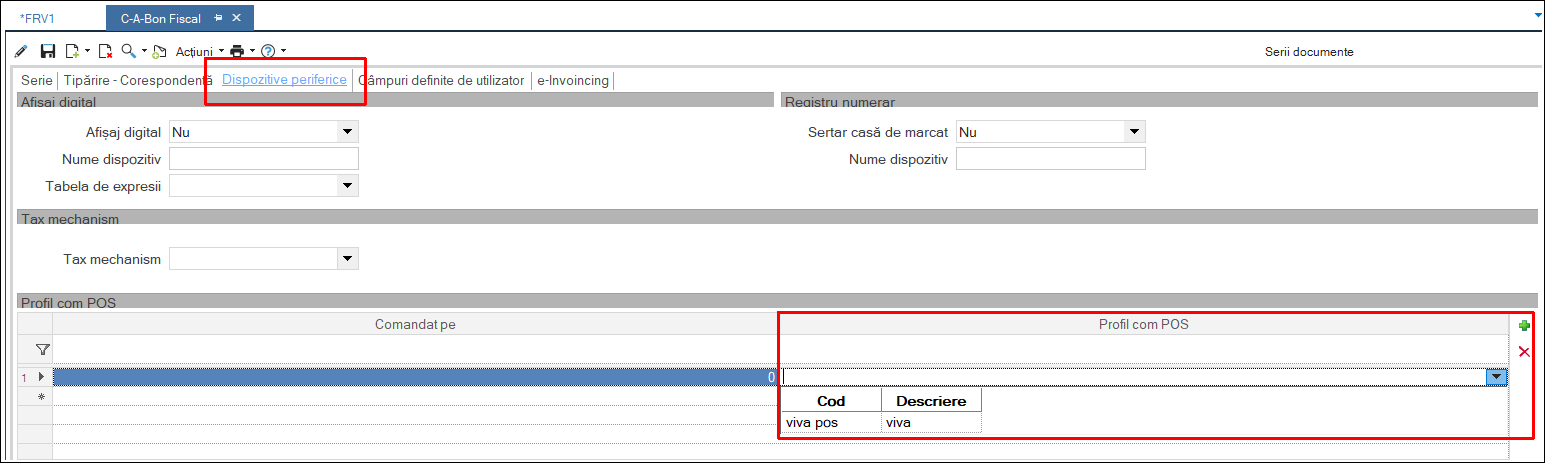
In the document settings, under the Peripheral Devices tab, select the previously defined profile (viva pos) in the COM POS Profile section, and then save.
3. Sales interface update
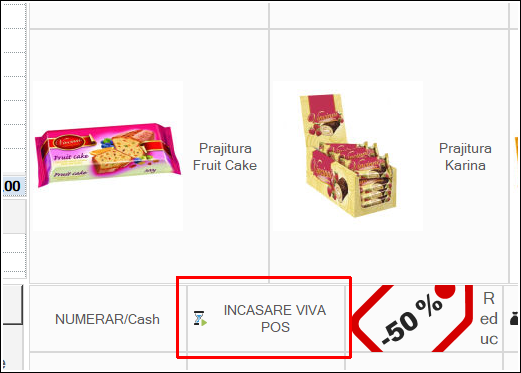
After completing the settings in the application, it is necessary to add a VIVA POS Collection button to the sales interface. Please request this from a support consultant.