Intrastat
1. Settings
1.1. Company settings
In order to run the Intrastat declaration several fields need to be filled in the company parameters:
Go to menu (Configuration and tools) > Customization… in General > Company parameters Category: Intrastat parameters
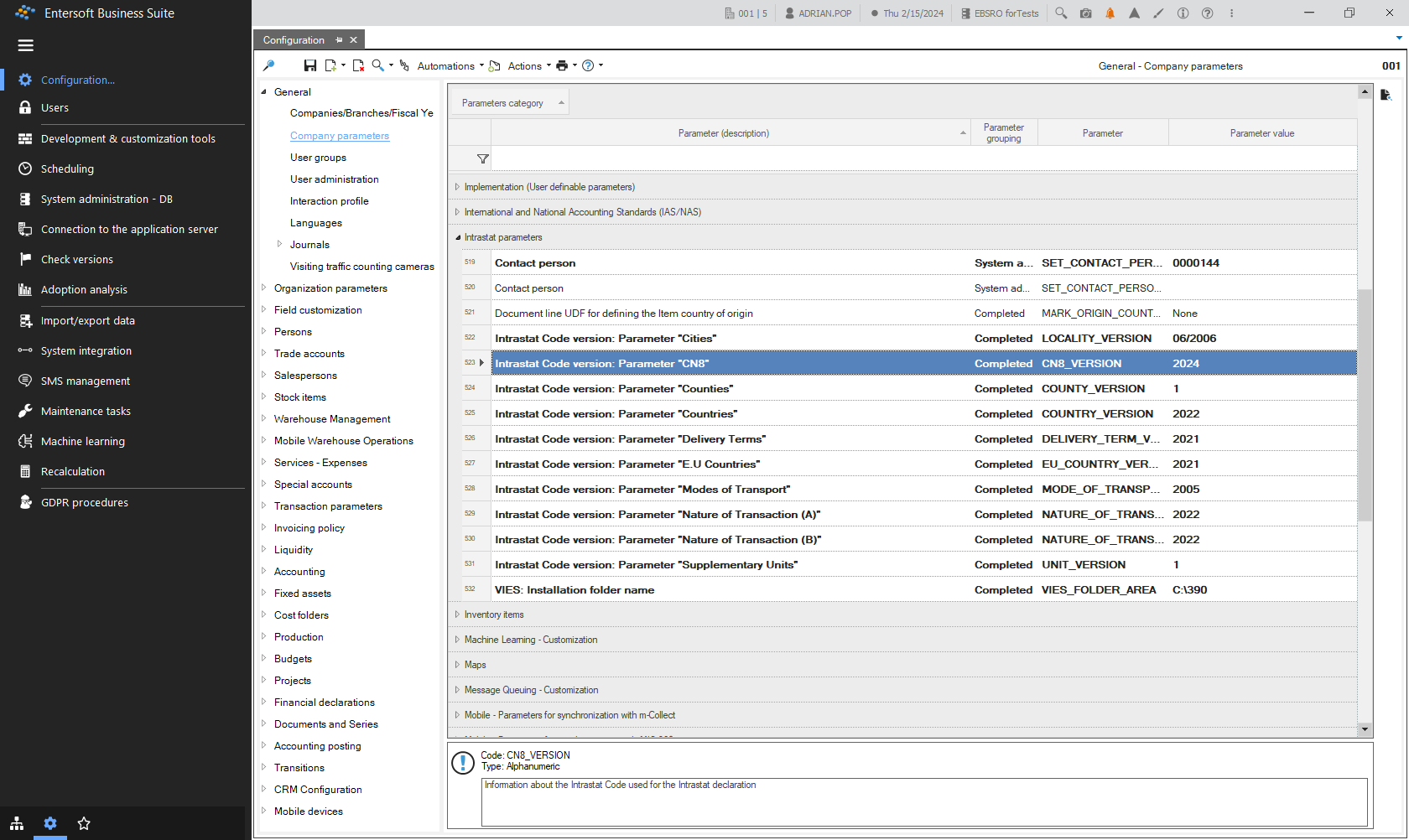
In the parameter field CN8 fills in the year in which the declaration is made (2022, 2023, etc.)
In the field Contact person fill in the code of the person signing the Intrastat declaration.
This person must be set on the company card in persons/associates.
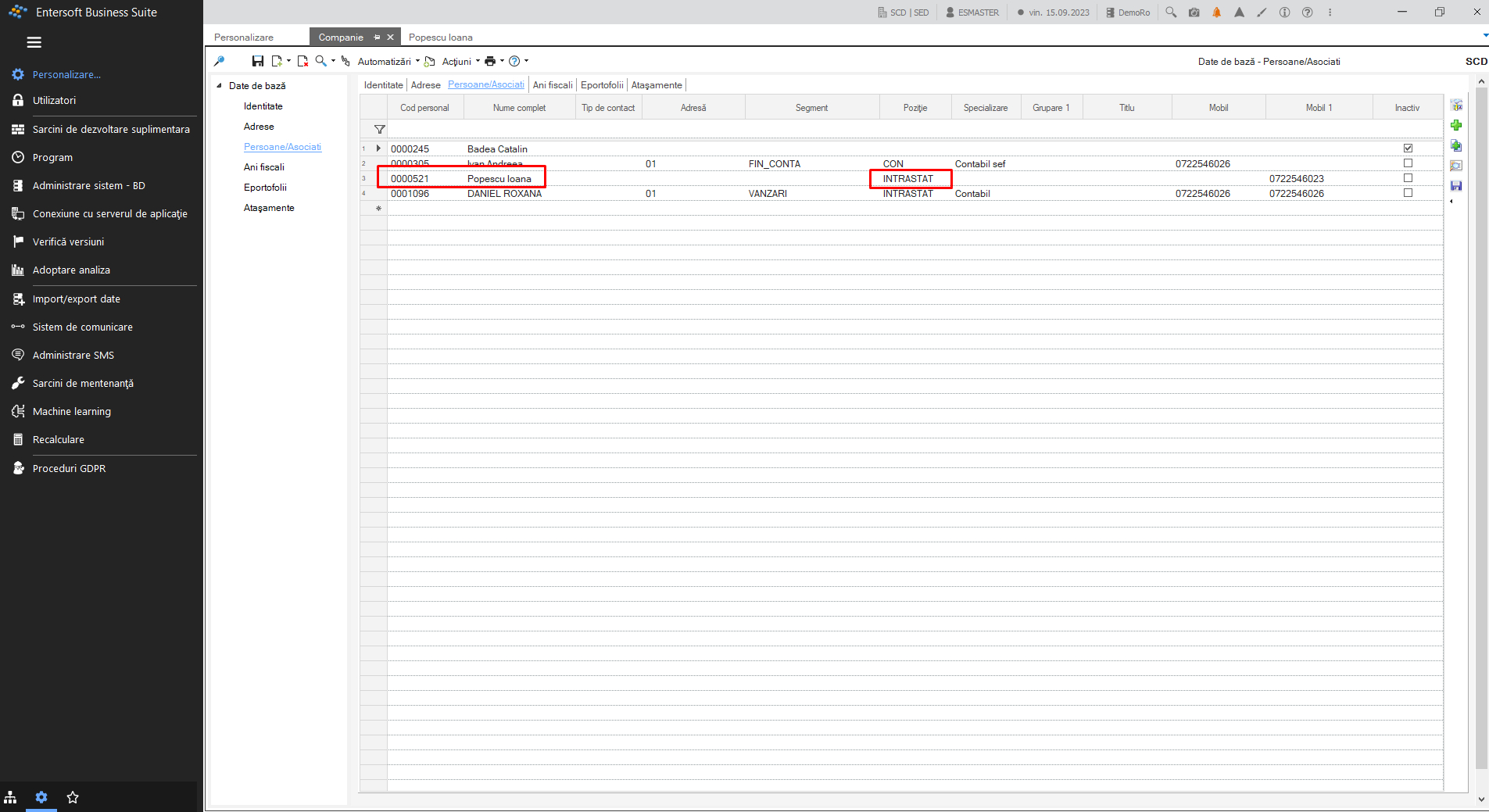
The person must have completed the Intrastat position, telephone number and email address.
The following fields must be completed on the person’s card:
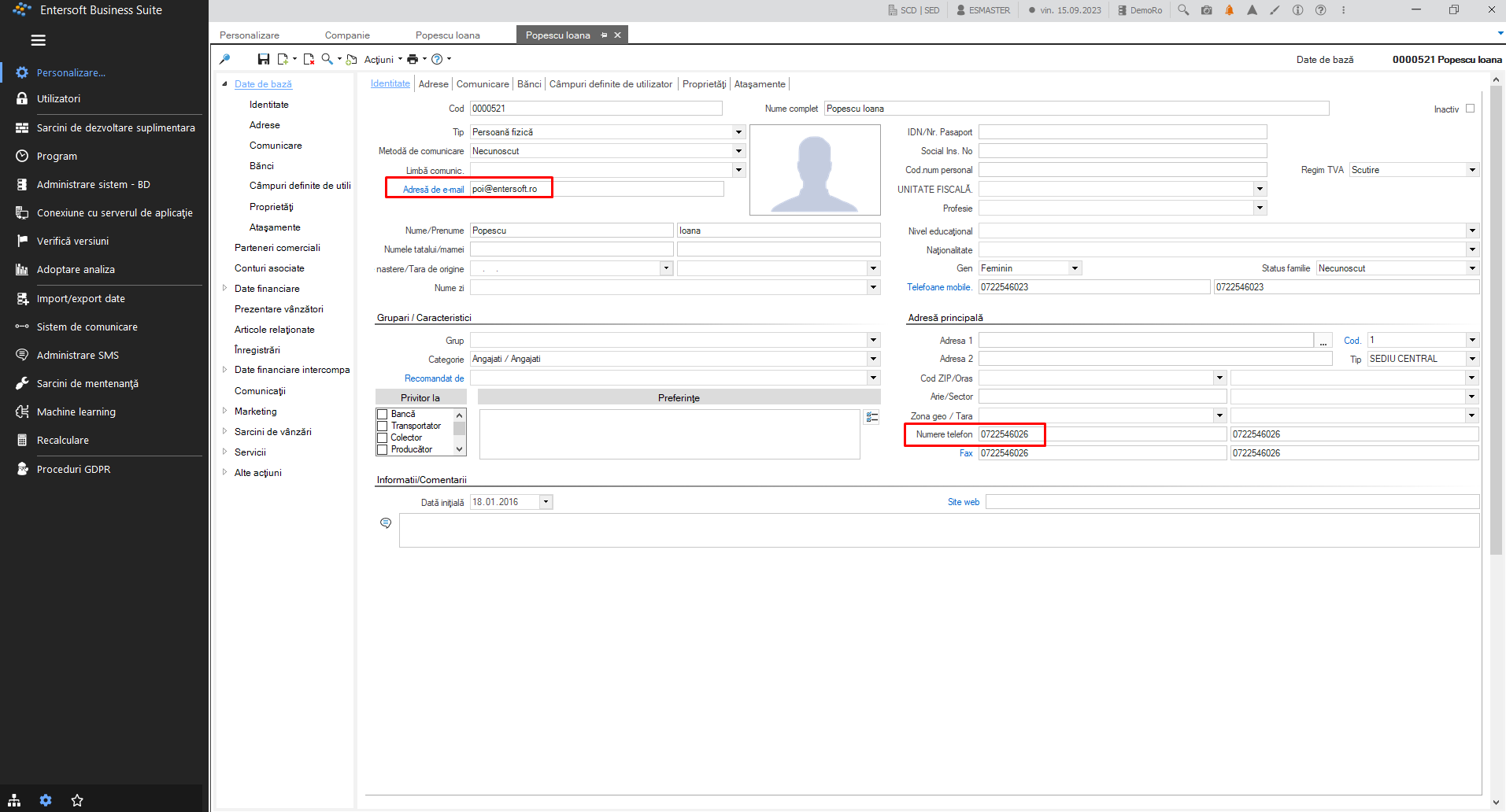
If these fields are not completed, the declaration is not visible.
- In the field UDF document line to define the country of origin of the item choose Comment 1, 2, 3, 4 or 5 from the document line, if nothing is filled in the declaration, the country of origin of the product bought/sold will be the one on the item card.
1.2. Document settings
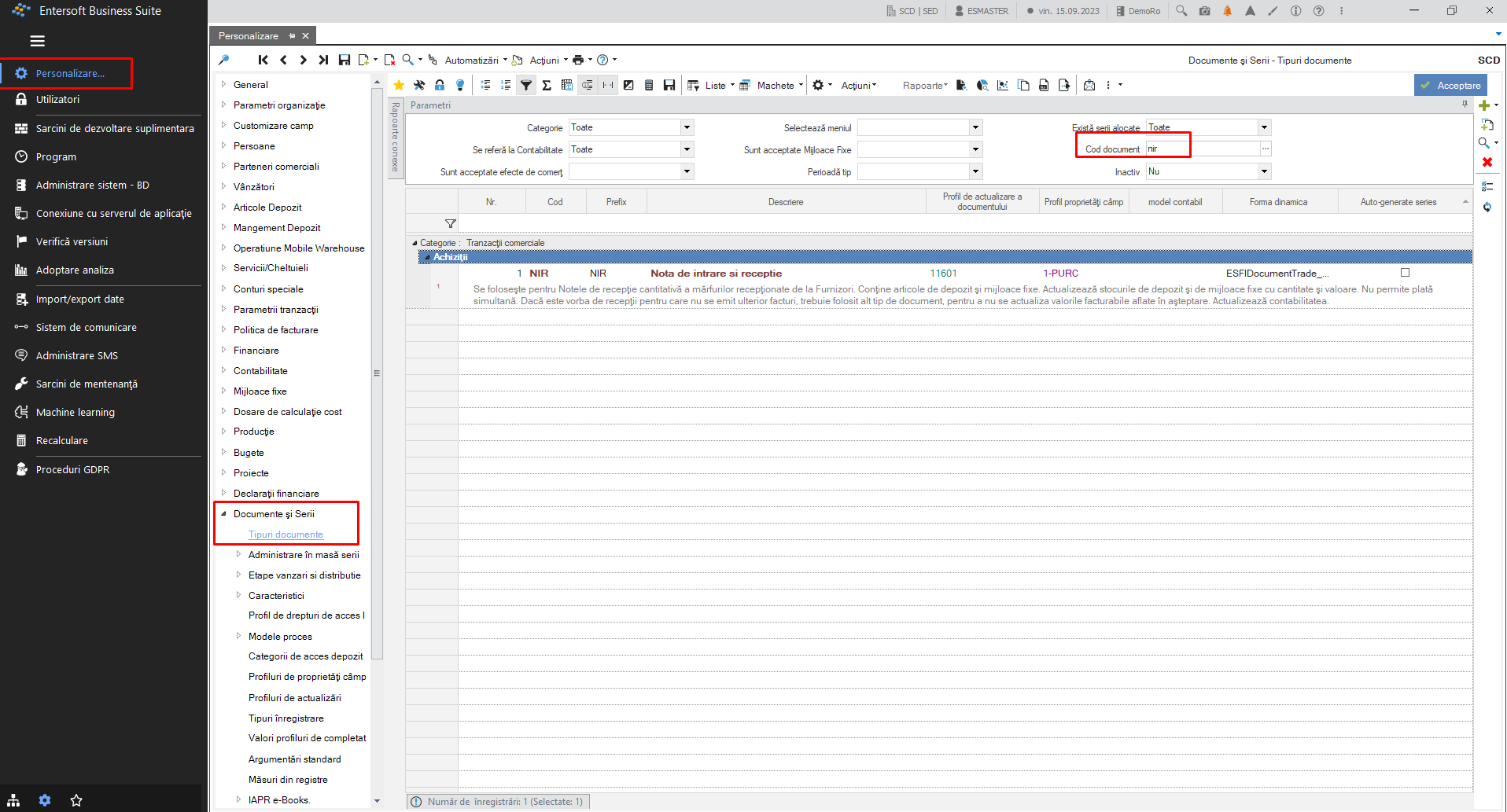
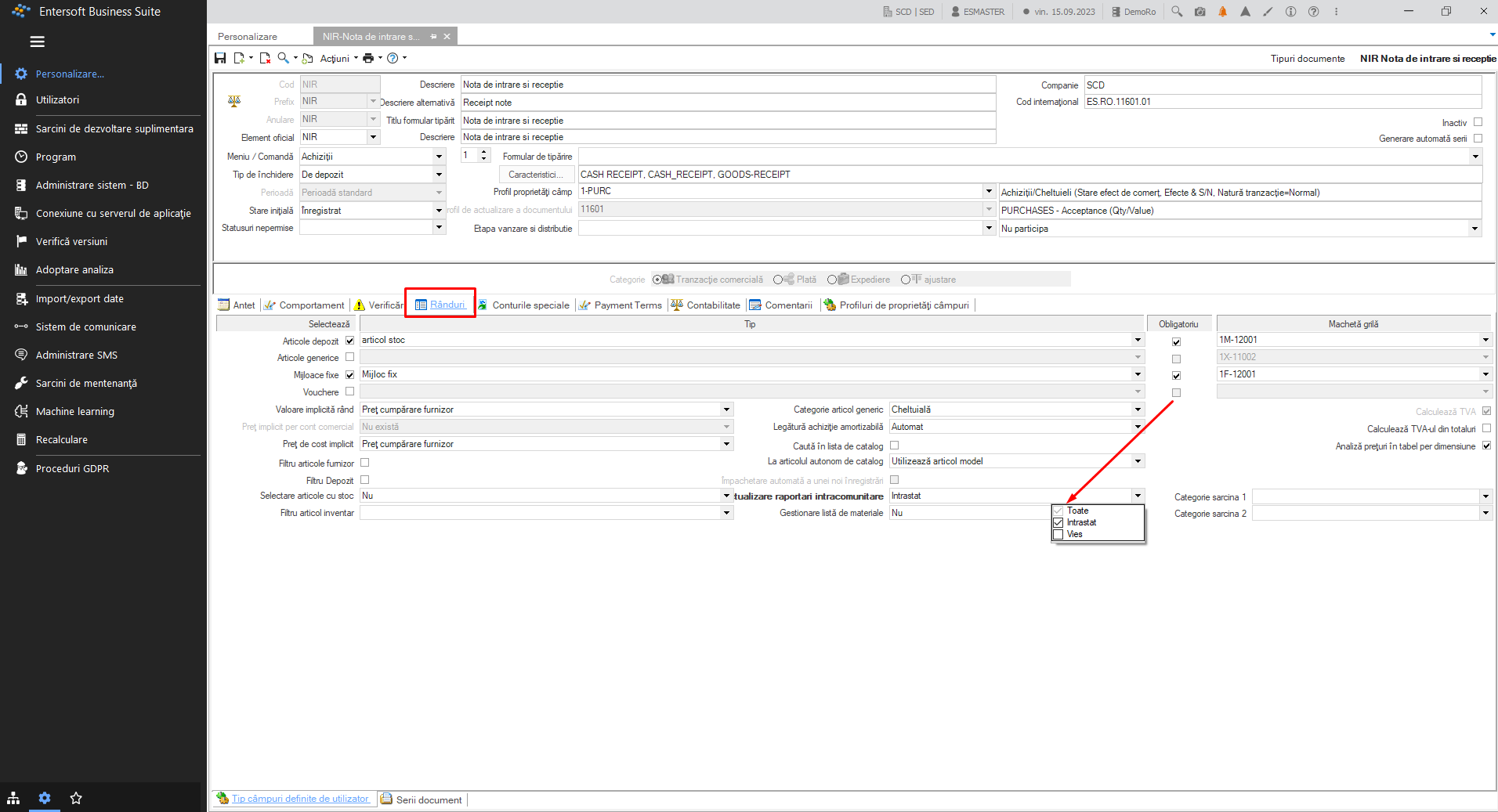
It is necessary to set the purchasing documents specifically for the type of declaration.
This setting is done on the document card and is accessed via:
(Configuration and tools) > Customize…> General / Documents & Series - document type - document search.
1.3. Partner settings
The following fields must be completed on the trading partner card:
VAT - Intra-community;
The country set on the commercial account card must have the Eurostat code filled in;
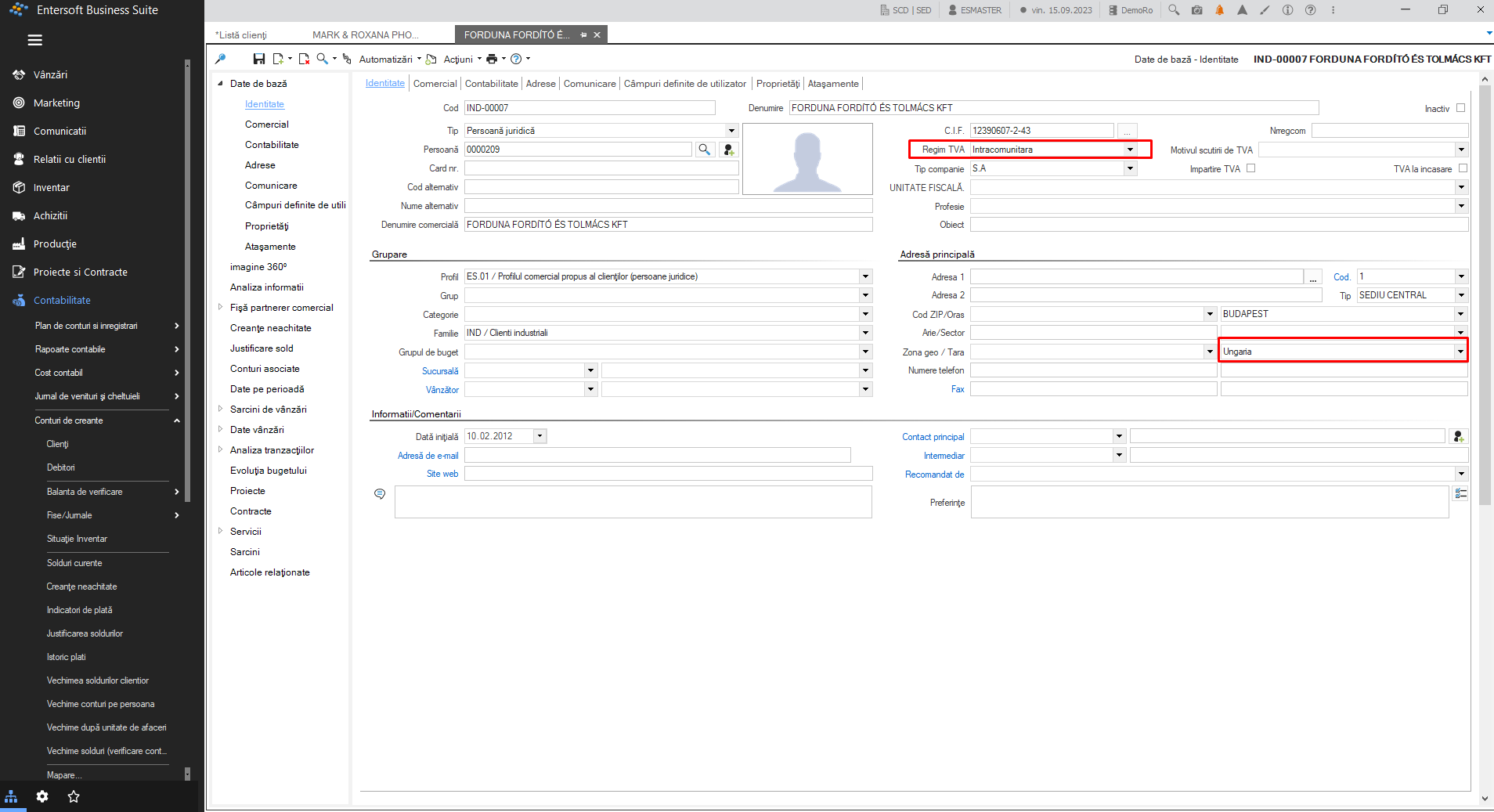
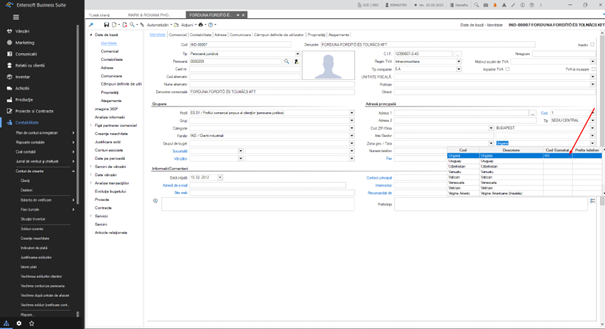
If the partner has more than one delivery address, check that the delivery address is set to the country.
- The partner’s tax code must be completed.
If changes need to be made to the country table, it can be set using the path below:
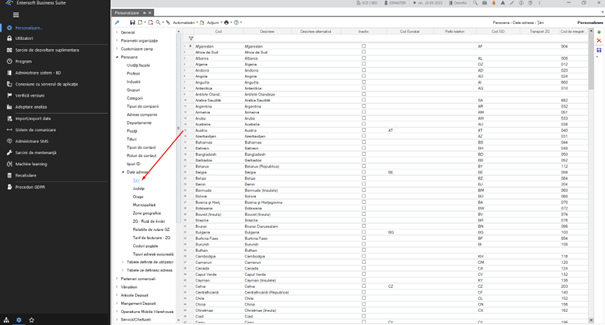
If new lines are to be inserted, click on the green plus sign on the right side of the report and fill in the report line.
1.4. Stock item settings
A stock item must have the following set
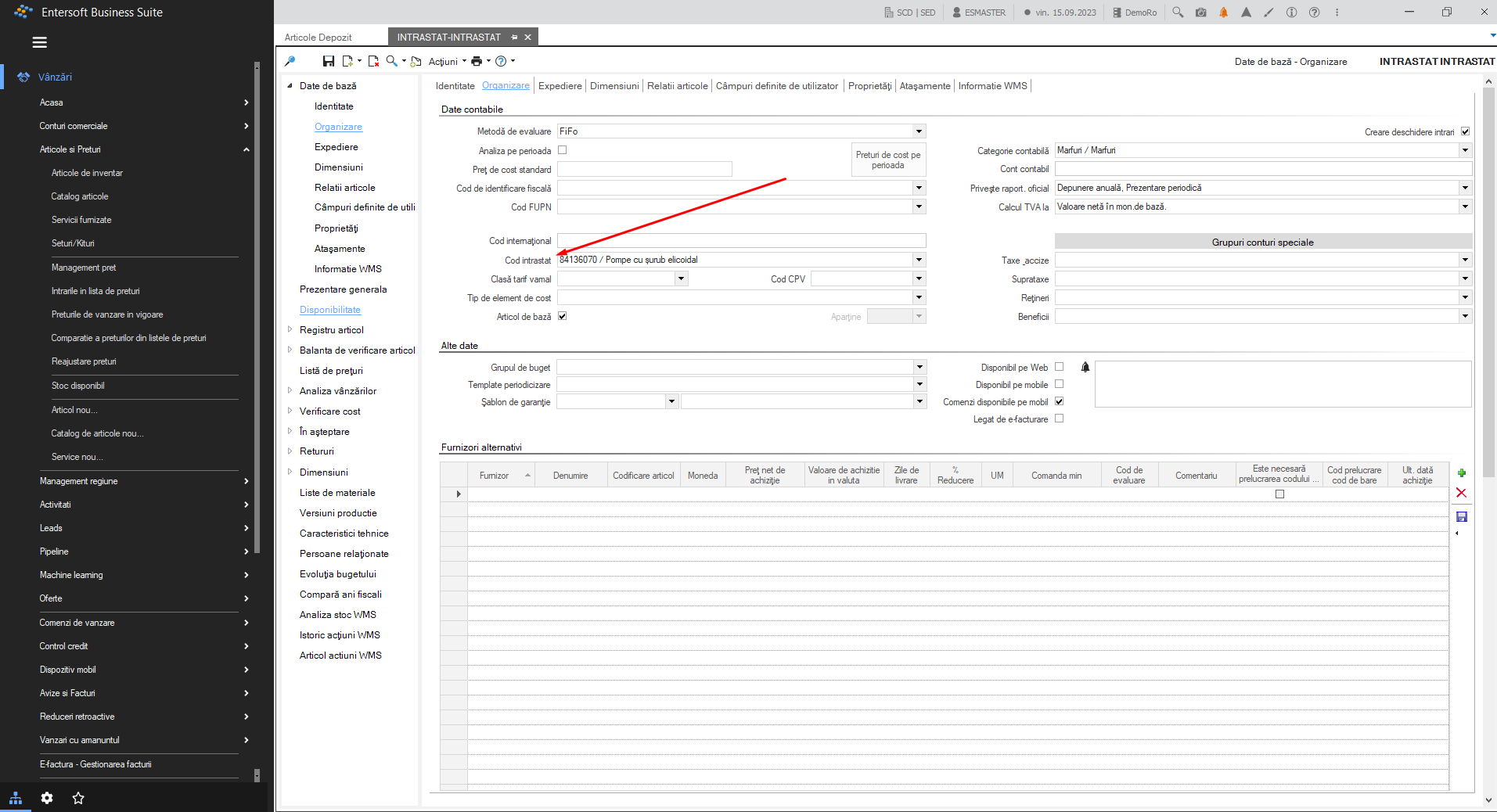
- Intrastat code (can be found on the item card in the Organisation area)
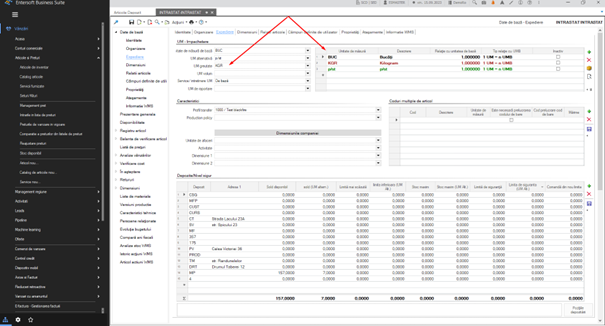
Unit of measurement for weight, which must be related to the base unit of measurement.
Alternative unit of measurement (for Intrastat codes requiring such a setting). This unit of measurement must be set in relation to the base unit of measurement.
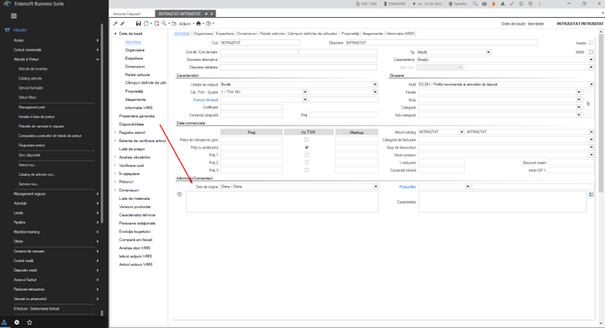
- Country of origin
1.5. Generic item settings
Generic articles are of two types:
services;
expenses.
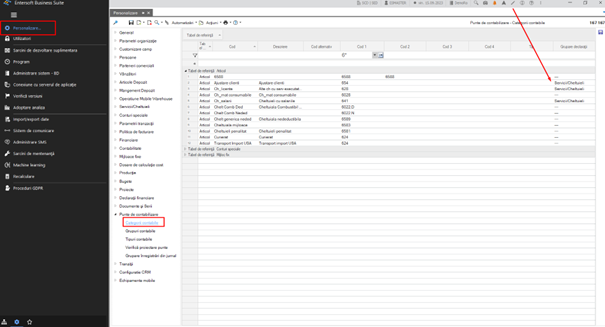
They must be set with the accounting category on their card and this must be set as such in order to be highlighted on statements:
1.6. Intrastat codes
Intrastat codes can be found in the menu (Configuration and tools) > Customisation > Warehouse items > Coding > Intrastat codes.
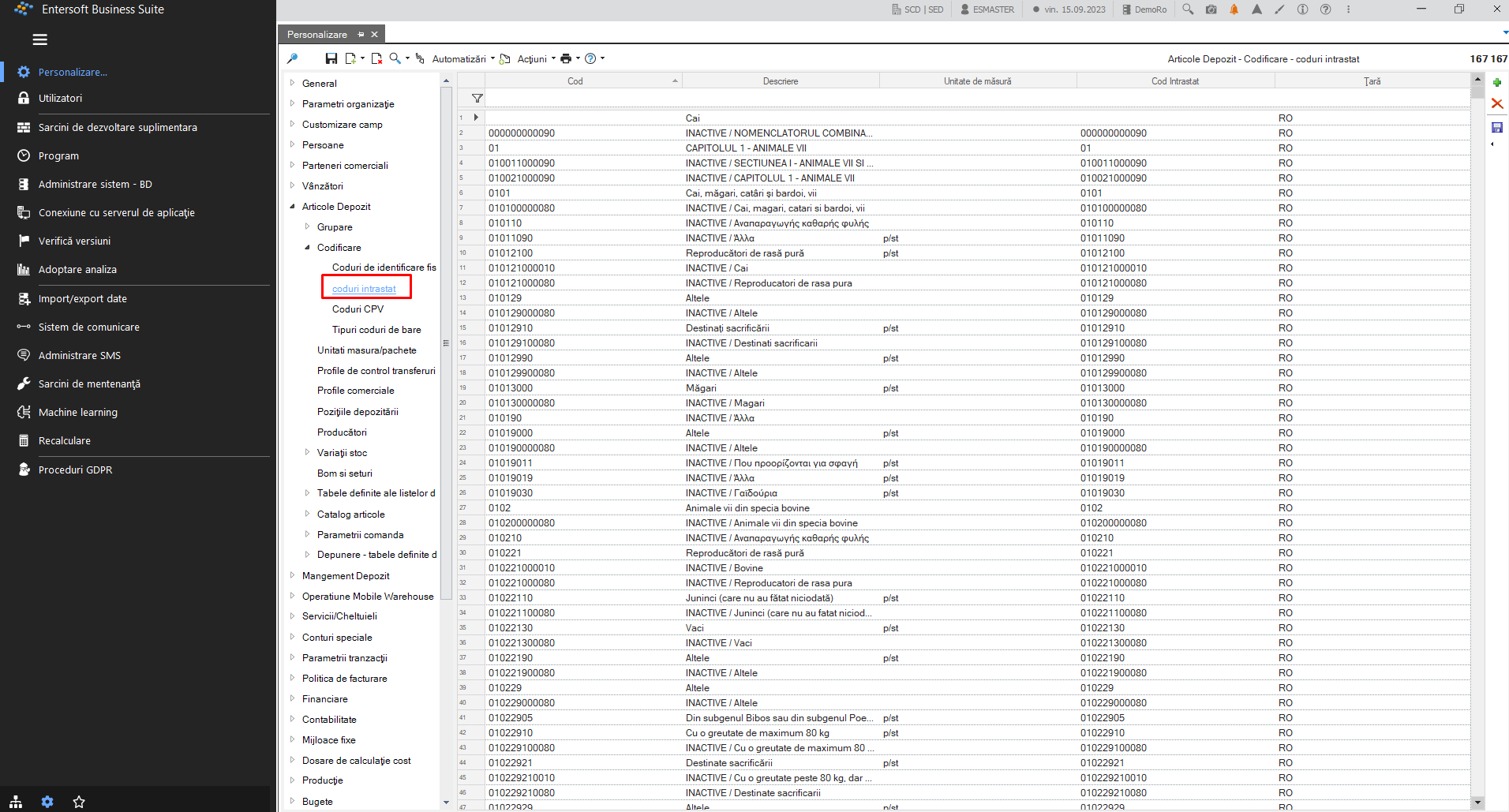
1.7. Importing new nomenclatures with Intrastat codes
To update Intrastat codes, perform the Update Intrastat codes operation found in the menu:
Accounting > End of process period > Intrastat and Vies > Update Intrastat codes
File type IntrastatCodes.xlsx should be saved to the application folder following the path:
(EBS-RO root\ ESScrollerCommands\ESFIFinancialDeclaration\ESMMIntrastat
After saving the file, run the Intrastat Codes Update process:
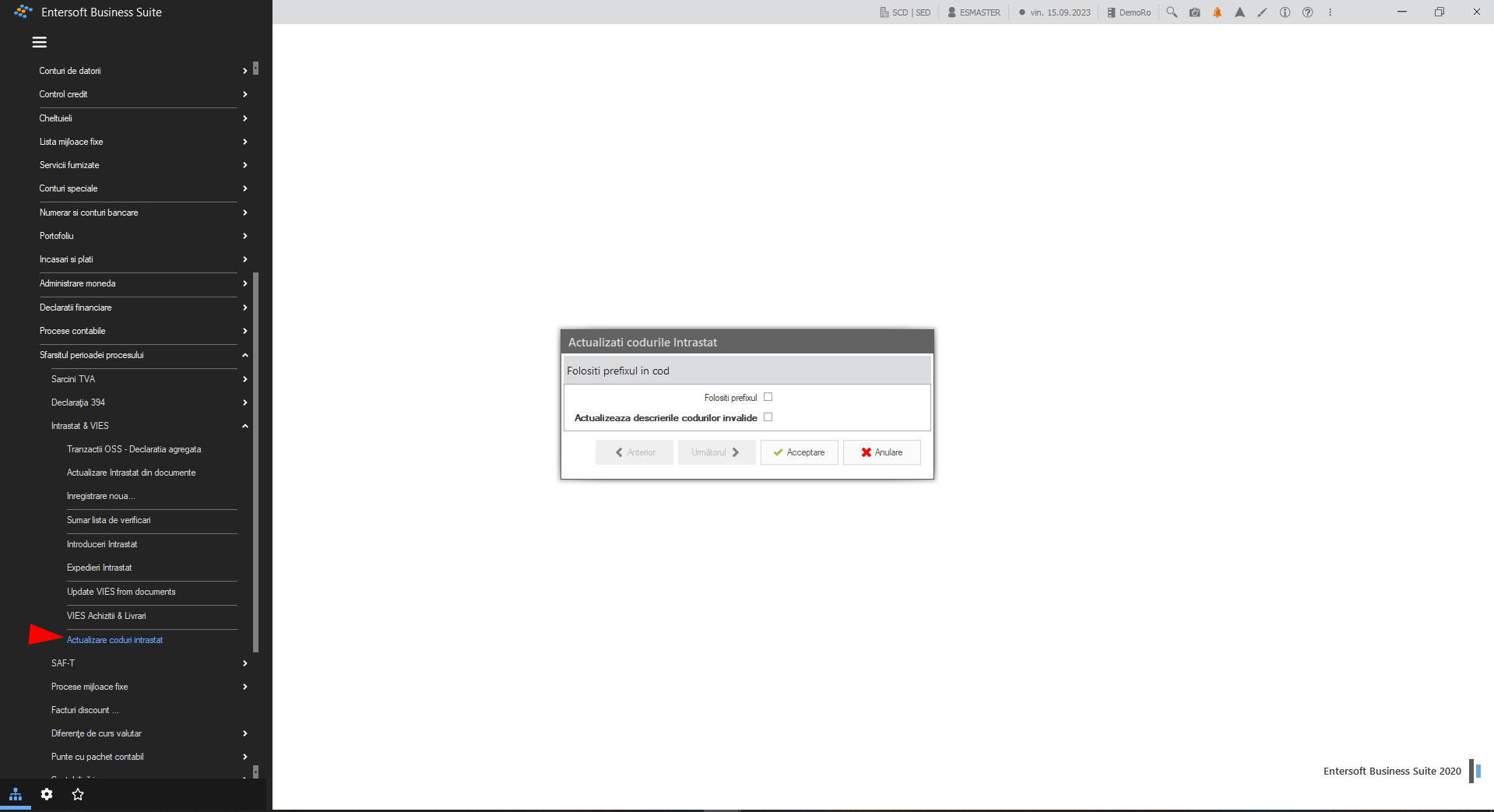
In the open window we make the following selections as appropriate:
Check the box Use prefix ONLY if the company HAS shared database with other countries;
Warning! If you use a common database in more than one country, in the next screen use the SAME prefix for Romania as already used so far, so that mapping [Prefix]+[IntrastatCode] does an update not an insert into the database**.** If you have not checked the use of the prefix, or if in the next window you do not enter the prefix, the update in the DB will be done in the default country for which the application works.Check the box Update descriptions of invalid codes to “inactivate” the old codes. Inactivation of codes is achieved by changing the item name (e.g. INACTIVE / Weighing less than 50 kg);
Attention! The Intrastat code update process will not delete codes that are no longer valid but will add the word INACTIVE to their description.
Important! The update process will update not only the Intrastat codes but also the units of measurement so it is recommended to check the units of measurement after running this process.
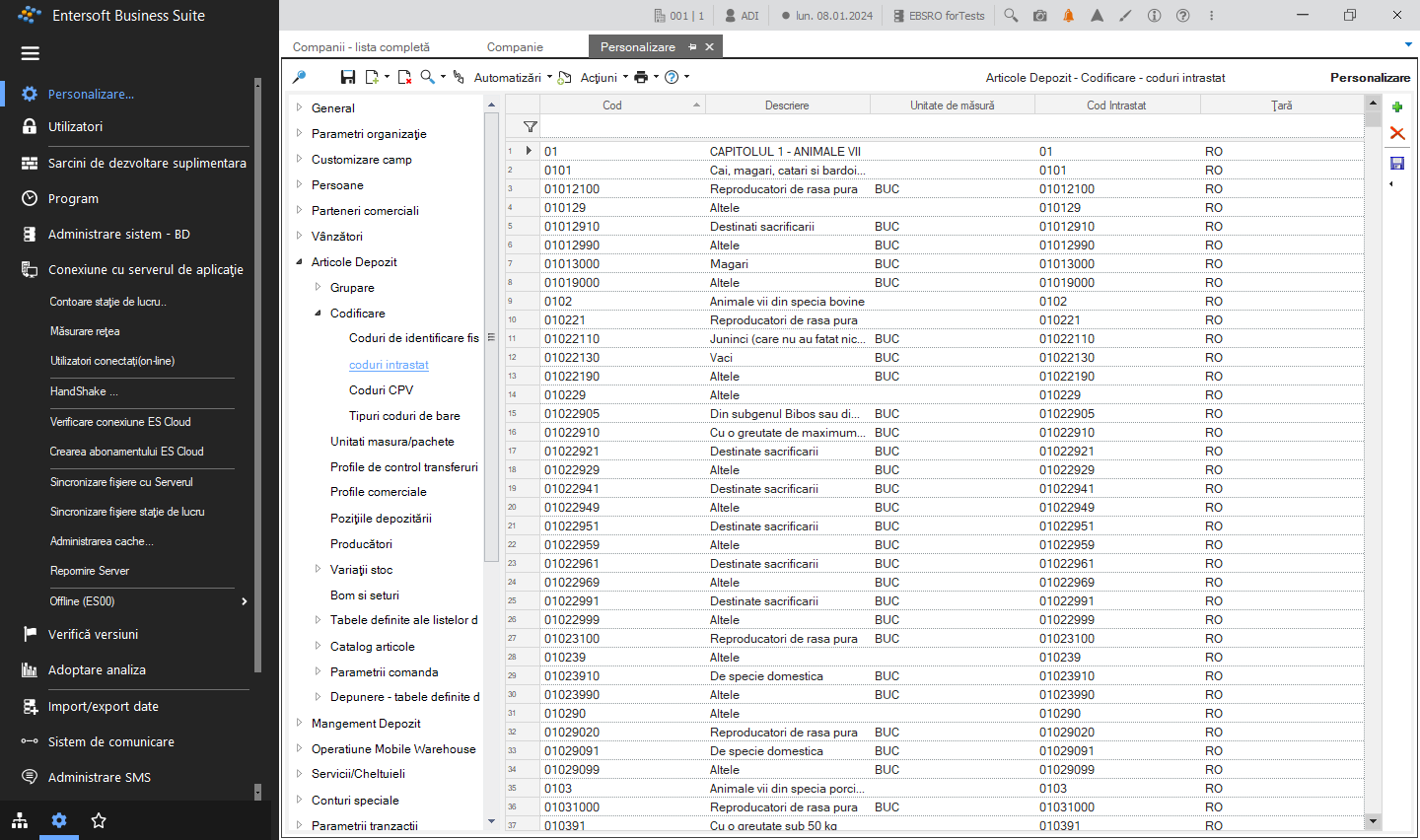
After “Accept” the process of updating Intrastat codes will start.
In the case of bases with more than one country, when running the update of the nomenclature the system will send a warning that there are Intrastat codes for other countries, the warning can be ignored if the prefix is ticked.
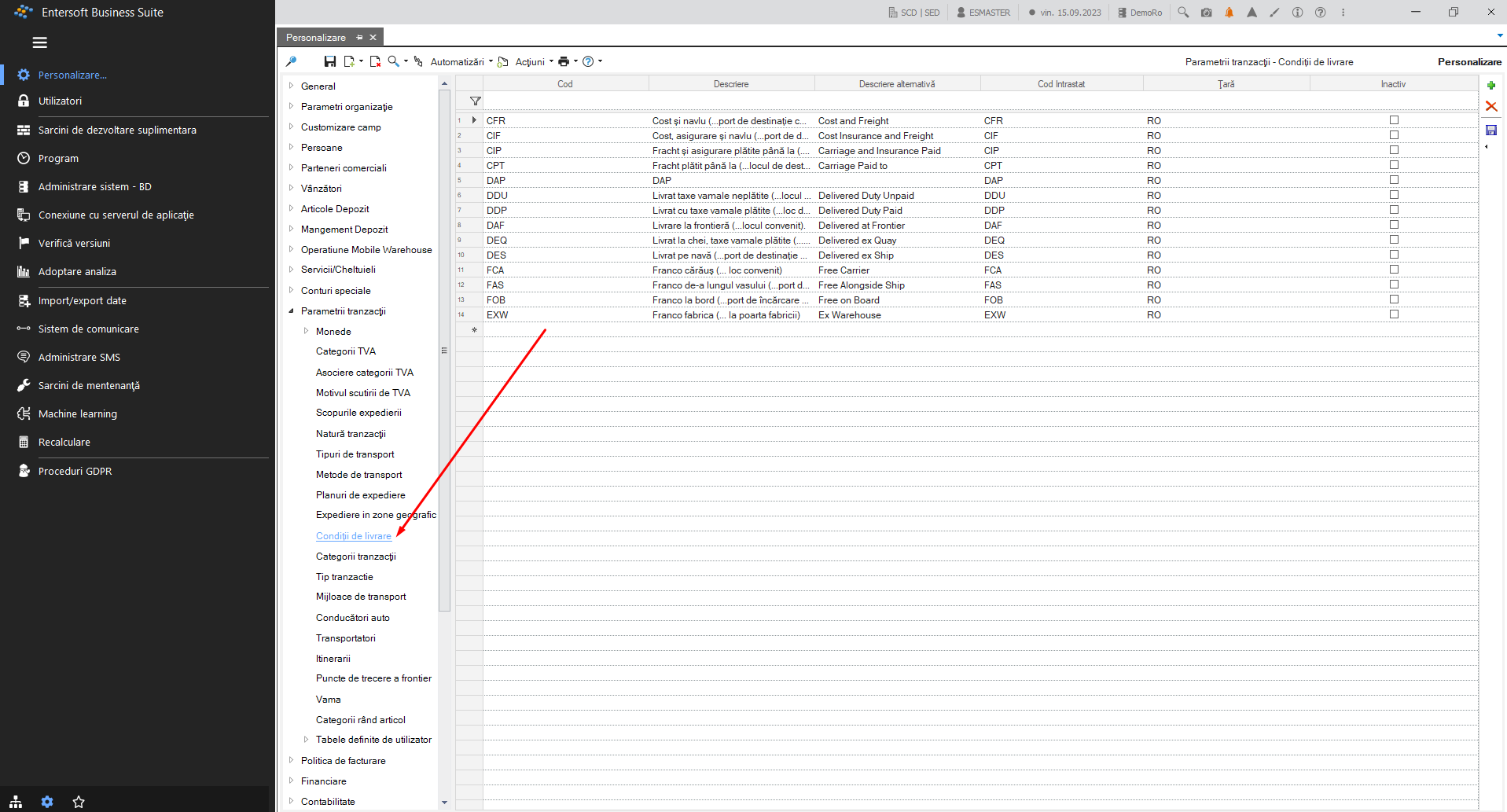
1.8. Delivery conditions
Delivery conditions are set in the menu:
(Configuration and tools) > Customize…> General > Transaction parameters > Delivery conditions
With the green plus on the right, new delivery conditions are added.
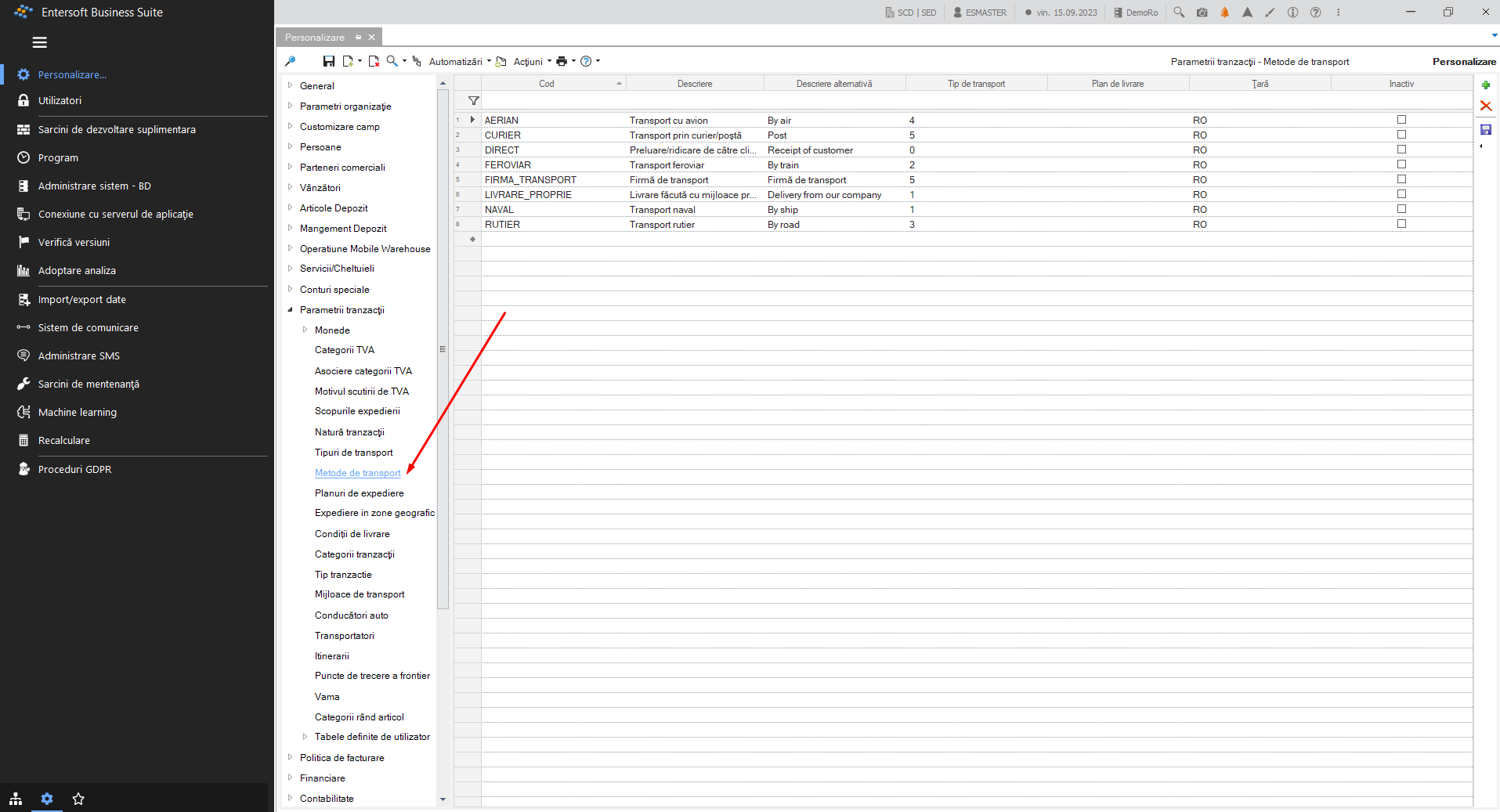
1.9. Shipping method
Shipping methods are set in the menu:
(Configuration and tools) > Customize…> General > Transaction parameters > Shipping methods
With the green plus on the right, new transport methods are added.
1.10. Nature of the transaction
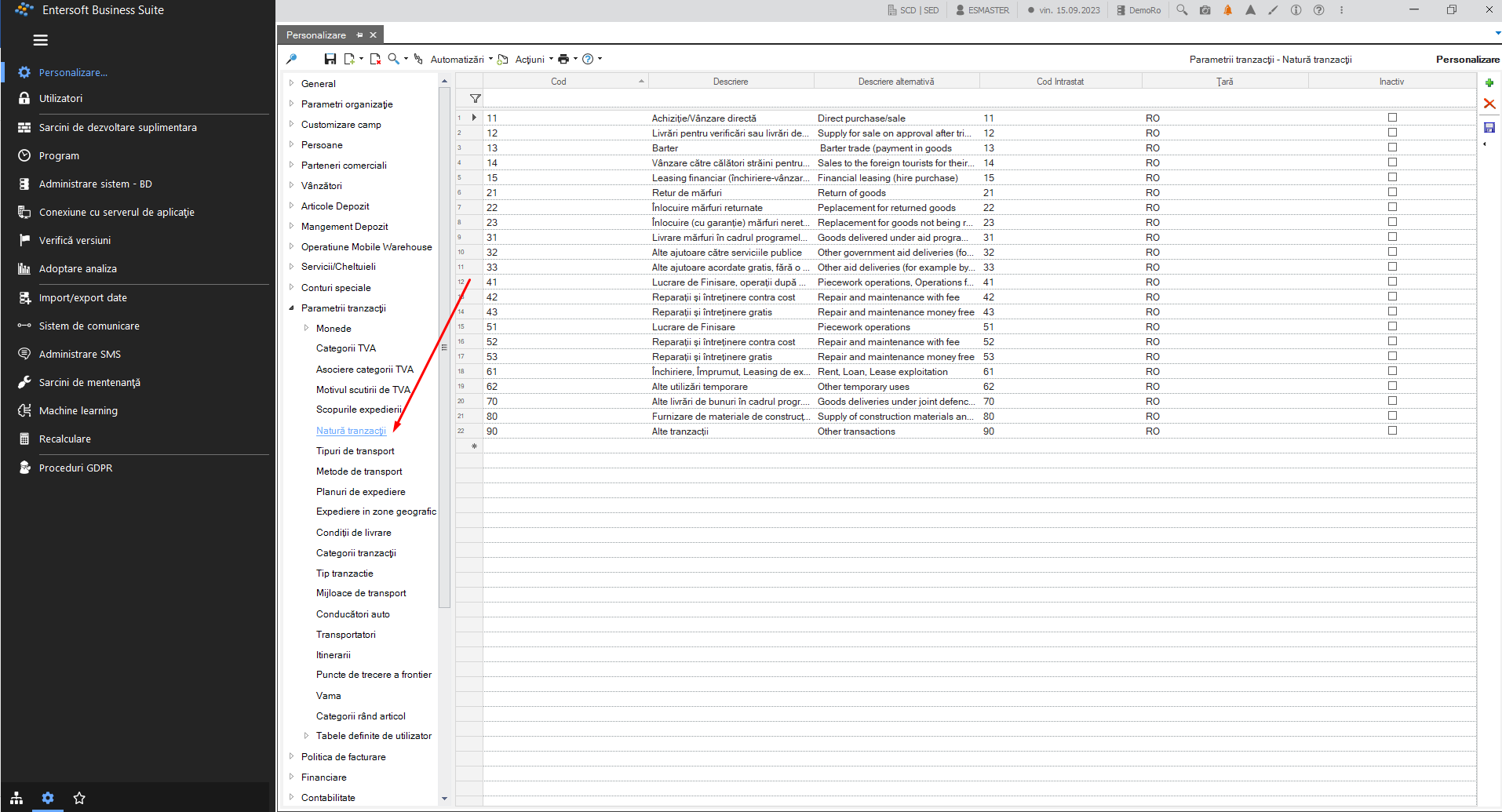
The nature of the transaction is set in the menu:
(Configuration and tools) > Customize…> General > Transaction Parameters > Transaction Nature
With the green plus on the right, new transaction types are added.
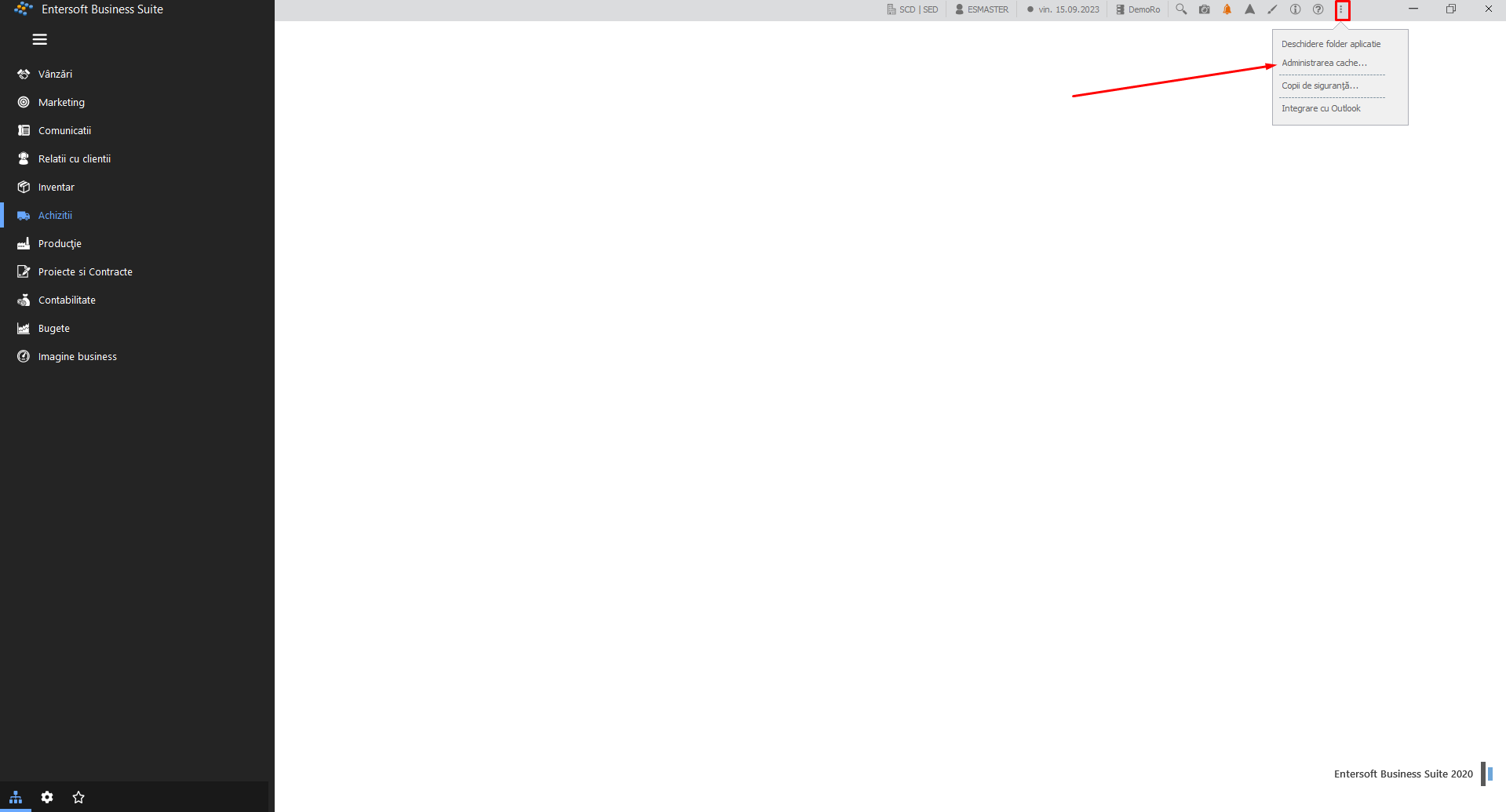
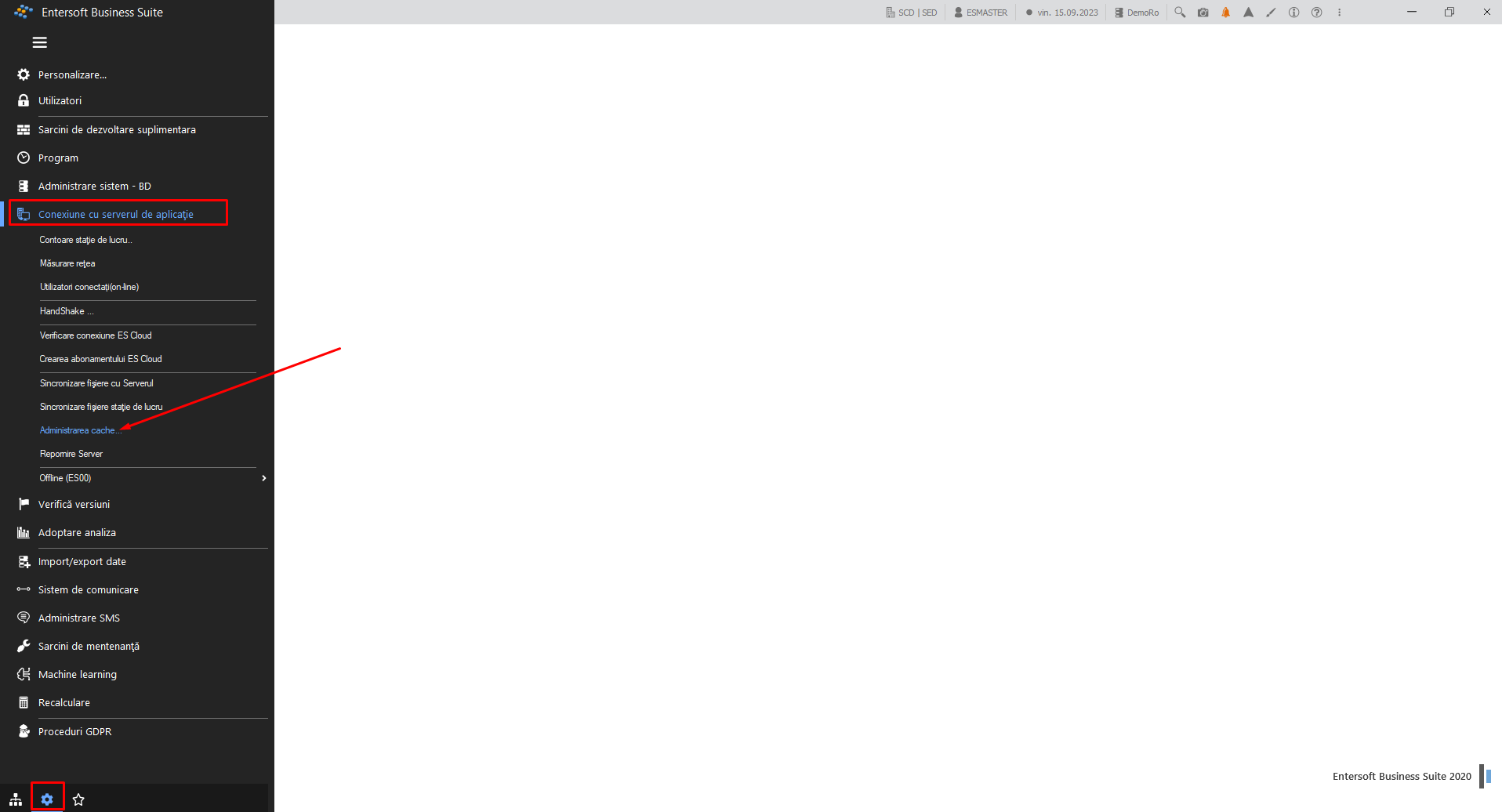
Attention! After any changes are made, the information needs to be saved and the Cache Administration run.
sau
2. Document registration
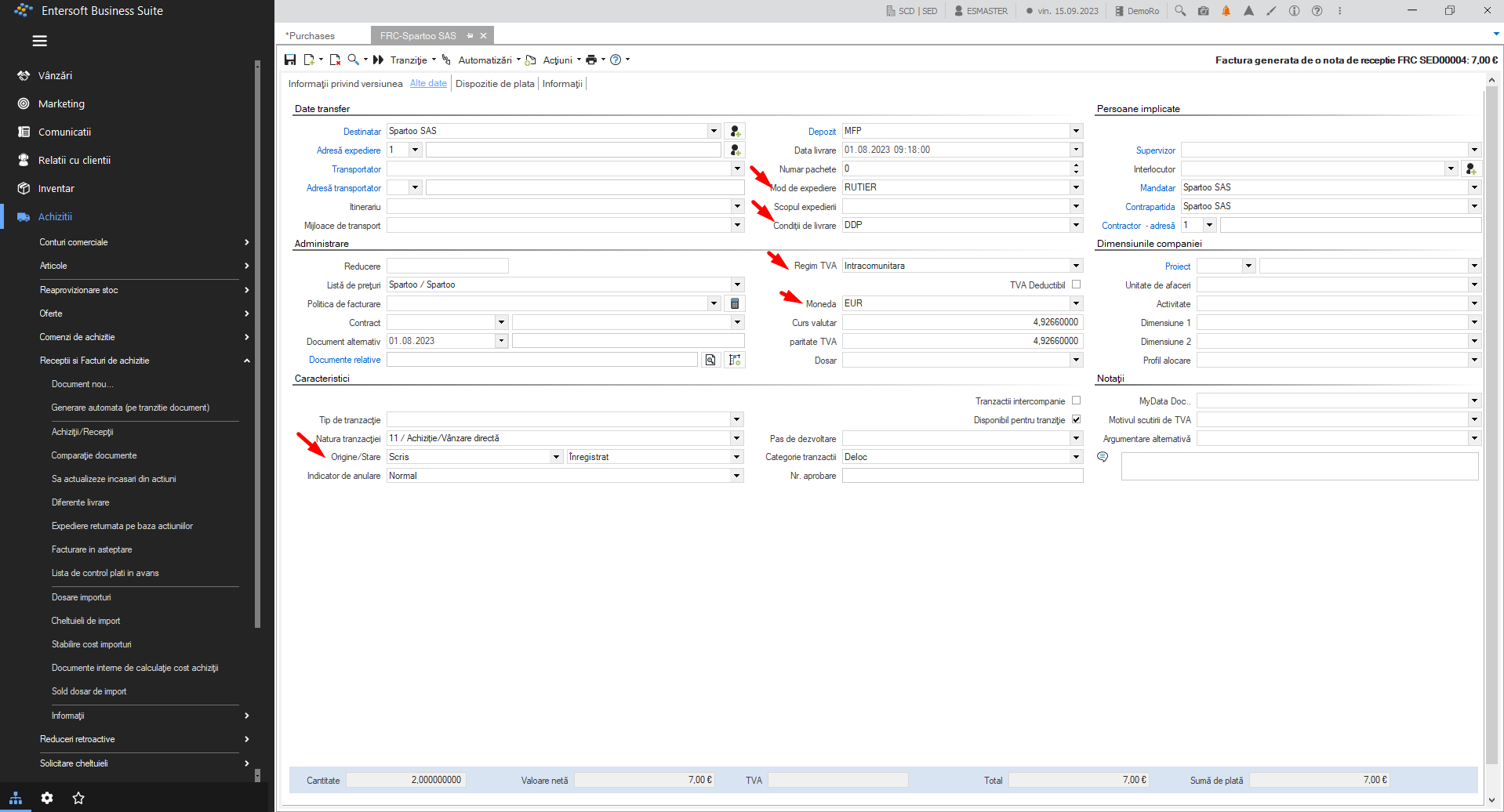
The following fields must be completed on the documents
Intra-Community VAT system
Currency - Euro
Delivery conditions
Shipping Method
Nature of the transaction, and the nature of the transaction must be among those accepted by Intrastat.
3. Intrastat manual records
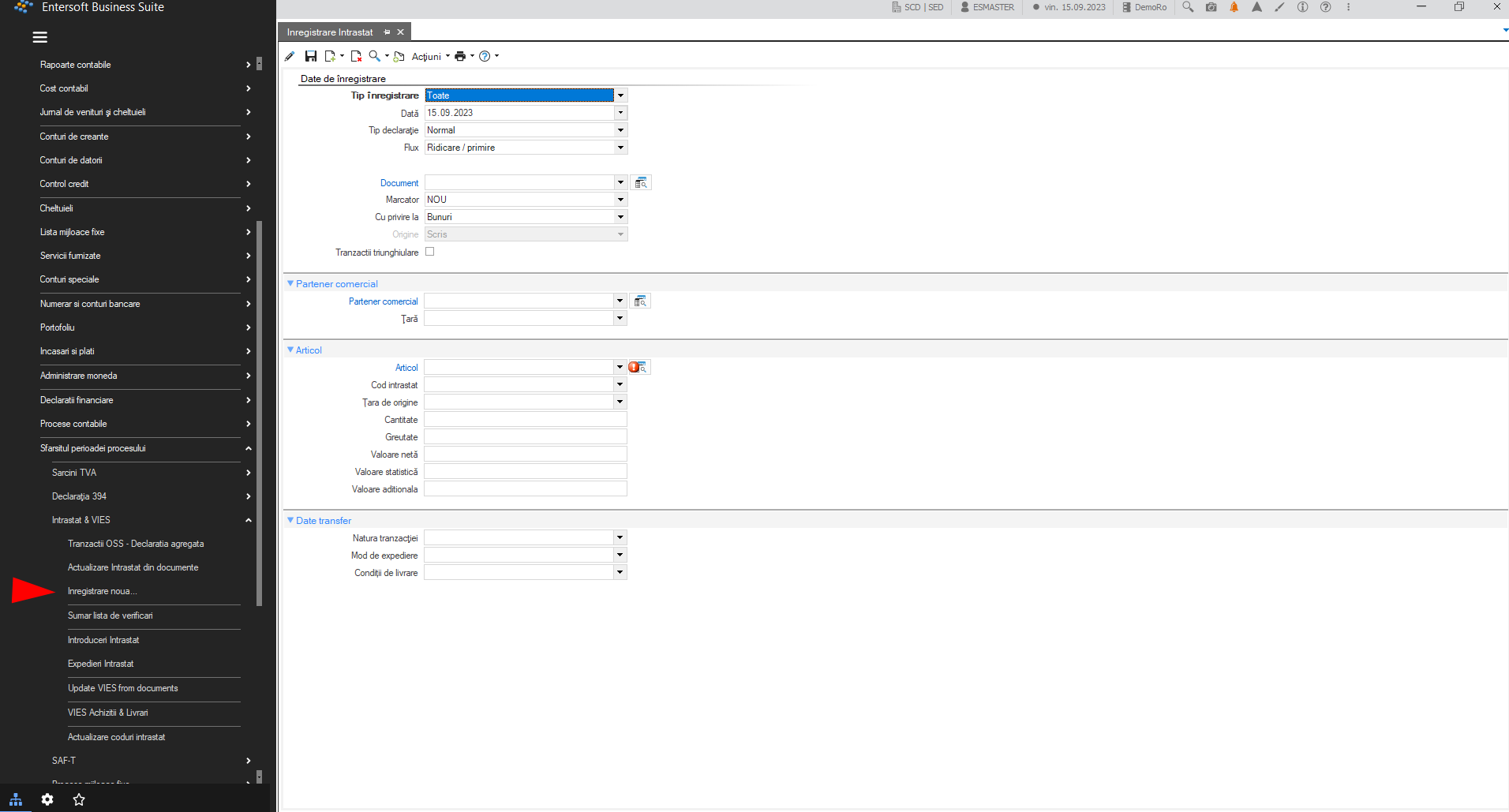
In order to manually enter an Intrastat record the following steps must be taken:
Accounting > End of process period :> Intrastat and Vies > New record.
4. Intrastat declaration
Intrastat records can be
Sale/Purchase Documents;
Documents entered manually by the user.
5. Generate declaration
Pași pentru generarea declarației sunt:
- Call Intrastat update from documents Accounting > End of process period > Intrastat and Vies > Intrastat update from documents
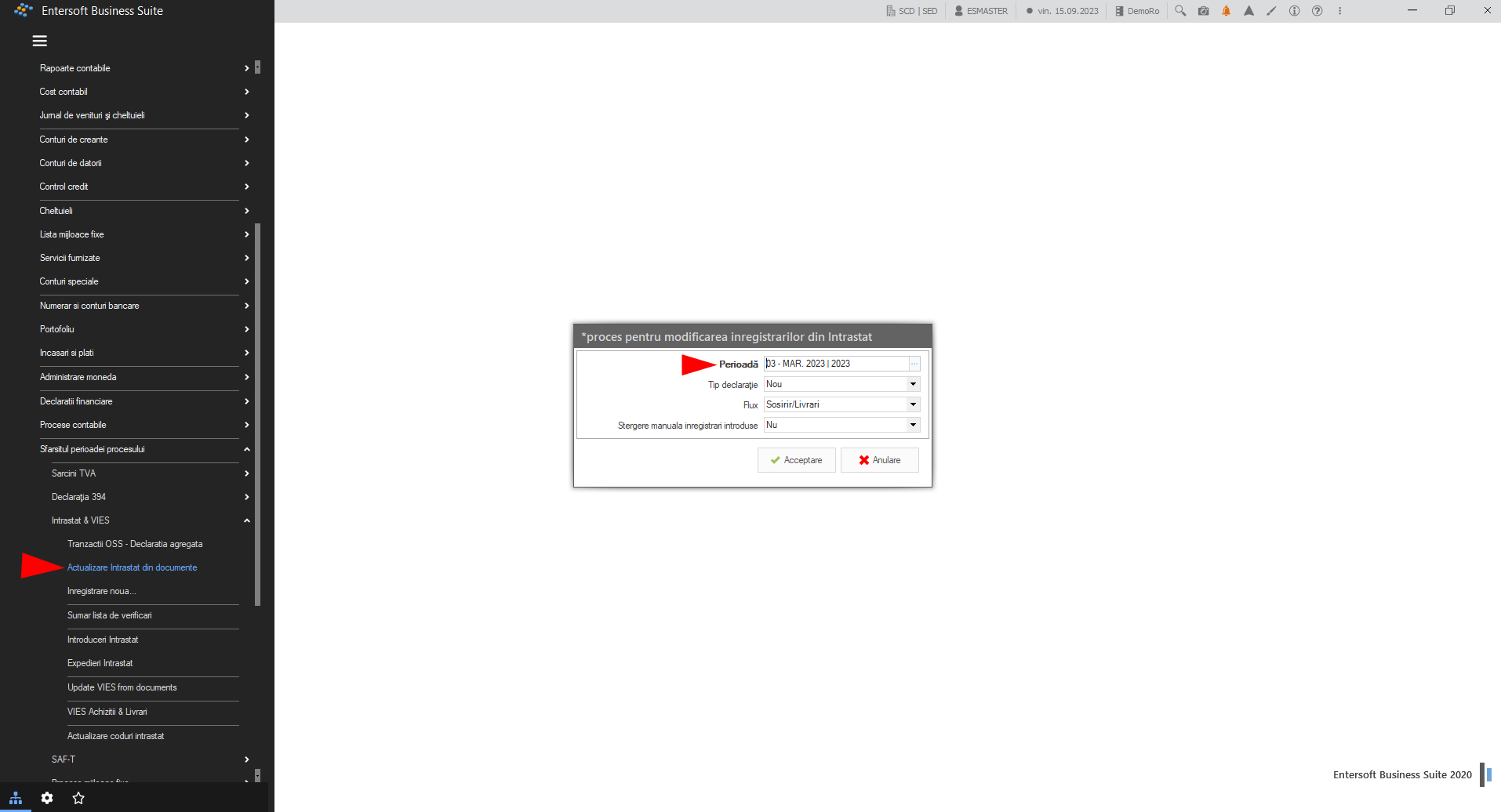
Select the period in which you want to update.
The type of declaration can be:
New - records will be created for all documents in the selected tax period;
Review - the process will delete records from the original return and create new records;
Review without deletion - the process will create new records, old records will remain untouched as historical data.
6. Check declaration data
In the menu: Accounting > End of process period > Intrastat and Vies > Checklist summary you can see if the records in the declaration have incomplete data.
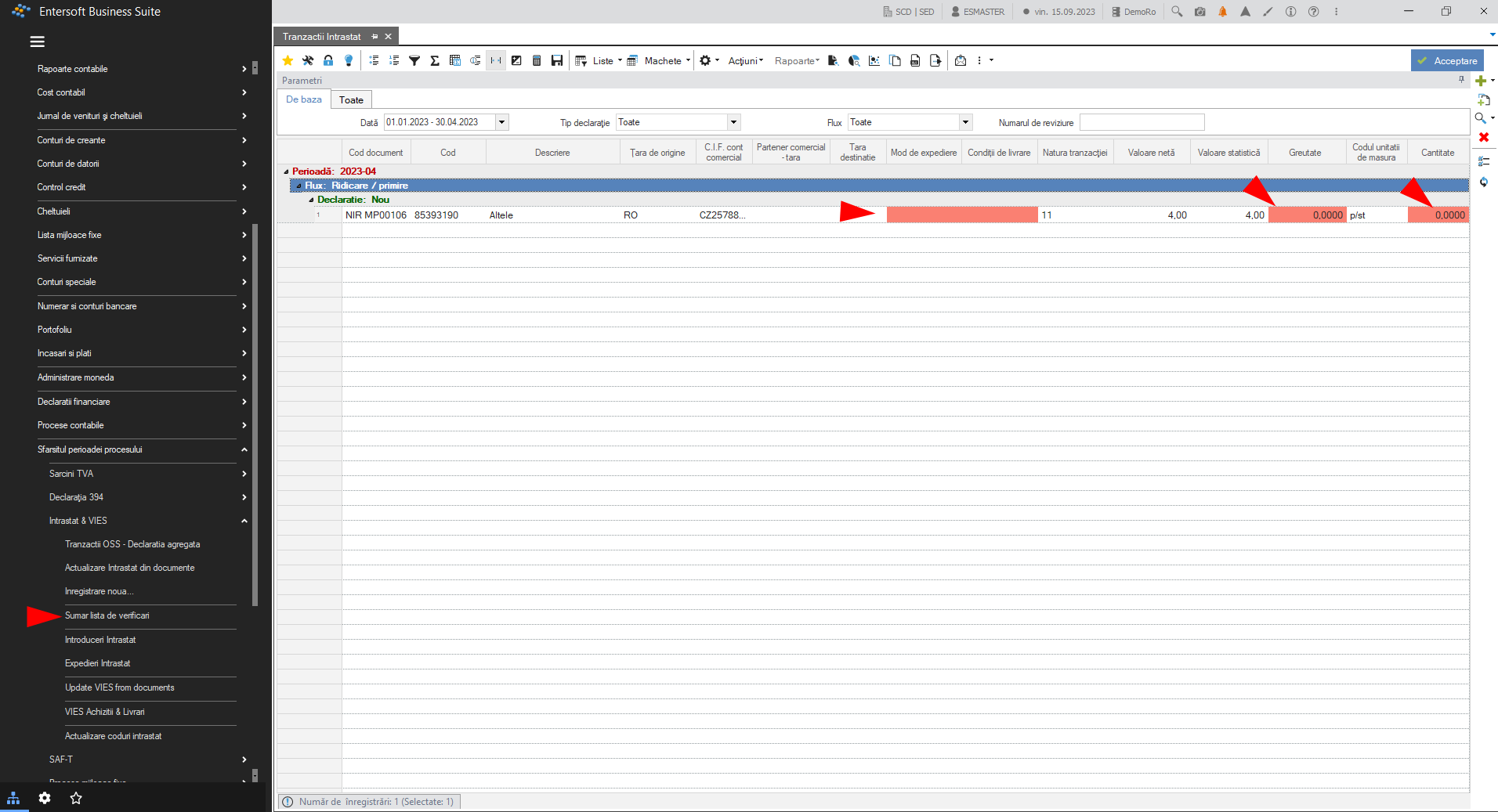
In this window, fields that are not completed will be marked in red.
By double-clicking on one of the records, a window will appear in which we can access the document where the fields are missing and correct them.
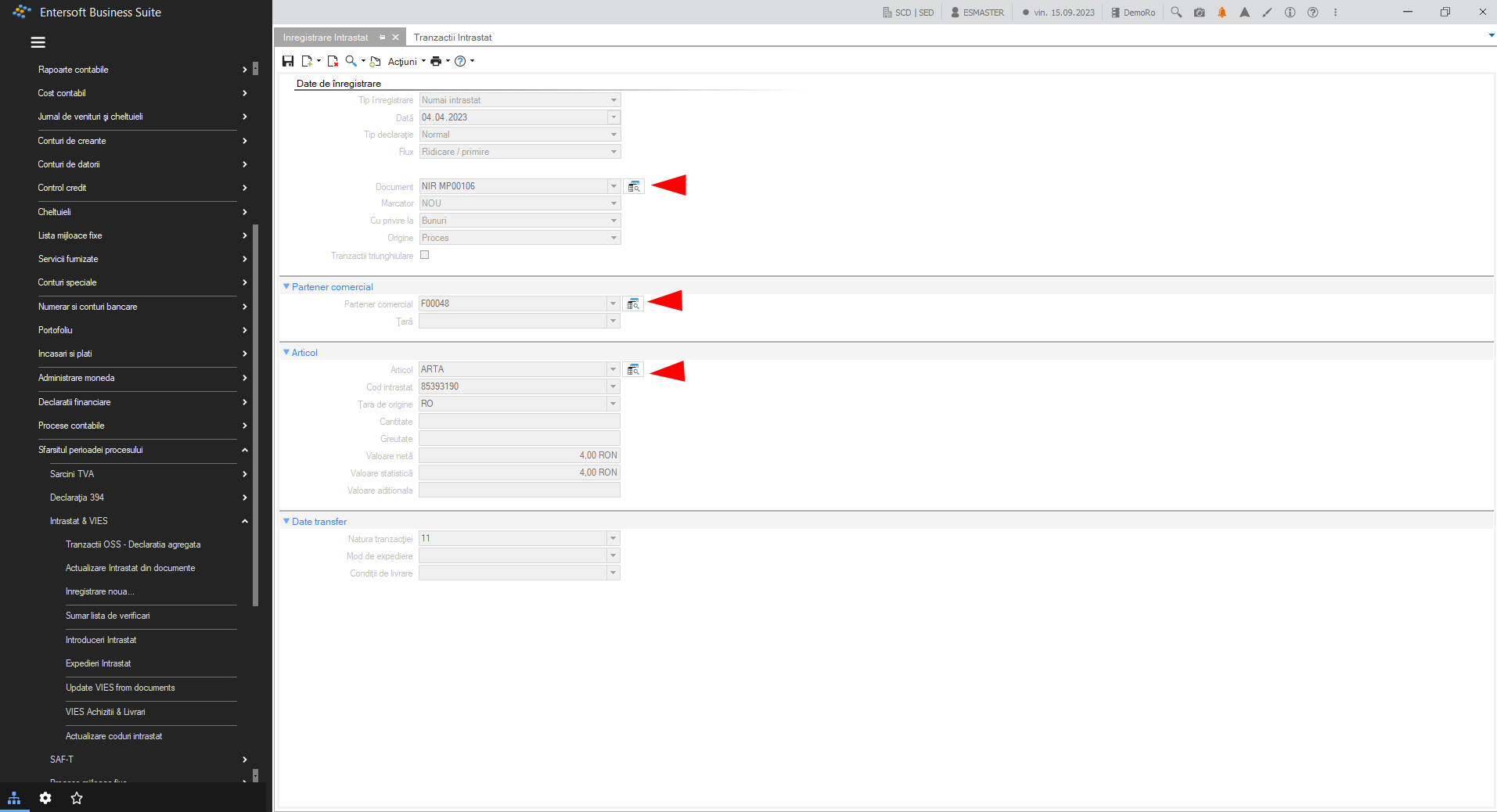
By pressing the button to the right of each field type you can access the area of the document/item where the records are located in order to fill in the missing information.
Attention! Changes will be visible after the Intrastat Update operation in the documents.
7. View Intrastat results and file generation
To view and generate the Intrastat purchases file, go to: Accounting > End of process period > Intrastat and Vies > Intrastat entries.
Intrastat entries will appear in the Intrastat entries scroller:
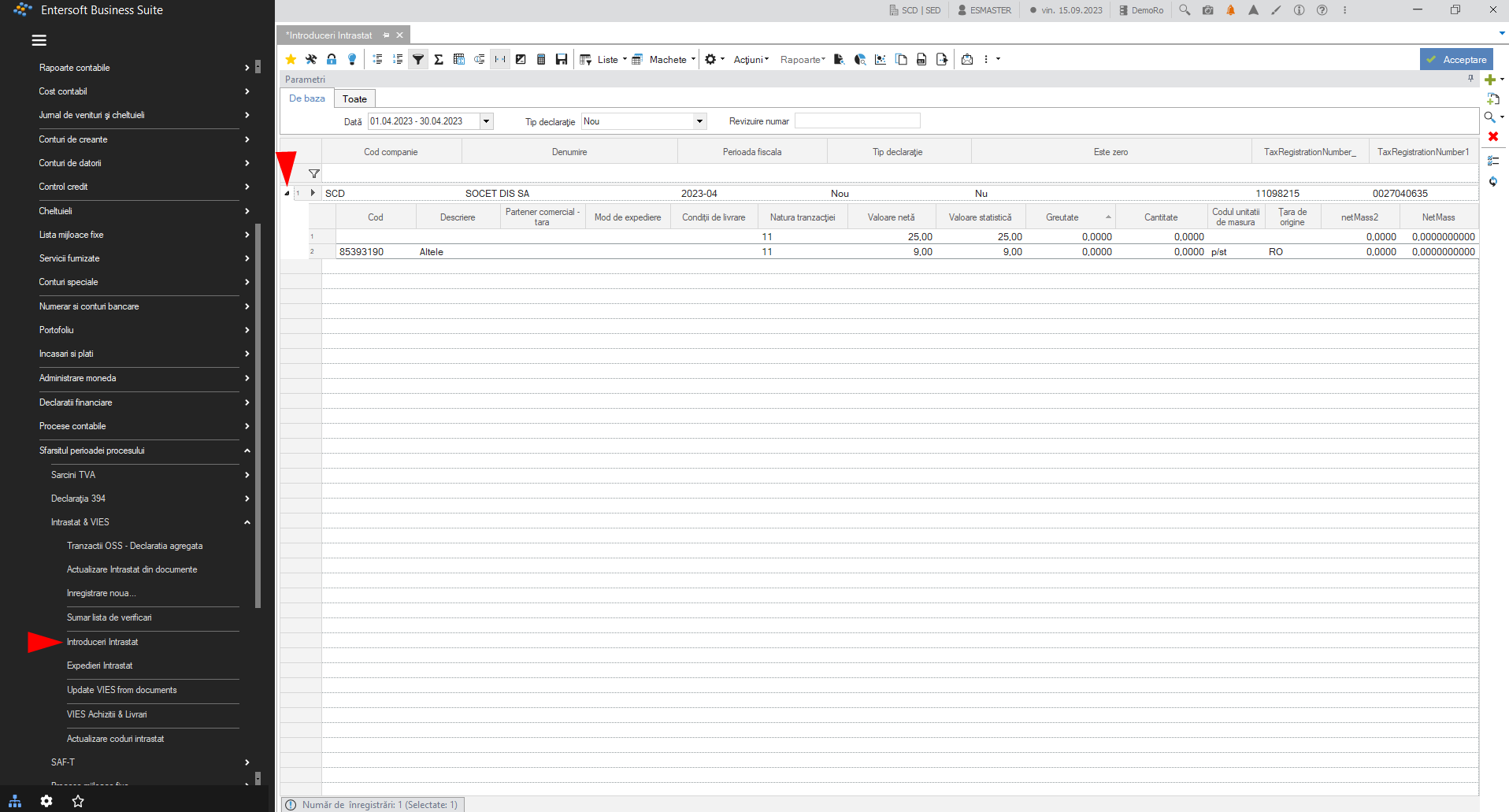
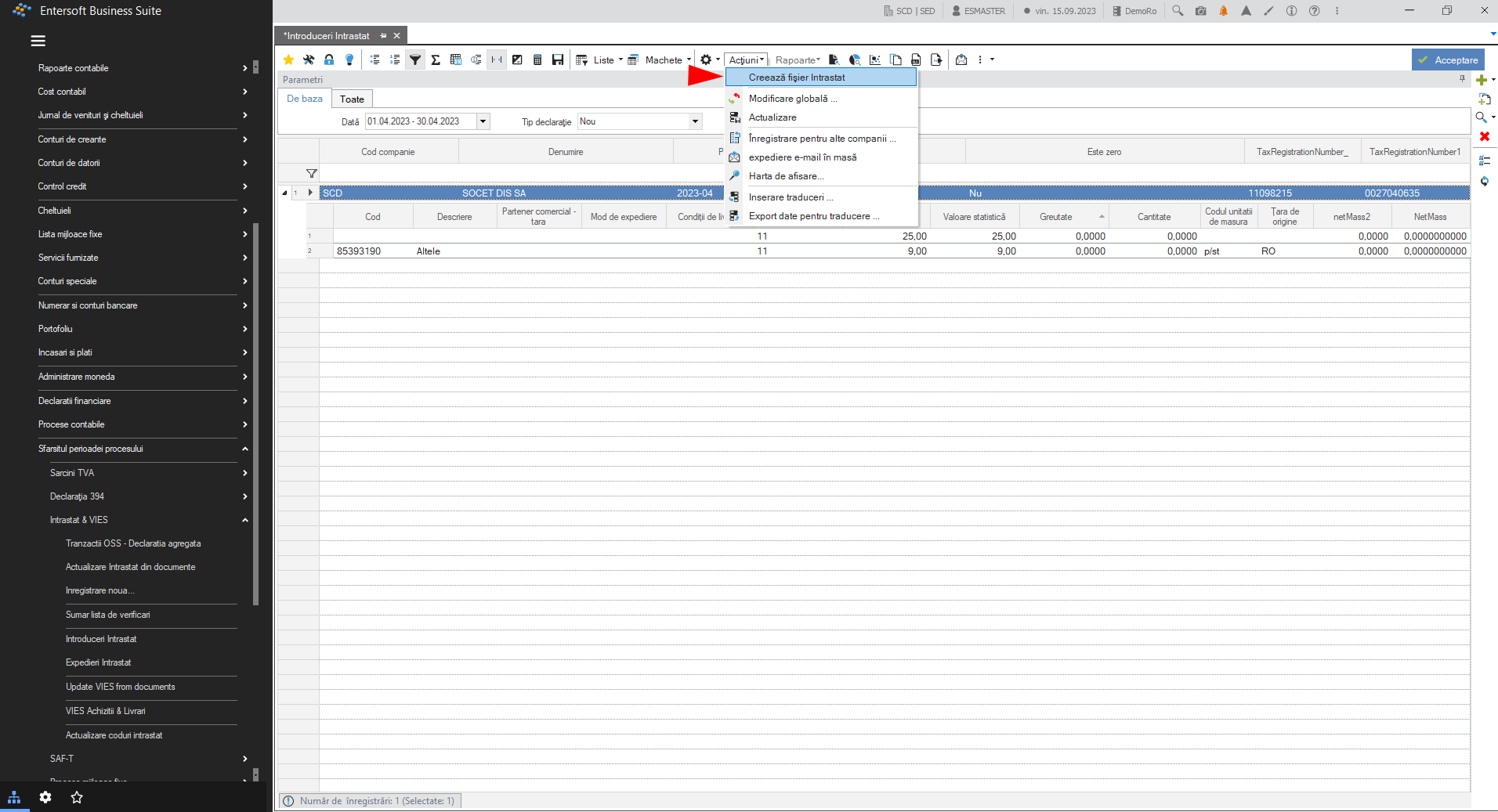
To view and generate the Intrastat Entries file call Actions Create Intrastat file.
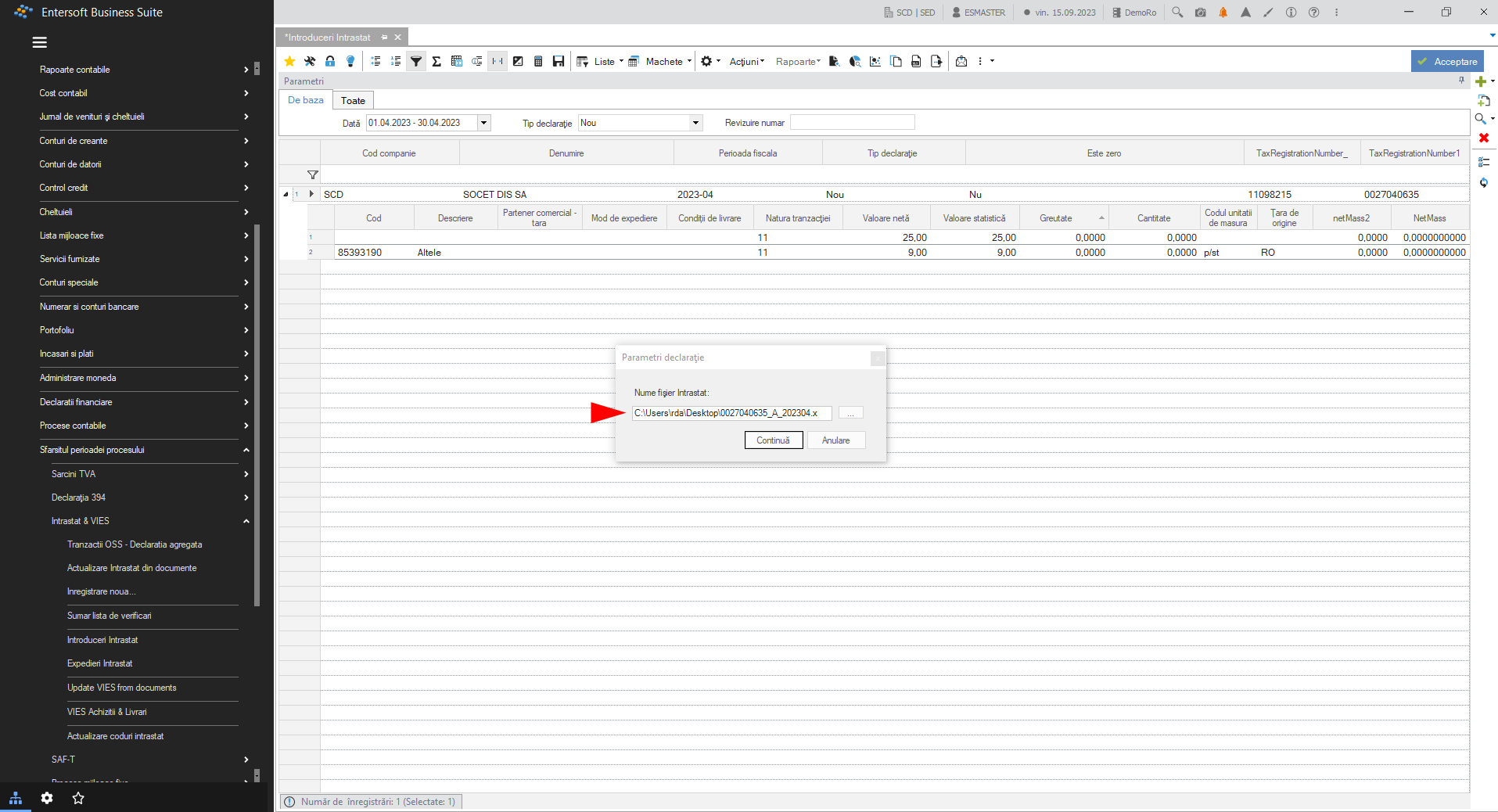
This will generate the Intrastat .xml file in the path set in the declaration parameters:
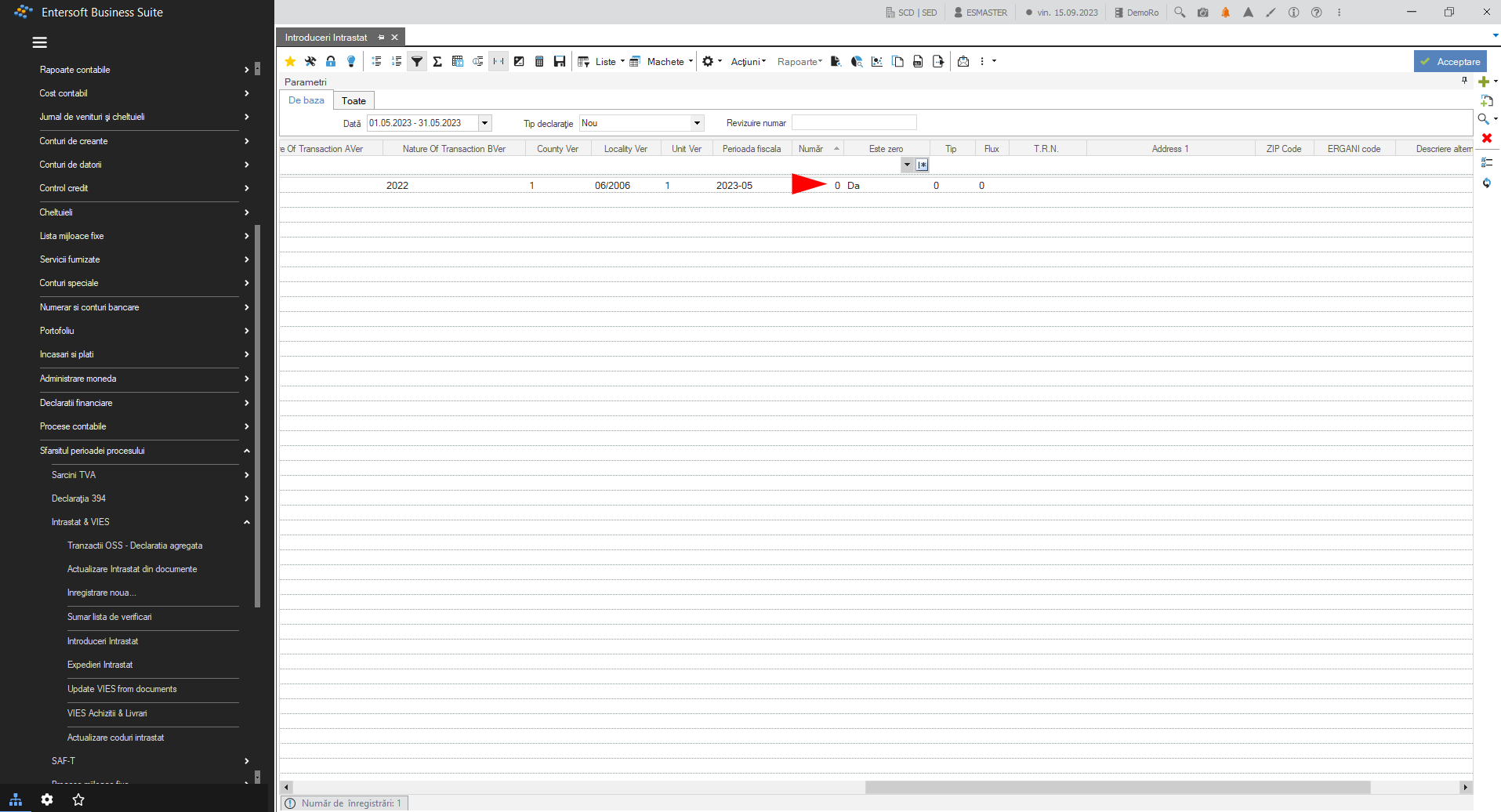
If in a month there are no transactions, the statement will be run and in the column It is zero the value will be - Yes, and the .xml file will have the field extension “AN” in its name: 11098215_AN_202305.xml
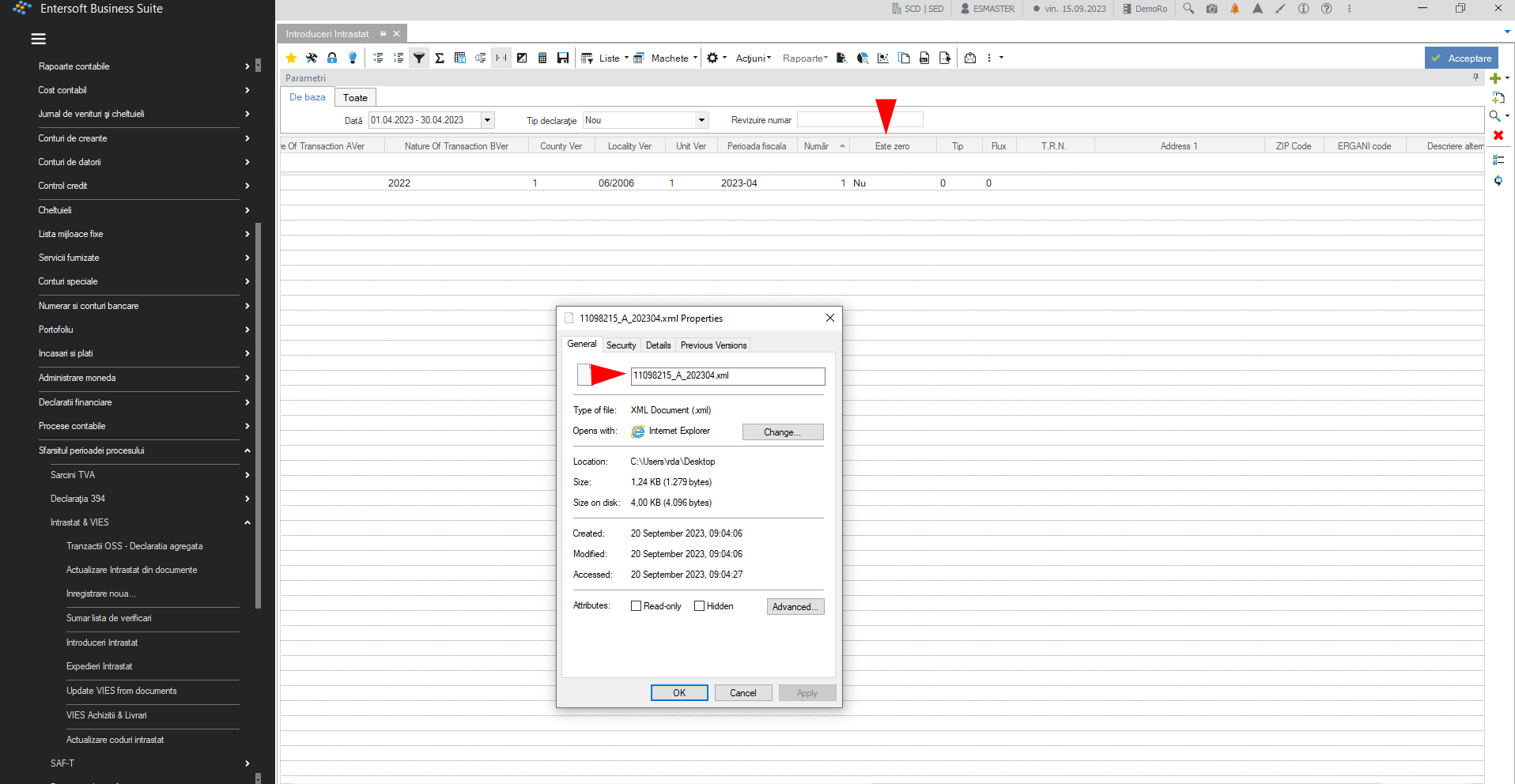
For a period where data exists, the statement will have column It is zero value - No. The file will have the extension “A” in its name.
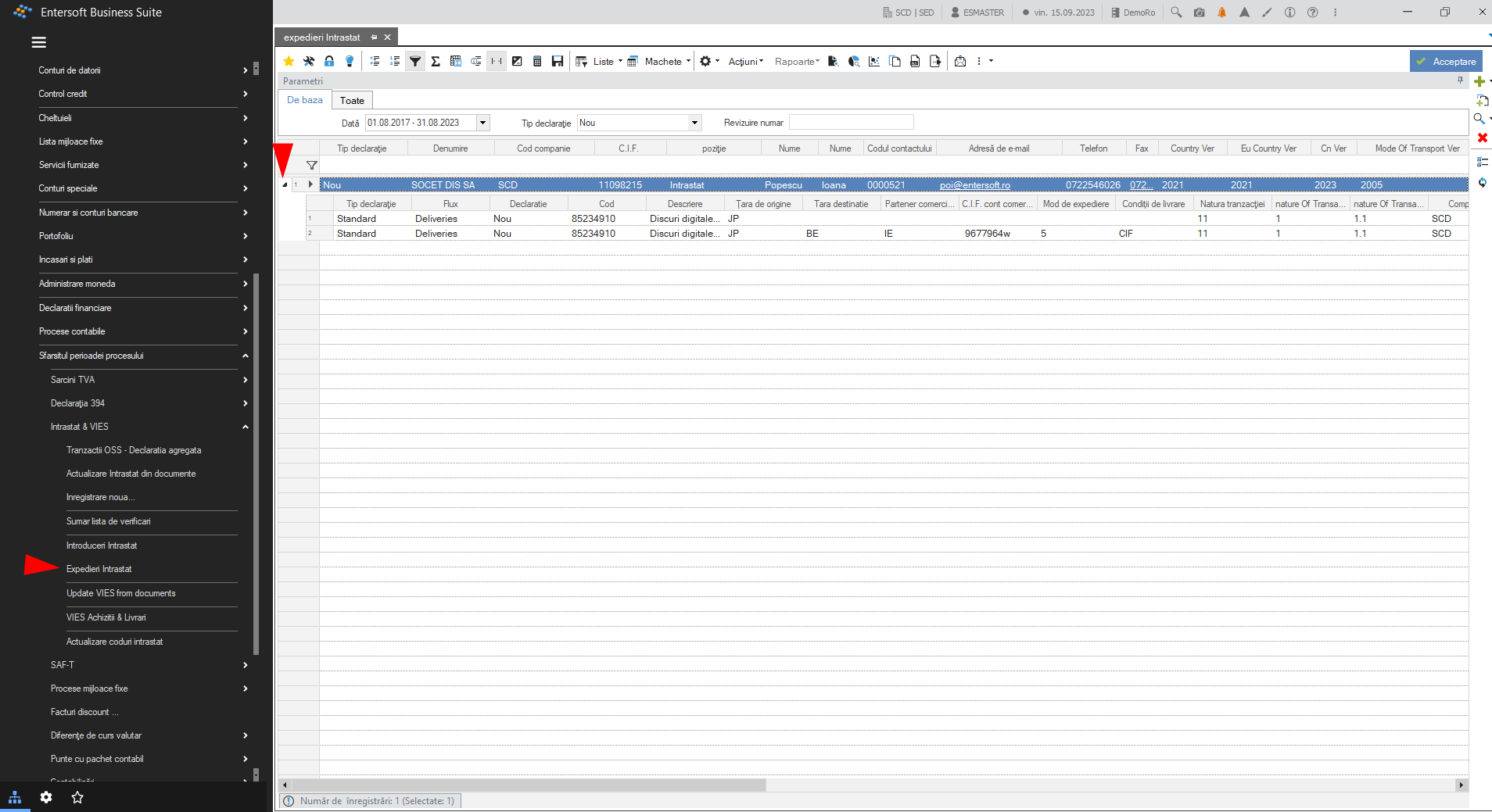
Accounting > End of process period > Intrastat and Vies / Intrastat dispatches
All Intrastat deliveries will appear in the shipment scroller:
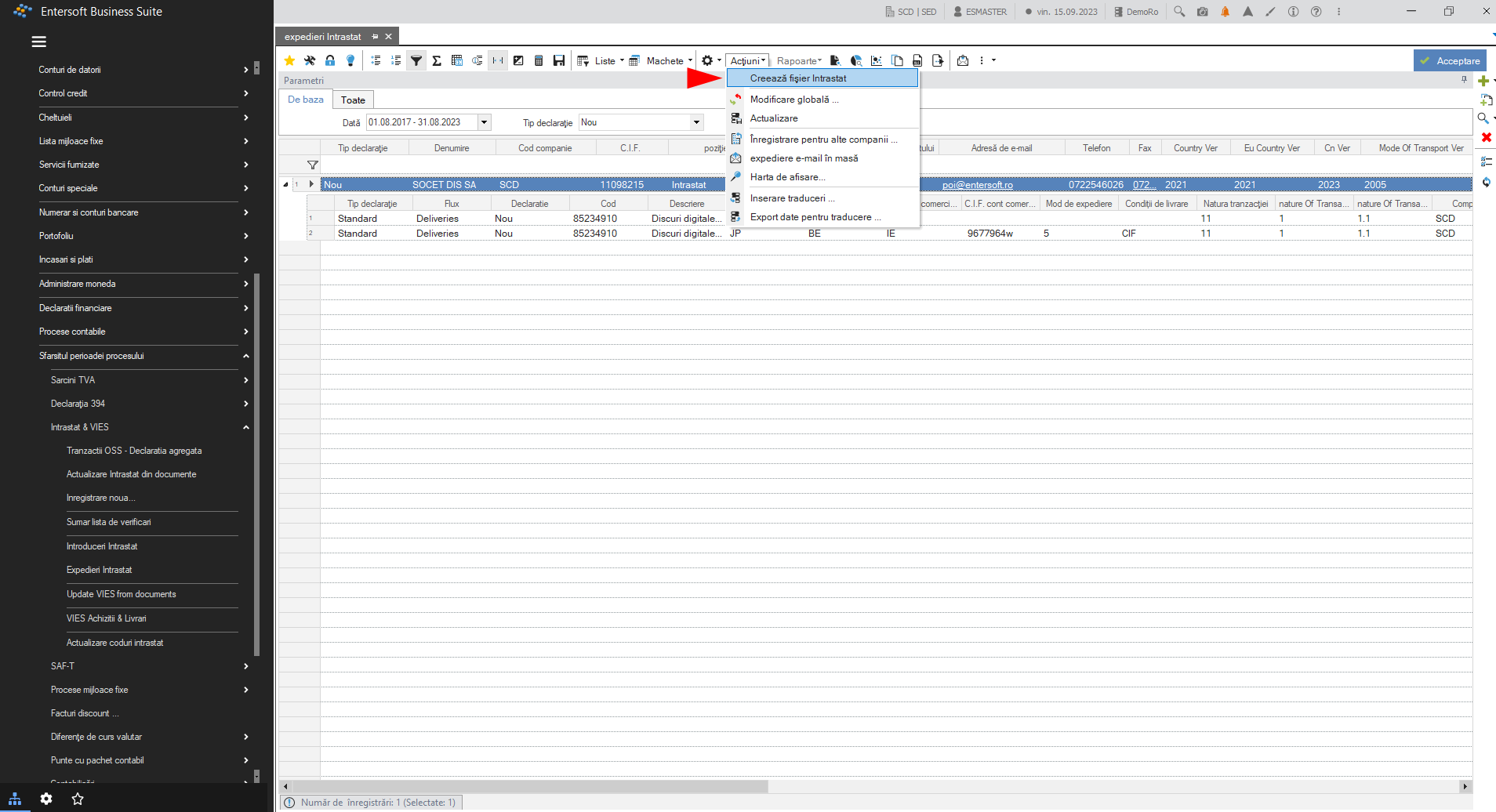
Calling Actions > Create Intrastat file will generate the Intrastat delivery file:
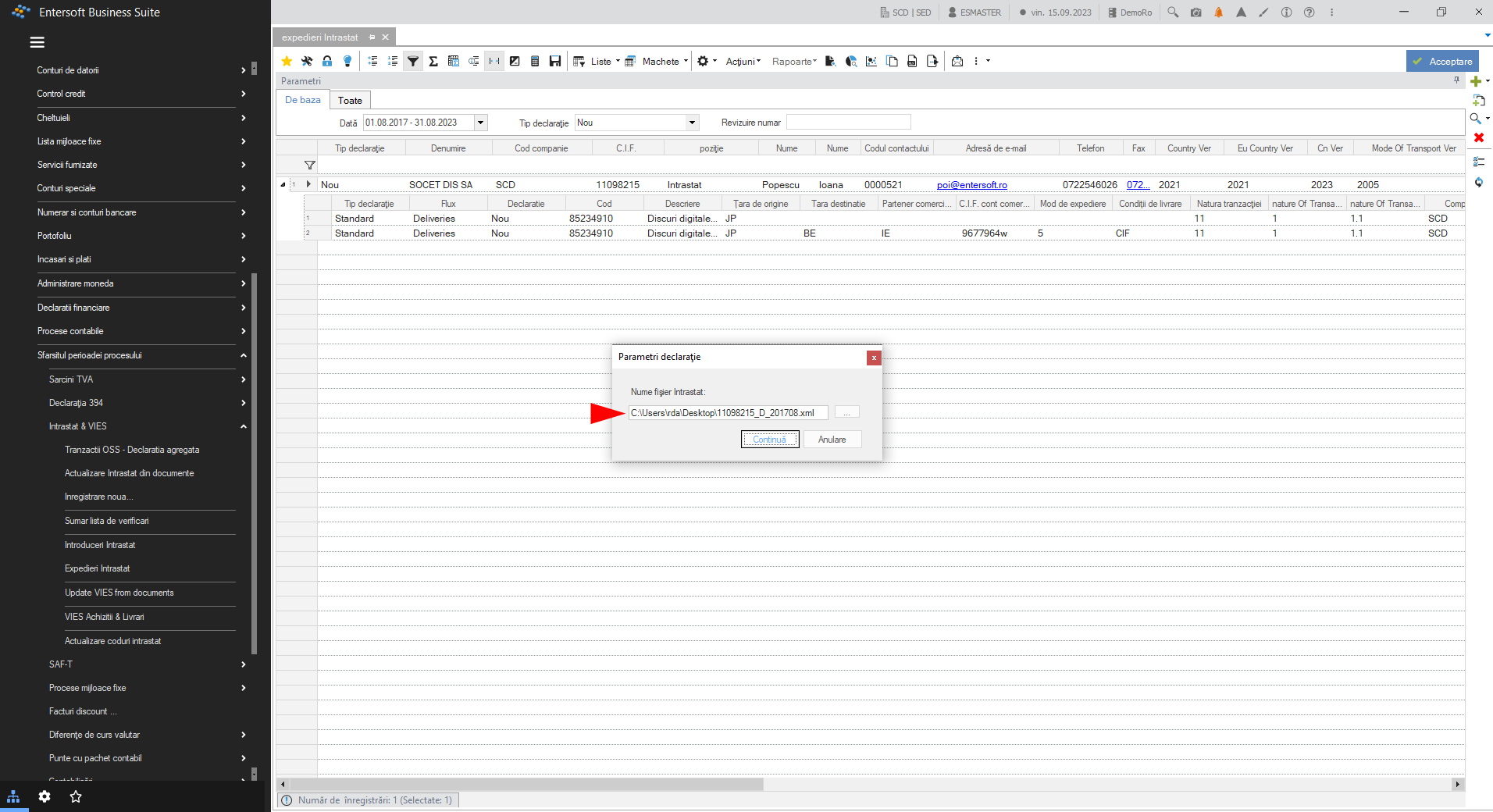
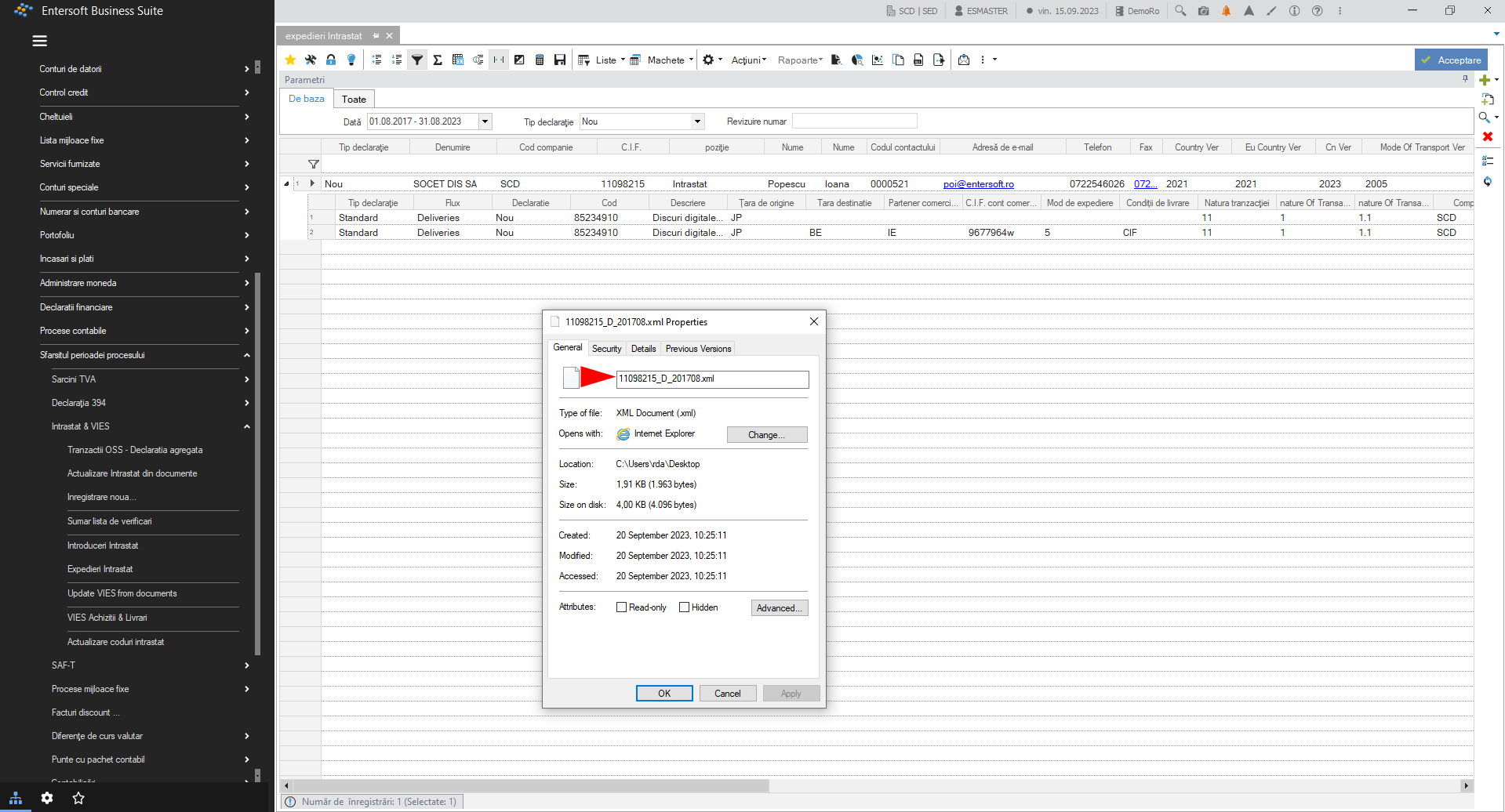
This generated the Intrastat .xml file:
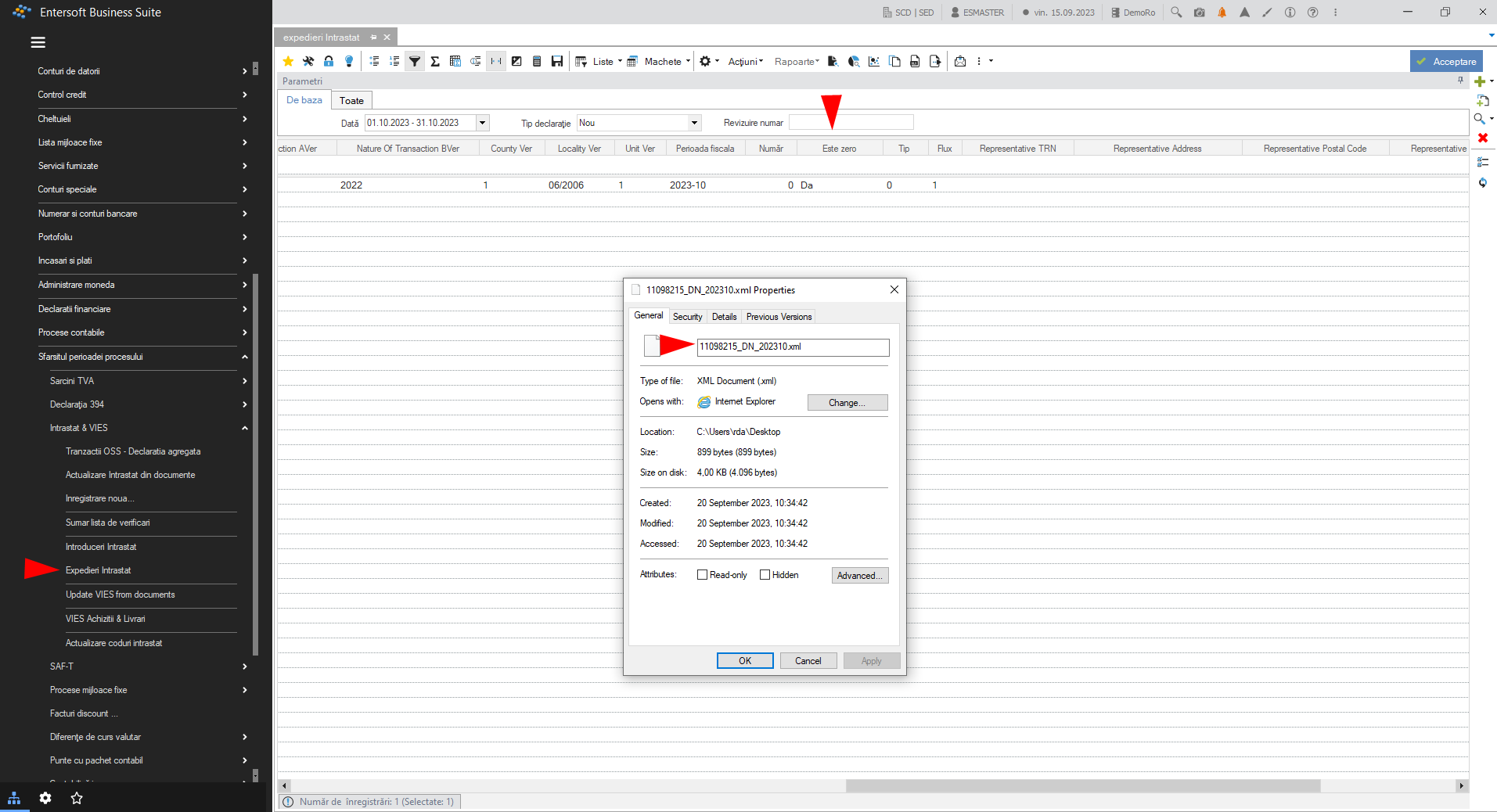
If in a month there are no transactions the statement will have in column This is zero the value will be From and the .xml file will have in field extension DN in its name:
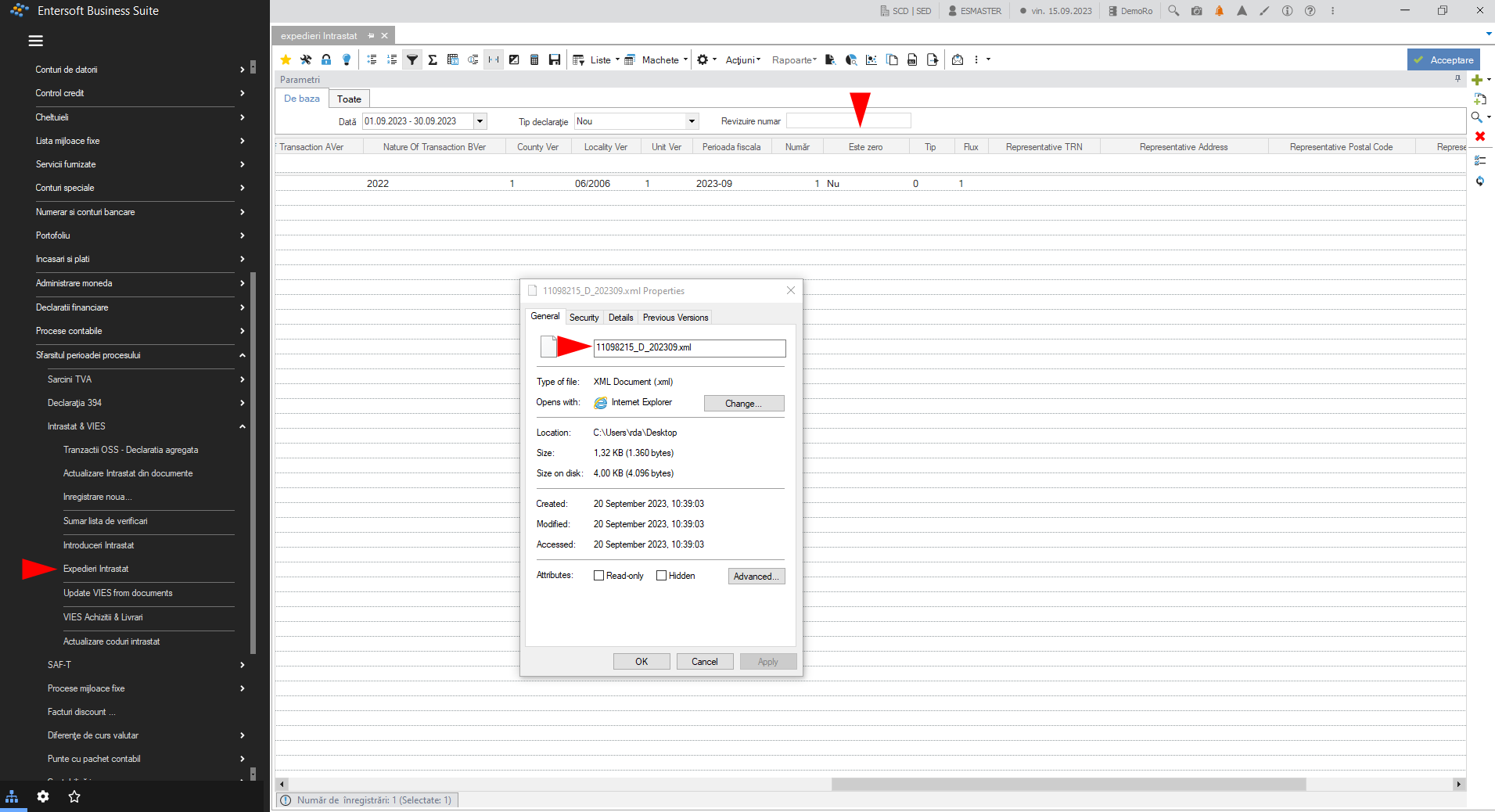
For a period in which data exists, the statement will have It is zero - Not in the column It is zero - Not and the .xml file obtained by export will have the extension D in its name.
8. Intrastat updates
Every year the National Statistical Institute makes important changes/updates in the completion of the Intrastat statistical declaration. These are provided in a file named intrastat-nomenclatures.xlsx, on the basis of which a new file IntrastatCodes.xlsx is created for generating the Intrastat declaration in EBS-RO. You can find these files in the sub-folders corresponding to the desired year (e.g. 2024, 2025, etc.) in the folder nomenclatures, from where you can also download them.
To be able to update the information in the EBS-RO you need to perform the following steps:
- Download the file IntrastatCodes.xlsx and save it in the application folder on the server, using the path below.
Attention! It is important that the file be saved on the application server; if it is uploaded to the folder in the local application, the import will not be performed.
(EBS-RO root\ ESScrollerCommands\ESFIFinancialDeclaration\ESMMIntrastat
Then continue the update procedure from point 1.7. Importing new nomenclatures with Intrastat codes.
At the end, change Intrastat parameters as follows: Navigate to menu (Configuration and tools) > Customize… > Company parameters, Category: Intrastat Parameters. Parameter Intrastat Nomenclator Parameter :CN8 is filled with the value 2025 (or the current year for which you are updating).
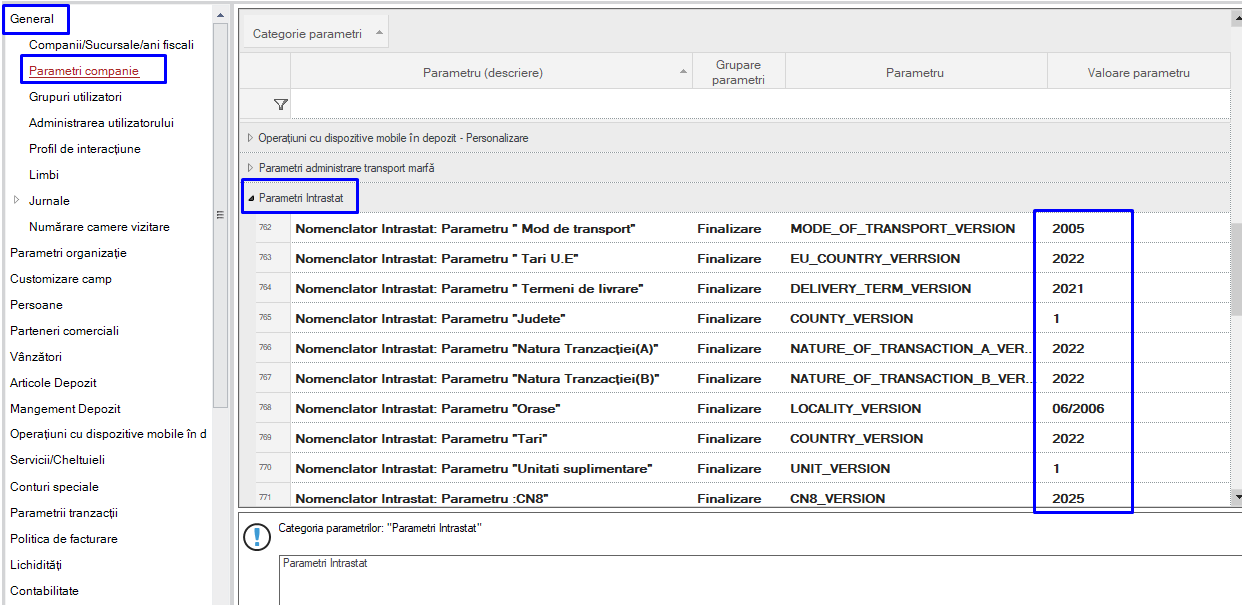
After setting this parameter it is necessary to restart the server from the application: (Configuration and tools) > Application server connection > Restart server.
Attention! Restarting should be done when users are not in the application so as not to disrupt daily activity.