D406 - SAF-T
1. Introduction
The main role of SAF-T is to standardize the transfer of information between tax authorities and large taxpayers, providing benefits to both parties. The SAF-T involves the regular reporting of a set of information that facilitates the tax authorities’ review of taxpayers’ transactions.
In order to realize the SAF-T declaration, it is necessary to make some settings (coding) so that the information is transmitted according to the indications provided.
These encodings and settings will be detailed below.
2. Required information on the company card
A first step is to check the information entered on the company card. In order to avoid errors when validating the declaration, it is advisable to make sure that the following details are mentioned:
Company CIF
Address: city/sector/town/postcode
E-mail address
Telephone number
Bank account - as applicable, one or more, one of which must be ticked as main account
Legal entity, attached to the company, on whose card the e-mail address and telephone number must be mentioned;
3. SAF-T Scrollers
The following list of scrollers, in the list of shortcuts, represents all the information to be transmitted to the Tax Authorities, through the SAF-T declaration.
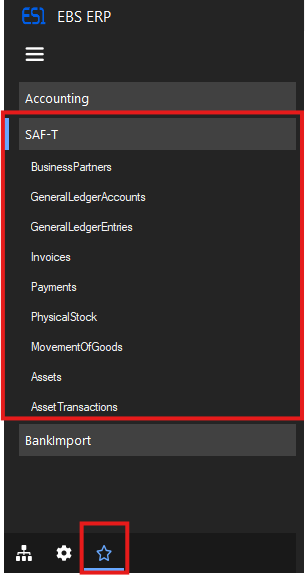
In the following, we will exemplify the content of each scroller.
3.1. Business Partners
Here you can find information about all partners (customer/suppliers/debtors/creditors) for a selected period.
Very important, before starting the process of running the declaration for a given month, is to check if all the partners have the following details mentioned on their cards (either export the details generated from the scroller to an excel file or filter the information directly from it):
- CIF (if it is a legal entity) For individuals, who do not have their CNP added in the EBS, the ID number will be composed in the system by concatenating the country code (TRN) and its unique code in the EBS.
The TRN code is automatically assigned to the partners in the system, there is no need for manual processing.

Country
City
County (valid only for partners in Romania)
Accounting Category
Accounting Account (not a summary, but an analytical one, taken from the chart of accounts).
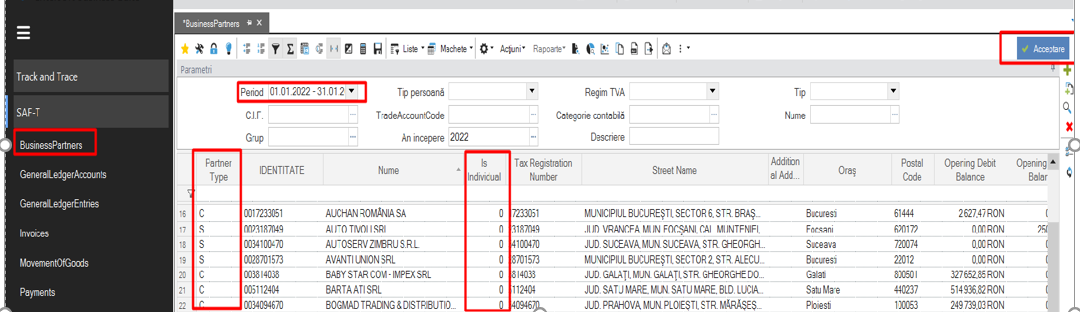
- Is Individual “0” means that the partner is a natural person and “1” a legal person.
Attention! For situations where there are partners such as: Sundry Creditors, Sundry Debtors, State Budget, it is advisable to set them as individuals to avoid errors that may occur when running the return.
Attention! Avoid using special characters when creating a partner, e.g. quotation marks, *.
From this scroller, with a double-click you can access the partner’s card, in order to make the necessary changes in an easy way.
3.2. General Ledger Accounts
Contains information about the company’s chart of accounts, as well as its mapping to the SAF-T chart of accounts.
In case a new analytic is created, it will have to be mapped according to its SAF-T correspondent.
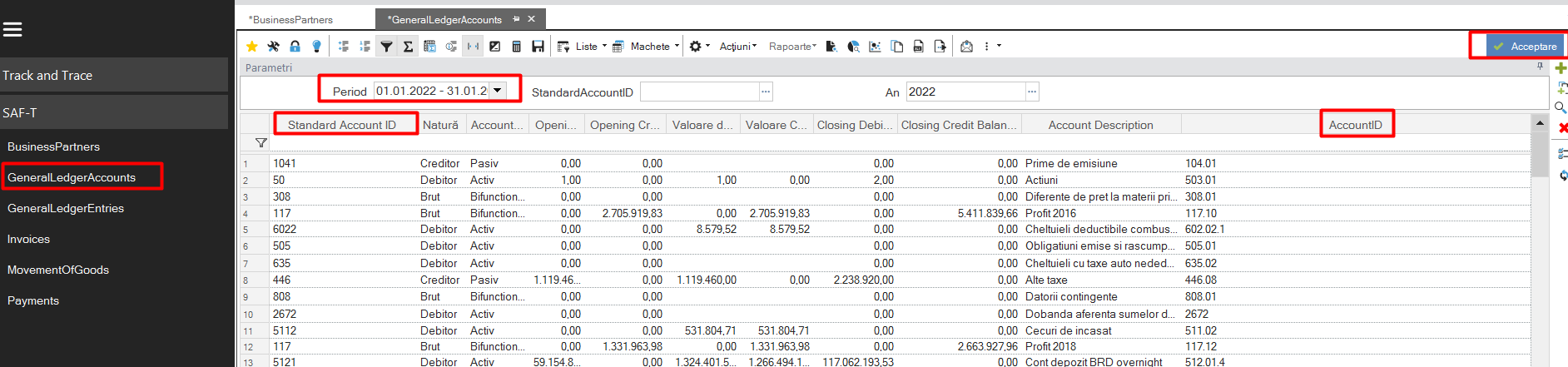
The Standard Account ID column represents the corresponding SAF-T account.
With a double-click, the account card can be accessed directly from this scroller.
3.3. General Ledger Entries
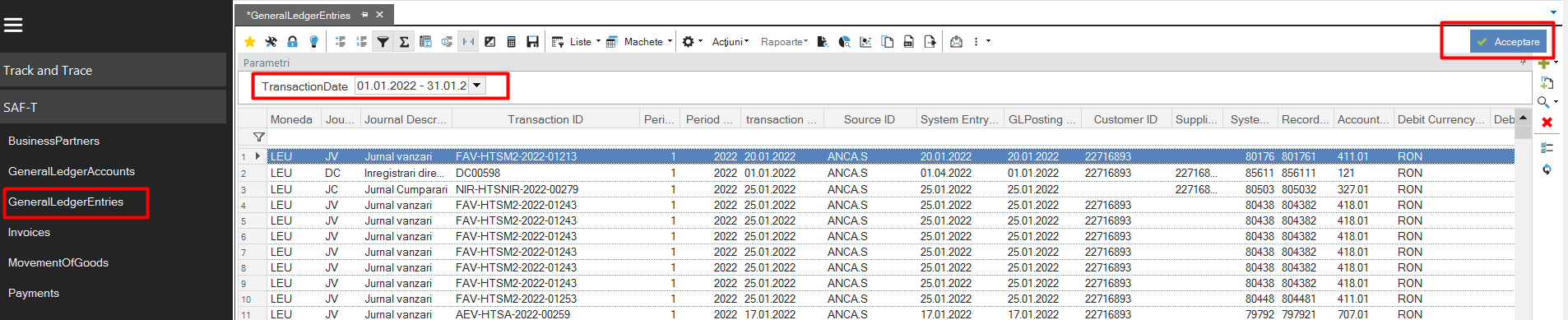
This scroller extracts the totality of the accounting notes obtained by registering the documents of the chosen month to analyze.
Attention! A very important aspect that can generate errors in the declaration process is the fact that the items (either stock or generic) do not have mentioned on their card the Categories and Accounting (analytical) Accounts.
3.4. Invoices
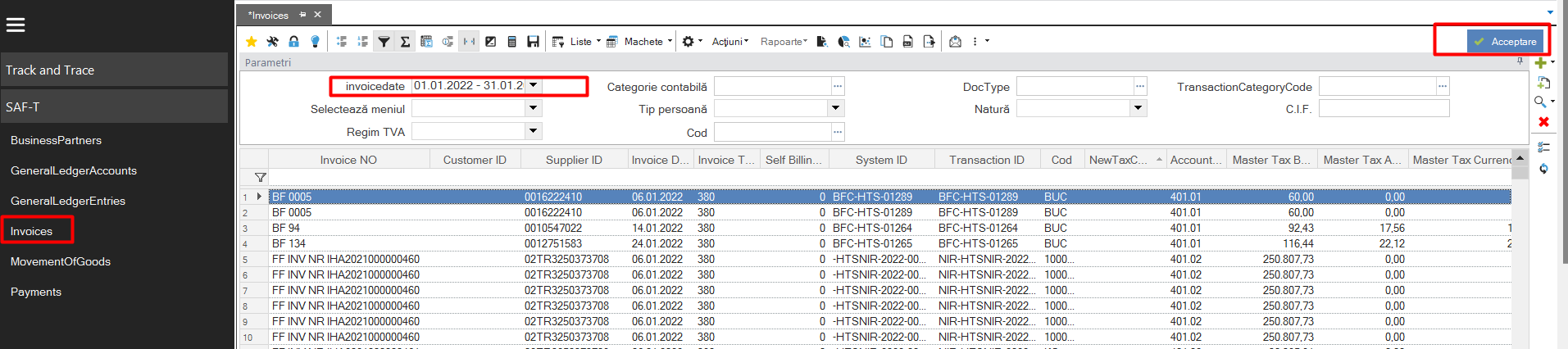
Includes all the lines of the documents issued/received during the time period selected for analysis.
3.5. Payments
It contains payment and collection documents from the analyzed period.
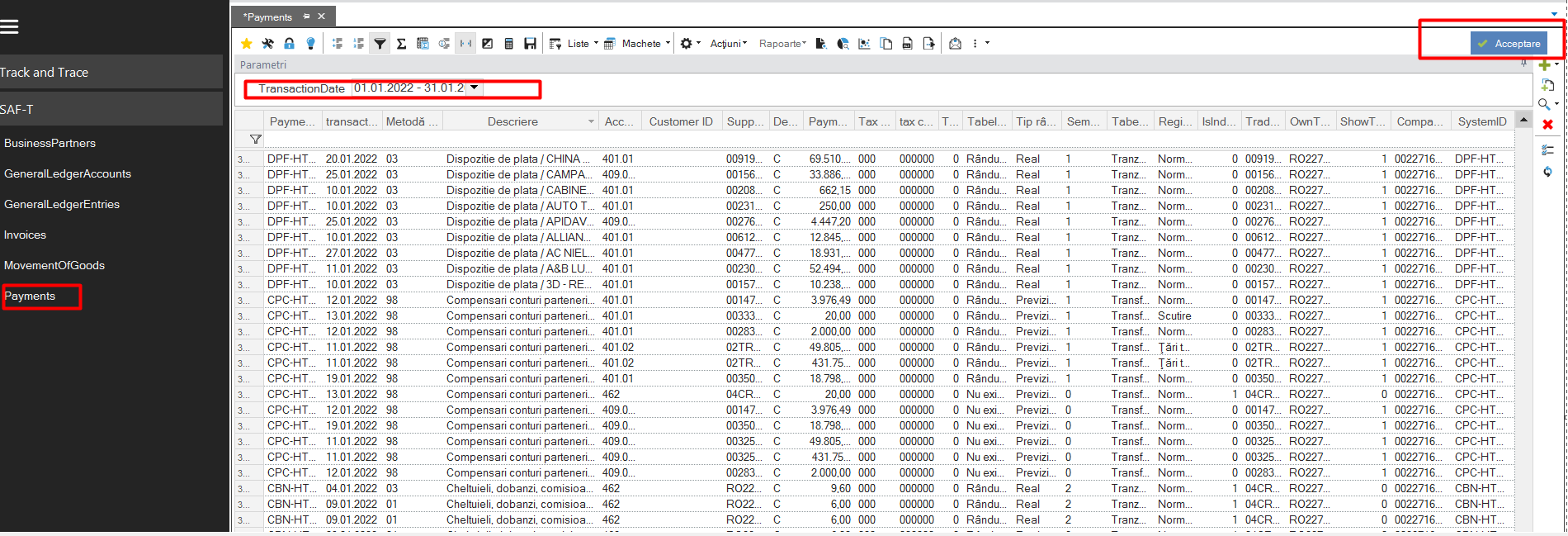
This is the required information to be submitted through the SAF-T return, other scrolls will be submitted only upon request.
It is intended to map the information in the system to be consistent with the data provided by the Tax Authorities.
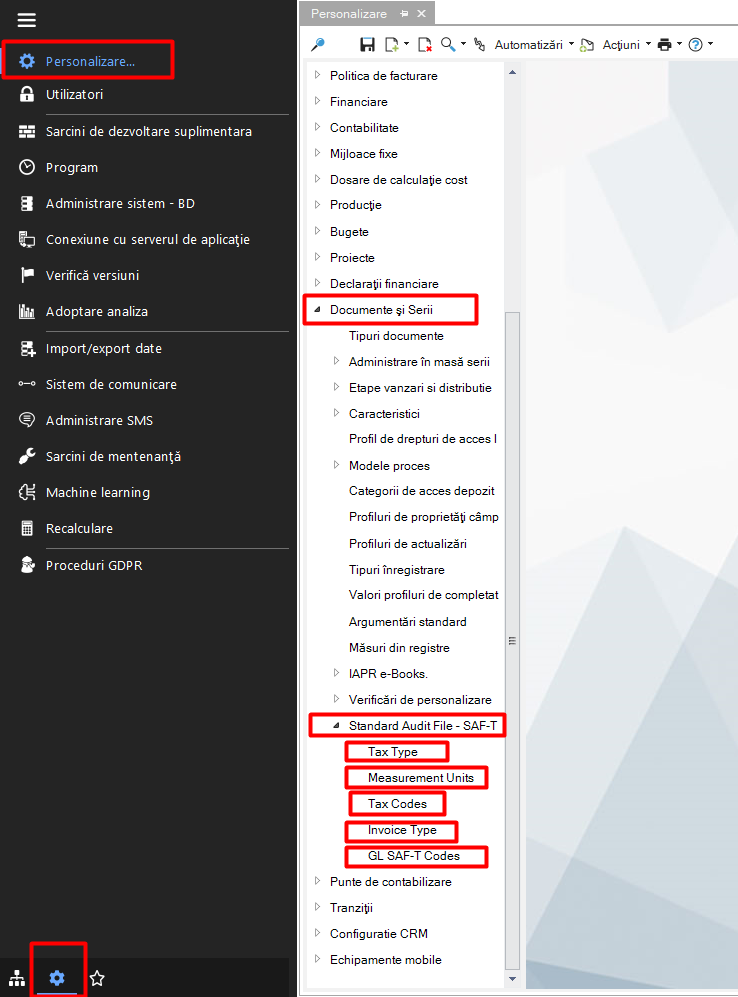
In order to standardize the information, the following nomenclatures have been added in version 5 of the application, which can be visualized as follows:
From the menu Tools and Configuration > Customize > Documents and Series > Standard Audit File - SAF-T.
4. Units of measurement
Units of measurement are part of the list of settings that need to be made in order to realize the SAF-T declaration.
The list of codifications taken from the information from ANAF, which must be taken into account for parameterization, can be found as follows:
Tools and configuration > Personalization > Documents and series > Standard Audit File - SAF-T > Measurement Units
According to this coding list, the units of measurement used in transactions for each company will have to be mapped according to the ones taken from the ANAF list.
An easy way to retrieve the list of units of measurement used in the records is to run the Invoices (Shortcuts -> SAF-T ->Invoices) scroller, filtering the desired period of analysis, because in the information extracted from here there is the “Code” column, which gives indications on the units of measurement used in the documents.
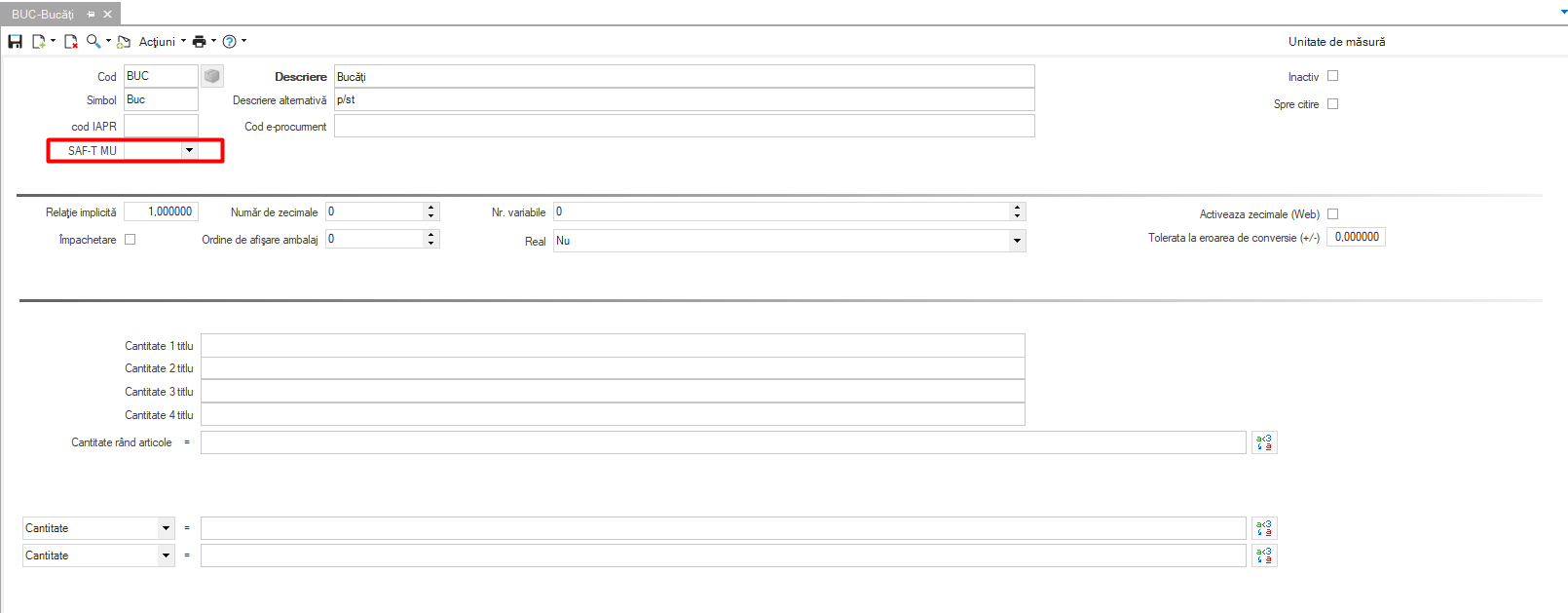
Each unit of measurement here should be mapped using the SAF-T code. In case of using a new measurement unit, this mapping must be done.
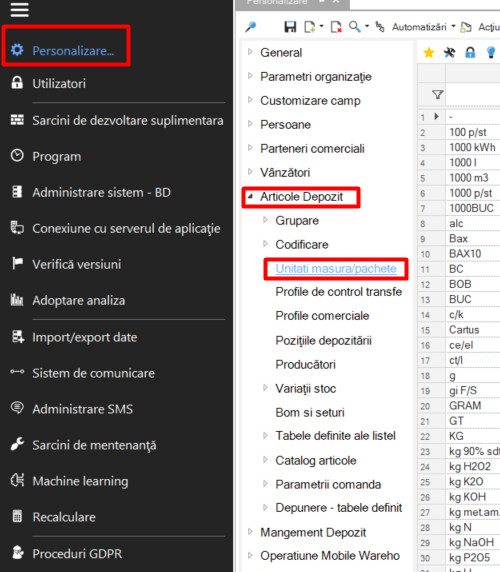
This setting is done by entering on the card of each unit of measurement, from:
Personalization > Warehouse Items > Units of Measure/Packages
5. Document types
For each type of document, it is necessary to codify it, so that the SAF-T declaration can be executed accordingly.
Before mapping by document type, depending on the transaction category, it will be necessary to manually enter the codes below:
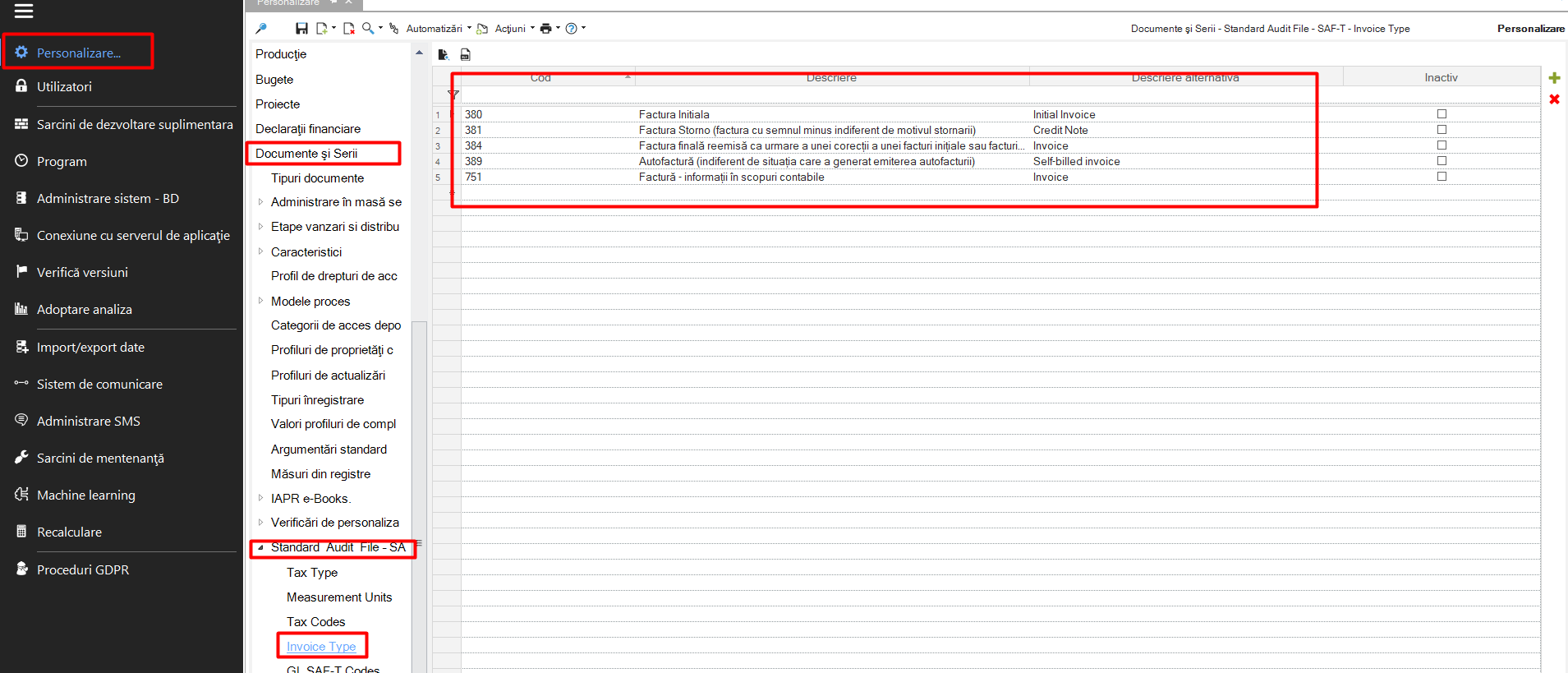
To complete the field, select one of the four codes below:
code 380 - Initial invoice,
code 381 - Revert invoice (invoice with a minus sign regardless of the reason for the reversal),
code 384 - Final invoice reissued following a correction of an initial invoice or revert invoice,
code 389 - Self-billing invoice (irrespective of the situation which led to the issue of the self-billing invoice)
code 751 - Invoice - information for accounting purposes
So, the way documents can be coded is as follows:
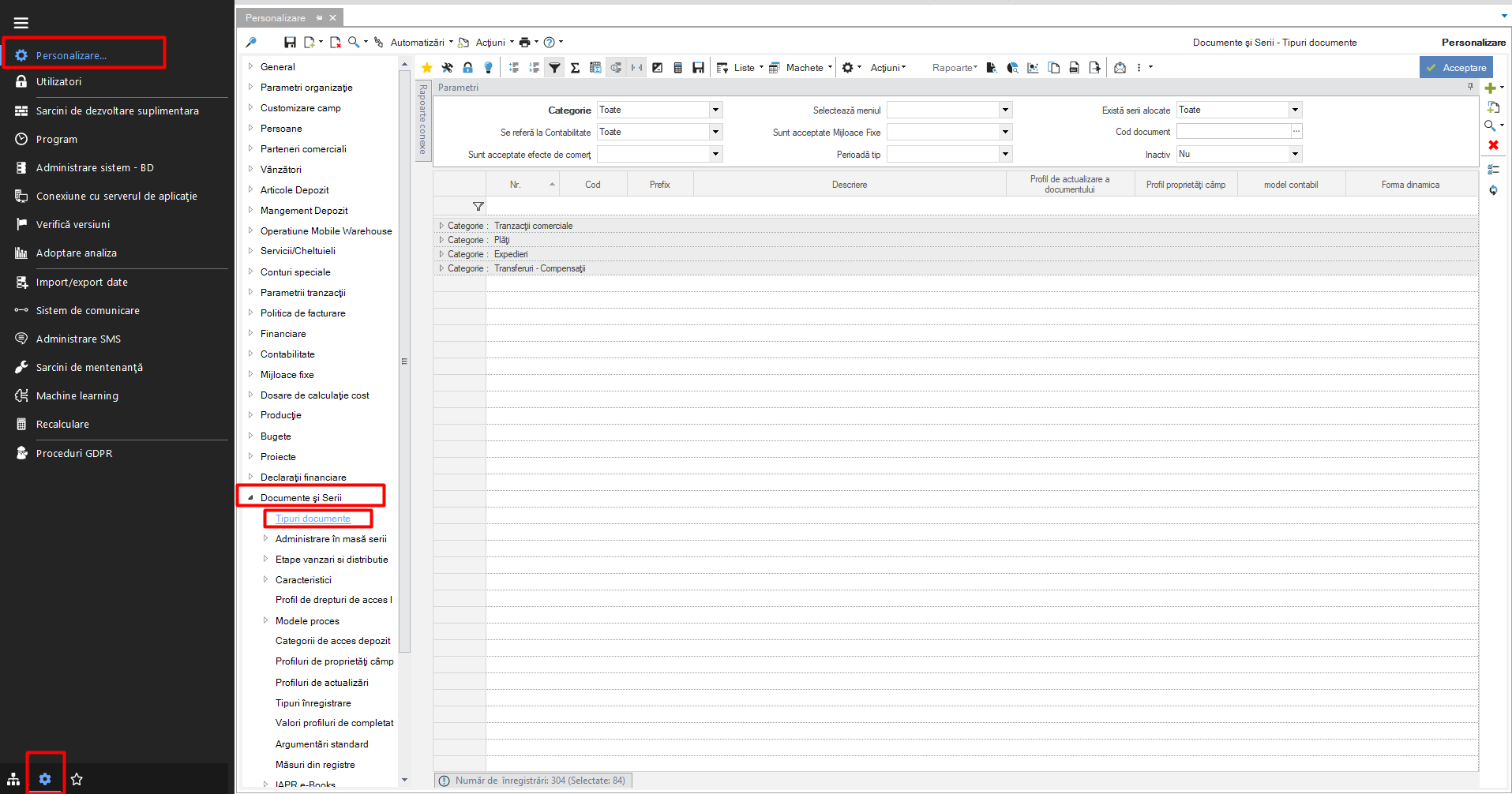
Tools and Configuration > Customize > Documents and Series > Document Types
The setting is done in the document type card > Behavior tab > SAF-T Invoice type field
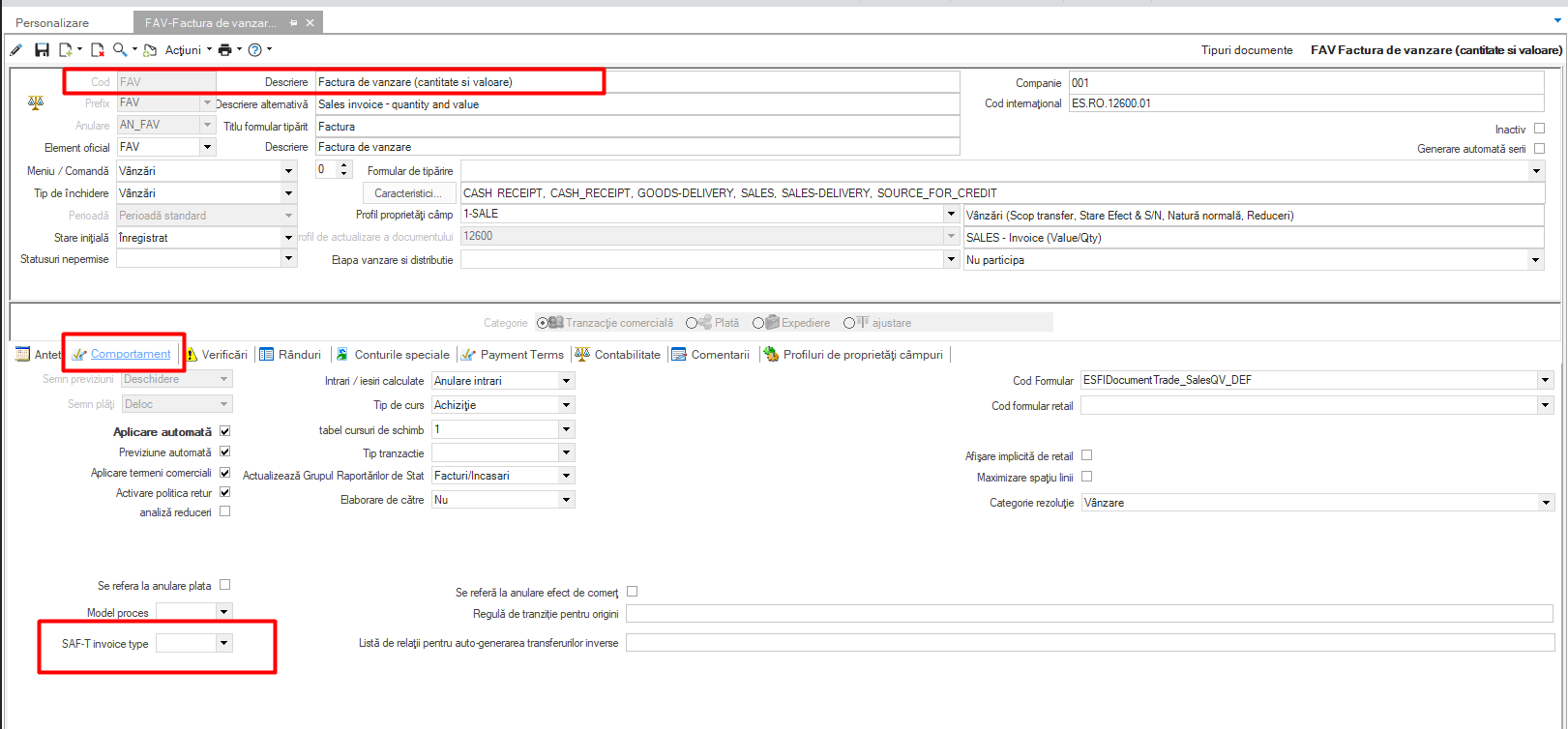
For the SAF-T declaration were mainly used codes 380 for standard invoices, 381 for credit notes.
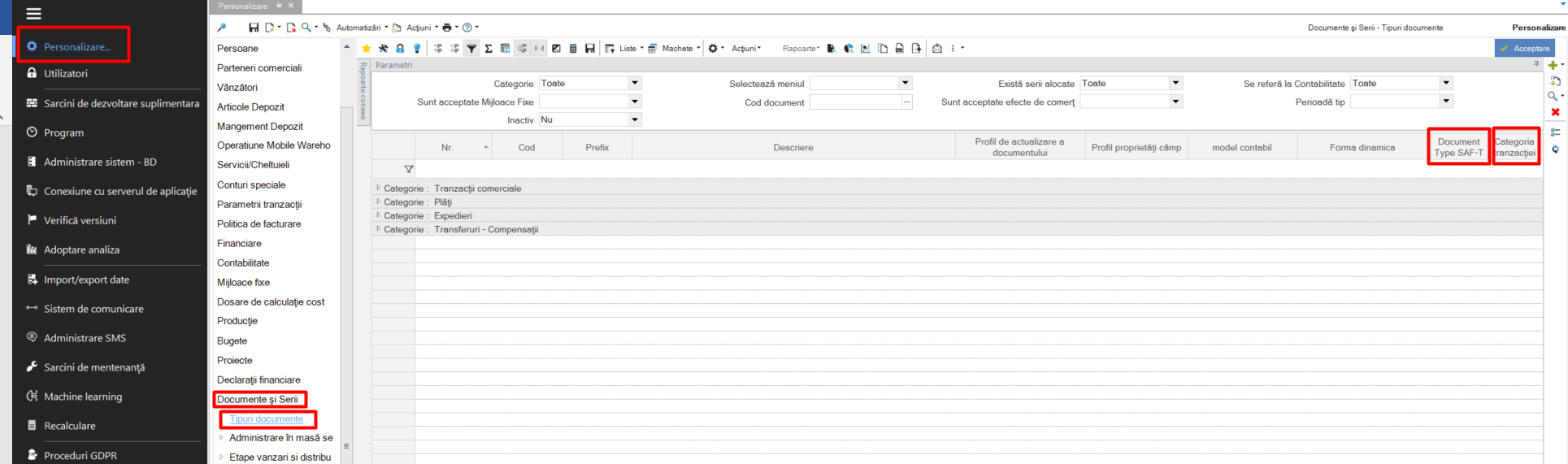
The documents can be mapped either individually, or by calling the Global Modification taking into account the Transaction Category, as follows:
For the Transaction Category 01 the invoice code 380 (Document type SAF-T) will be used. The exception are SCCT type documents which have Transaction Category 01 but are not declared in SAFT, being the initial balance of the partners with VAT on receipt.
For Category 03 384 will be used. This is confirmed by ANAF as appropriate for SAFT.
For the use of the other codes, it is recommended to access the appropriate documents individually.
6. Types of taxes
Coding is also required for tax categories. The list of codes is as follows:
Tools and Configuration > Personalization > Personalization > Documents and Series > Standard Audit File - SAF-T > Tax Codes.
Through the statement run process, at the tax information preparation/update stage, the SAF-T Tax Code field will be populated according to the tax category that applies.
These codes can be identified when running the General Ledger Entries scroller, “TaxCodeCalc” column
The following code has been added to the list of Tax Codes, for the exempt VAT regime:

7. Chart of accounts
The necessary coding instructions for the chart of accounts accounts can be found as follows:
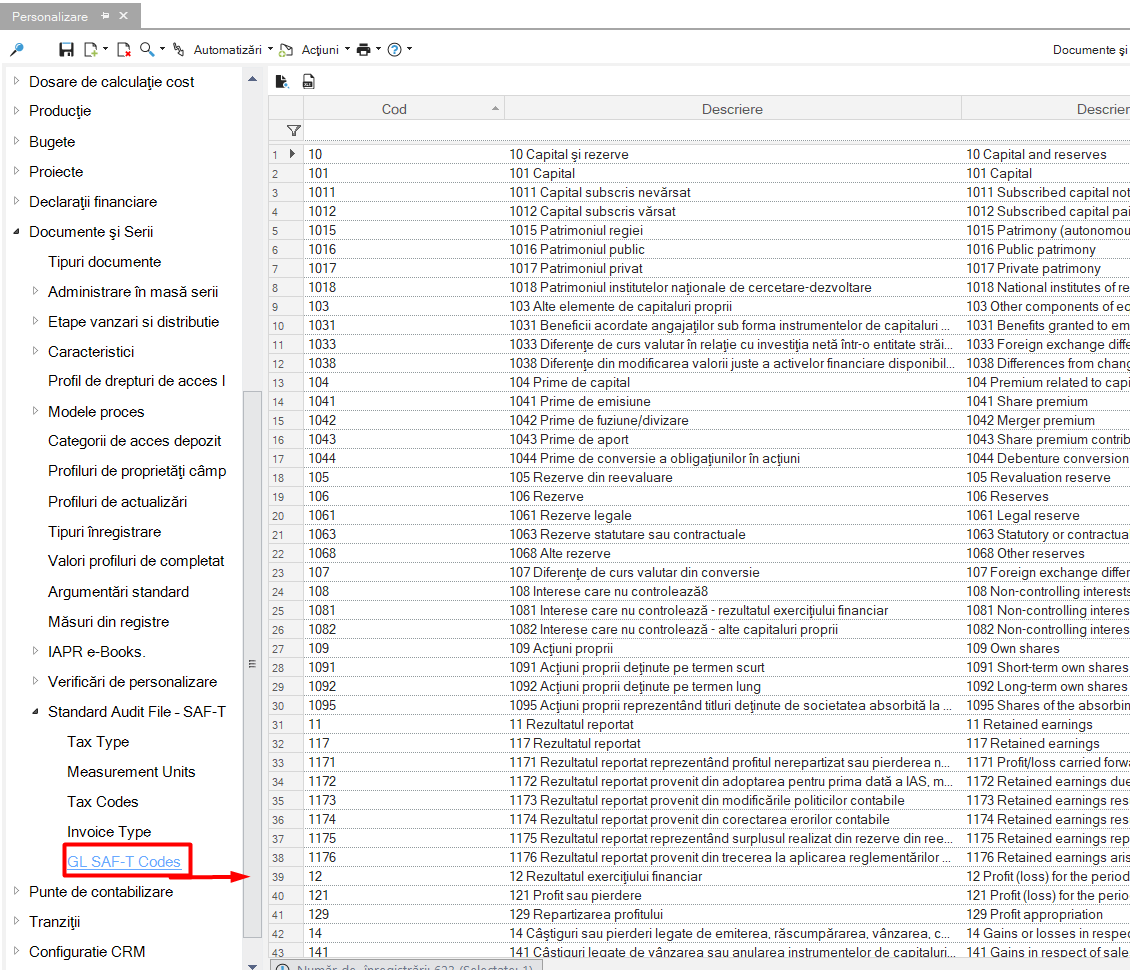
Tools and Configuration > Customize Documents and Series -> Standard Audit File - SAF-T > GL SAF-T Codes
Following the SAF-T chart of accounts import process, the field below will be populated by the corresponding SAF-T account.
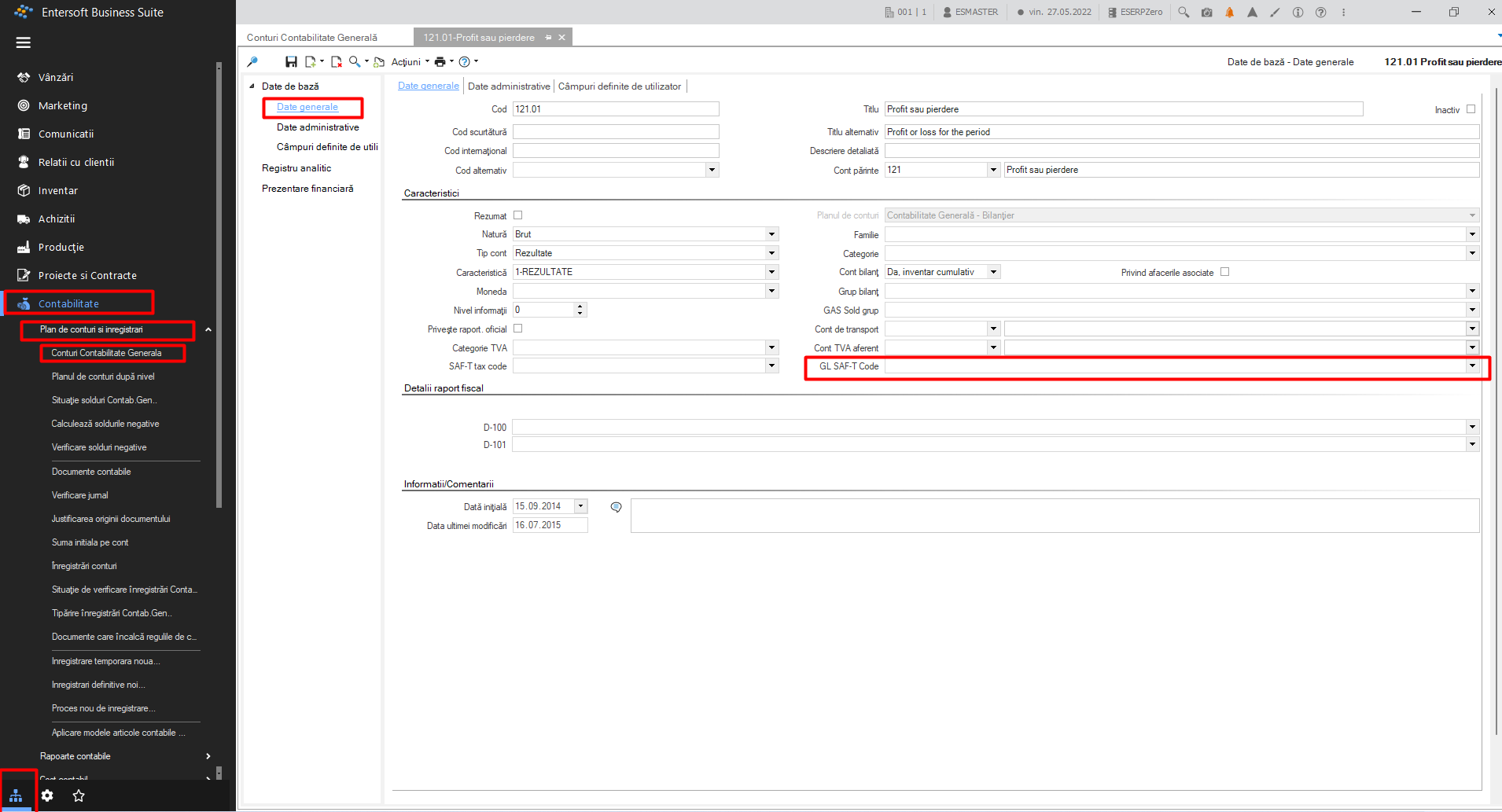
Attention! When creating a new analytic, it must be mapped according to the SAF-T chart of accounts.
8. Special accounts
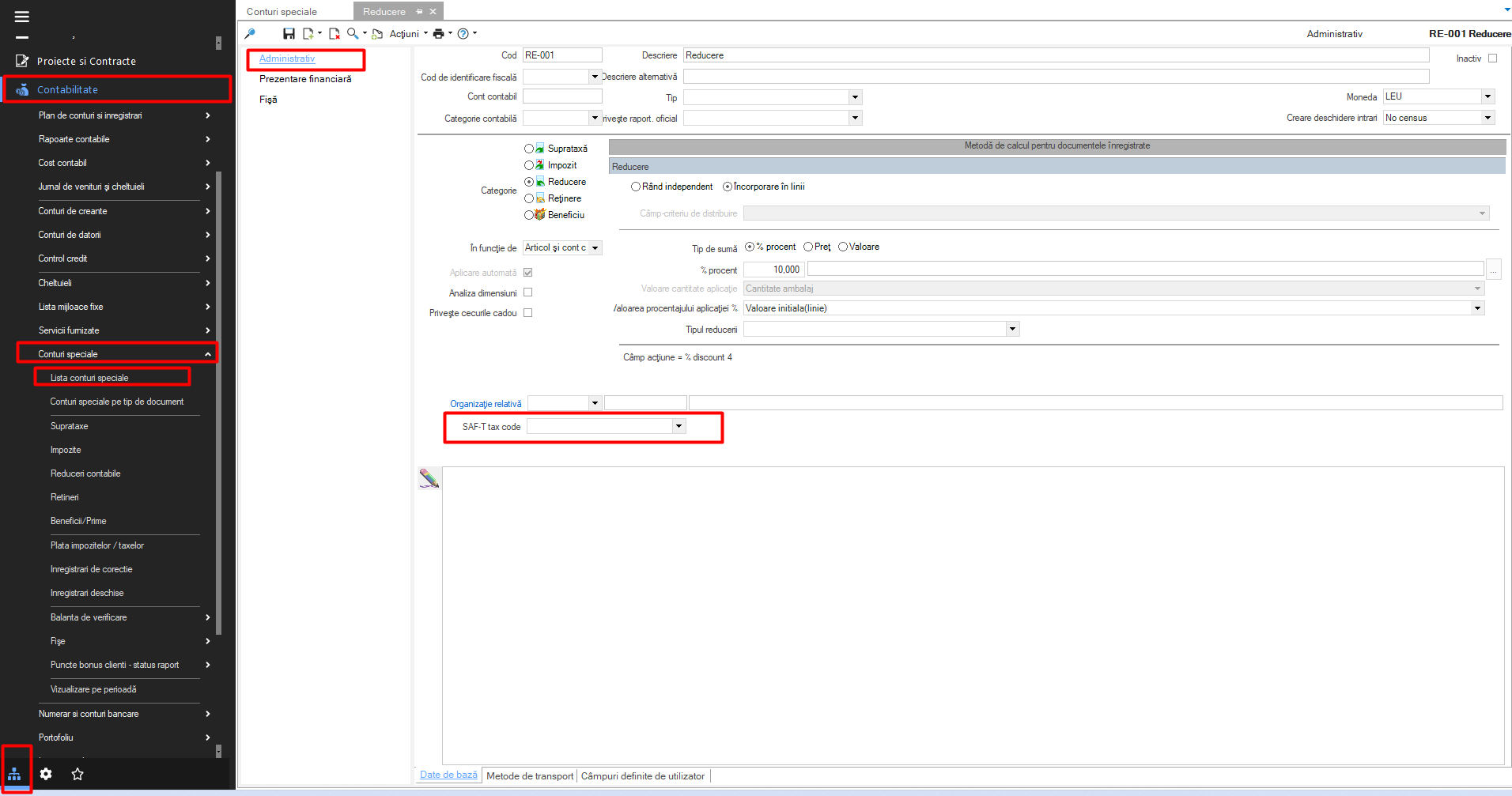
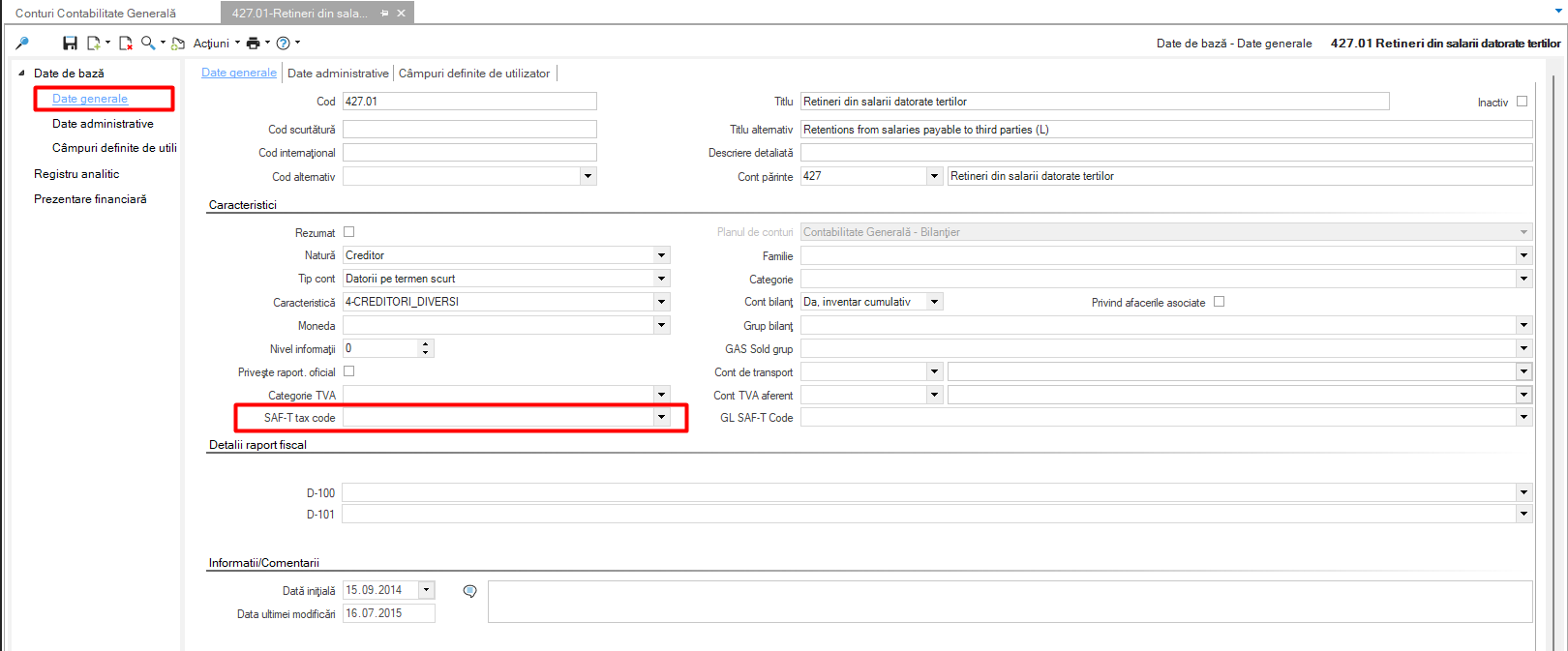
Like bookkeeping accounts, special accounts will have the same treatment. They will be mapped using the corresponding account in SAF-T.
Their mapping can be found by entering on the card, as follows:
Accounting > Special accounts > Special accounts list
Or it can be accessed from the chart of accounts, directly on the account card:
9. County codes
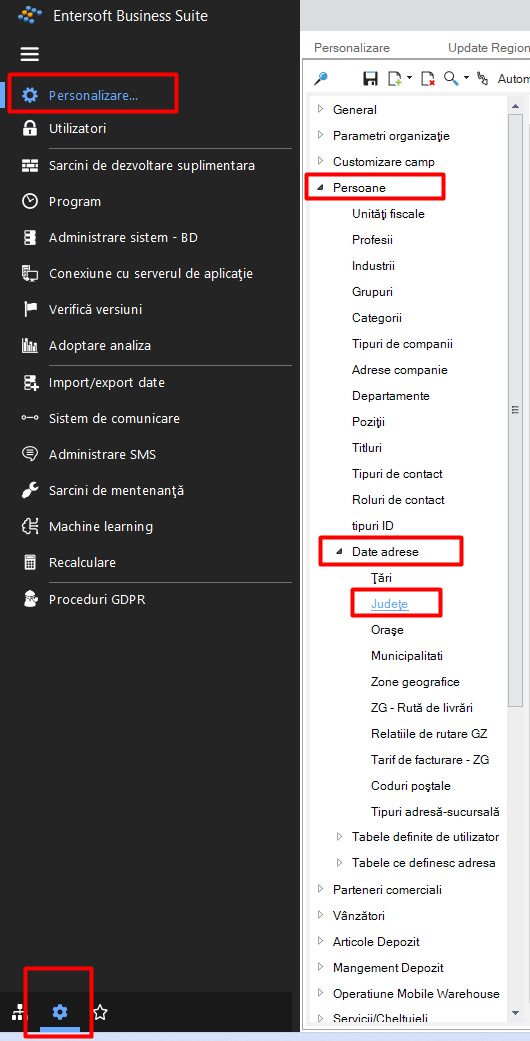
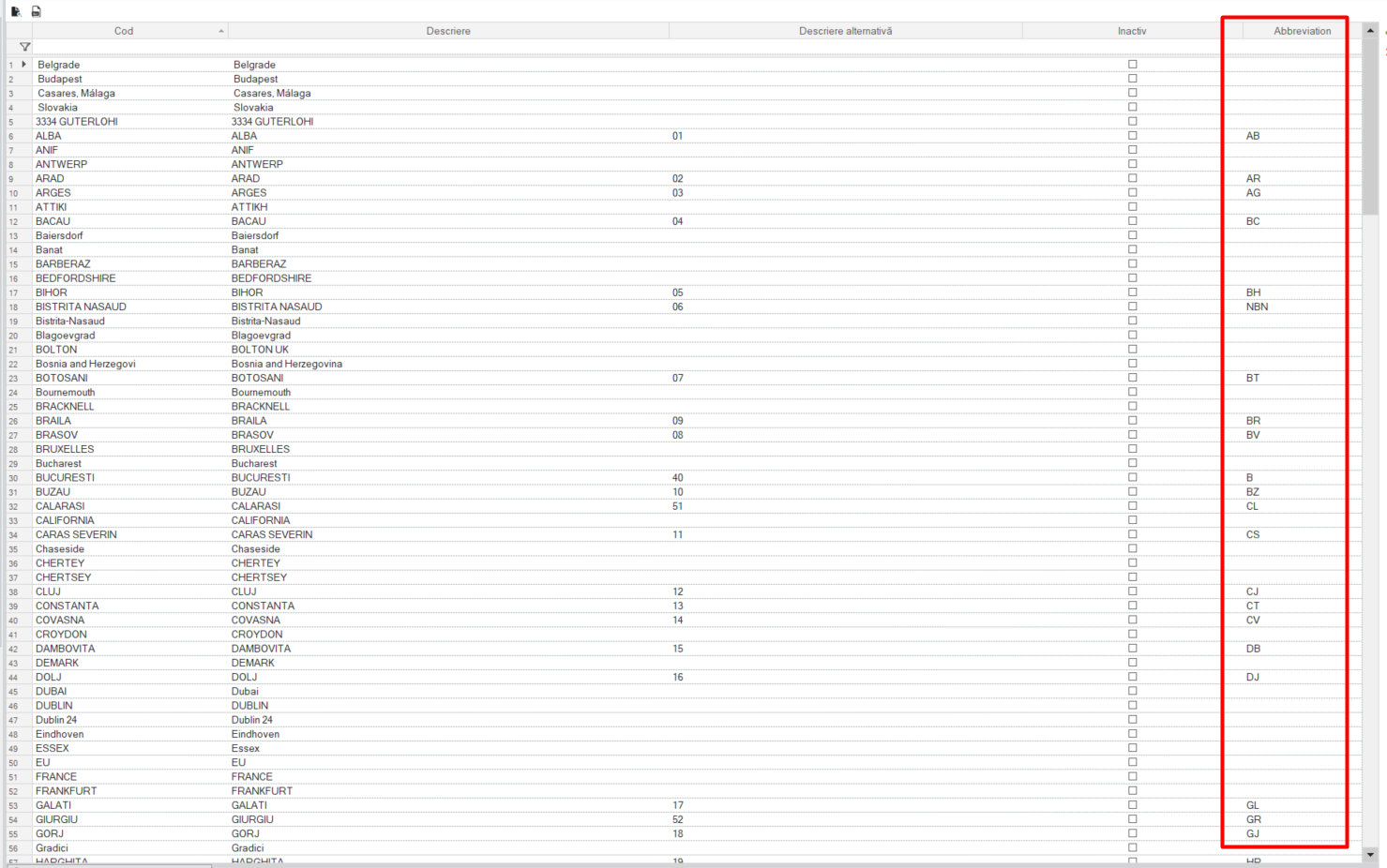
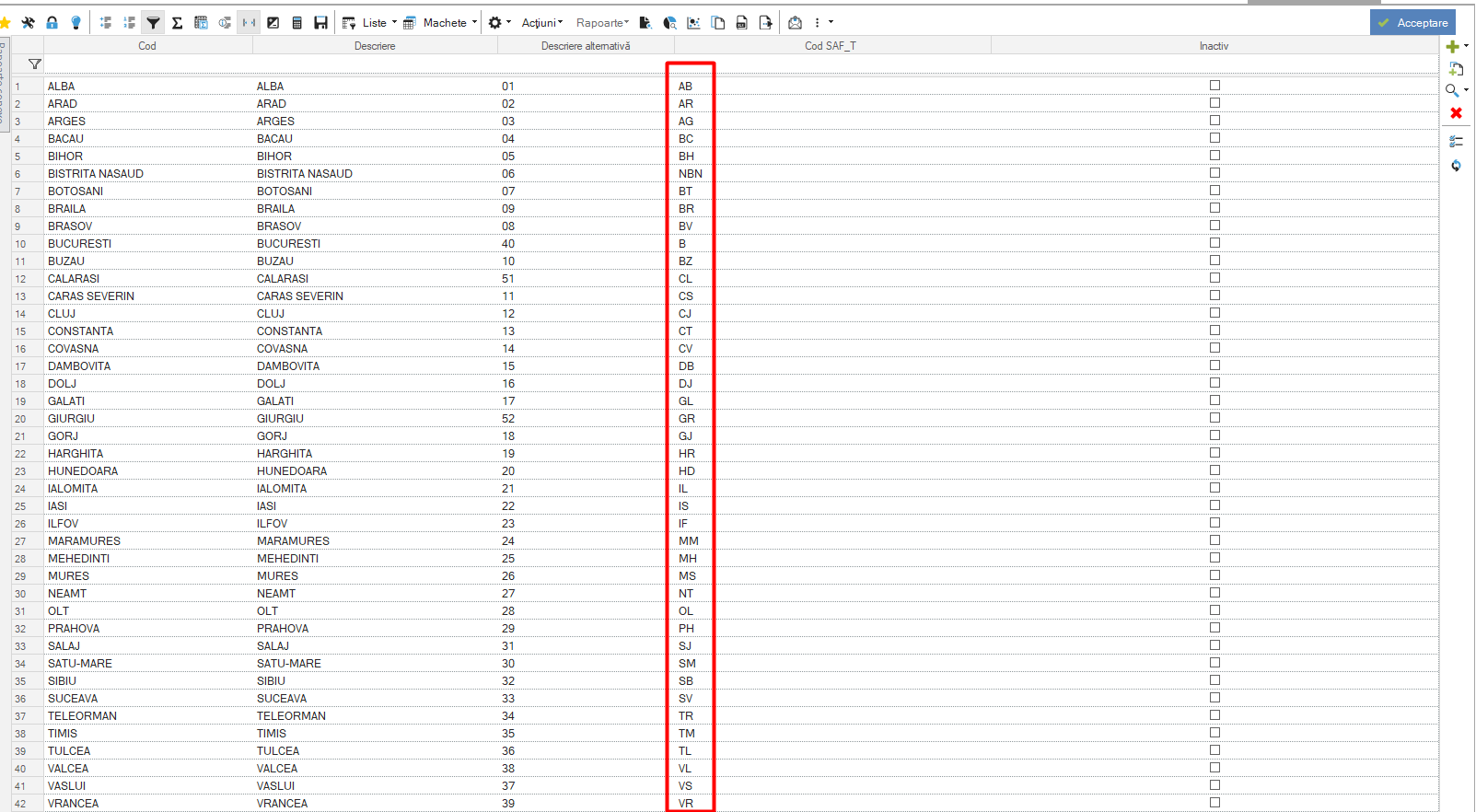
Another aspect to take into account in order to prepare the SAF-T declaration refers to the counties and the abbreviation column.
After parameterization, they will be found in: Tools and configuration > Personalization > Persons > Address data > Counties
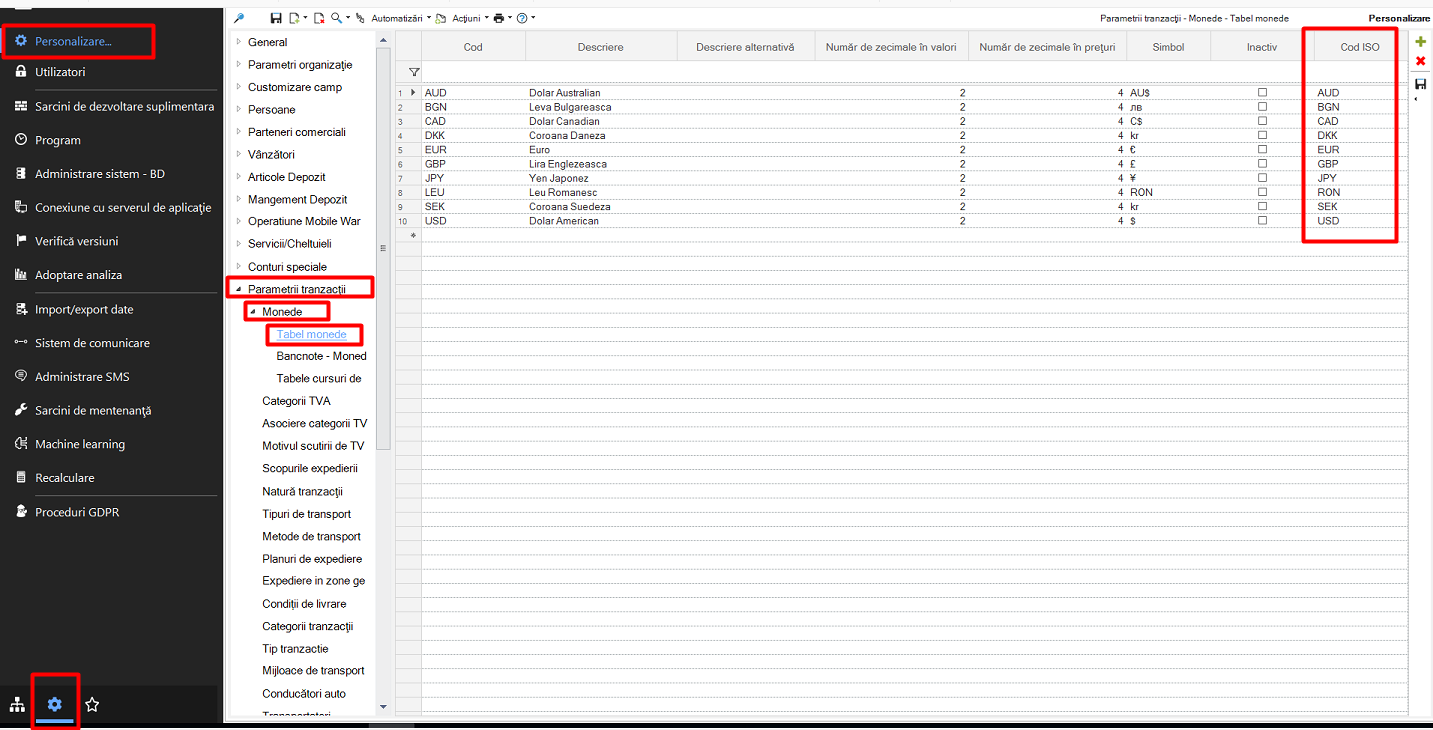
10. Currencies
Another aspect to mention is the use of currencies in company transactions.
It is very important to fill in the column “ISO code” with the corresponding code.
To verify, the information is found by following these steps:
Customize > Transaction Parameters > Currencies > Currency Table
11. Preparing the declaration
11.1. Tax Code Calculation
A first step in generating files for the SAF-T declaration is to prepare and update the tax codes, so it is necessary to access the following menu:
Accounting > End of period process > SAF-T > Prepare/Update Tax Code
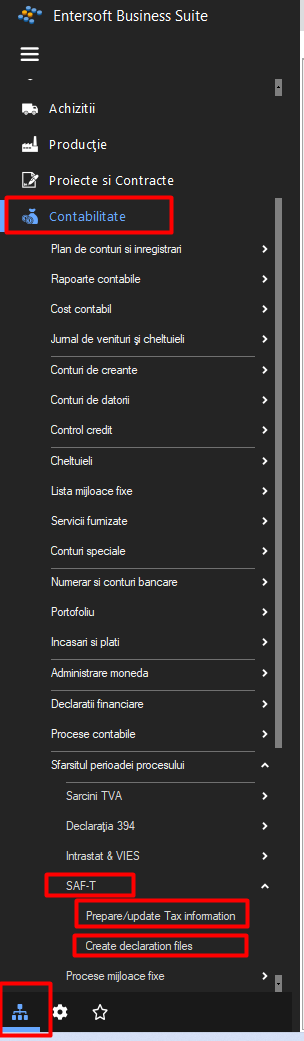
Choose the tax period for which you want to generate the declaration and follow the steps below:
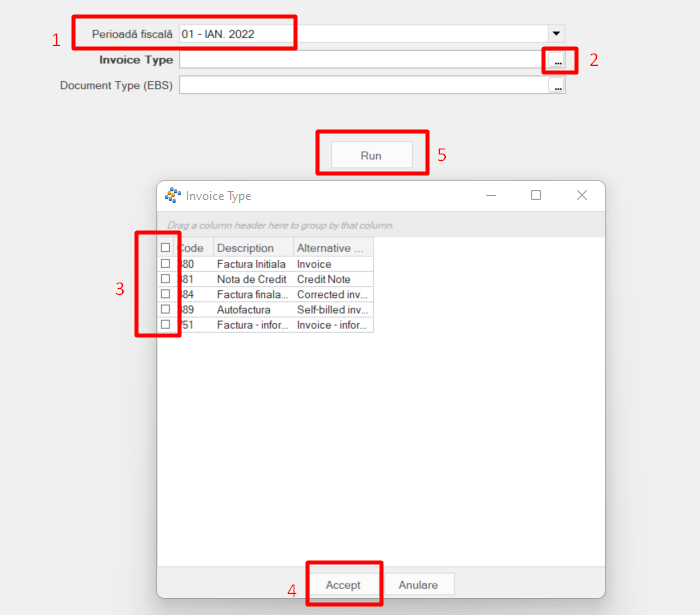
11.2. Xml file generation
The generation of the XML file of the declaration is generated from the menu Accounting > End of process period > SAF-T > Create declaration files.
First of all, before running, you need to make sure that in the Information Tab the following fields are populated with the data of the person who is going to submit the declaration.
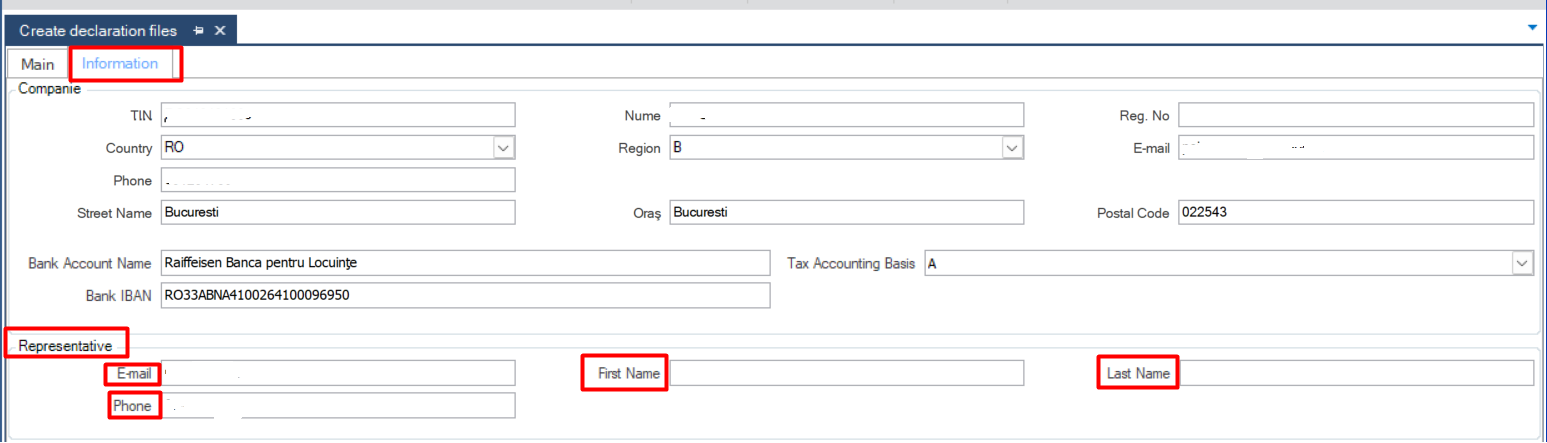
Otherwise, the system will warn you and an error will appear when generating the declaration.
The declaration generation is performed from the Main Tab, for each month for which you wish to submit the declaration.
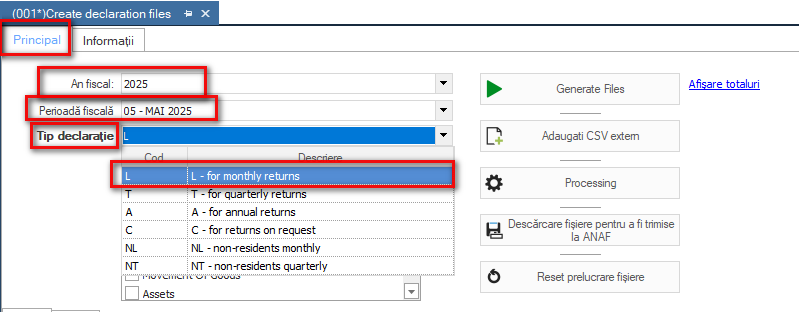
Choose the first unclosed tax year (even if the year for which the return is being filed is
different), return type L, tax period is the desired month for filing.
For the quarterly return the return type T will be chosen and the month will be the last month of
of the quarter for submission.
It is recommended to start generating the CSVs first for the General Ledger Accounts scroller, continuing with Business Partners, General Ledger Entries, Invoices and Payments. The other scrollers will be run and transmitted only on request.
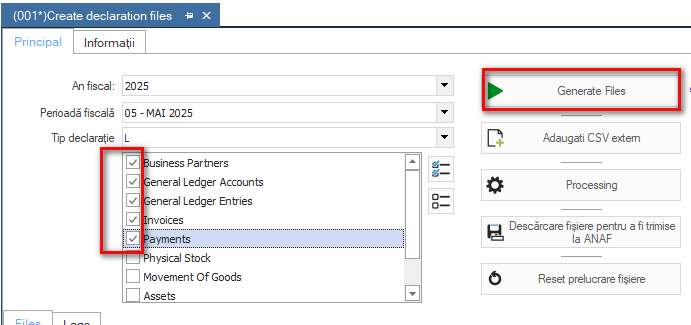
In case you are trying to generate files, errors occur in a certain month that are resolved and you want to restart the process for the same month, it is recommended to access the “Reset file processing” button. It acts as a refresh and deletes the generated csv from the application folder.
If the declaration was processed successfully, the following CSVs will appear in the system:
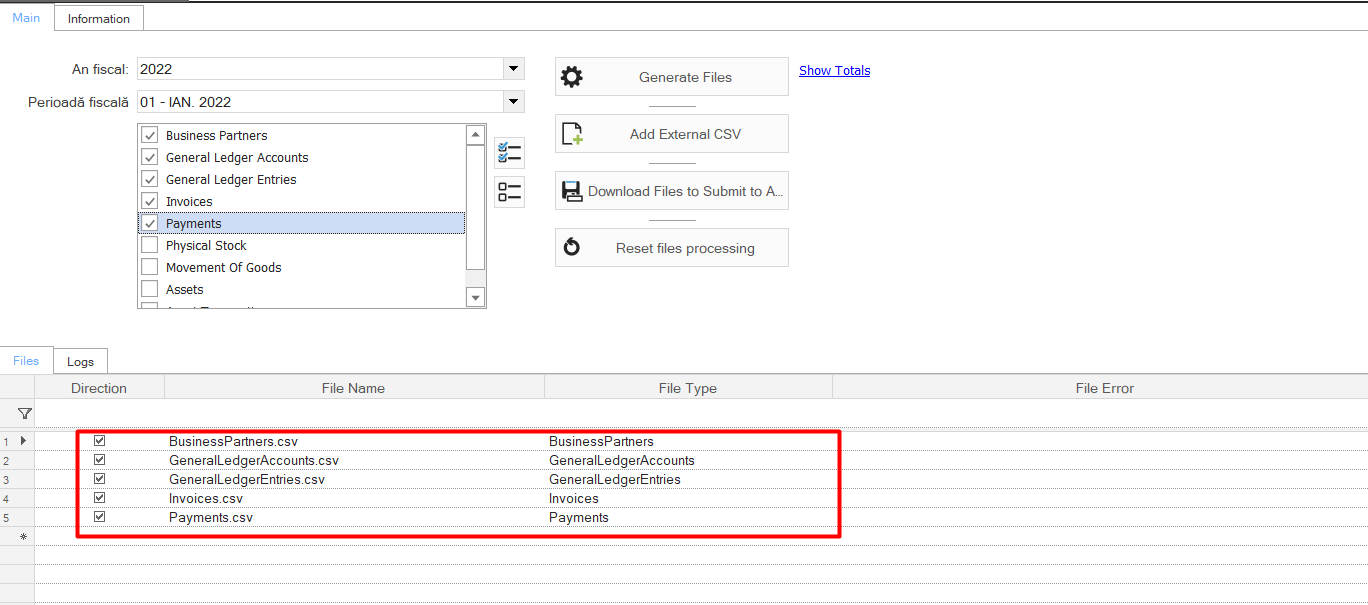
The CSVs will also be placed in the application folder > ESNoSync folder, where a folder with the year and month of the declaration is automatically created.
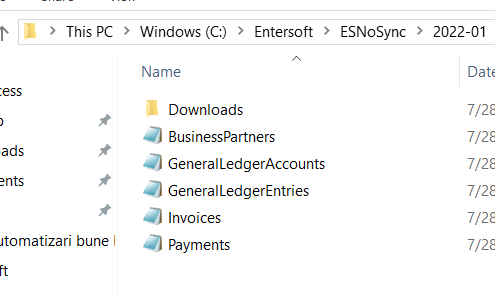
After generating the .csv files click the “Processing” button to generate the .xml files.
In the Downloads folder you will find the .xmls that need to be checked for errors in Duk Integrator and, if there are no errors, converted to PDF, signed and submitted.
This .xml is based on the information aggregated from the run CSVs.
12. Instructions, parameterization
Adding the elements corresponding to the SAF-T declaration in EBS, implies some actions detailed in the following.
A first step is to check the application version. The SAF-T declaration requires at least version 5.2.0.
Therefore, the application should contain the following information:
12.1. Enter API key
API Key, a verification key available separately for each client, This key will be introduced as follows:
Customization > Company Settings > Anaf Services and Declarations > Bit Services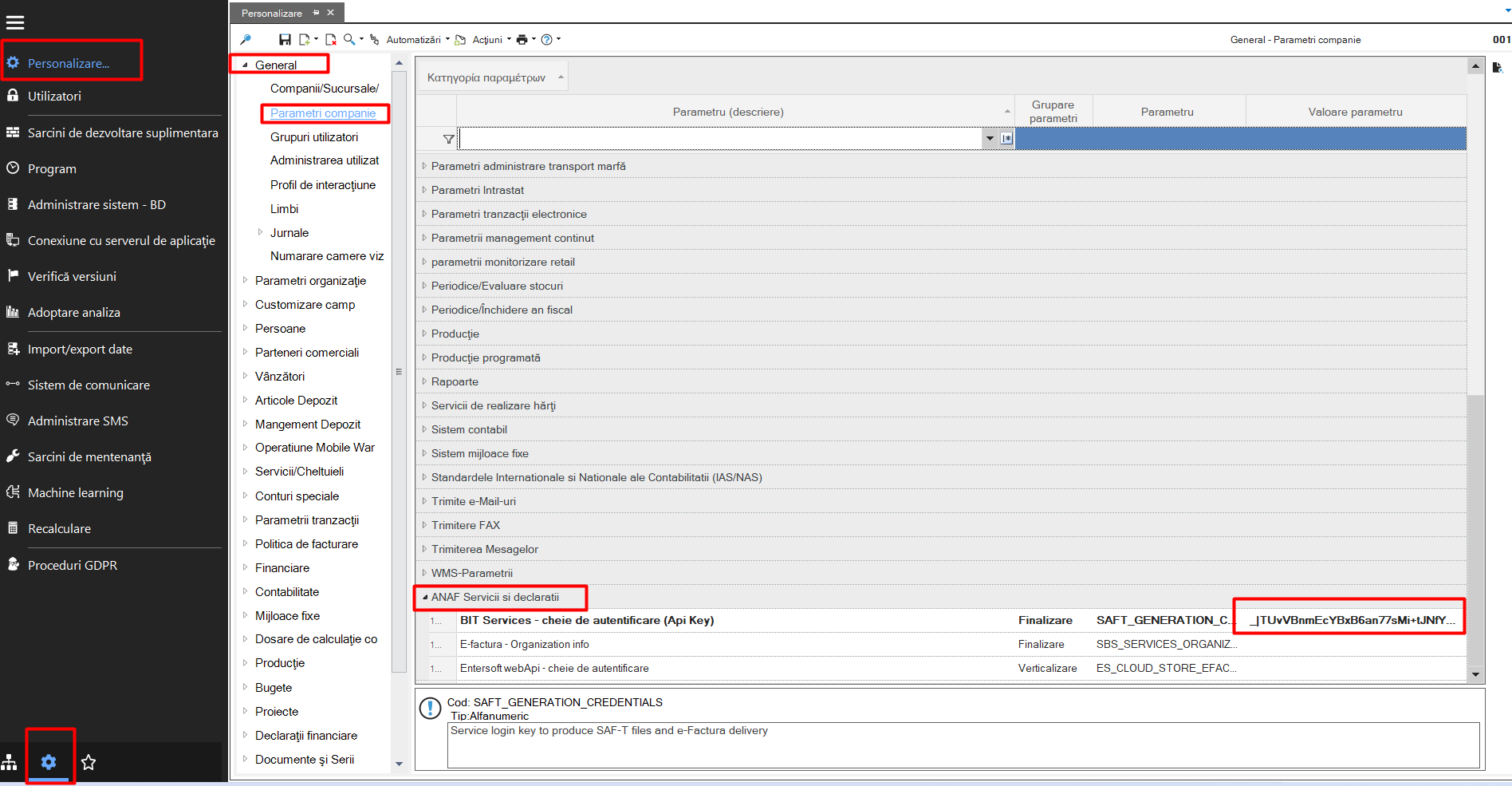
12.2. SAF-T Shortcuts
By adding this .json file:
12.3. SAF-T files
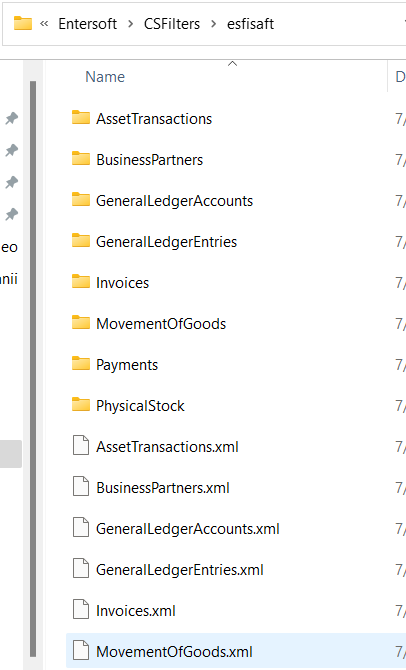
In the application folder CS Filters/ESFISAFT, you will find the following files, related to the scrollers whose information is the basis for the generation of the SAF-T declaration.
Business Partners
General Ledger Accounts
General Ledger Entries
Invoices
Payments
Movement of Goods
12.3. Files saved in the ESNoSync folder
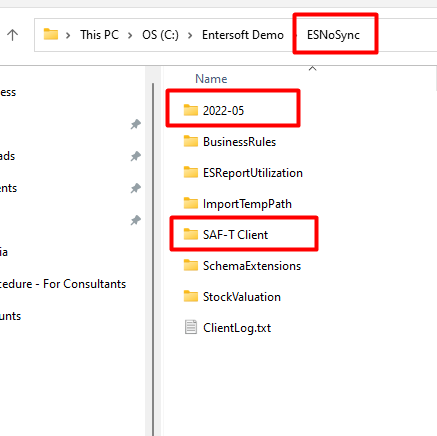
The ESNoSync application folder will contain:
SAF-T Client: where CSV validation errors will be saved
One folder for each month where the created CSV files will be stored.
They are created when running the statement.
12.4. Import county codes
Adding the following files helps to map the county codes according to the requirements provided in the preparation of the SAF-T declaration.
To bring the field exemplified below, the following steps are required:
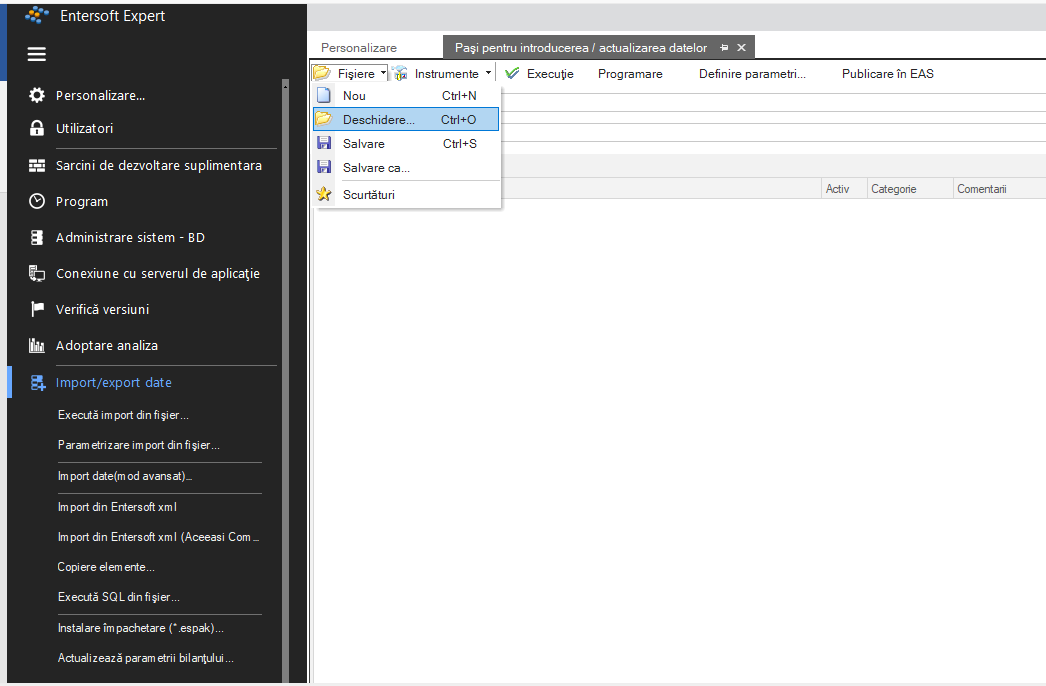
In the menu Tools and Configuration > Import/Export Data > Import Data (advanced mode) attach the .xml file:
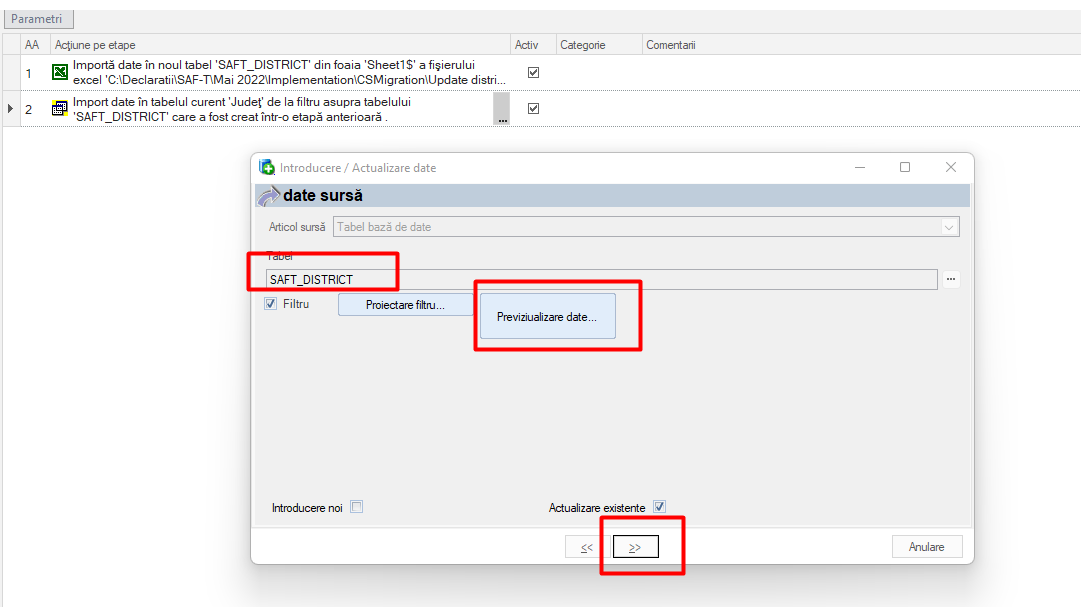
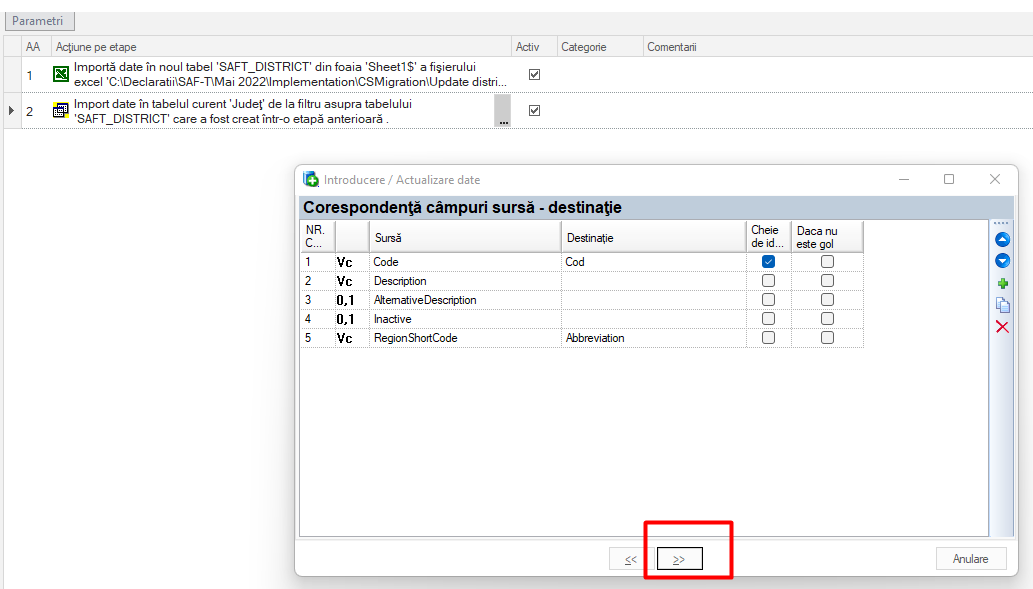
Urmatorul dupa fisier .xml este fisierul de tip excel:
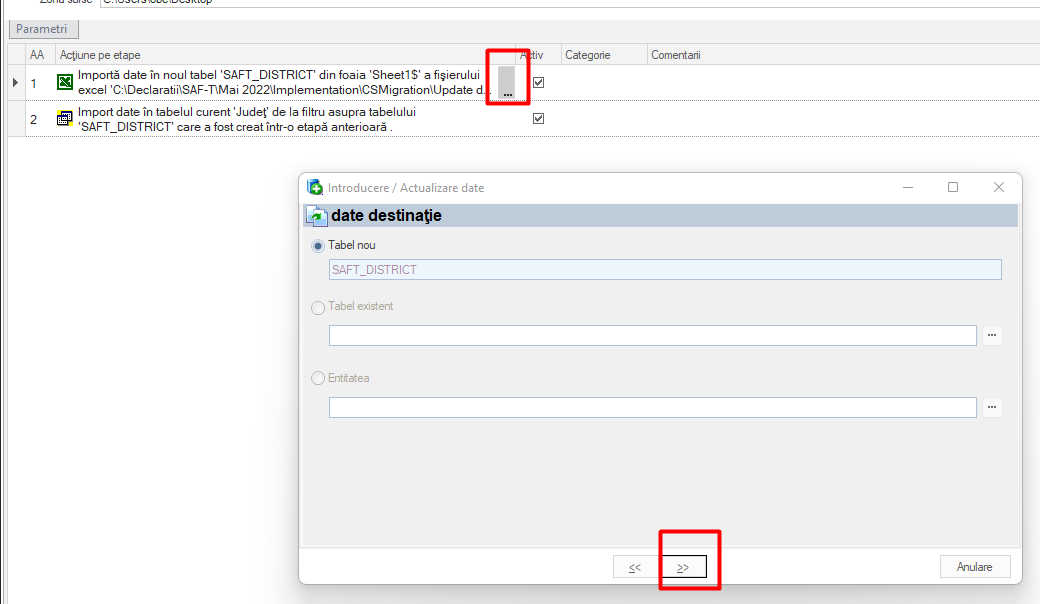
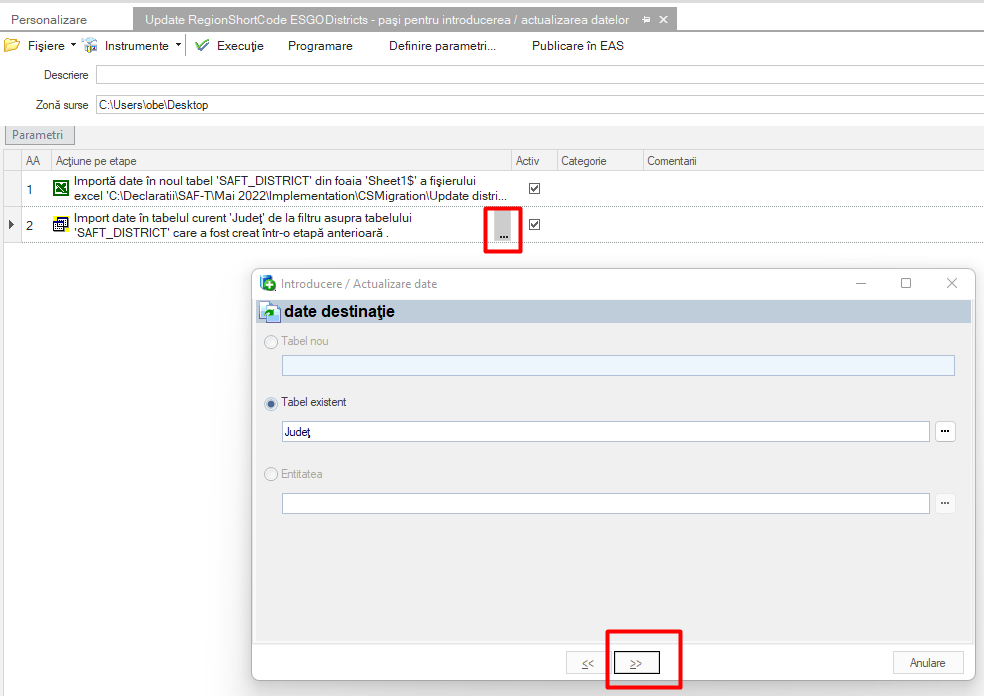
The path mentioned below is updated, when the excel file is added, followed by pressing the “>>” button:
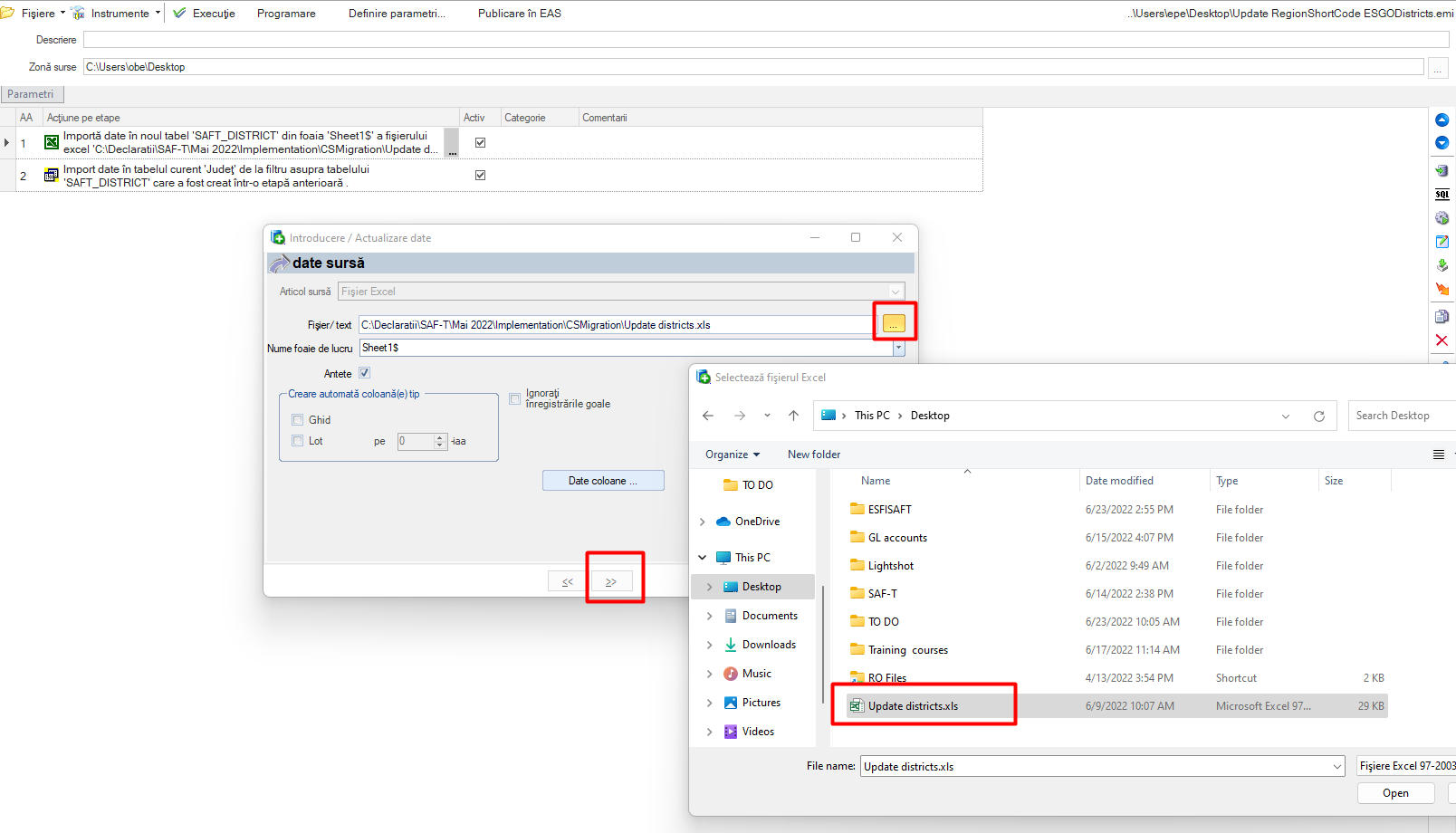
We can preview the format of the columns that will appear in the scroller like this:
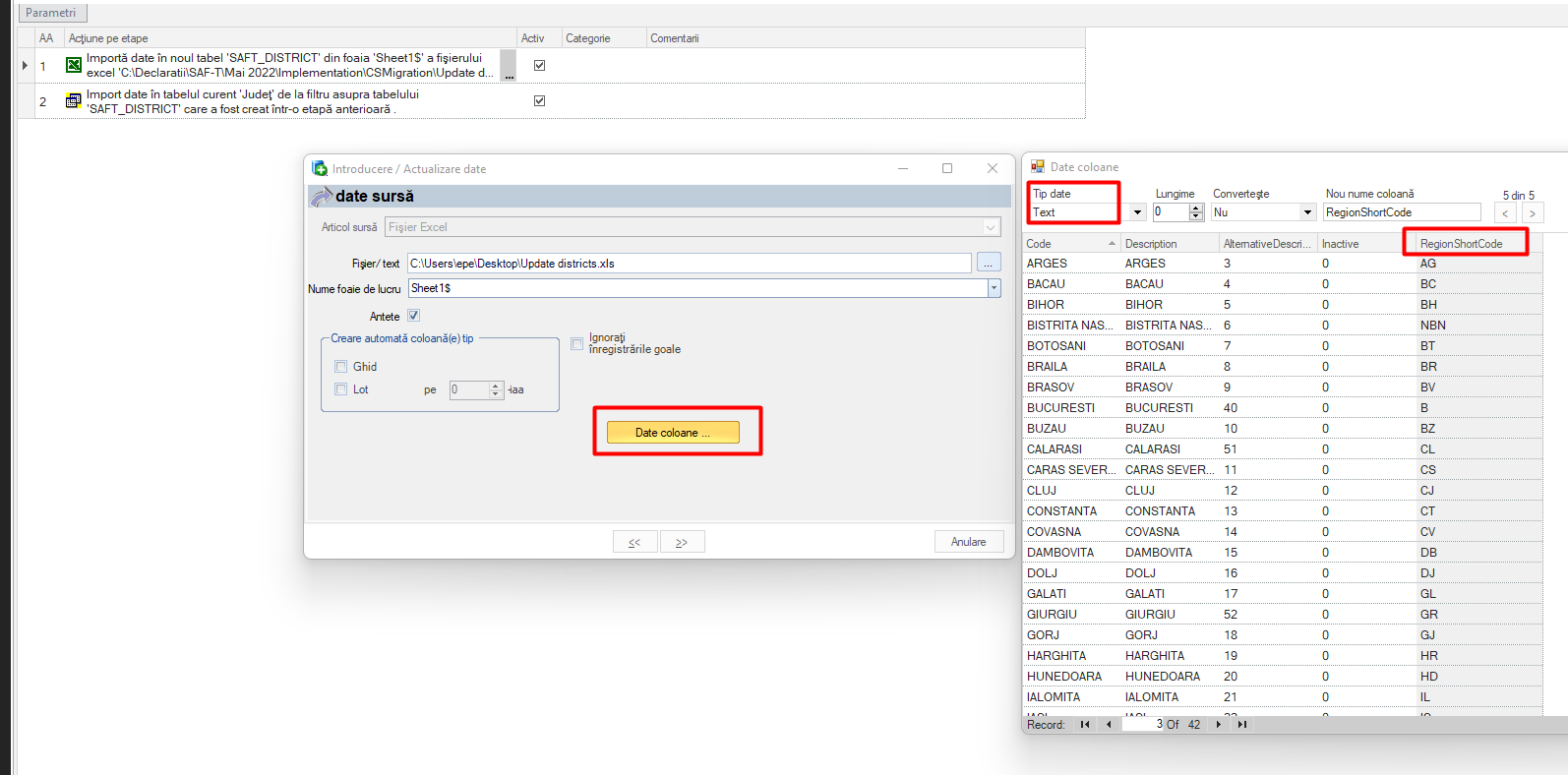
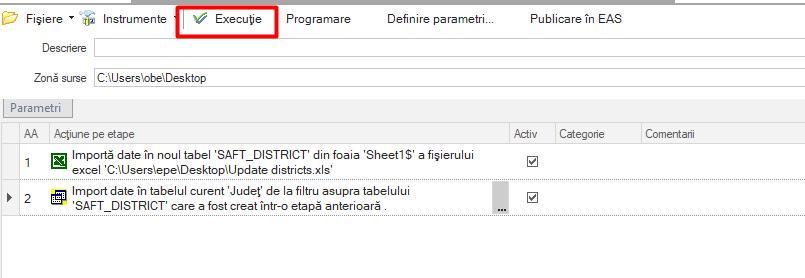
Very important, after adding these files, in order to save the changes made, it is necessary to press the “Execute” button.
After completing the process, following the path below, the scroller should look like this:
Tools and Configuration > Personalization > Personalization > People > Address Data > Counties
12.5. Import GL accounts
Import SAFT GL Accounts, following the same steps for import as in point 4 above.
This import updates the BOM in the path below.

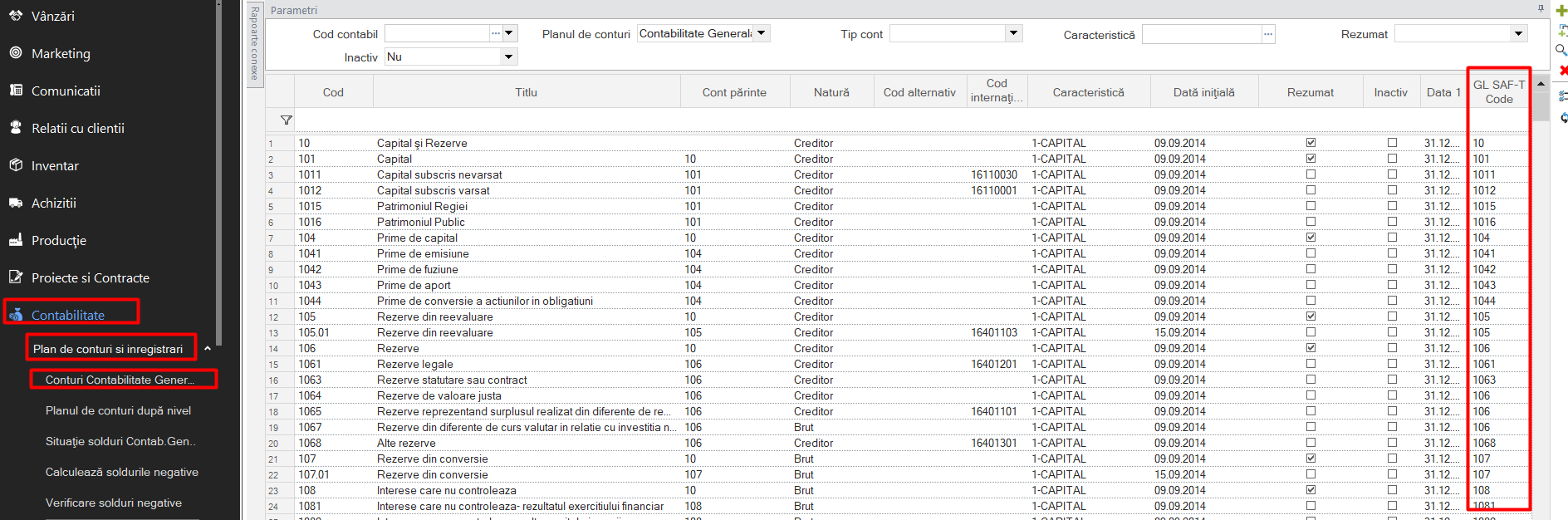
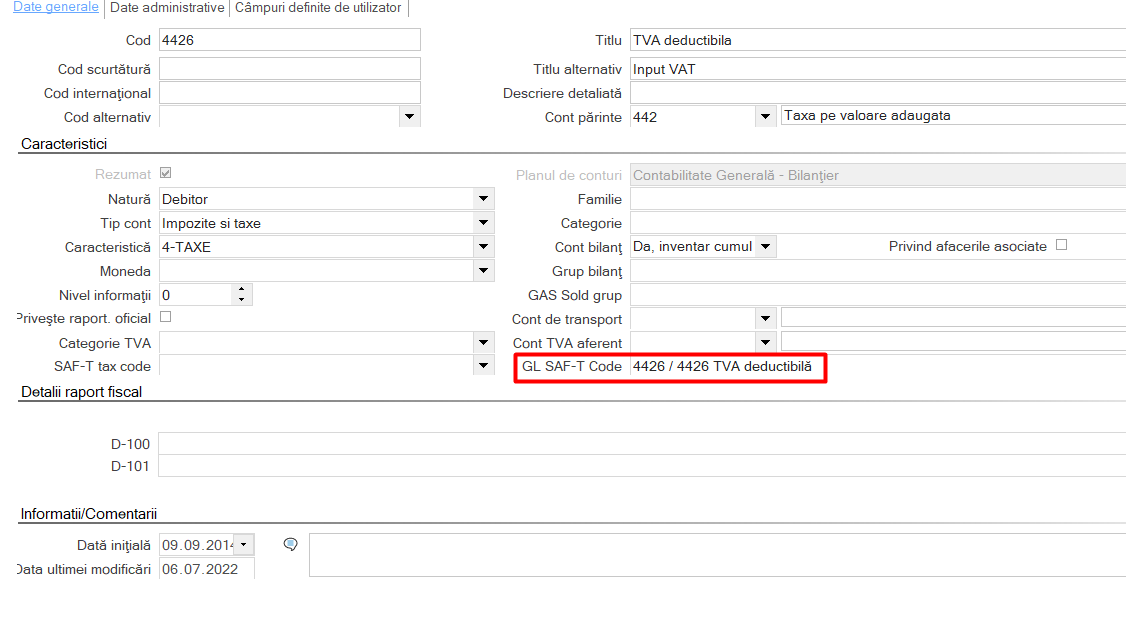
Thus, on the card of an accounting account in the chart of accounts, you can select the corresponding account in the “GL SAF-T Code” field. For the mass update of this field, there is this migration scenario that updates the chart of accounts for the most part.
12.6. Document types and transaction category
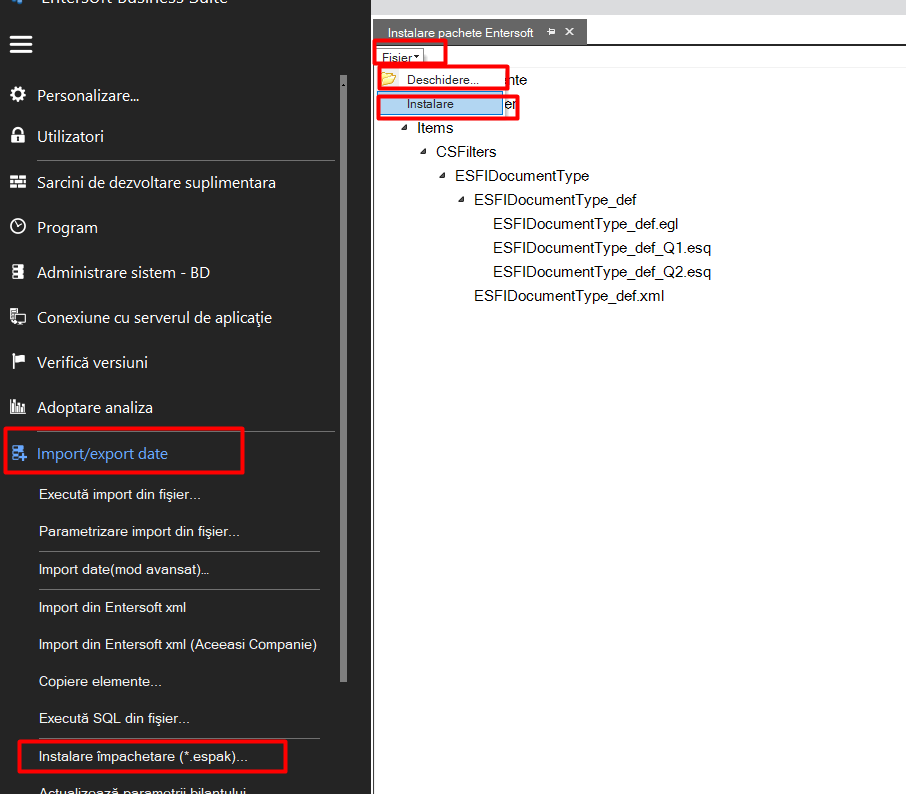
To make it easier to map the document types according to the transaction category, this .espak file was used, following the following procedure: