Welcome to the EBS-RO knowledge base. Here you will find operating
instructions, release notes, useful information and the user manuals for
Entersoft Business Suite — Romania.
Sections
Instructions — step-by-step guides: general,
commercial, inventory, finance & accounting, declarations and ANAF
integrations.
User manuals — the complete Entersoft
application manuals.
Release notes and other useful information are currently available in
Romanian.
Installation requirements
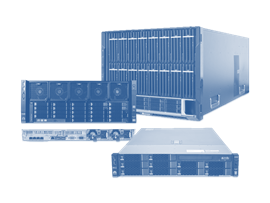
Database Server The suggested characteristics of an all in one server may vary for each installation according to the needs in the number of users, data size, subsystems that will be enabled etc. The below configurations are for typical occasions of 10–50 users. Because of the critical role of an ERP or ERP/WMS system in a company, configuration of high availability is suggested for the uninterrupted operation of the application. Couriers integration
Stock valuation and cost control
Definitions 1.1. Stock Valuation Periodically, the stock valuation process is being carried out aiming to define the Value of Inventory Balance that is the cost of quantitative balance in a point of time in the warehouse which is under the possession of the business, as well as the Value of Grants (cost of goods sold, etc). {class=“children children-type-tree children-sort-weight”}
The new VAT rates
Configurations for new VAT rates 1.1. Creation of new VAT analytical accounts For VAT accounts - 4426, 4427, 4428, new codes will be defined with suffix: for the rate of 21%: .06 - 4426.06, 4427.06 and 4428.06; for the rate of 11%: .07 - 4426.07, 4427.07, and 4428.07. {class=“children children-type-tree children-sort-weight”}
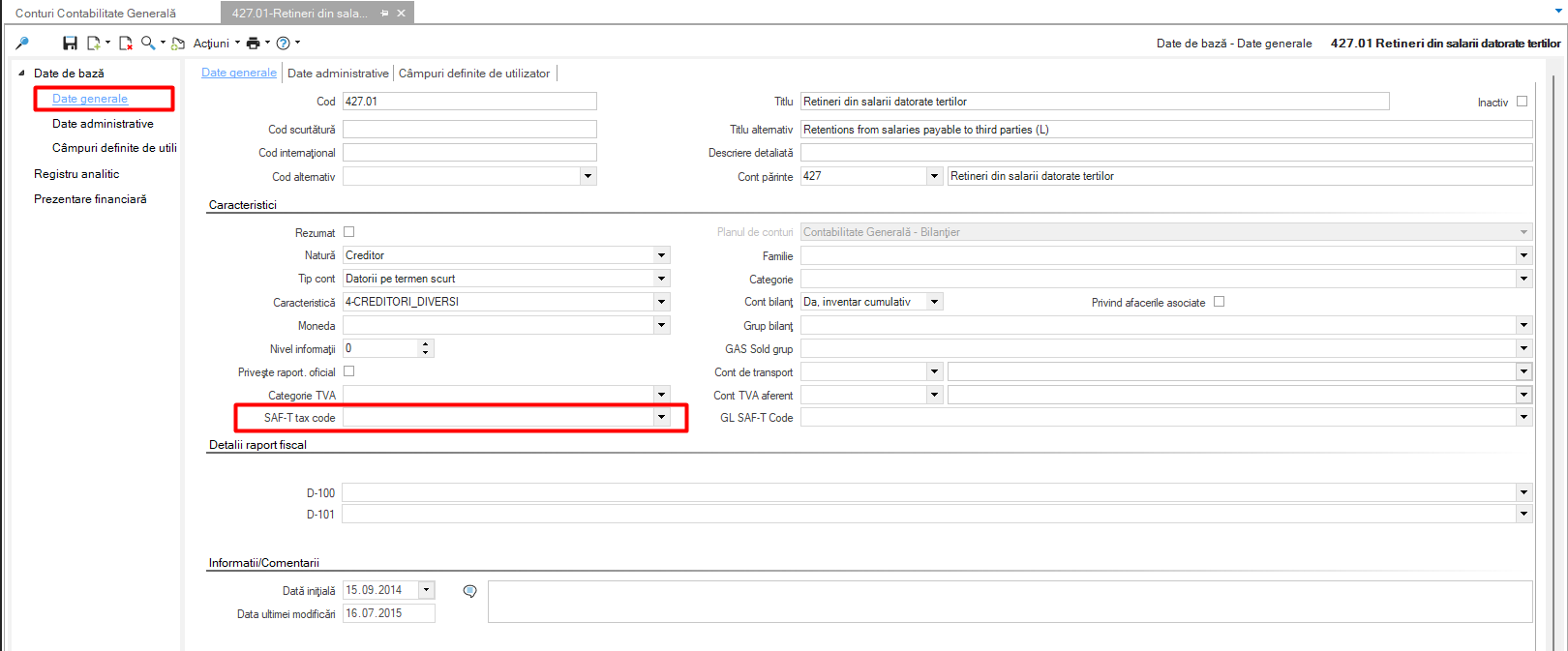
D406 - SAF-T
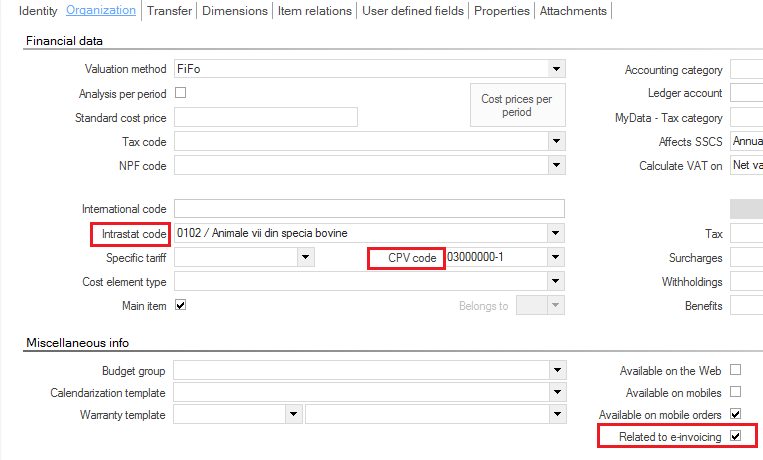
Introduction The main role of SAF-T is to standardize the transfer of information between tax authorities and large taxpayers, providing benefits to both parties. The SAF-T involves the regular reporting of a set of information that facilitates the tax authorities’ review of taxpayers’ transactions. In order to realize the SAF-T declaration, it is necessary to make some settings (coding) so that the information is transmitted according to the indications provided. Intrastat
Authentication
Introduction Entersoft Business Solution offers a complete integration with the RO e-Factura system from ANAF, via the cloud services platform Socrate Business Services, SBS eFactura. The person who needs to enter the connection data for setting the authentication to ANAF will need to have the ANAF authentication token for its digital signature with him in order to successfully complete the process. e-Factura
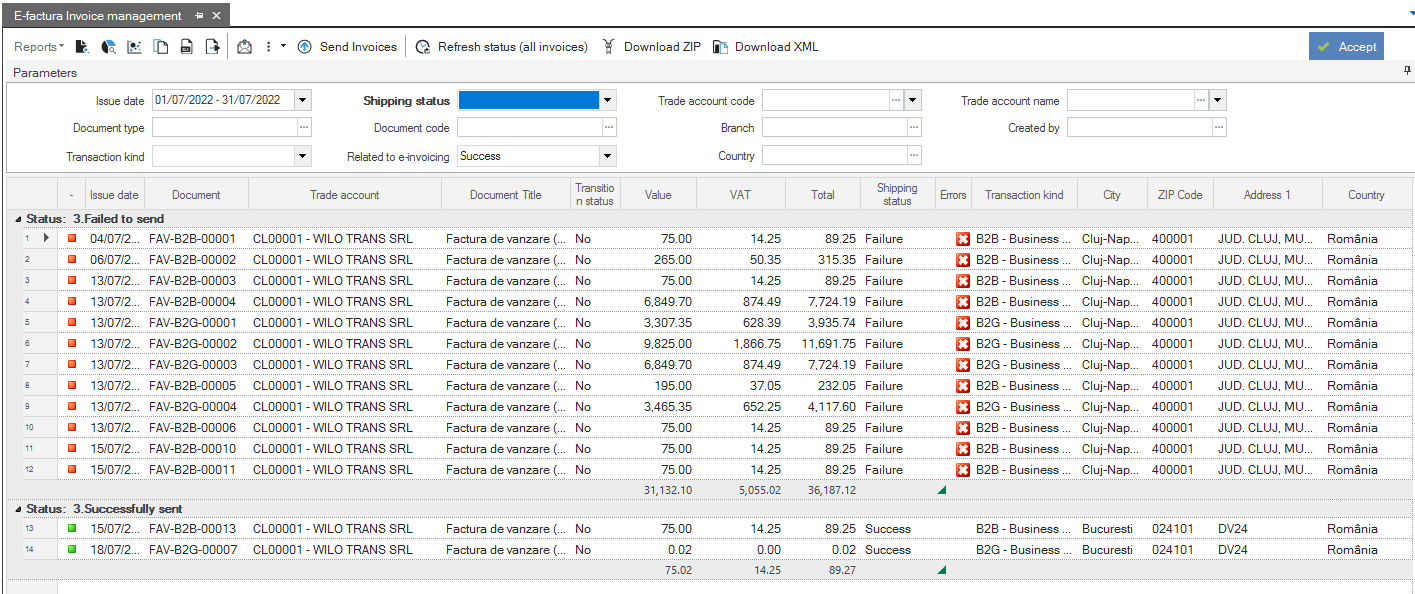
Overview It is possible to send the invoice content with a special type of file (xml) to ANAF. Sending invoices is mandatory, starting 1.07. 2022, for the following transactions: B2G (business-to-government) transactions. B2B (business-to-business) transactions containing at least one ‘high risk’ element. B2C (business-to-consumer) transactions with holiday vouchers payment method. Attention: As of January 1, 2024, the e-Factura system becomes mandatory for all VAT-registered companies in Romania and as of January 1, 2025, all B2C transactions must be sent to the e-Factura system. e-Transport
{class=“children children-type-tree children-sort-weight”}
Database Server The suggested characteristics of an all in one server may vary for each installation according to the needs in the number of users, data size, subsystems that will be enabled etc. The below configurations are for typical occasions of 10–50 users.
Because of the critical role of an ERP or ERP/WMS system in a company, configuration of high availability is suggested for the uninterrupted operation of the application.
Intro The integration of a courier in EBS-RO encompasses several configurations, both on code and data.
If the code is already created, a set of files dealing with the courier’s API calls are already present in the software package. There is a standard set of automations for each of these integrations:
Create shipment,
and:
Print shipment,
Prerequisites The EBS-RO application version must be 5.13.0.0 or later, and the Retail module must be installed.
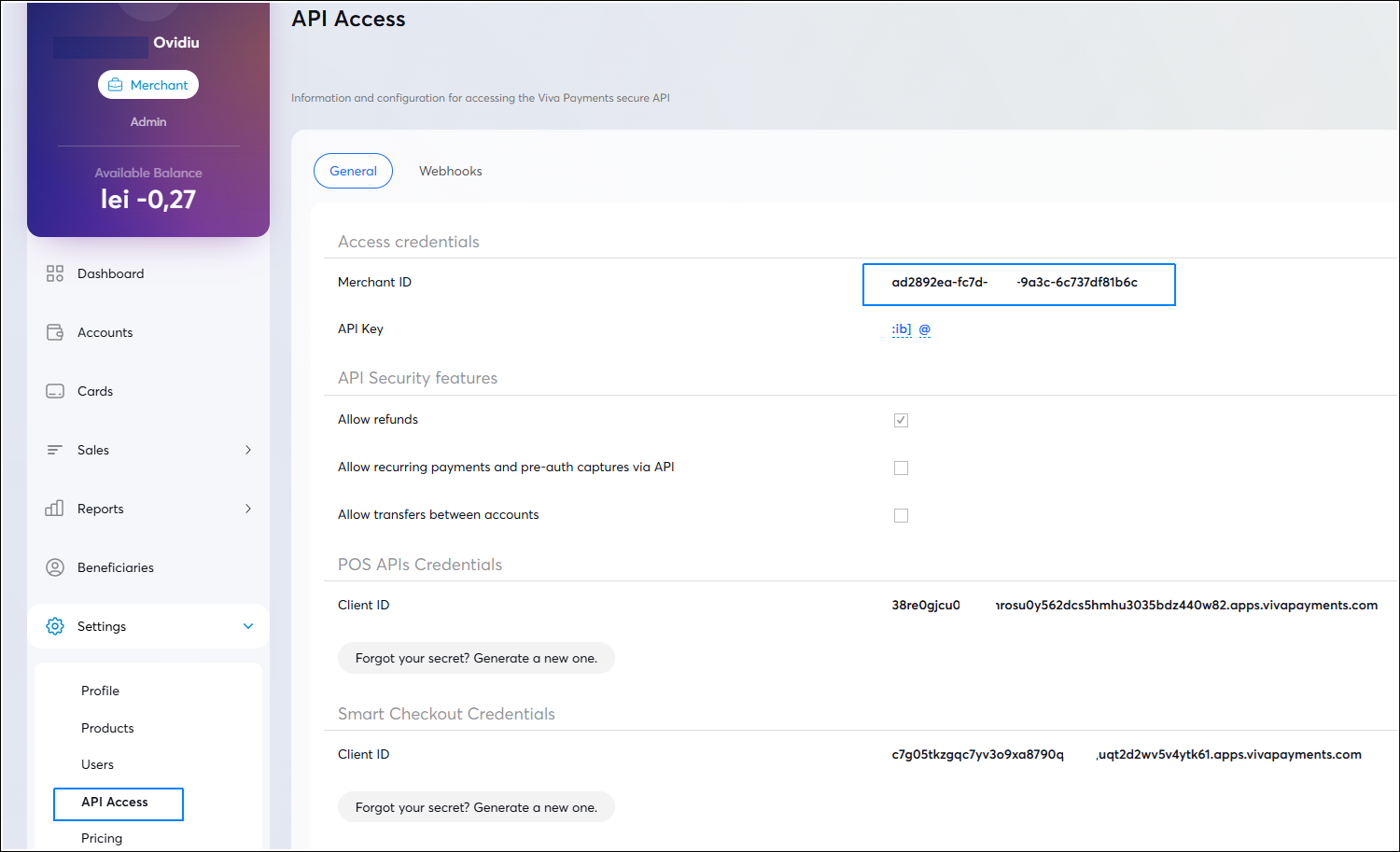
Ensure you have a VIVA merchant account on the viva.com website, where you will receive a Merchant ID available in the API Access section.
Ensure you have the POS terminal (or application—e.g., on Android) for which you identified the Terminal ID (POS Code) in Settings > About.
{class=“children children-type-tree children-sort-weight”}
Subsections of General
Installation requirements
1. Database Server
The suggested characteristics of an all in one server may vary for each installation according to the needs in the number of users, data size, subsystems that will be enabled etc. The below configurations are for typical occasions of 10–50 users. Because of the critical role of an ERP or ERP/WMS system in a company, configuration of high availability is suggested for the uninterrupted operation of the application.
Operating System Windows 2016 R2 Server Standard Edition with the latest Service Pack installed,
SQL Server 2017 Standard Edition with latest CU installed.
1.2. Recommended configuration
Physical Server
Intel Xeon 8 core CPU or better,
Two hot pluggable redundant PSUs,
Hot pluggable redundant cooling fans,
RAM >=16GB upgradable,
2-channel SAS RAID Controller,
2 hot-pluggable SAS disks in mirror (RAID1) >= 146GB each for system,
4 to 6 hot-pluggable SSD or SAS disks in mirror (RAID10) >=146GB each with 64K Allocation Unit Format for the ERP Database Files. In case of larger installations a special study is required - i.e. for big installations an SSD RAID or NVME RAID-10 (with 8–10 disks) storage system is suggested.
Operating System Windows 2022 R2 Server (or newer preferable) Standard Edition x64 with the latest Service Pack installed,
SQL Server 2022 Standard Edition with latest CU installed.
VM Server
8 vCPU,
Ram >= 16 GB,
Disks System VHD >= 146GB,
Data VHD >= 146GB with 64K Allocation Unit Format for Database Files; in case of larger installations a special study is required,
VHDs are suggested to be in an SSD RAID or SAS RAID-10 (with 8–10 disks) storage system
LAN card 1Gbps,
Back-up mechanism on host: Tape backup devices, storages, external disks, etc.
Operating System Windows 2022 R2 Server (or newer preferable) Standard Edition with the latest Service Pack installed,
SQL Server 2022 Standard Edition with latest CU installed.
.Net framework 4.8 must be installed.
As we mentioned, the uninterruptable operation of the application depends on the availability of the H/W platform. It is obvious that a failure on the Database Server (e.g., PSU failure, disk failure and more) that will take it out of operation equals to the interruption of the ERP system.
An UPS (Uninterruptible Power Supply) for the Database & Application Server is also necessary, so a UPS device must be connected for protection against power failures and voltage abnormalities.
2. Application Server
For the best performance of the installation a separate Application Server is suggested for installations at companies with more than 50 users. In smaller installations the Application Server coexists with the Database Server.
The Application Server also serves the remote users. Between the main server and the remote points, only the necessary data information is transferred to the end user, resulting to:
very low traffic on the communication lines;
ability of functionality through a simple internet connection;
no extra systems required (e.g. Terminal Server) adding more cost and management resources.
2.1. Minimum configuration
Physical Server
Intel Xeon CPU 2 core,
RAM 8GB,
Disk space 80GB,
LAN card 1Gbps,
Operating System Windows 2016 R2 Server Standard Edition with the latest Service Pack installed.
VM Server
2 vCPU,
RAM 8GB,
Disk space 80GB,
LAN card 1Gbps,
Operating System Windows 2016 R2 Server Standard Edition with the latest Service Pack installed.
2.2. Recommended configuration
Physical Server
Intel Xeon CPU 4 core or better,
Two hot pluggable redundant PSUs,
Ηot pluggable redundant cooling fans,
RAM 8GB,
Disk space >= 80GB,
LAN Card 1Gbps,
Operating System Windows 2022 R2 Server (or newer preferable) Standard Edition x64 with the latest Service Pack installed.
VM Server
4v CPU,
Ram >= 8GB,
VHD >= 146GB,
LAN card 1Gbps,
Operating System Windows 2022 R2 Server (or newer preferable) Standard Edition with the latest Service Pack installed.
.Net framework 4.8 must be installed.
An UPS (Uninterruptible Power Supply) for the Application Server is also necessary, for protection against power failures and voltage abnormalities.
3. Web Server (Mobiles and/or eCom)
The Web Server serves the mobile users and/or the web customers via a web service and/or web portal.
The Web Server requires the installation of the Internet Information Server (IIS) 6 or newer.
3.1. Minimum configuration
Physical Server
Intel Xeon CPU 2 core,
RAM 8GB,
Disk space 80GB,
LAN card 1Gbps,
Operating System Windows 2016 R2 Server Standard Edition x64 with the latest Service Pack installed.
VM Server
2 vCPU,
RAM 8GB,
Disk space 80GB,
LAN card 1Gbps,
Operating System Windows 2016 R2 Server Standard Edition with the latest Service Pack installed.
3.2. Recommended configuration
Physical Server
Intel Xeon CPU 4 core or better,
Two hot pluggable redundant PSUs,
Ηot pluggable redundant cooling fans,
RAM 8GB,
Disk space >= 80GB,
LAN Card 1Gbps,
Operating System Windows 2022 R2 Server (or newer preferable) Standard Edition x64 with the latest Service Pack installed.
VM Server
4 vCPU or better,
RAM 8GB,
Disk space 80GB,
LAN card 1Gbps,
Operating System Windows 2022 R2 Server (or newer preferable) Standard Edition with the latest Service Pack installed.
An UPS (Uninterruptible Power Supply) for the Application Server is also necessary, for protection against power failures and voltage abnormalities.
4. Clients
The user’s workstations must have the following characteristics:
4.1. Minimum configuration
CPU 2 cores with multithread,
RAM 4GB,
Disk space 80GB,
LAN card 1 Gbps,
Operating System Windows 10 with the latest Service Pack installed.
4.2. Recommended configuration
Intel Core 4 cores with multithread,
RAM >= 8GB,
Disk space >= 80GB,
LAN card 1Gbps,
A good but not too expensive VGA Card will provide better speed on the users and the workstations functionality,
Operating System Windows 11 with the latest Service Pack installed.
On all clients .Net framework 4.8 must be installed.
5. Mobile Devices
5.1. iOS Devices
iPad Air, iPad Mini3, iPhone 6 Plus and above,
Network: Wi-Fi + Cellular (Optional),
Capacity: >= 16GB,
Operating System >= iOS 13.
5.2. Android Devices
Cross Platform (ES Mobile),
Dual Core (or higher),
RAM >= 2GB,
Storage Capacity: >= 16GB,
OS >= Android 8 (with Google Play services),
Wi-Fi + Cellular (Optional),
Notes: In case of device replacement for an existing installation:
Screen resolution should be the same as the old device (otherwise there is a chance that parametrization may be required).
Screen size should match (otherwise there is a chance that parametrization may be required).
Operating System: Windows Mobile 6.5 / 7, Android 4.1 (or higher),
RAM Memory 256MB - 2GB,
Display Resolution min. 640 x 480,
Scanner Type min. 2D Imager.
Screen size is a choice based on user comfort. RF application has settings that adopt fonts and objects to relevant screen resolution and size. PDAs functionality is based on Wi-Fi connectivity.
6.2. Recommended Devices
The following list presents some of the devices that have been tested and work correctly with ES Apps.
Honeywell CK65,
Honeywell CK65 Long Range,
Honeywell EDA61K,
Honeywell CK65 Long Range 4G,
Zebra MC93,
Zebra MC33.
There are peripheral devices to extend or support the above devices:
Pistol grip handles,
Battery chargers,
Holsters,
Rubber boots,
Spare batteries,
Device bases.
6.3. Printers
Native printing Engine for maximum performance & capabilities,
Zebra, Datamax,
Printing Stations, Sharing, through LAN infrastructure.
The following list presents some of the devices that have been tested and work correctly with ES Apps.
Zebra ZT231,
Zebra ZT411.
7. Network Infrastructure
On installations where remote clients or branches are involved a WAN or VPN network may be needed to create. A very important factor for a successful installation is the communication quality and speed between remote desktops and the main Application Server. For the connection between them, there are many choices like Dial-Up connections, DSL, DSL / VPN, GPRS, 3G and more. The choice for the best solution technically and economically is made according to each customer’s demands.
The minimum requirements needed for the correct operation of Entersoft products are as follows:
The wiring must fulfill the requisites of category UTP 5e or 6.
If we consider the increased traffic and the need for fast responses from the workstations, the main network must be segmented with Ethernet switches >=100 Mbps.
The basic workstations and the servers network cards must be >=100Mbps.
Communication Protocol TCP/IP.
8. Compatibility Specifications
8.1. Telephone switchboards for CTI integration with Entersoft CRM®
The CTI module communicates with TAPI v2.0 and later. An indirect compatibility criterion is to check if the center can make calls through MS-Outlook by TAPI and if it gives call recognition capability.
The CTI functionality comes with each PC and is client based.
This means that the TAPI driver must be installed on each PC that needs this functionality. Recording capabilities are available only if the phone center’s TAPIdriver provider can support such features.
The following list presents the phone centers that have been tested and work correctly with Entersoft CRM - CTI.
List of tested phone centers:
(This list will be renewed whenever new information is available.)
Alcatel
Alcatel-Lucent Omni PCX (Office & Enterprise)
Asterisk
Successfully Tested with the XTelsio TAPI driver
Avaya
AVAYA ΙP 403
AVAYA s8500
AVAYA G350
Cisco
CISCO 2800
CPI-FIT
Tested with local TAPI driver
Samsung
All OfficeServ centers; more specifically: OS SOHO MASTER, OS 12, OS 100, OS 500, OS 7030, OS 7100, OS 7200, OS 7400.
The POS systems have various processors (eg Intel Atom CPU) that all work properly with our application. Depending on the customer’s requirements and the peripherals of each POS, better systems are suggested for maximum performance.
POLE DISPLAY
POSIFLEX PD2100S,
WD-202A(B),
EPSON DM-D210,
TOSHIBA TEC,
TOSHIBA FISCAL DISPLAY.
SCANNERS
POSIFLEX 3830U,
OPR2001 COMPACT LASER,
DATALOGIC MAGELAN 2300HS (ICS),
METROLOGIC ORBIT MS7180 (ICS).
Scanners connected to a serial port need their own program to communicate with windows, while USB ones work immediately when connected to the PC.
TOUCH SCREENS
ELO 1515L from CPI,
ELO 1715L from CPI.
RF Devices
ZEBRA MC33 (Android),
HONEYWELL EDA60K (android),
CIPHERLAB RK25 (Android),
INTERMEC CK71, CK3X, CK3R (Windows),
DATALOGIC Skorpio X4 (Windows),
MC3200 Variants (Windows).
DRAWERS
Our applications work with the following drawers and those that can be connected directly to a PC are preferred for better management by our application. The most drawers are opened during the issuance of the receipt when connected to printers:
YEICOM EC-35 (ΤΑΜΕΙΑΚΗΣ),
POSIFLEX CR3100,
GALEO.
WEIGHTING MACHINES
For the purpose of integrating weighing functionality, a module was developed which provides an interface through a serial port (COM), without the need to install a driver in the system and has been tested with:
DIGI DS-980.
TAX MECHANISMS
Our applications work with Type A tax mechanisms and we are proven compliant with the following:
**) It also works online with an unlimited number of terminals that can be served as well as in case of damage to the fiscal mechanism, it automatically sends the signature to a back up second Fiscal Box, without human intervention.
***) Installation instructions in the relevant documents.
CAUTION: Digital copies should always be checked and approved for correctness by the company’s accountant.
TAX PRINTERS
Epson Fiscal DM210 & DM220,
Epson Fiscal 4000 – 8000,
Star Fiscal 300,
Posiflex (CPΙ) / All the models,
Ergospeed (ELMI) / All the models,
LD 628 (Logicdata),
MRS Fazy FPU,
Arcadia,
Samsung Fiscal 350,
Ditron Zip258 (Trias),
Easy Fiscal (ICS),
Epson FP-81F (through OPOS drivers),
TEpsonTM81.
THERMAL PRINTERS
All thermal printers are supported via Windows printing.
Whether to automatically cut the paper at the end of printing after the mark string depends solely on the capabilities of the printer and Driver.
Such printers are below:
Smice (MRS electronics),
All Epson TM88 series,
WTP-150 (ICS),
LK-T21 (ICS).
Couriers integration
1. Intro
The integration of a courier in EBS-RO encompasses several configurations, both on code and data.
If the code is already created, a set of files dealing with the courier’s API calls are already present in the software package. There is a standard set of automations for each of these integrations:
Create shipment, and:
Print shipment,
Update shipment,
Cancel shipment,
View shipment information.
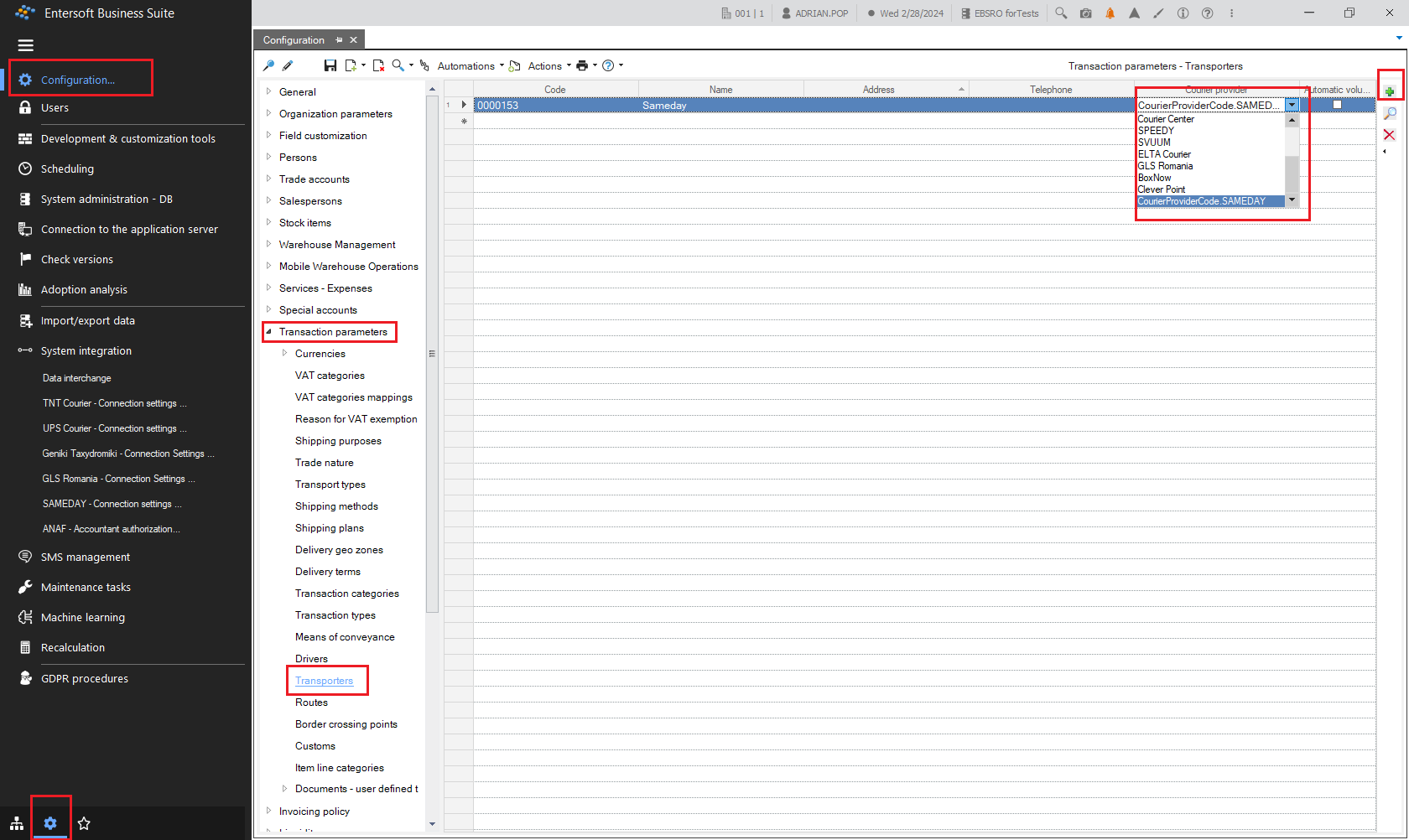
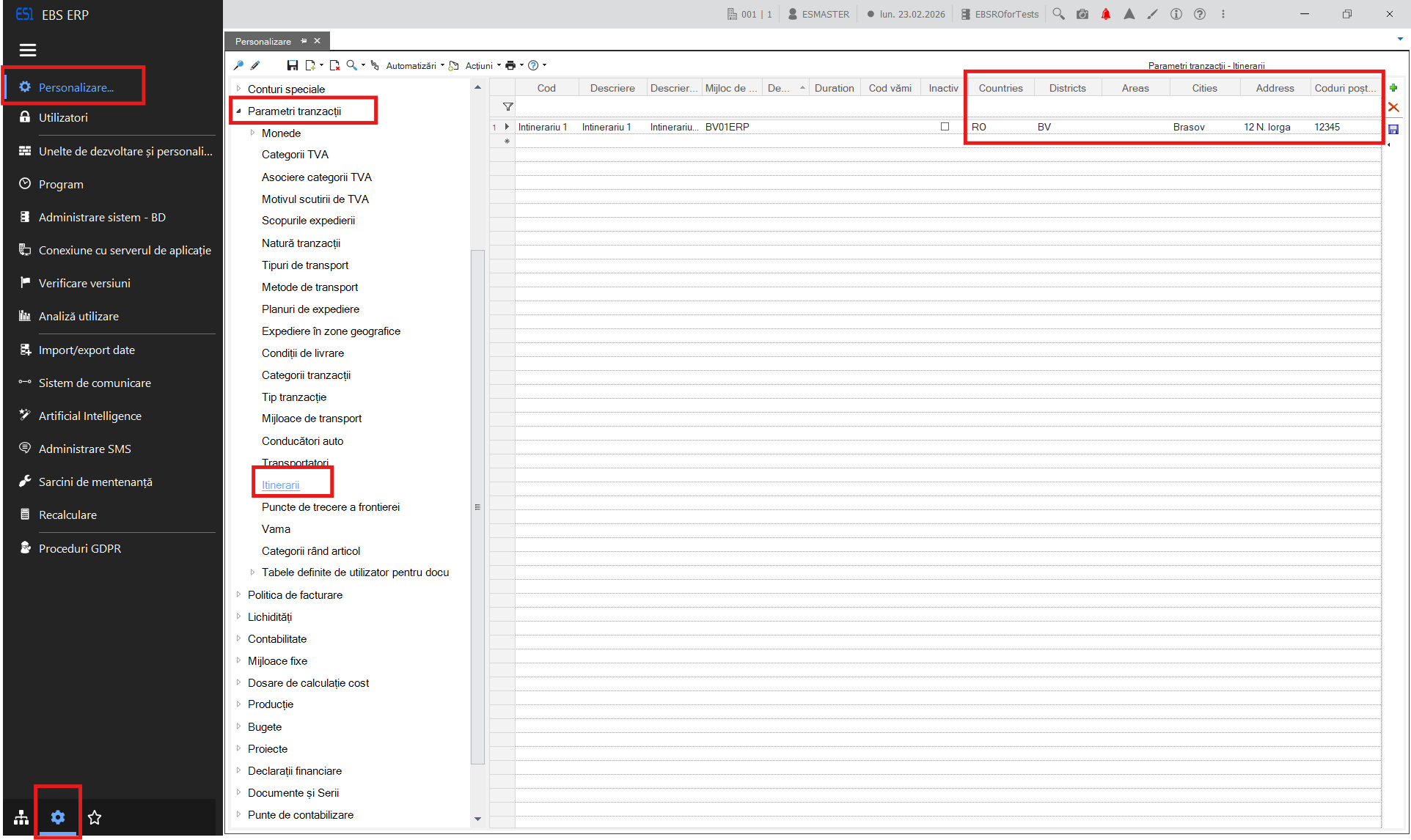
These automations are present in the menus of documents or scrollers that deal with shipments via couriers. These couriers are called Transporters, and a list of all the couriers that are integrated in any country specific EBS package is available if you open the menu Configuration and Tools > Configuration… > Transaction parameters > Transporters to add (+) a courier with which you want to work with.
2. Configure the courier
In the transporters list available in menu Configuration and Tools > Configuration > Transaction parameters > Transporters, you should add (+) the new courier, if it is not present in the scroller, by selecting it from a list of available couriers. On the line entry you can add some specific info such as Name, Address, Telephone and then Save it.
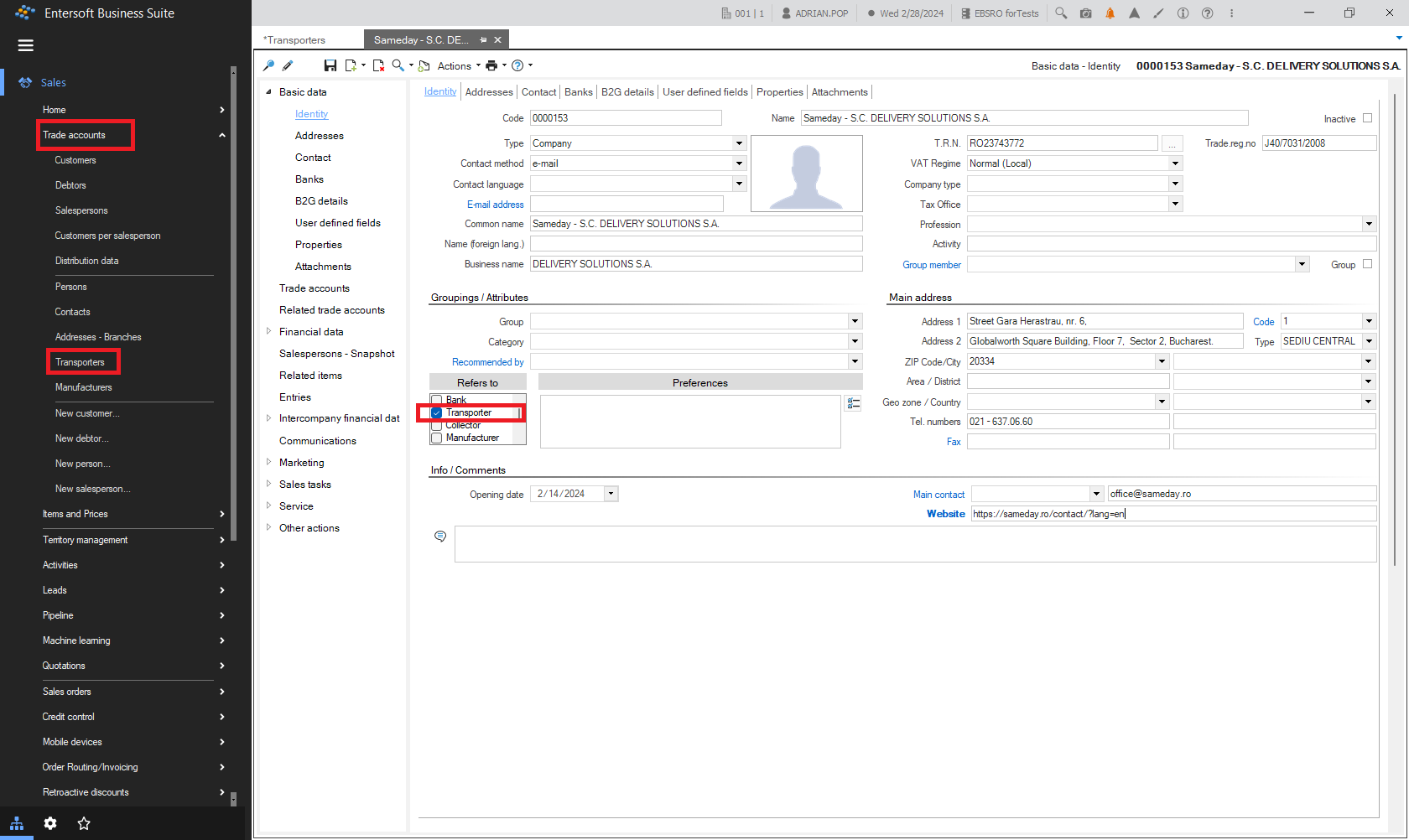
A complete data card for the transporter can be found in the Main Menu > Sales > Trade Accounts > Transporters.
Here you can edit all the information regarding the courier specific trade account partner, by double-clicking the transporter’s line to open its card form.
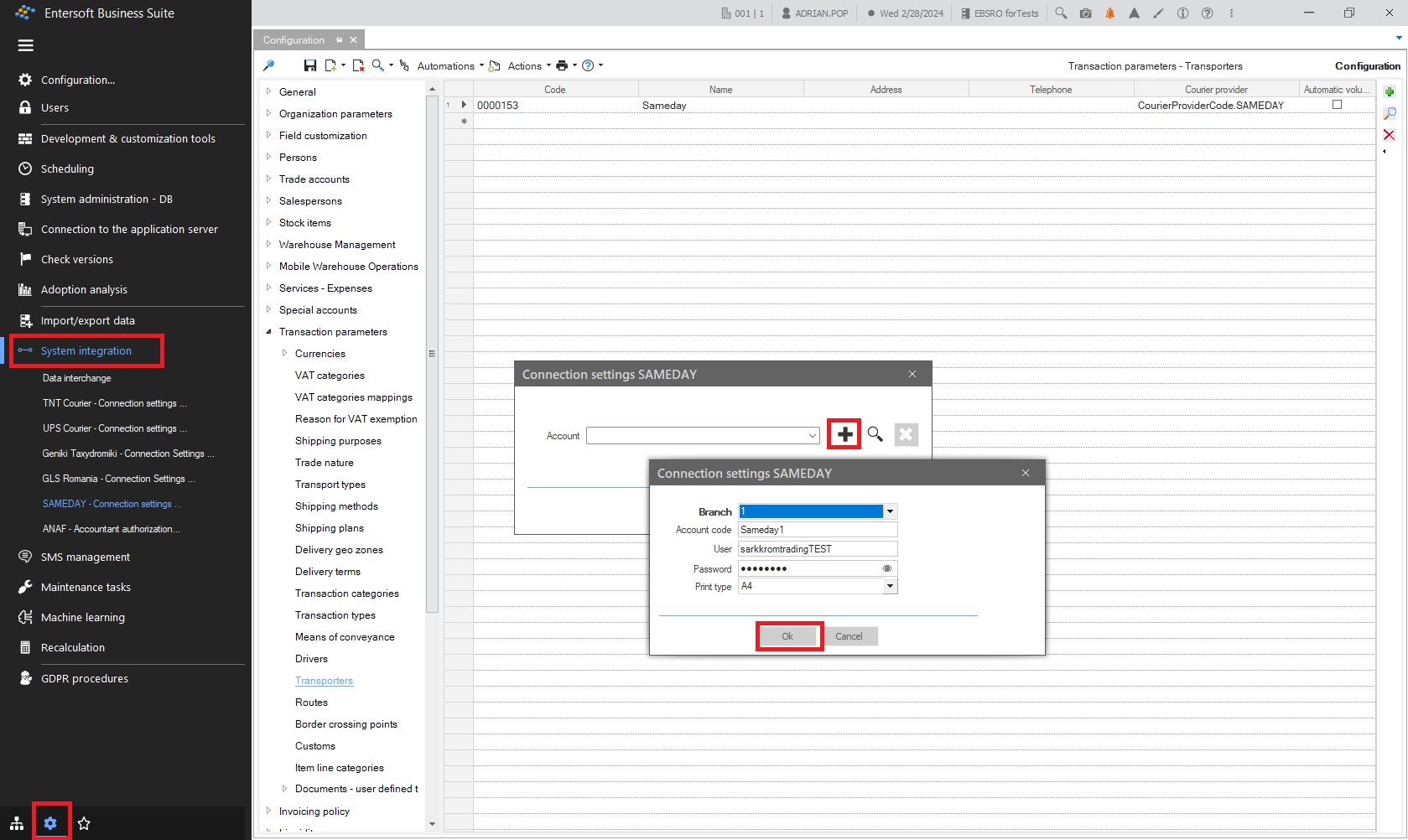
After filling all the necessary info for it, all that remains to configure is the actual account on behalf of which the courier will operate the shipments.
From the contract that you have to have with the courier you will have the account(s)’ credentials that you have to fill in the Connection setting menu here Configuration and Tools menu > System Integrations for Connection settings.
If there are multiple accounts contracted with the courier, each of them should be added here.
3. Shipments via courier
3.1 Create shipment
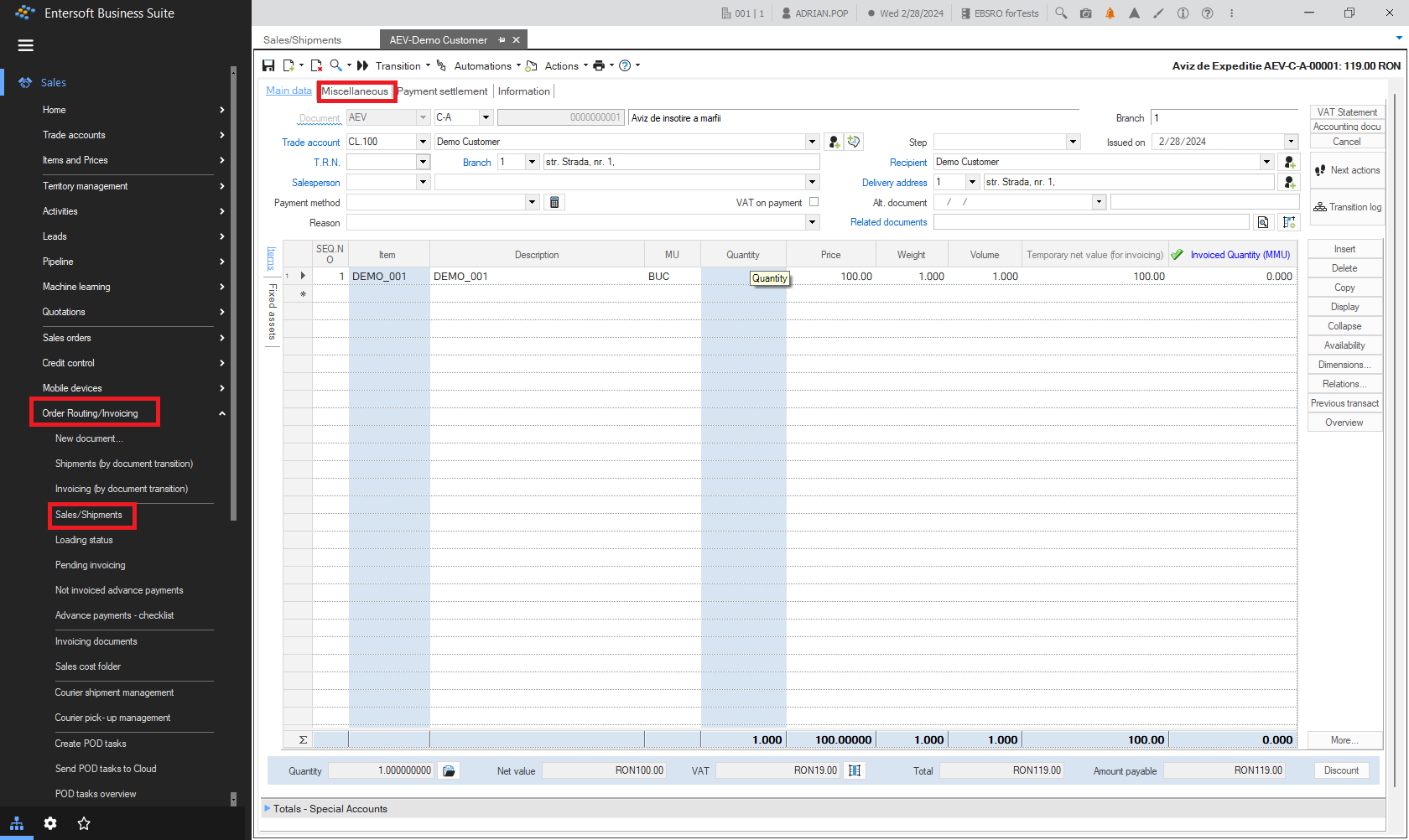
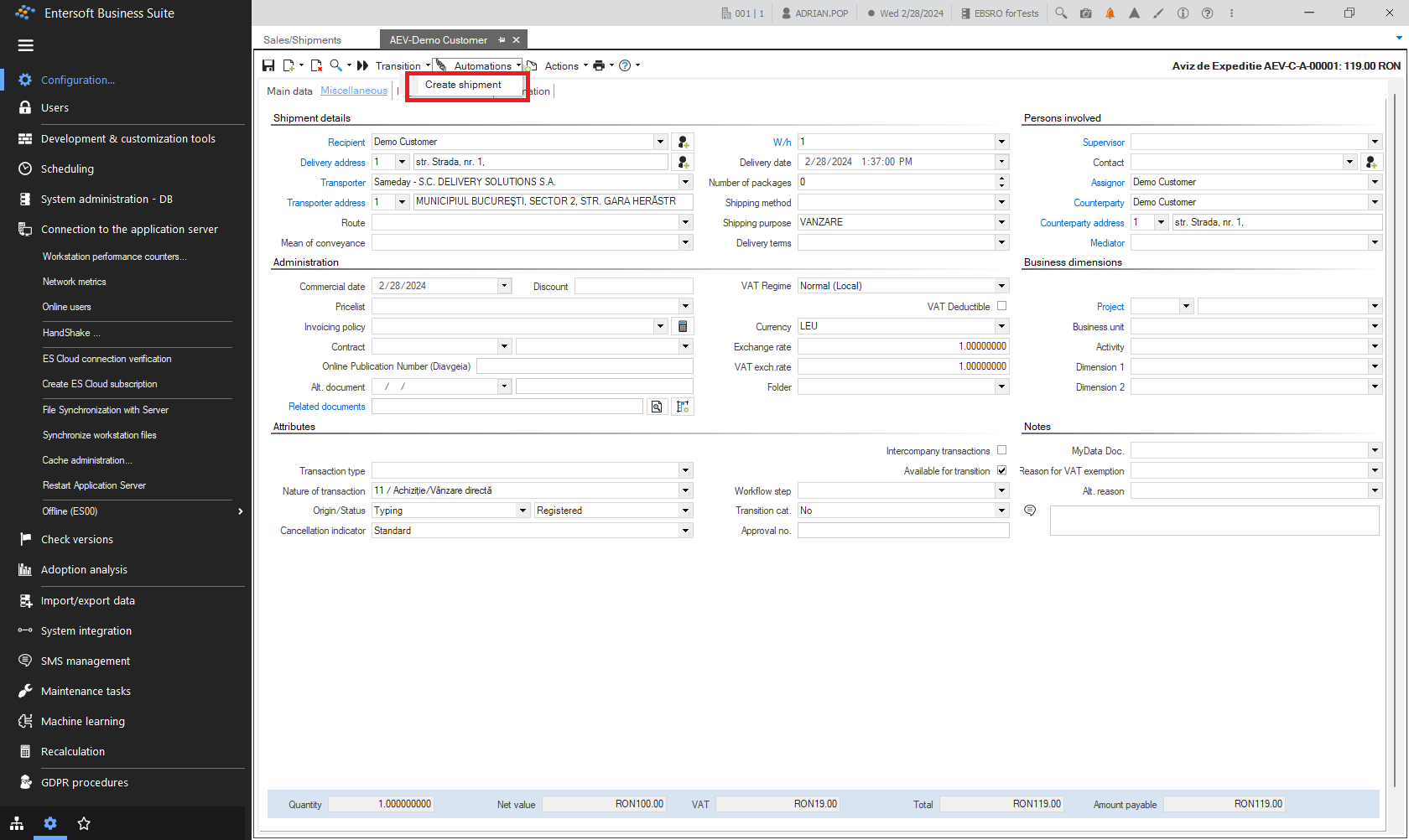
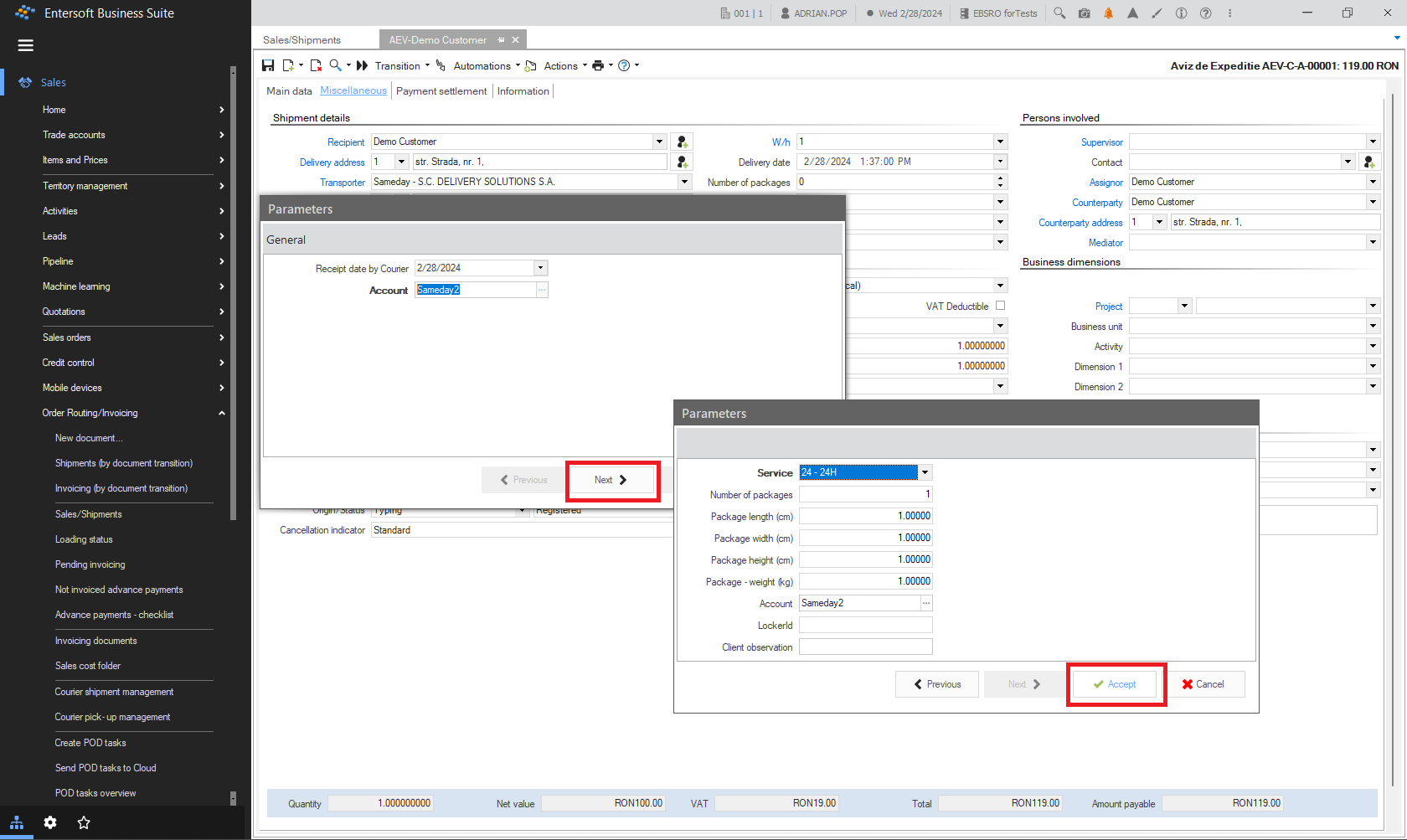
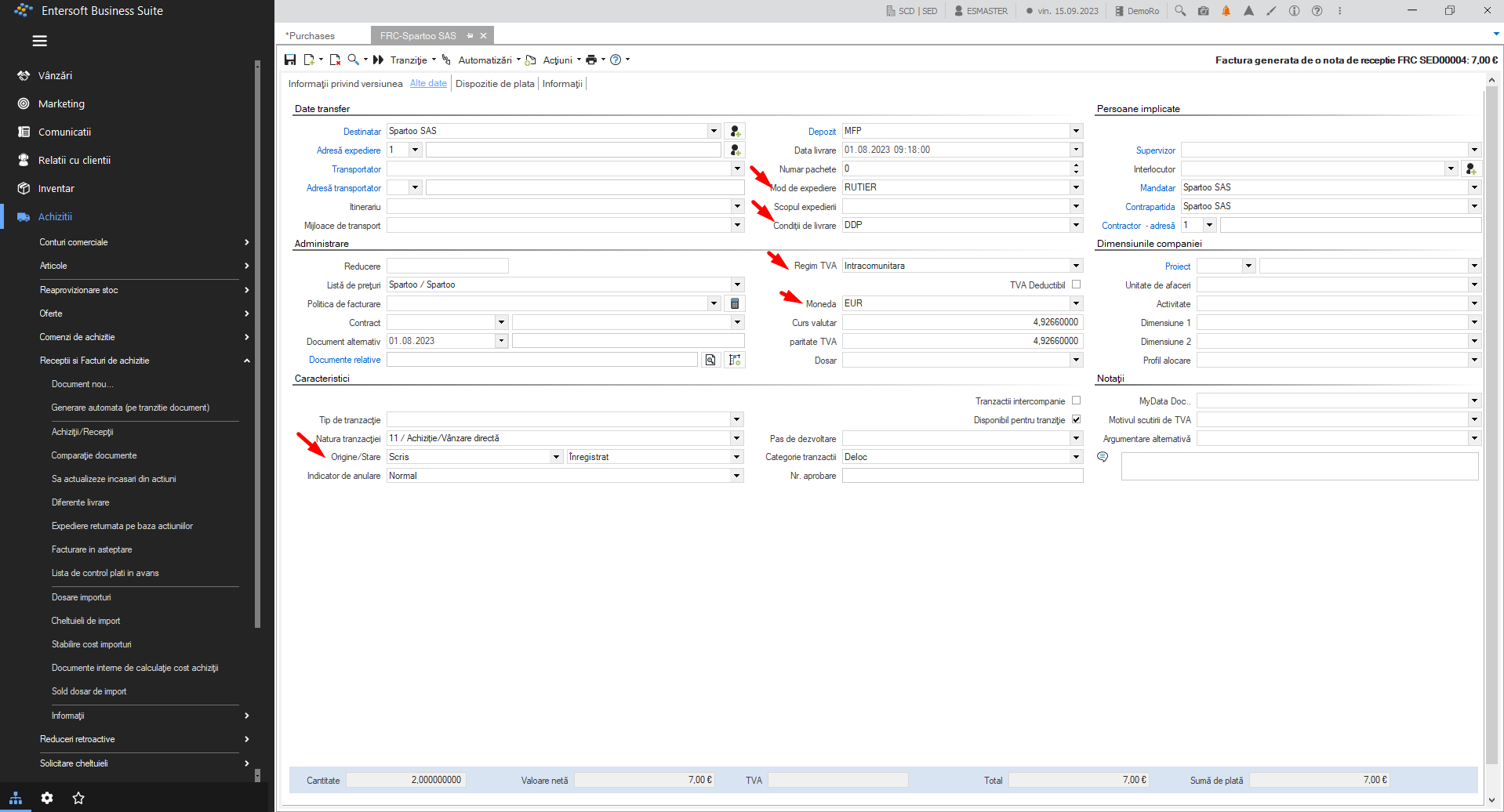
In order to create a shipment, first create a new Invoice or a Shipment Note document. Then on its second tab - Miscellaneous, select the courier in the Transporter field. After saving the document, in the Automations menu list you will see the Create shipment automation.
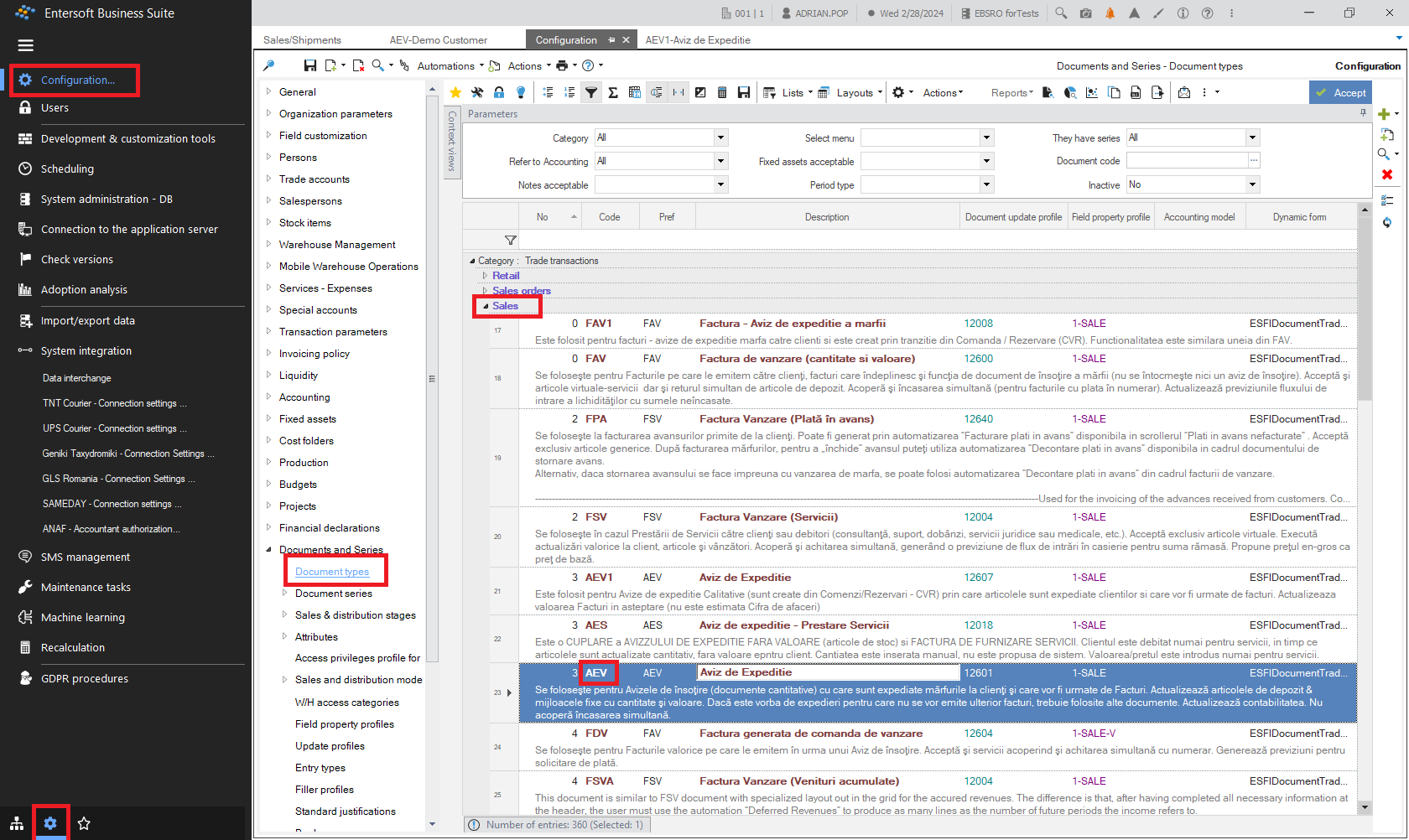
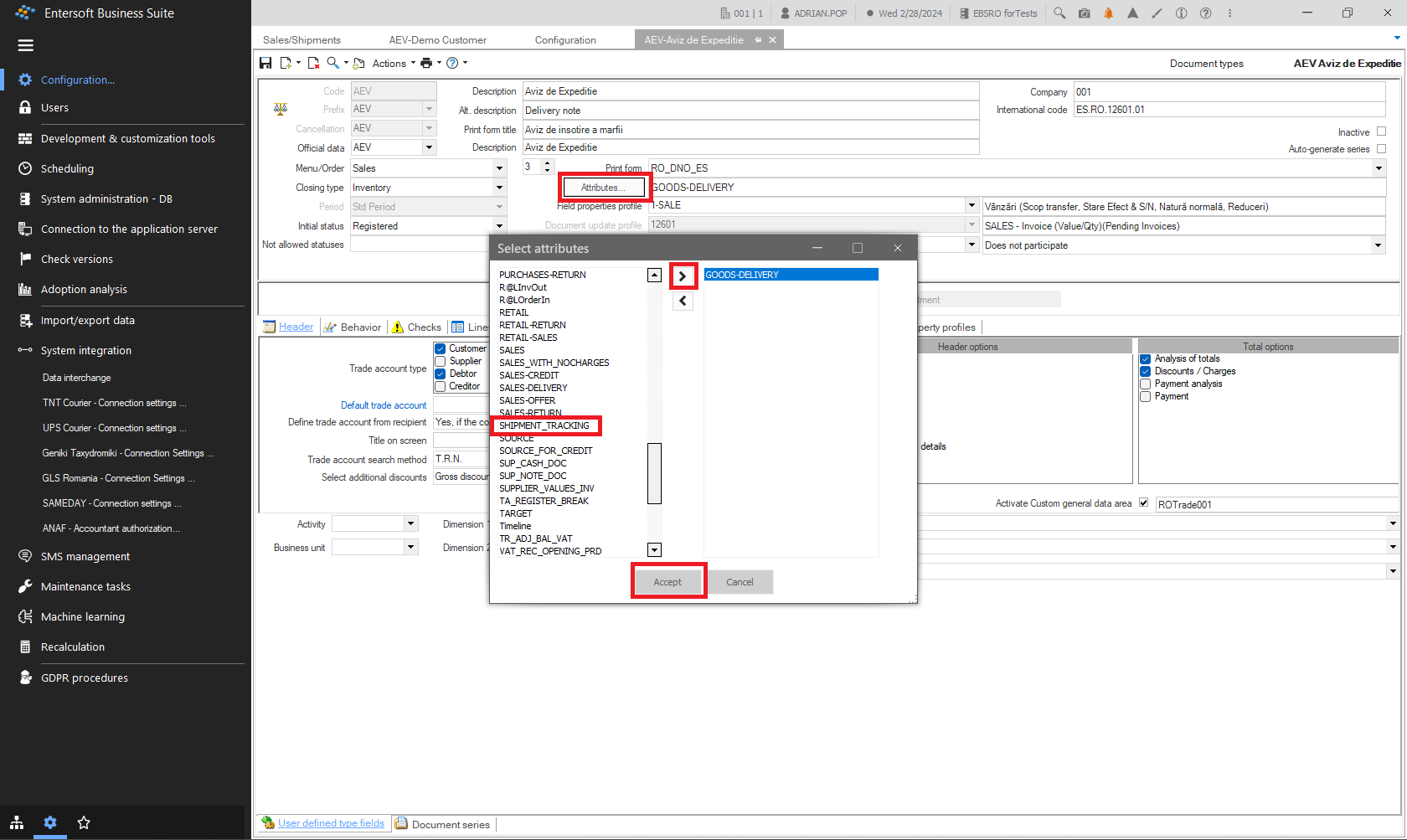
Note: For a document to have the Create shipment automation it must have had set the attribute SHIPMENT TRACKING.
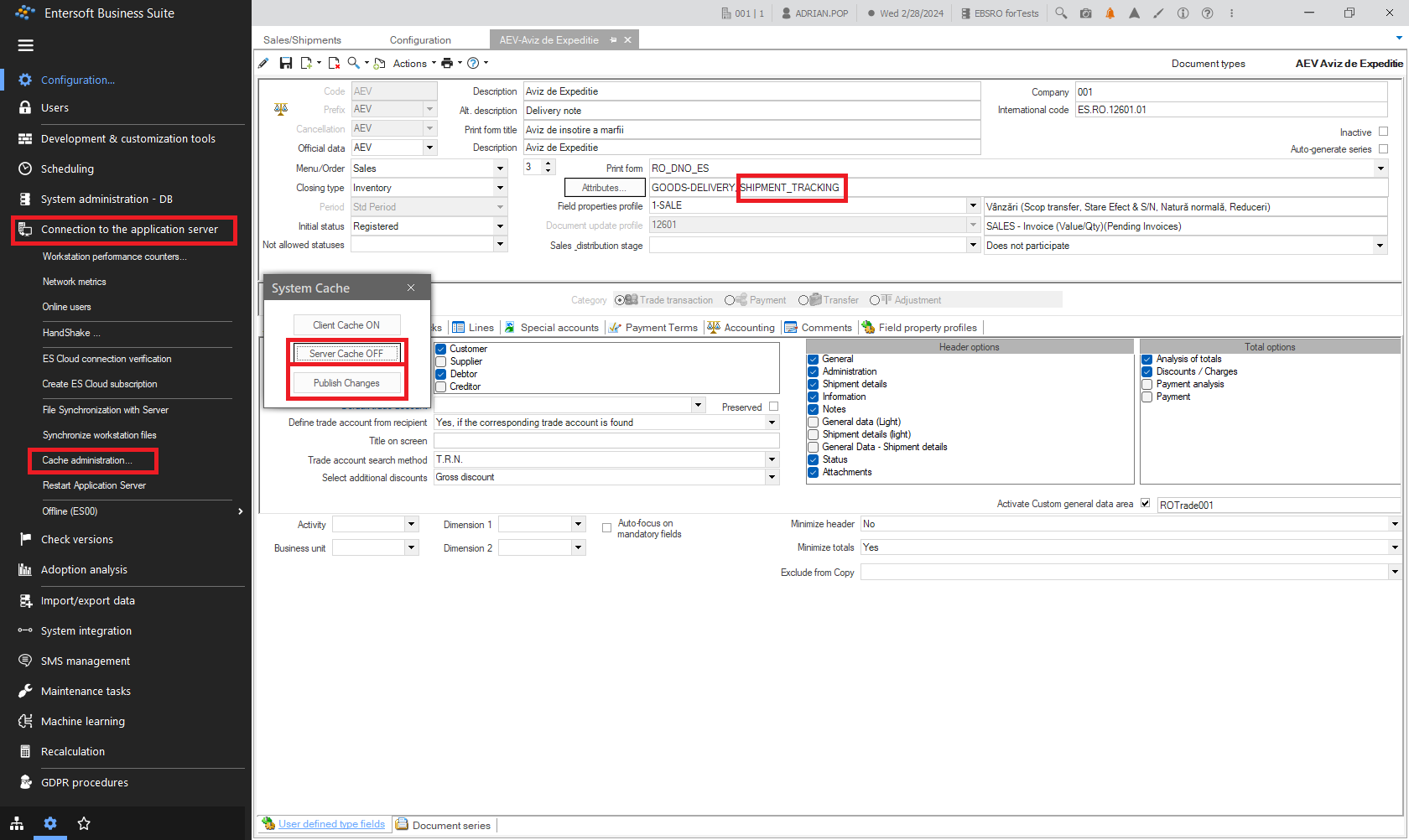
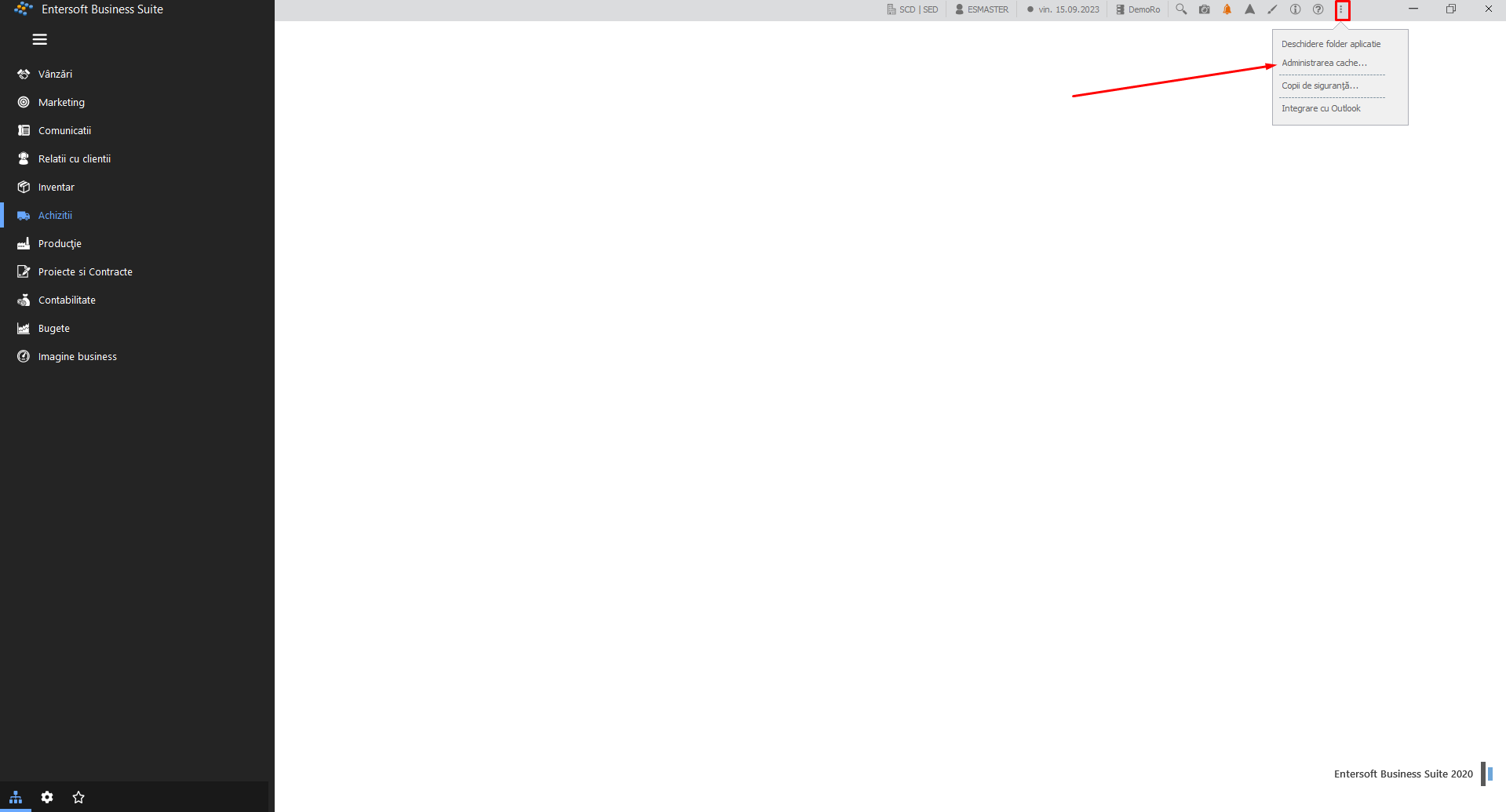
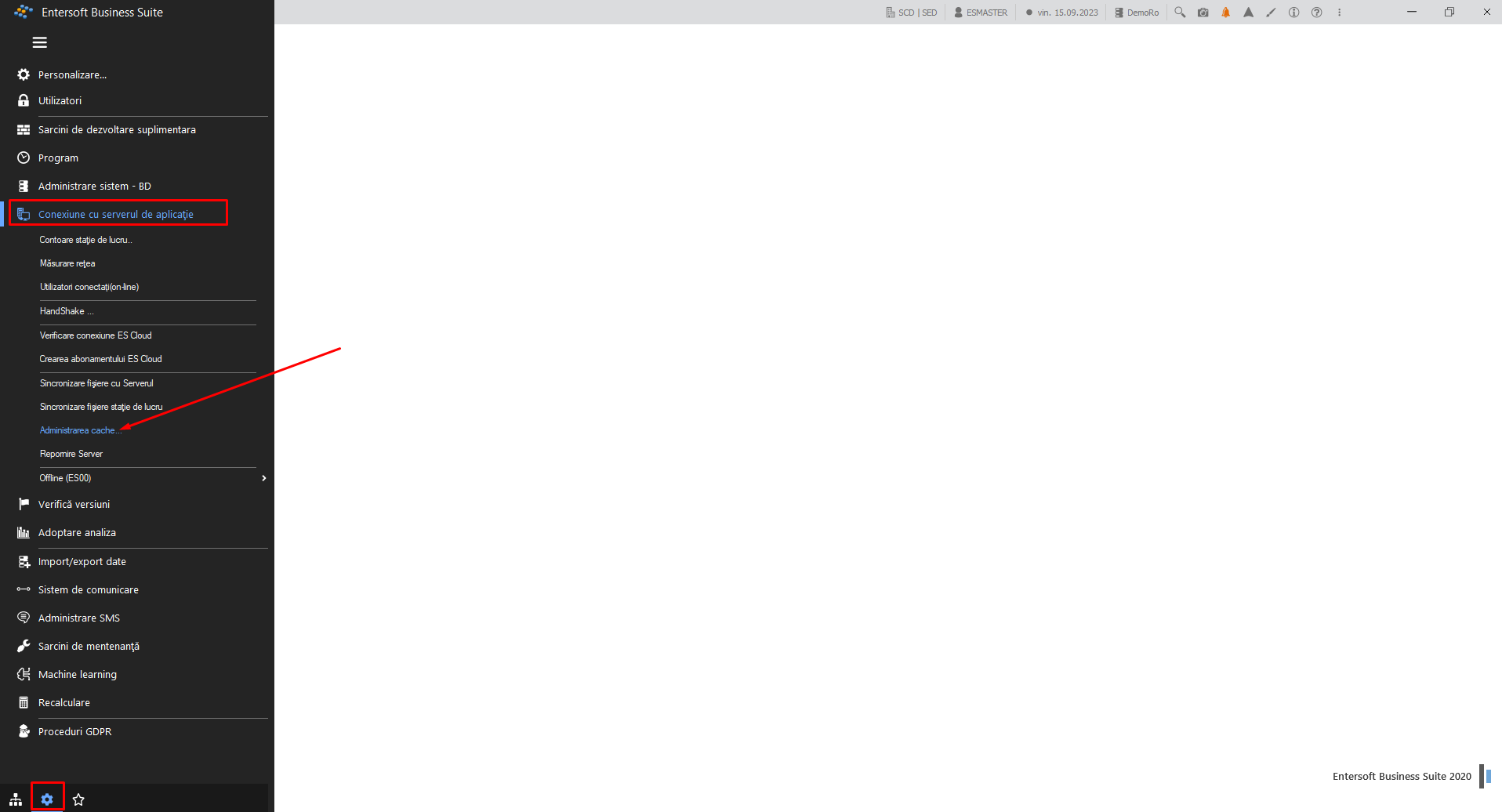
After such a parameterization the cache has to be cleared in order for this to be taken into account. Go to the menu Configuration and tools > Connection to the application server and select Cache administration. In the popup press the button Server cash OFF/ON to clear it and then Publish changes.
Now, going back to our shipping document we can select Create shipment from the Automation menu of our document.
When launching the Create shipment automation You will have to fill in some parameters regarding the specifics of it.
After Accepting, the shipment is actually created, by calling the courier’s API for that specific account used to create the shipment order (AWB).
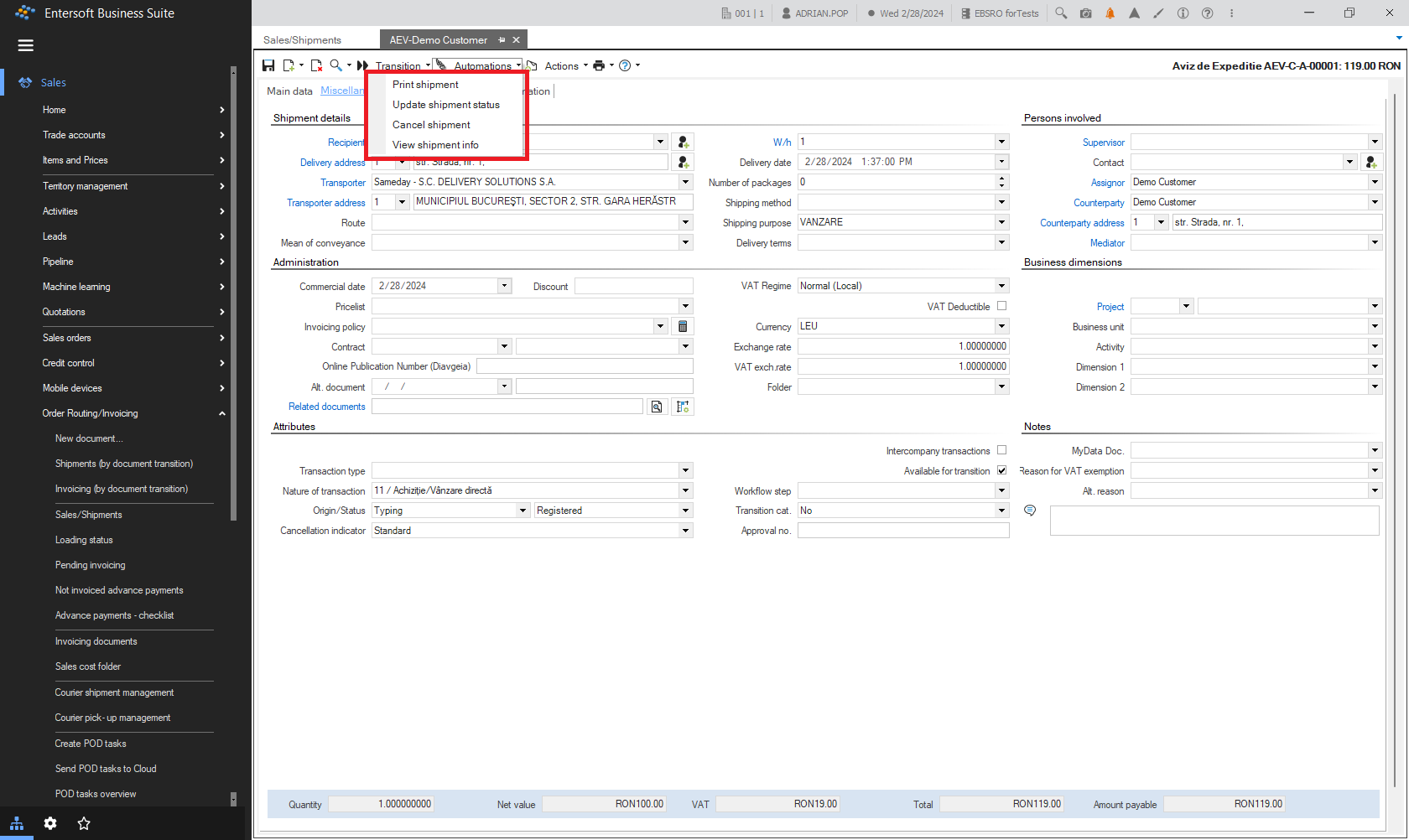
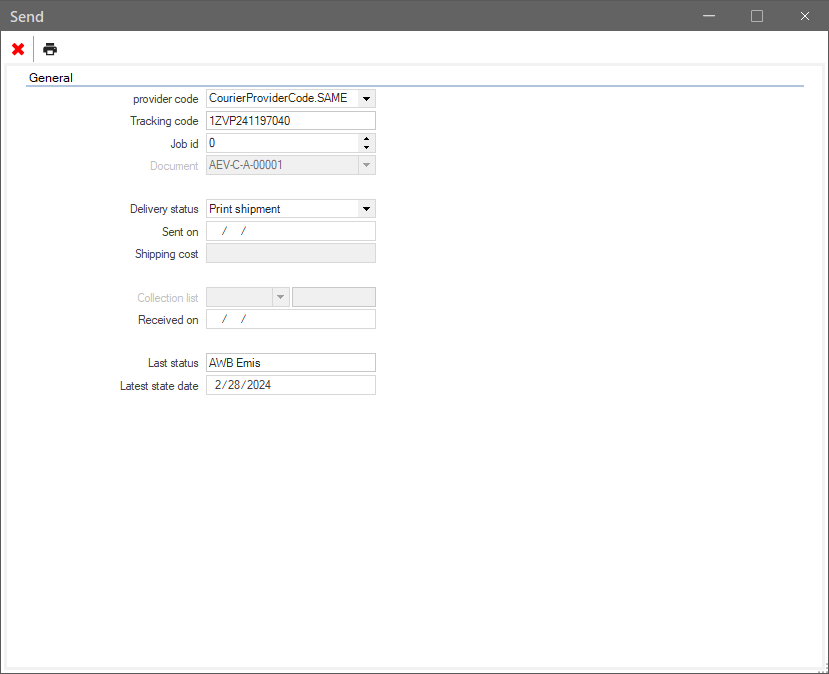
After this was successfully created, there are several automations available for the created shipment:
Print shipment
Update shipment status
Cancel shipment
View shipment Info.
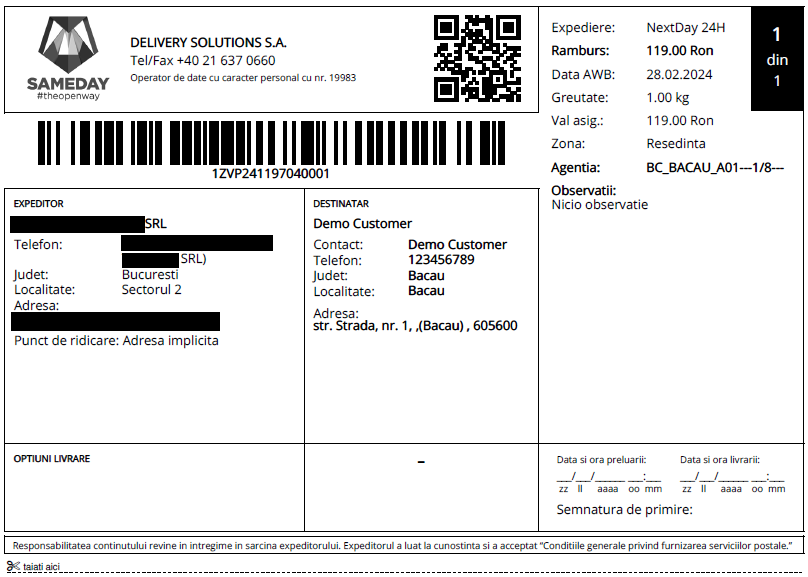
The first of them is used to print the shipment label for the package.
3.2 Print shipment
After selecting the print device it will generate the shipment label for the package.
If there are errors, a popup will display the error. If there are errors regarding the API call on creating the shipping order, the API response is in the latest xml file in the \ESNoSync\SamedayClient folder.
3.3 Update shipment status
This automation is not allowed for newly created shipments. Relates to already finalized shipments.
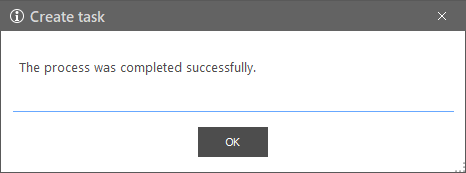
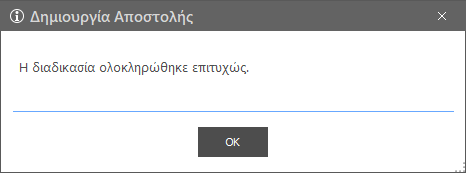
Δημιουργία Αποστολής -> Create shipment
Η διαδικασία ολοκληρώθηκε επιτυχώς. -> The process completed successfully.
3.4 Cancel shipment
This automation deletes the associated shipment to the document.
3.5 View shipment Info
This automation presents the associated shipment information related to the document.
4. Shipments management
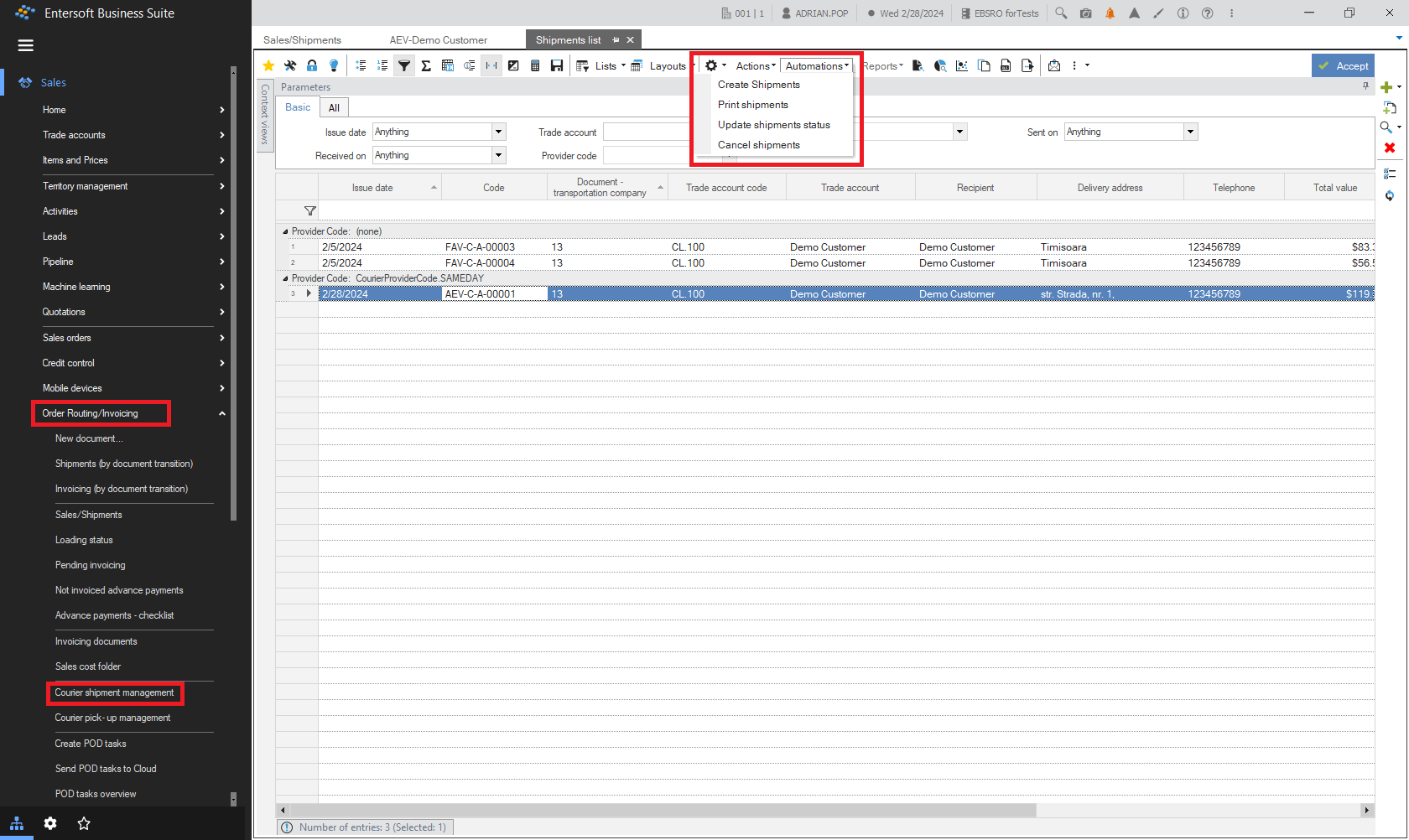
Shipments can be managed via two scrollers under the menu Sales > Order Routing/Invoicing:
Courier shipment management - is a scroller that presents all the shipments via courier.
Courier pick-up management - this is a scroller for managing the pick-ups.
In this scrollers for the selected lines (documents with shipments) we can apply the shipments’ automatizations:
Create shipments
Print shipments,
Update shipments status,
Clear shipments.
5. Field mapping
A complete shipment field mapping is presented in the following file,
for all the couriers integrated in the EBS-RO - Geniki, TNT, GLS, UPS and Sameday - each on a separate sheet.
Viva Wallet integration
1. Prerequisites
The EBS-RO application version must be 5.13.0.0 or later, and the Retail module must be installed.
Ensure you have a VIVA merchant account on the viva.com website, where you will receive a Merchant ID available in the API Access section.
Ensure you have the POS terminal (or application—e.g., on Android) for which you identified the Terminal ID (POS Code) in Settings > About.
Ensure that the POS terminal is connected to the internet.
2. Settings
2.1. Company parameters
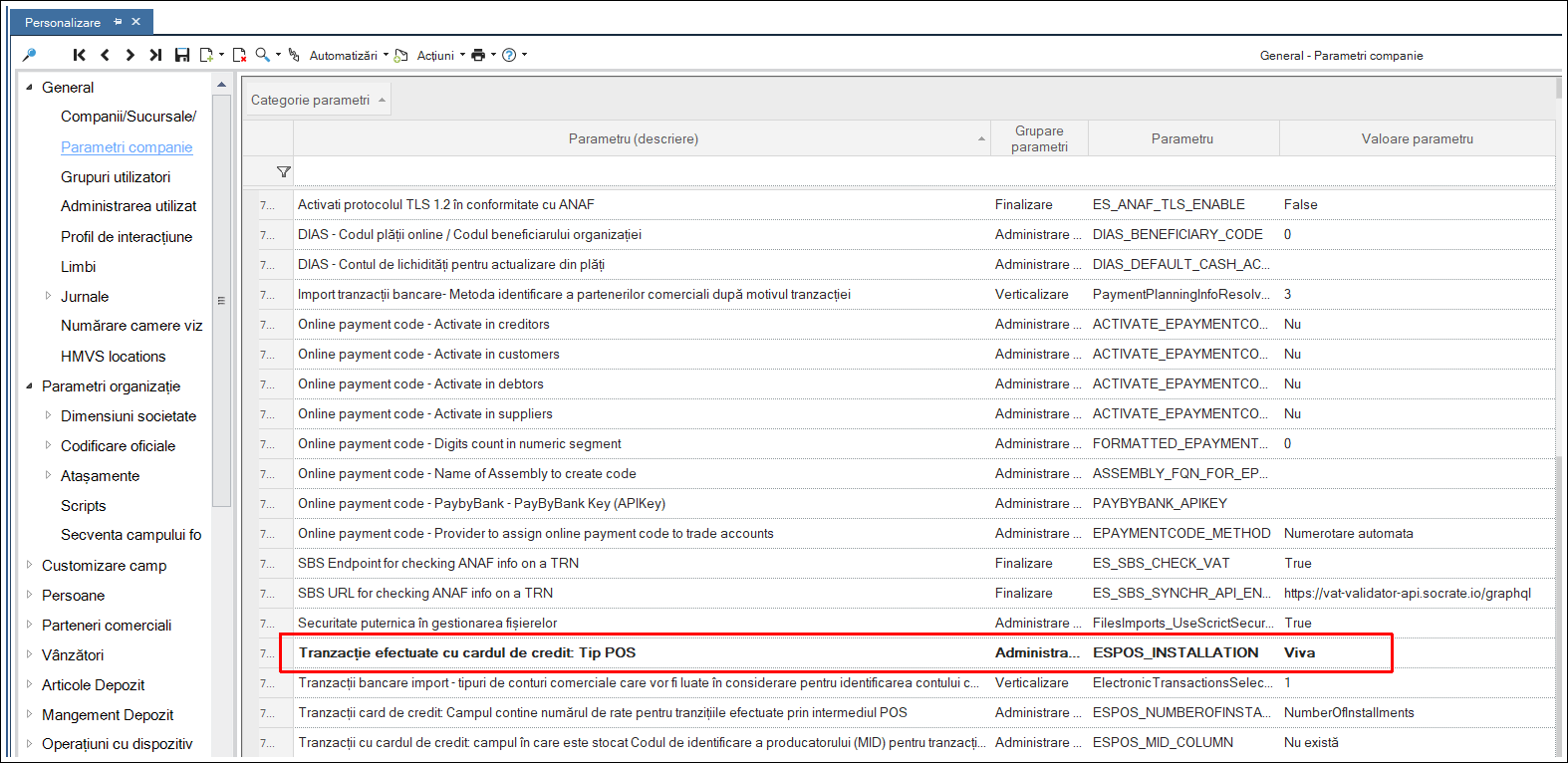
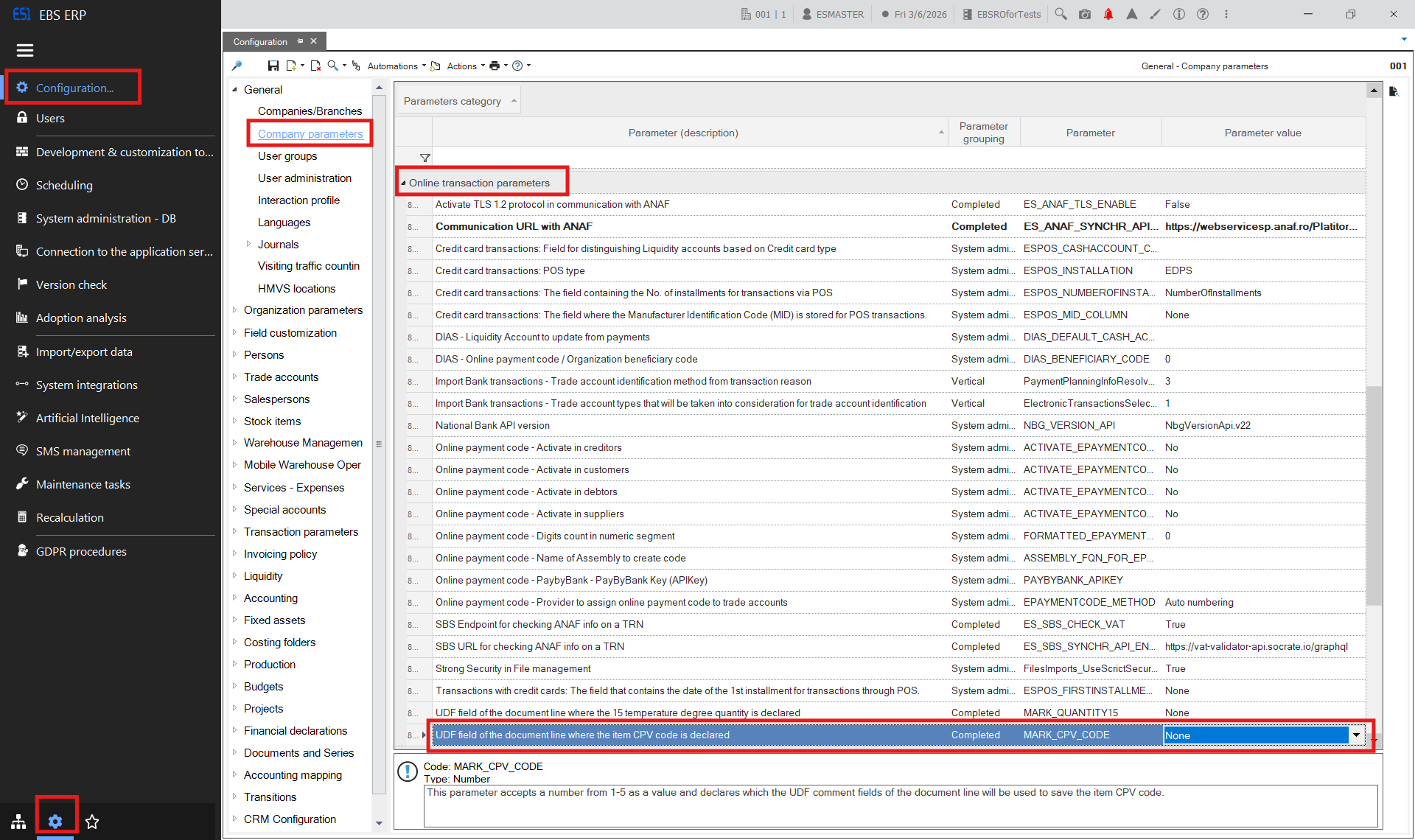
Go to Configuration and Tools > Configuration… > General > Company Parameters
Look for the section Online transaction parameters.
In Credit card transactions: POS type, select: Viva.
Save.
2.2. Bank parameter
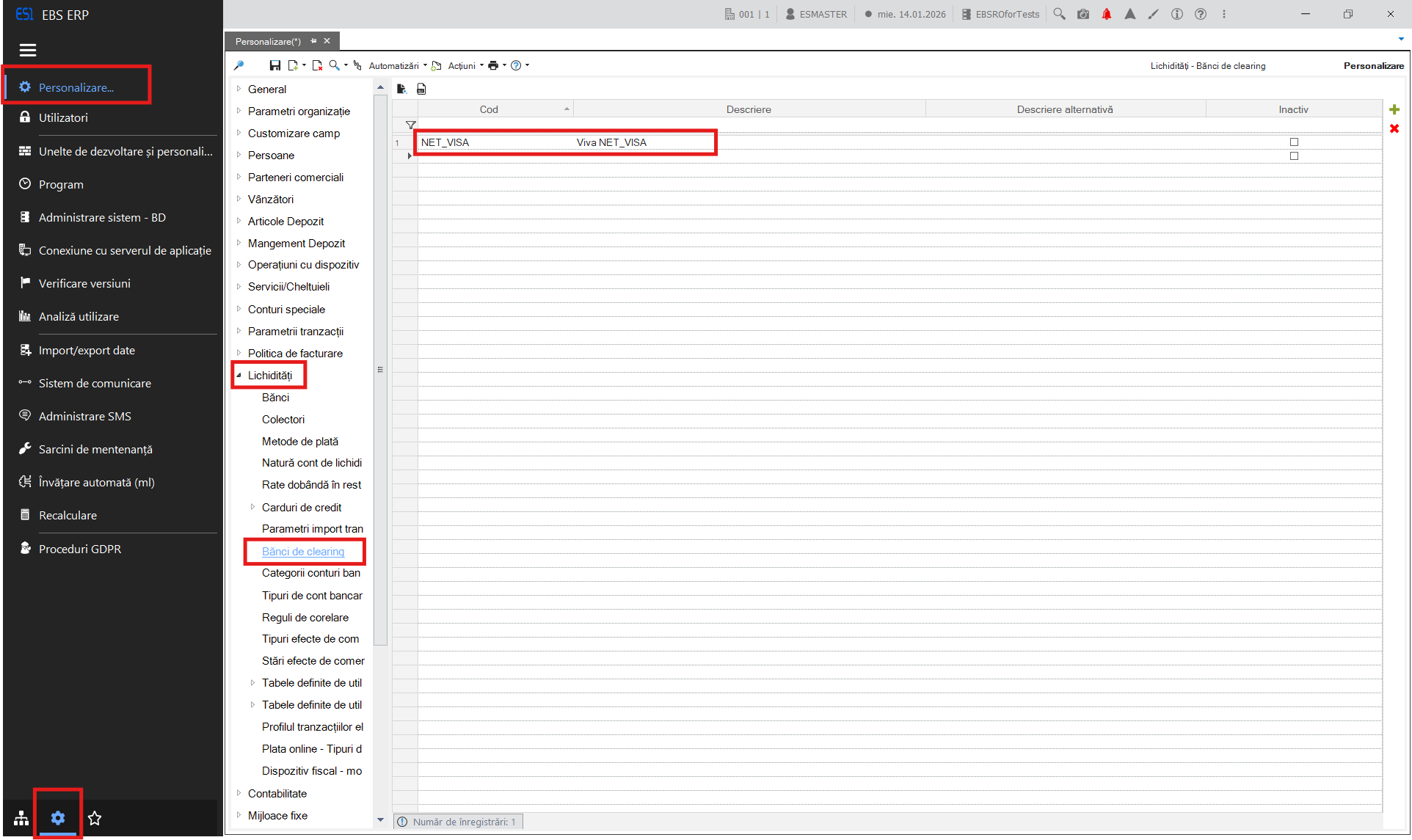
Go to Configuration and Tools > Configuration… > Liquidity > Clearing Banks
Add:
Code : NET_VISA
Description: Viva NET_VISA
Save.
2.3. Communication profile
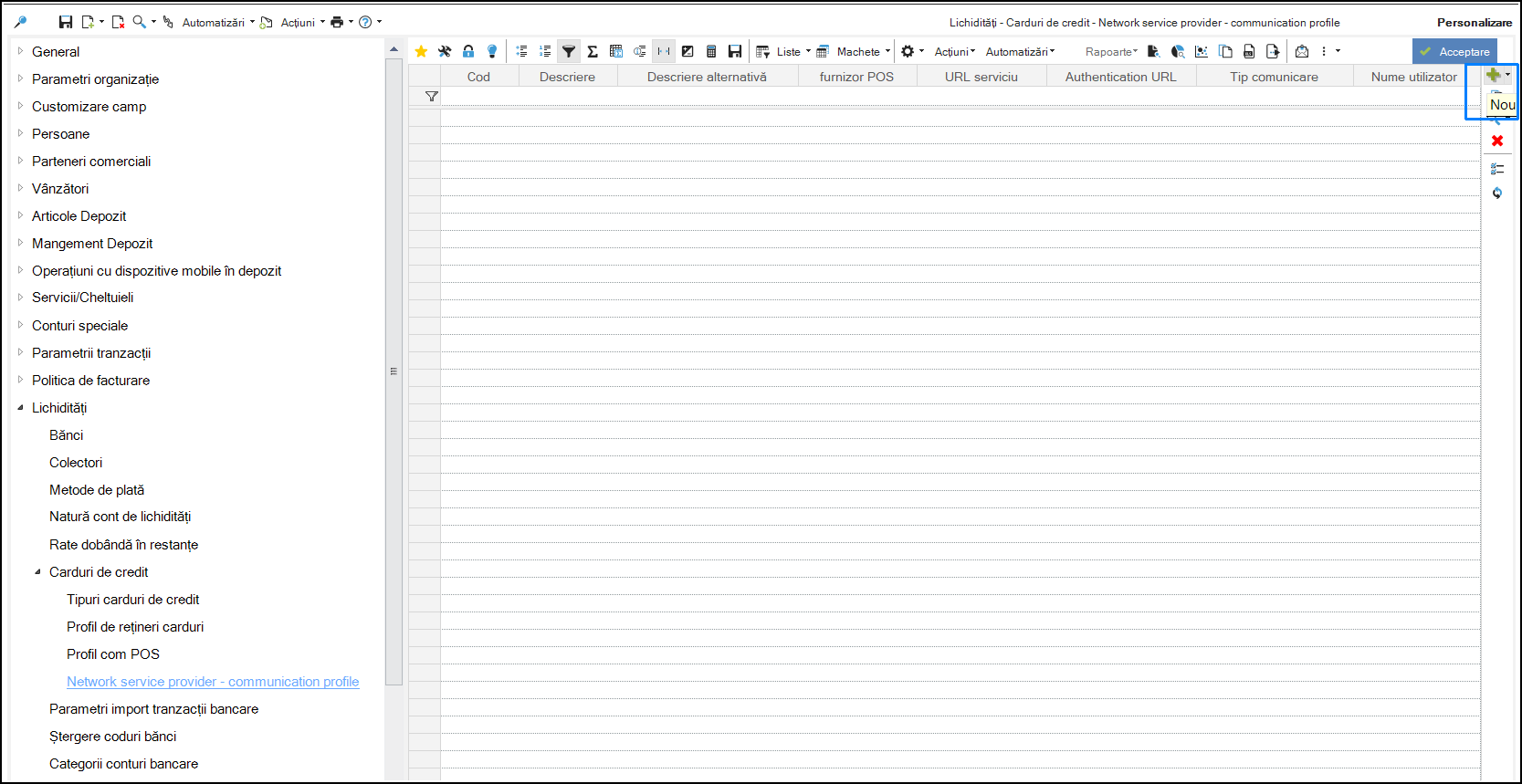
Go to Configuration and Tools > Configuration… > Liquidity > Credit Cards > Network service provider – communication profile and Add a new profile (using the + button).
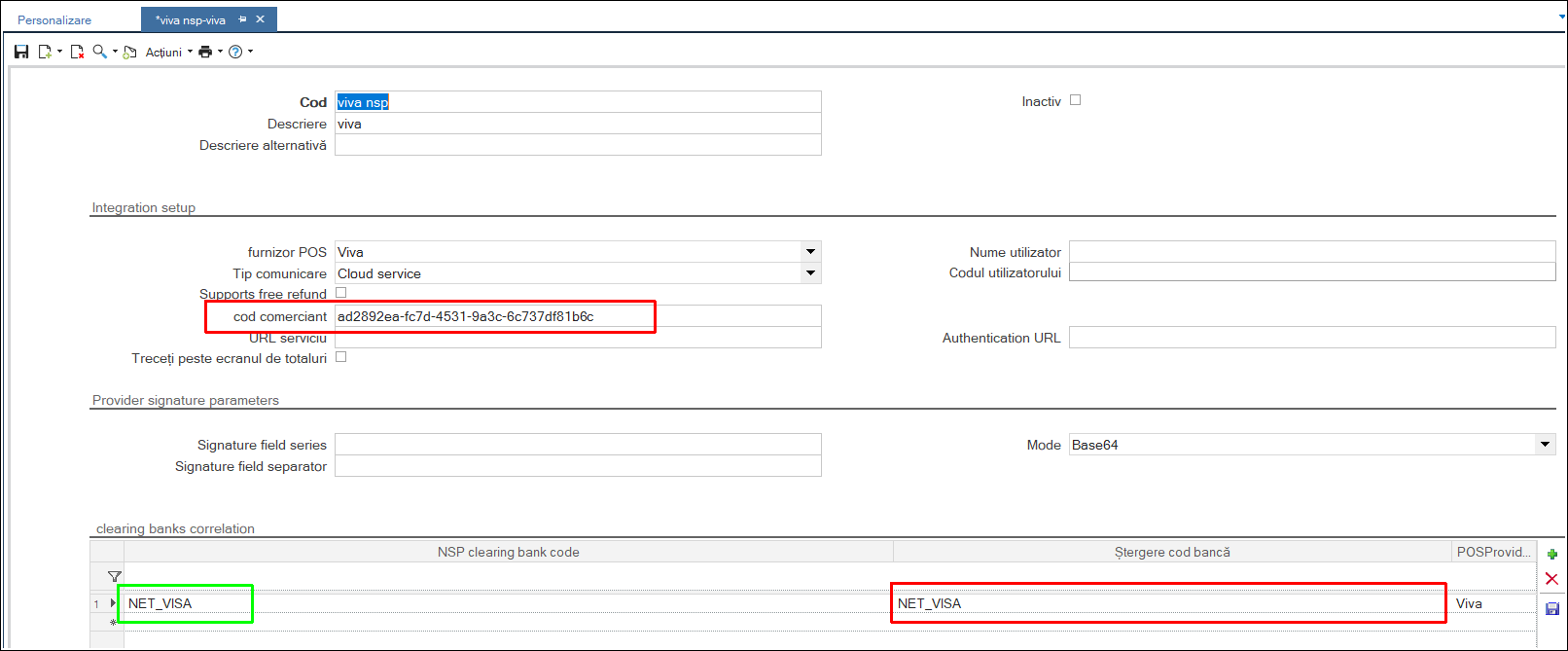
Set:
Code: Code NSP
Description: Viva network service provider
Merchant code: enter the merchant code from your Viva account, section API Access
Mode: Base64
Clearing bank code: NET_VISA - select from the line (arrow to the right of the field)
NSP Clearing bank code: NET_VISA - enter manually.
Save.
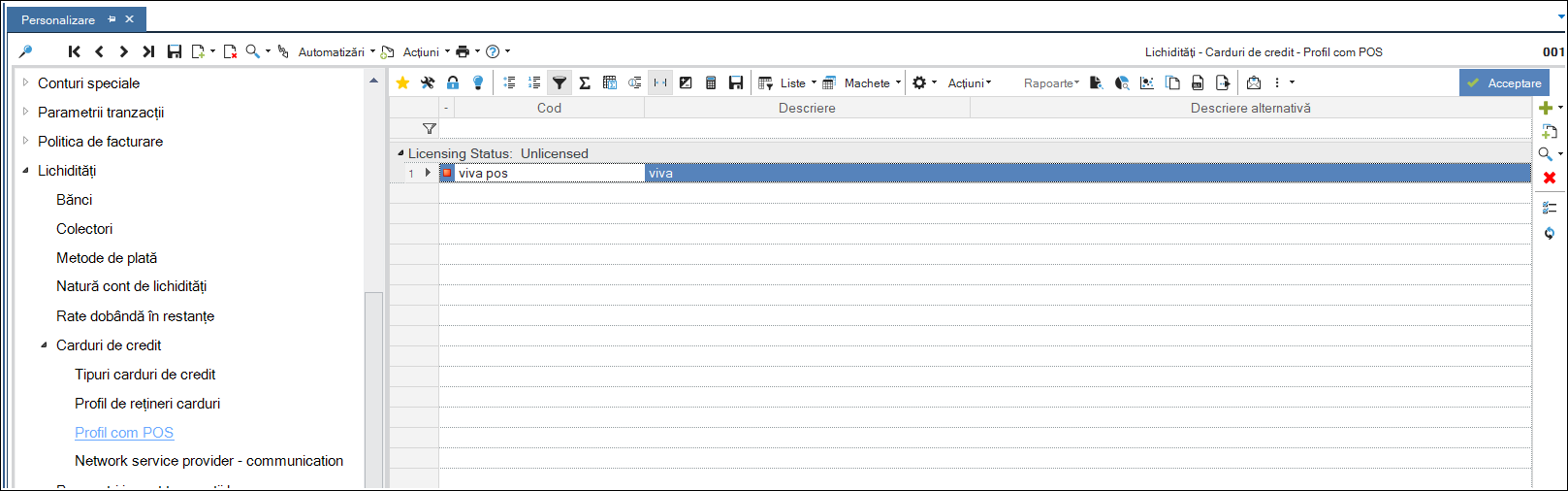
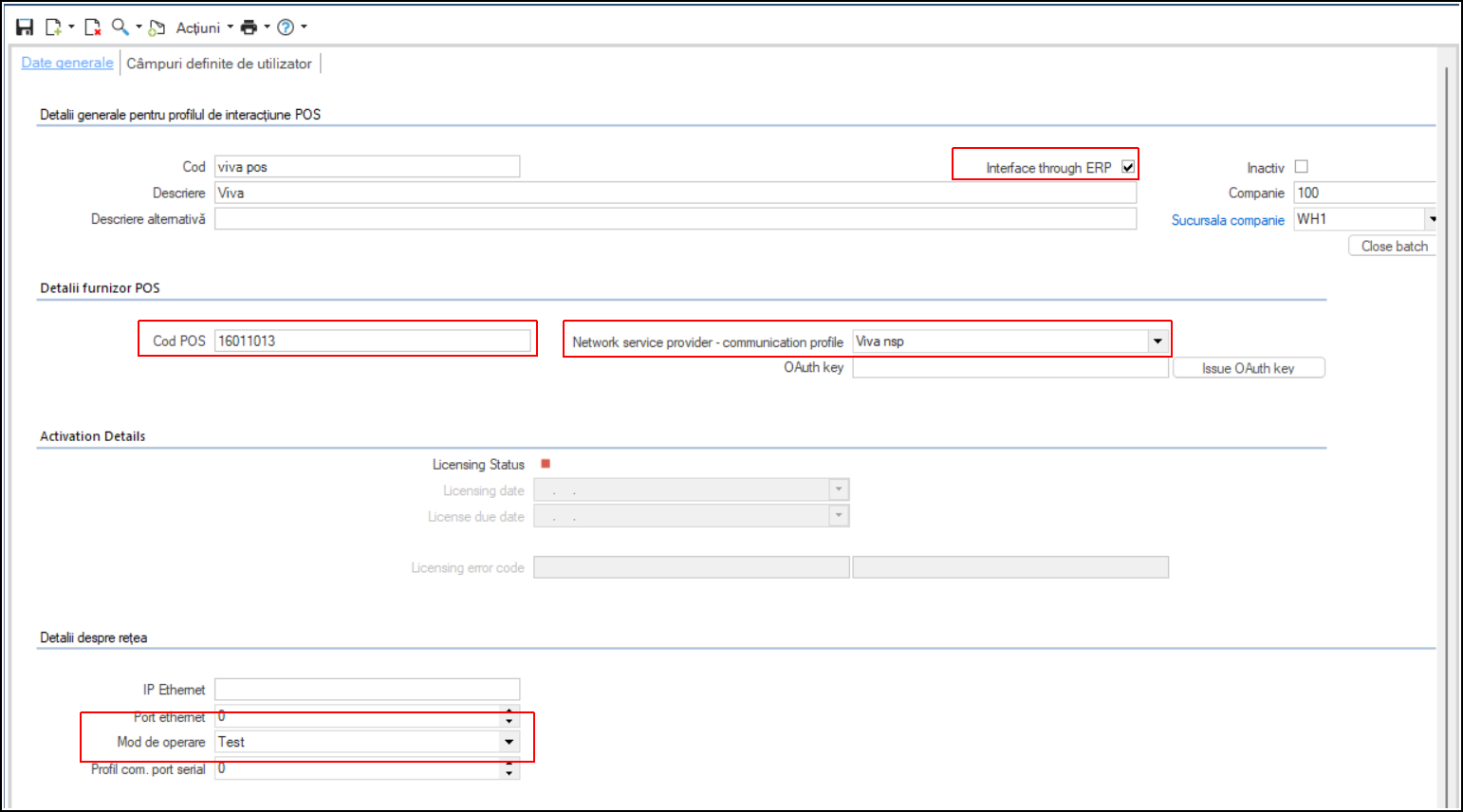
2.4. Configure POS
Go to Configuration and Tools > Configuration… > Liquidity > Credit Cards > COM POS Profile
Set:
Code: Viva POS
Description: Viva
POS code: Terminal ID from the POS terminal.
Save.
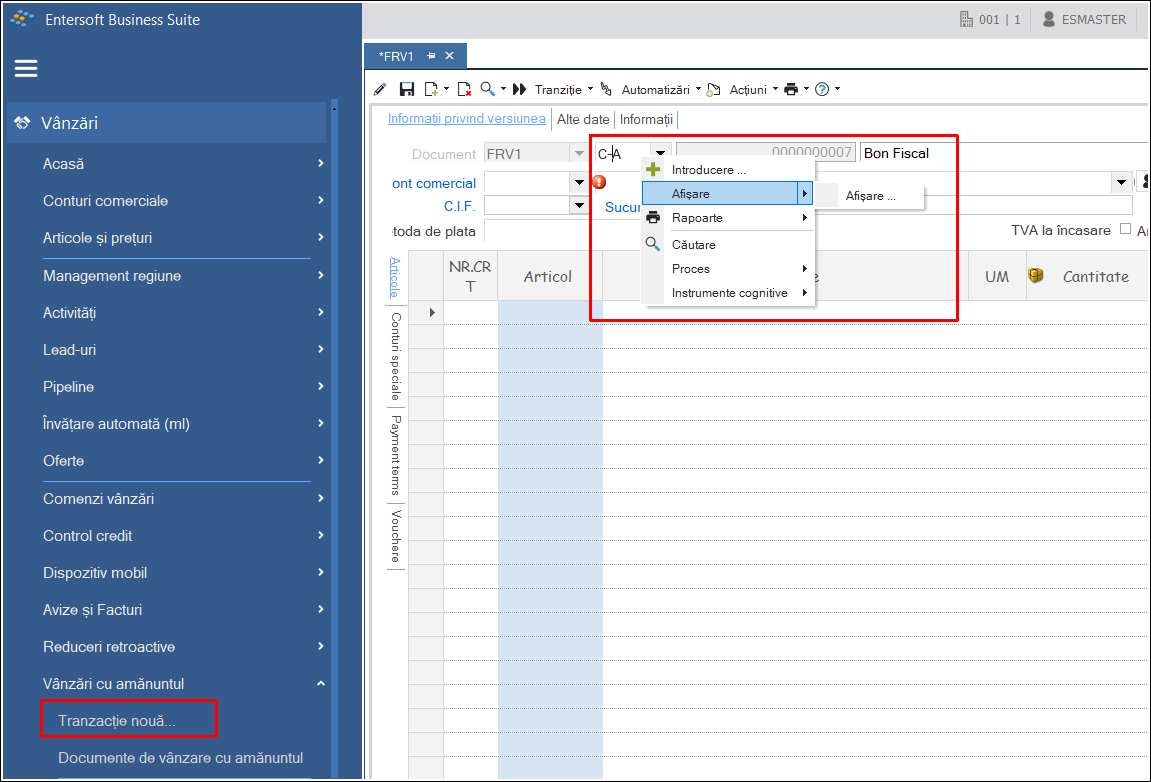
2.5. Settings Retail document series
Go to the Sales > Retail Sales > New Transaction section.
From the Document Series field, right-click, Display:
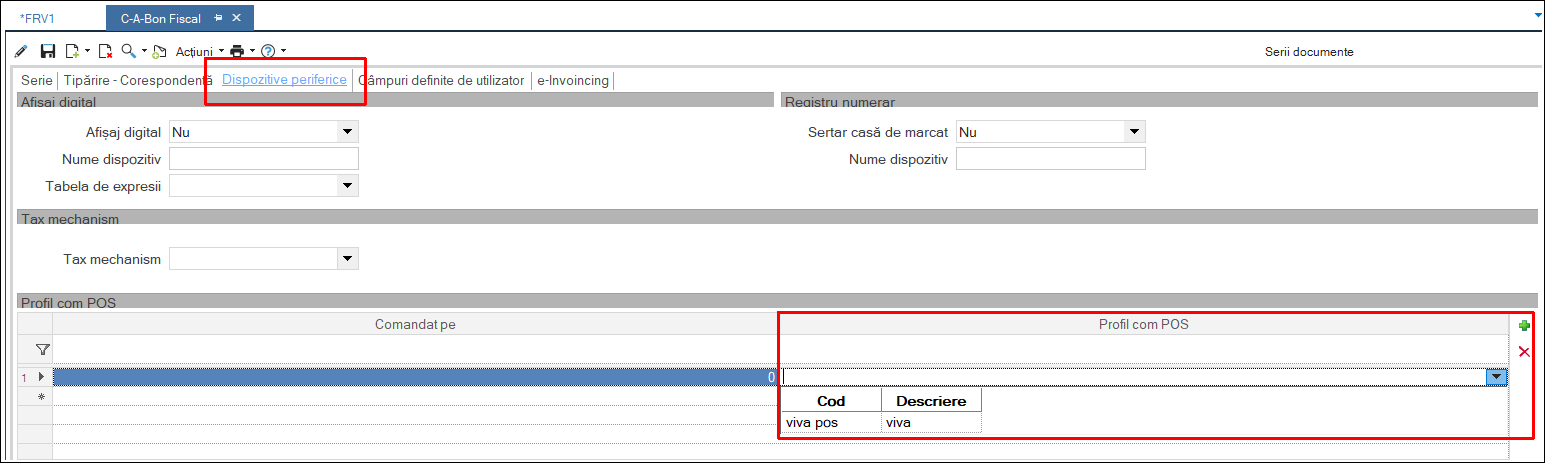
In the document settings, under the Peripheral Devices tab, select the previously defined profile (viva pos) in the COM POS Profile section, and then save.
3. Sales interface update
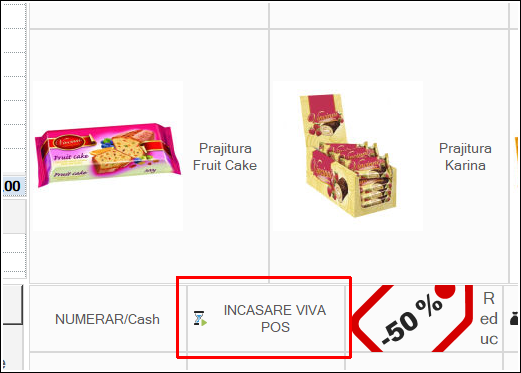
After completing the settings in the application, it is necessary to add a VIVA POS Collection button to the sales interface. Please request this from a support consultant.
Definitions 1.1. Stock Valuation Periodically, the stock valuation process is being carried out aiming to define the Value of Inventory Balance that is the cost of quantitative balance in a point of time in the warehouse which is under the possession of the business, as well as the Value of Grants (cost of goods sold, etc).
{class=“children children-type-tree children-sort-weight”}
Subsections of Inventory
Stock valuation and cost control
1. Definitions
1.1. Stock Valuation
Periodically, the stock valuation process is being carried out aiming to define the Value of InventoryBalance that is the cost of quantitative balance in a point of time in the warehouse which is under the possession of the business, as well as the Value of Grants (cost of goods sold, etc).
The acquisitions elements (purchase, production, composition etc) and
The stock valuation method that has been chosen
From the abovementioned elements and after their calculation, the Official Cost Price of every item, occurs.
1.2. Stock Valuation Methods
The application supports (or enables) the use of all the known stock valuation methods.
1.2.1. FIFO - method of stock items running down
In order for the cost of stock to be estimated using the FIFO method (First In First Out) as well as the cost of goods sold, a process of Real Acquisitions Values is carried out (after being charged with value entries such as credit notes or discounts). On the other hand, a process of matching acquisitions cost to the grants (exports) is carried out on a date line FIFO. This will result in the estimation of stock value from the “non-matched” acquisitions.
1.2.2. LIFO - method of reversal stock items running down
It is the process as described above but it differs in the way that correlation process (acquisitions consumption) will be performed in reverse.
1.2.3. Average cost price
It is the quotient A/B where:
A = initial stock inventory cost in the beginning of costing period + cost of acquisition for current costing period;
B= initial stock inventory quantity in the beginning of costing period + quantity of acquisitions for the costing period.
1.2.4. FCP - Floating Cost Price (or circulative weighted average or method of sequential balance)
It is the quotient A/B where:
A = Balance cost prior of an import (acquisition) + acquisition cost;
B = Quantity prior to an import (acquisition) + acquisition cost.
1.2.5. Last cost price
This method of stock valuation is given only for informational reasons. It is not included among the acceptable ways of stock valuation methods.
1.3. Costing period
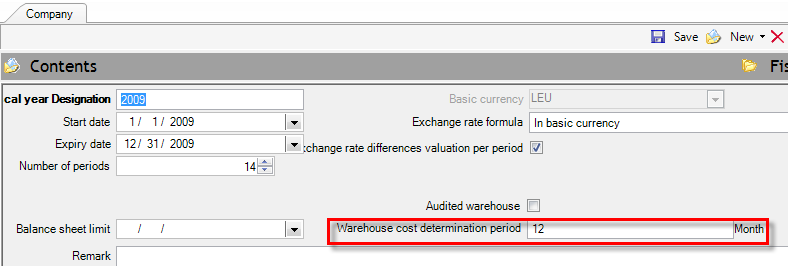
Costing period is a CLOSED period of time, independent of others concerning cost processing which works for Stock Valuation as “Fiscal Year”. This means that the Inventory Value of any costing period is estimated from the REMAINING STOCK and not Progressively upon all the acquisitions (Year To Date). Thus, any dispatches prior to the starting date of a costing period end up to ONE stock inventory. At the end of the stock inventory balance cost, EQUALS cost of imports – cost of exports, after exports have been evaluated according to the prescribed “valuation method”. Costing period is defined to the elements “Fiscal Year” of the company:
The Inventory period is determined by the starting date of the costing period. Thus, suggesting we had calculated 1st trimester cost, quantity and balance value at the end of 1st trimester is treated as “the cost of starting period balance” for the 2nd trimester. This will be the value that later exports will be valued. HOWEVER IF, every time the costing period starts from the beginning of fiscal year, the calculation performed YTD and the only inventory which is considered to be “acquisition” is the starting period balance of fiscal year.
The ending date of the costing period determines the date of corrective cost entries which derive from the stock valuation process. Consequently, it defines the date that we can have the “agreed balance sheet”.
This element (“costing period” or “weight period” x average price) constitutes the BASIC element of an audited warehouse.
You need to create12 periods when the fiscal year consists of 12 months. You are obligated in issuing Stock house results only ONCE and at the END of the FISCAL YEAR. If the fiscal year consists of 18 months you should then define 18 periods etc.
Create 6 periods when having 6 MONTHS PERIOD RESULTS.
Create 3 periods when having 3 MONTHS PERIOD RESULTS.
Create 1 period when having 1 MONTHS PERIOD RESULTS.
Etc.
The definition of weighted period is not necessarily identified with the time that results are PRINTED (this is because you may have printed the results for INFORMATIVE REASONS, using up to a date values-costs) but it is defined from the sequence VALUE is CHECKED and the stock items PROFIT based on the STOCK VALUATION METHOD and the WEIGHTED PERIOD.
In case of a non audited warehouse, define the number of the standard periods of a fiscal year e.g. 12.
1.4. Acquisitions
“Acquisition” is the transaction that specifies quantity and cost. It occurs from purchases or any other import transaction as for example, stocktaking, production and other import. The total inflows form the acquisitions which are definite and unchallengeable.
1.5. Grants
“Grant” is the transaction which has been extracted from a warehouse either for sale or for any other reason (consumption, preset, distortion).
As long as the stock valuation process hasn’t been completed, grants cost is updated (based on documents parameterization) from the field “cost” of export value documents (e.g. sales, consumptions etch), based on current stock valuation price (spot).
While the stock valuation process takes place and depending on the stock valuation method used, this “temporary” cost is reversed and calculated/entered the new official grant cost. The grant cost entries are calculated and entered automatically and concentrated per item in order for their immediate post to cost accounting, be feasible.
Any finalized export costs such as gratuitous dispenses or from invalid forecasted entries, appear as “differences of cost of goods sold «in column “cost of other exports” via the entries of stock valuation documents CEI.
1.6. Stock Value
For warehouse periodicals the stock item cost is expressed upon value as:
DEBIT VALUE – CREDIT VALUE
This value is updated through the different documents entered daily into the system as well as from documents that have been created from the stock valuation process by having taken into consideration the “official” stock valuation method.
The debit and credit analysis in further factors is:
Debit = Opening Stock Value + Purchases Value + Production Cost + Cost of other imports
Credit = Cost of Sales + Consumption Cost + Gratuitous dispenses cost + Cost of other exports
The analysis of Debit & Credit values in further information is as follows:
The difference between Debit and Credit that results AFTER the process of stock valuation has been completed ensures the known equation of yearend Balance sheet with Gross Result per item:
Stock value = (Opening Stock Value + Acquisition cost) – Grant cost
or Inventory cost (Debit) (Credit)
1.7. Independent Results
When branches do not have independent results, then, stock valuation is uniformly enhanced for all branches. This means that in the simple case we have let us say; only purchases and sales, these are dealt in total for the item and are not separated in order to derive a different price for one branch and another price for the other branch. The purchases cost independently from which branch has resulted, is being attached to sales and ONE stock valuation price PER ITEM is extracted for the company as a whole.
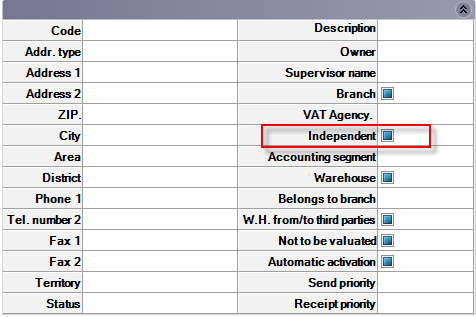
If a branch has independence results this but must have been indicated (in page “addresses-branches” of company screen):
Then, the stock valuation process calculates an independent official cost price for this branch and creates corresponding entries.
Important note: Prerequisite for sound process functioning, Intra-Transfers Notes between Branches/Warehouses MUST be treated as acquisitions. Thus, for the in-house transfer example, it should NOT be used for documents of simple quantitative in-house transfer but the IWI document. (In-house transfer Note – cost of other imports).
Attention: In NO case an independent stock valuation price is extracted per warehouse!
2. Acknowledgments
Items that are simultaneously produced and purchased are not considered as substantial. Apart from that when these items are consumed, the accounting update is not possible and the creation of additional code is recommended.
Clear quantitative transactions without cost update should NOT be considered as a possible scenario, EXCEPT IF it is IN-HOUSE TRANSFER TRANSACTION and concerns NON INDEPENDENT branches. (Consequently, the imports transferred quantity with the exports transferred quantity, equals).
The program contains documents that could be used for both cases (with or without cost update in imports or exports column), but, when someone changes the default parameterization must take into consideration the abovementioned rule.
3. Entries that will be taken into consideration
The item entries that are taken into consideration in the process are divided into the following categories.
Definite Cost Entries;
Definite Cost Entries for Distributions;
Grants Entries for Cost Determination.
A. Definitive Cost Entries
Are the entries that update BOTH value acquisitions quantity AND acquisition cost. These entries are treated by the process as final and unchallengeable and do not permit further changes. The entries concerning acquisition cost for a certain quantity are considered to carry/include this quantity. This quantity will be used for the accumulation/update of the “Valuated acquisitions quantity”. Such entries are:
Open fiscal year documents
Purchases Invoices – Quantity & Value
Goods Receipt Notes
Goods Return Notes
Production and Assembly Notes as well as
Surpluses or other Note Corrective entries – Quantity & Value.
B. Definitive Cost Entries for Distributions
These are entries that update ONLY acquisition cost. The process faces these entries as distributive. For FiFo – LiFo - Floating Cost Price stock valuation methods, the distribution enables for the REAL COST estimation of each acquisition whereas as far as the Average Cost Price these entries just influences the Cost Price, without distribution to be necessary for one by one acquisition. Such transactions are:
Discount Credit Note for purchases or Turnover Credit Notes
The information of Reference Date Range appears in the “Status” page of documents. When these fields have been fulfilled then the information will be taken into account in distribution. If there are monthly or trimester results it would be better forecast credit documents (provisions) to be entered.
C. Grants Entries for Cost Determination
These are entries that update quantity AND value or/and cost (invoiced) sales, self-dispenses, consumptions or other exports. When these entries are entered, the real cost is unknown and in this case the cost update only exists with a “temporary” meaning, in order for the management accounting information to be enhanced. So, the process VALUING COST (to field “valuated cost”), while at the same time, create grants cost temporary reversal and final recognition documents (e.g. documents CBV).
Such transactions are:
Sales Invoices - Quantity & Value
Retail Notes
Delivery Notes
Return Notes
Consumptions Notes
Self-dispense Notes, as well as
Other output Notes.
Note: Any transaction related to a warehouse that is “Not Valued” will not be taken into account.
4. Stock Valuation Process
4.1. Call method
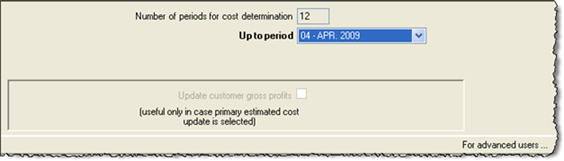
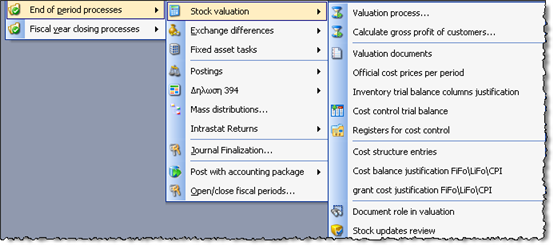
The process is called from Periodic Processes/End of period processes/Stock valuation and presents the following dialog:
Number of periods for cost determination: Is determined from the volume of accounting periods of an “inventory cost determination period”- field in “Fiscal Year” screen and it cannot be changed in this dialog. In our example we have annual cost accounting.
Up to period: Defines the last accounting period up to which it will be performed. If there is a monthly or three months costing period, cost estimation will commence from the beginning of the costing period (e.g. beginning of trimester), whereas if there is an annual costing period, calculation process starts from the beginning of fiscal year.
Update customer gross profit: Customers gross profit which is available at periodic customer’s data is possible to be updated with the definite value after stock valuation, ONLY when the temporary (spot) and the definite cost are NOT separately followed (by activating the general parameter “Update primary estimated grant cost information”), but the temporary cost is been replaced in documents with the final cost. In this case by activating this parameter, customers’ entries included in documents that have the proper Update profile, are recalculated as well.
It should be pointed out that the control of gross profit that is enhanced from Profitability reports of menu “business snapshot”, as well as the reports “Items sales per customer” does NOT use this information, but the one that arises from the proper updated items entries. The cost presented to customers periodically is used ONLY in “Sales Statistics” from the menu Accounts receivable.
Since this update process slows down the stock valuation process, an autonomic possibility of undertaking the stock valuation process is provided via the process “Update Customer Gross Profits” in the current Stock Valuation menu.
4.2. Stock Valuation documents management
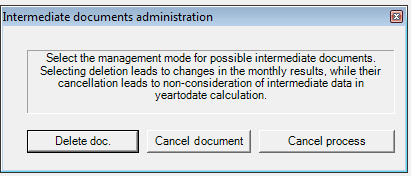
By selecting the Beginning of stock valuation process, IF for the same cost determination period, cost valuation has been completed before, a dialog box is presented. In this dialog box is defined whether the process will continue with the Cancellation or Deletion of the documents earlier produced by stock valuation.
This screen is presented ONLY if the general parameter named “09 - Question of the Begging of process to delete or cancel interim results” has the value “True”.
Documents “Deletion” is proper to be used when a mistake has already happened or a later interjection of transactions has occurred and for this reason we seek the alteration of the last stock valuation illustration.
Documents “Cancelling” is more suitable to be used when it is required the last warehouse illustration created by the stock valuation process, to remain unchanged and any changes to appear to the next period (for which stock valuation is undertaken). Stock valuation DOES NOT DEGRADE the illustration of dates prior to estimation date. The differences from the prior period are presented in the current period.
Note: When the parameter “Updating primary estimated grant cost information” is activated then, in both cases of documents cancelation or deletion occurred for previous months, cost is degraded as it uses the value estimated for the WHOLE COSTING PERIOD and is not shaped through stock valuation documents. Thus, when the columns “cost” and “gross result” are printed in the monthly Warehouse Inventory report, you will NOT be able to have an identical report after another stock valuation process runs for a next period.
4.3. The process step by step
Defining acquisition cost,
Defining & updating cost valuation prices (back to 1st step),
Allocating cost to grants*,
Creation of cost documents.
*) For FiFo, Lifo, Weighted Average stock valuation methods, the following process is required
In these methods acquisition cost must be firstly attached to existing grants. Stock valuation price is calculated through the remaining acquisitions. For this reason stock valuation’s steps order is being reformed.
Note: The accounting notes for cost update, that produce item entries which will further update monthly results (trial balances, registers) of every item. Any execution may be canceled and repeated if errors are detected.
4.3.1. Defining acquisition cost
It calculates the quantity and the cost of “starting” in the beginning of the costing period in which the “period of calculation” belongs.
When the stock valuation method used is FIFO or LIFO, it allocates the acquisition value of cost entries for distribution. (Discount Credit Notes and Debit Notes).
When the stock valuation method used is FIFO or LIFO, matches in a quantitative way the negative (Credit Notes) with positive entries (invoices), in order the cost from “real cost evaluated acquisitions” to be estimated.
4.3.2. Defining & updating cost valuation prices
Defines the acquisition cost and shapes though it the “valuated cost” of all grant transactions (depending on the stock valuation method) of C type transactions and to the lines of related documents FOR ALL THE ITEMS are not PRODUCED ITEMS. Accordingly, updates in ALL item periodicals the stock valuation PRICES FIELDS with the maximum accuracy.
Market cost price is defined by the user into the item’s site. The stock valuation process compares the resulting official stock valuation price with the item’s “market” price. When this value is smaller and not zero(**), is replaced.
Desirable cost price. It works as the market price but when the abovementioned condition** is not in effect.
4.3.3. Allocating cost to grants
It reverses the spot grants cost per grants category, concentrative, per item and independent branch.
It reverses grants cost documents of the previous period.
4.3.4. Creation of cost documents
It produces grand cost documents per grants category, concentrative, per item and independent branch.
It calculates and re-updates compositions cost (based on consumption cost of raw materials that has already been degraded in previous step.
Proceeds to Production Cost Valuation Process in cycles of semi-finished and final products.
Proceeds to Bonded W/H Cost Valuation Process (estimates and re-update the Bonded W/H costing folder, based on export cost of raw materials that has already been degraded in previous step).
Note: Case of incapability valuing grant cost! When no purchase/acquisition/inventory value occurred from which the relevant cost can derive in order for a grant to be valued, such as, the sale return from sale of previous fiscal year, the process uses the “Standard Cost” into which someone may insert the final acquisition cost of previous fiscal year.
4.3. Cost difference entries
All the below mentioned cost difference entries REQUIRE THE EXAMINATION of the items included into cost difference documents produced (via the scroller “stock valuation documents”) since there is a possibility of WRONG ENTRIES. (Small differences regarding the rounding should be ignored). See CEI documents.
It produces entries of stock valuation price differences for every item (in column “debit” or “Cost of other imports”) by checking if:
Debit – Credit = Acquisition cost - Grants cost
Thus, any transaction occurred using a not proper document (“acquisition” that did not update the Debit or “Grants” that did not update the Credit) as well as any values ignored due to step 6 where a quantity was entered with a value that later was extracted with another value, are detected and entered as debit or credit stock valuation differences. The produced documents are CDD & CDC.
Relevant control for the agreement of compositions cost and the consumptions cost is undertaken and via documents CDA & DAC the compositions cost is being corrected. (Compositions cost should not be updated through any documents except of “assembly” since it is being correctly calculated only from stock valuation and before the cost evaluation process of their components. (see above step 8).
It produces entries of grants cost differences for every item (in column “credit” or “cost of other exports”) by checking if
Debit – Credit = Inventory balance * Official Cost Price
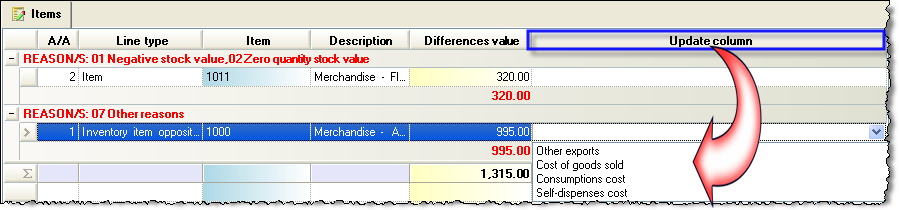
Thus, any differences in self-dispenses cost or forecast values or rounding errors or other similar cases (usually occurred from the comparison between the Official value and the result from the aforementioned equation) are specified and entered into the CEI document. All the reasons provoking differences and can fatherly be detected, are presented in the “remark” field with the following coding:
01 Negative stock value
02 Zero quantity with non zero stock value
03 Corrections of self-dispenses cost
04 Corrections of other exports cost
07 Other reasons
Because of the special layout “199” are visible and easily detected:
In this document the user can choose the column of Trial Balance that he wishes to be updated through the column named “Update column”. The column of “Other exports” is by default updated (or if the specific field remains empty). Otherwise, the user can modify the column by selecting one of the below options. “Cost of goods sold”, “Consumption cost”, “Cost of goods sold” or “Self-dispensedes cost”.
If we want the COST OF GOODS SOLD to be always updating, then you need to change the Update Profile of the document. The Update profile could be used as “4421P” instead of “4421”.
Attention! By NOT updating the column named “Other exports”, someone may avoid the appearance of these amounts to Official Trial Balances by using this functionality. However, it is of great importance to examine ALL the differences in the CEI document, and where necessary the user will need to go through corrections or even to undertake the Stock Valuation process again. The only exception is the case having small rounding differences such as 0,01 where it would not occur any problem.
Notes:
The process of Stock Valuation is undertaken for the selected method of stock valuation of any kind with the exception of the [Average Cost Price]that is always calculated and is available for all the types, independently of the stock valuation method used. Thus, those who use the FiFo method have the Average Price method also at their disposal whereas in reverse is not in effect.
If the resulting official cost price that results is 0 (for example the process begins with null “inventory” and there is not any purchase entries), the Stock Market Price of the nearest previous period is taken into account. In case it is zero, the standard cost price of the nearest previous period is taken into account. (It is updated from the user but from the Fiscal year closing as well). In this way returning sales from the previous fiscal year can be properly treated.
5. Update the customer’s Gross Profit
Customer’s gross profit that is available in periodicals is possible to be updated with the definite value after stock valuation ONLY when the spot and final cost ARE NOT separately attended (by choice from general parameter “Updating primary estimated grant cost estimation” but when the estimated (spot) cost is replaced with the final.
In this case, the process can be carried out through which customers’ entries in all documents (performing this type of update) are re-updated. You may call this type of update AND through stock valuation dialog. It will be a DELAY ON THE TIME OF PROCESS EXECUTION.
It should be pointed out that the control of gross profit achieved through Profitability reports called from menu “Business Snapshot” as well as “Items Sales Per Customer” Does NOT use this information but the one occurs from properly updated items entries. The cost from customers periodically is ONLY used in the “Sales statistics” report called from menu Account receivable.
6. Examination & Detection or problems
We suggest you use the reports presented in menu “End of Period Processes/Stock Valuation”:
6.1. Official cost price per period
The following report presents in summary the official cost price per item and the configuration of stock value based on this price. There is an option of having the report presented with “Period Analysis” which is the default report layout AND the “Period Cost Price” can be checked. The period price will differ from the official cost price in usual cases that the costing period IS NOT MONTHLY (is not identified with the accounting period). Stock valuation is then MAINTAINS the estimated per accounting period of official cost price that defined the earlier inventory results while it updates the “official price” for all months in order for someone to be able to take results with any of the 2 prices by using the appropriate parameter.
6.2. Compare official cost price
In the same menu you may check the AMOUNT official cost price CHANGED between the two sequential periods. If the cost change is big (not expected), someone may for example, observe mistakes or possible elliptic purchases entries (Is presented with grouping per customer helping in finding invoices that contain wrong values):
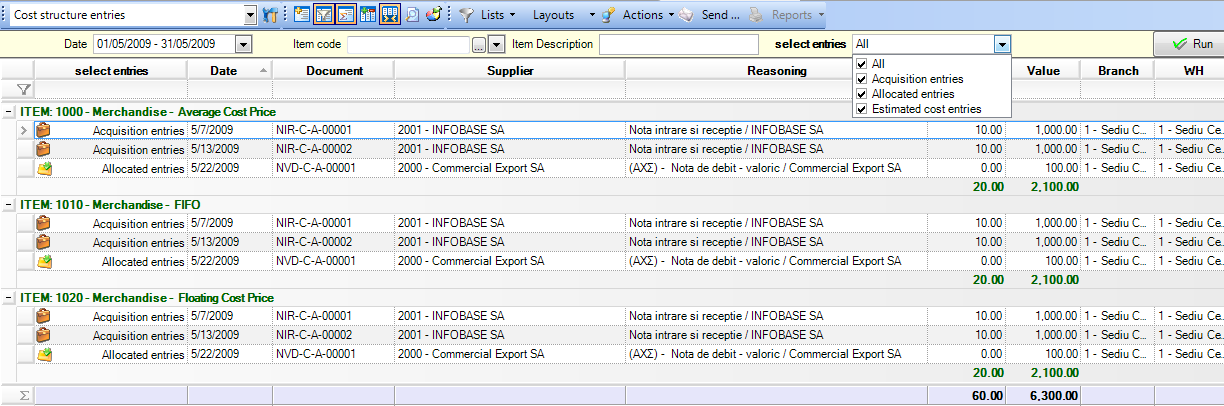
6.3. Cost estimation transactions
With this report someone may check all the transactions “responsible” for cost estimation and observe possible deficiencies or entries mistakes or provide reasoning as for the estimated cost, for any period of time. The transactions are of A, B or C category and are based on the categorization given in chapter “Entries that will be taken into consideration”.
6.4. Balance Justification
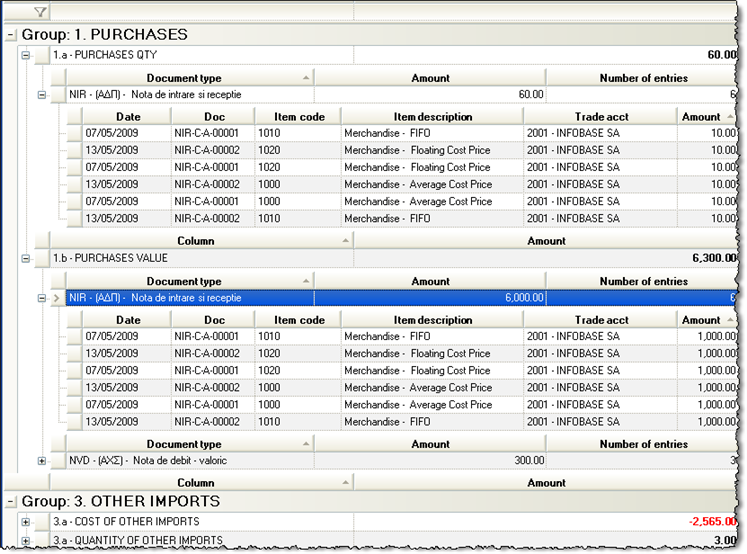
By using this report you may overall analyze and check WHICH DOCUMENTS HAVE UPDATED WHICH BALANCE COLUMN, and seek out not only stock evaluation results but overall the transactions occurred (purchases, sales, transfers, credit documents).
By using second level cascade analysis you may reach the particular document lines.
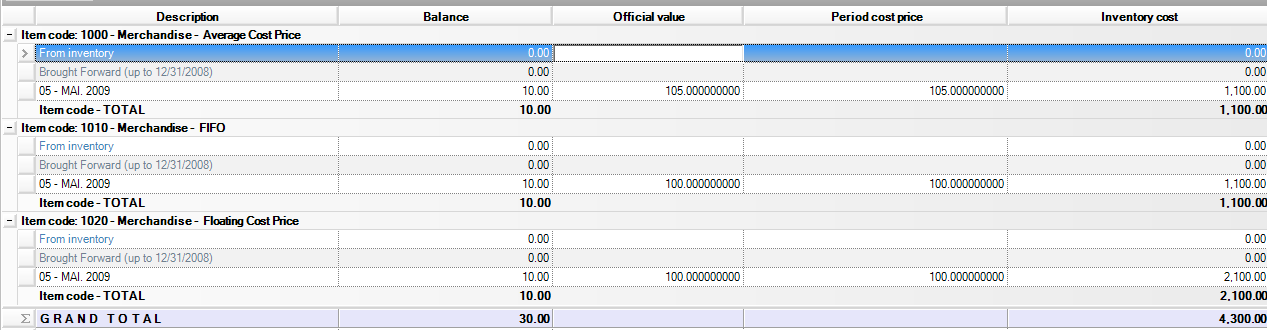
Especially for items using FiFo/LiFo as stock valuation method or the Average Price method or Floating Cost Price, Stock Valuation process PARTICULAR MATCHING between acquisitions (purchases) and grants (sales). The following scrollers justify the inventory cost (from NOT allocated into sales cost) and also the cost of goods sold (from purchases matching to each salesperson).
6.5. Justification Of Inventory Cost
This scroller presents quantity and stock columns that give the initial values, the values available for grants, the values shared to grants. Balance cost is justified as such.
Columns “Cost allocated to Grants” and “Inventory Cost” agree with “Cost of Goods Sold” & the “Balance Cost” respectively:
6.6. Justification of Grants Cost
This scroller presents all grant transactions per item (sales, Consumptions κλπ.) that were processed from stock valuation with the attached cost. This cost AGREE with COST OF SALES. In case of Production and depending on the grand type, cost will agree with the corresponding exports cost of Detail Trial Balance, per item:
Note: The last two options concern exclusively cases where the stock valuation method is FiFo/LiFo or FCP. The activation of Stock Valuation results reporting is enhanced via the general parameter “Save Valuated Cost Allocation”.
7. Results – Agreements
7.1. Inventory Register Records
Stock Valuation results are presented in the official or informative reports depending on the time and criteria chosen:
Monthly warehouse inventory
Ending inventory trial balance
Registers (inventory records)
7.2. Presuppositions of Accounting Agreement
The inventory records offer some totals per month which should come into agreement with suitable accounts of accounting or/cost accountingIF:
The entries must have been checked in relation to ‘existed’ documents.
The parameterization of an accounting post is correct and posting completed without errors.
The process of stock valuation for this particular period has been completed and examined using the provided tools.
We choose the RIGHT and CORRESPONDING CRITERIA in the relevant reports.
7.3. Commercial Agreement
Another type of agreement after stock valuation is the COMMERCIAL AGREEMENT => WAREHOUSE– CUSTOMERS - SALESPERSONS. In order to make this agreement, use:
Business snapshot (turnover & gross profit)
Stock balance sheet (turnover & gross results)
Sales statistic per Salesperson (turnover)
Item sales per Customer (turnover)
Revenues Account Balance (credit-debit)
8. Working with independent branches
In the following we will present the steps to be followed so that the quantitative-value stock balance can be extracted by branches and warehouses. The functionality described below requires that existing branches are already marked as independent.
8.1. Overview
The calculation of the export cost is done at company level or by branches if they are marked as independent.
Valuation documents are generated on a branch-by-branch basis but the cost allocated to exports differs depending on whether or not the branches are marked independent.
If you do not work with independent branches, the cost allocated to exports is done:
for the FIFO method: in order of exit, regardless from which branch
or
for CMP method: per company - regardless of branch
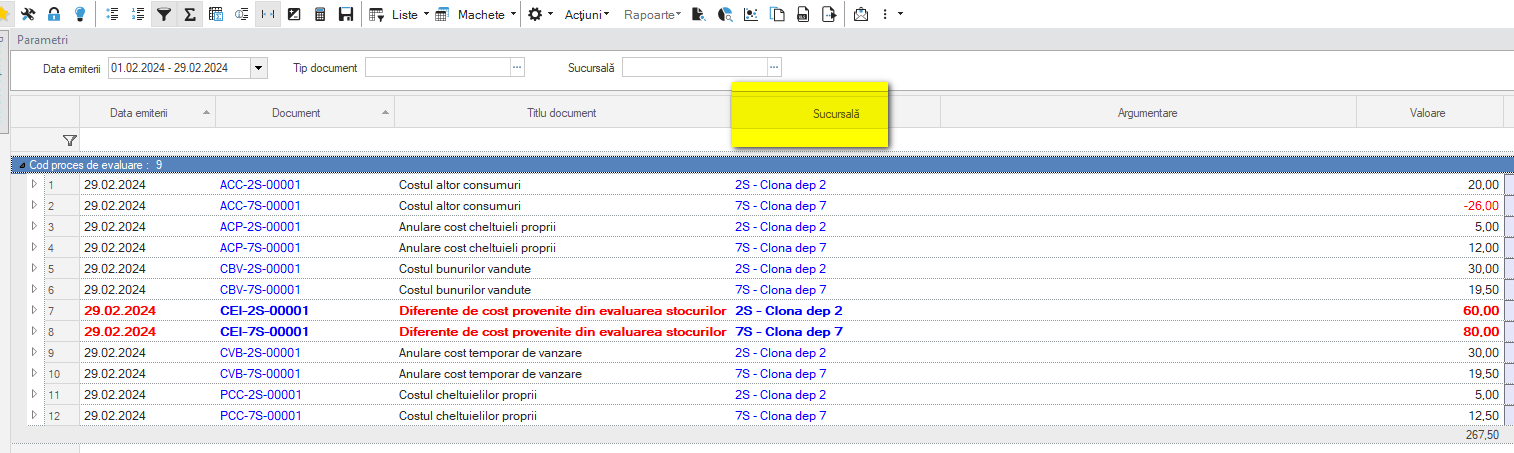
Documentele de evaluare cele mai frecvente sunt:
CBV – Cost of goods sold (in correspondence with documents such as AEV, FAV, NVK)
ACC – Cost of other exports (corresponding to documents such as CEC, DIF, NND)
PCC – Cost of self-deliveries (corresponding to BCI)
CCN – Cost of consumption (in correspondence with documents such as NFC, NPC, COP)
CEI – Cost adjustment (no document in correspondence)
8.2. Settings
Branches
All existing branches will be marked as Independent.
This ensures that the stock valuation results for each branch are not influenced by import or export transactions from other branches.
Warehouses
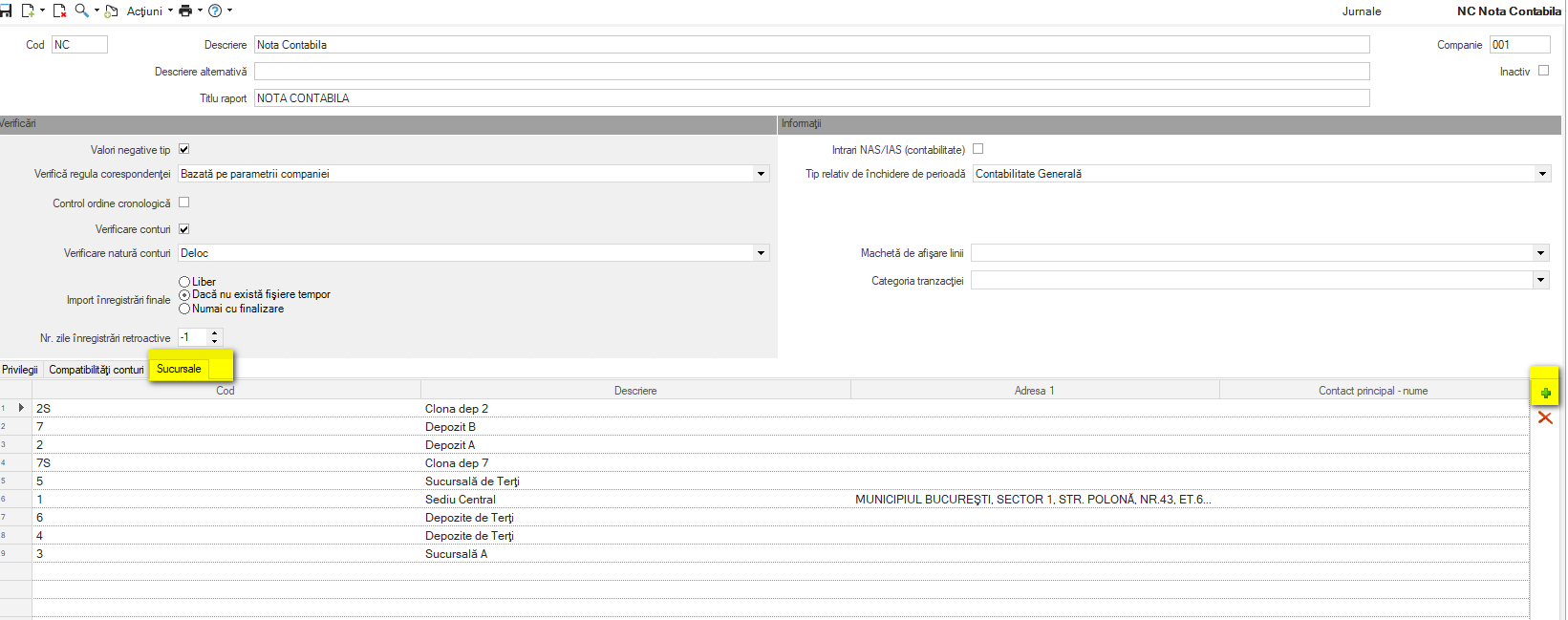
A “clone” in the form of Branches and warehouses will be created for each warehouse.
It must have the following characteristics:
It is marked as branch only
Is marked as independent
The suggestion for coding it is to have the same prefix as the original warehouse.
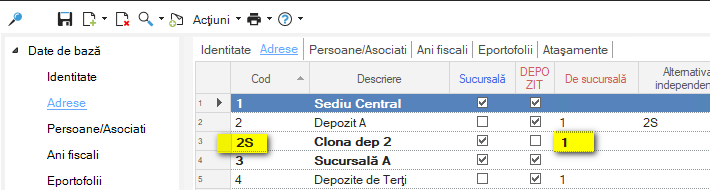
In the menu Tools and Configuration > Customize… > General > Companies/Branches/Fiscal Years
tab:
Once these “clones” have been created, the newly created branch will be attached to each of the original warehouses.
The field where this will be marked is Independent alternative.
Also, newly created branches will be attached to the same branch as the warehouses for which they were created.
Journal Codes
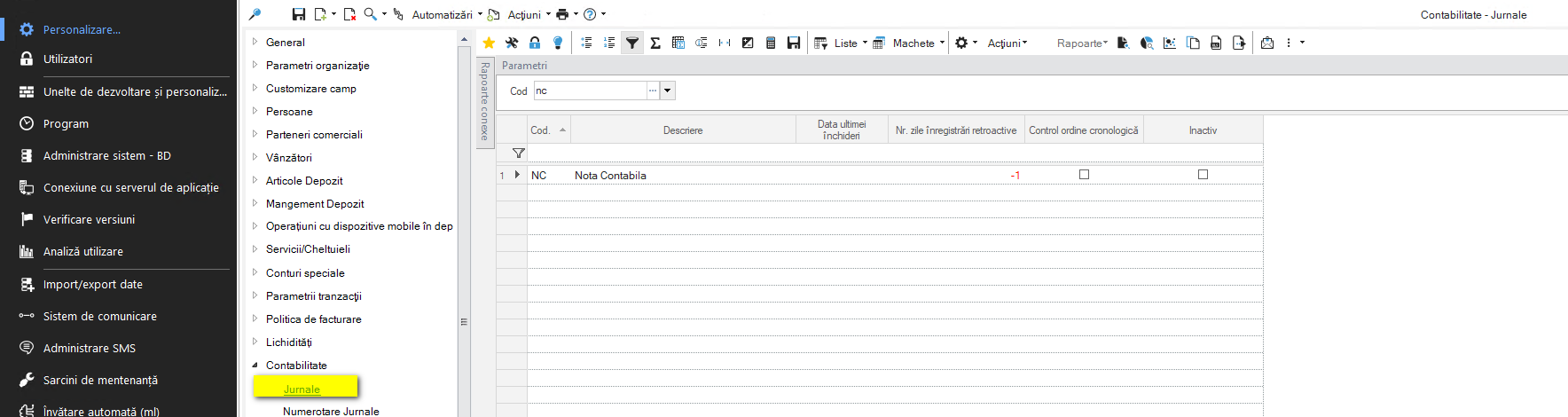
It is necessary to attach the new branches defined above to the journal codes, which are mandatory fields for any accounting document.
The menu path is: Configuration and Tools > Customize > Accounting > Journals.
On each journal code, select all branches from the Branches tab.
Posting documents
All documents which have an accounting model and which involve stock transactions will take over the alternative branch related to the warehouse in the accounting post.
It is only the amount related to the line items.
8.3. Stock valuation
From the user point of view, the evaluation process runs as before.
The change concerns the way in which valuation documents are generated.
Until now, valuation documents were generated per branch and type of operation. The warehouse was not relevant and one belonging to the branch was randomly filled in. Thus, a stock balance could only be run per branch so that the values were correct.
The new mechanism generates valuation documents on each alternative branch.
Thus, the official cost is indirectly allocated to each warehouse.
8.4. Reports
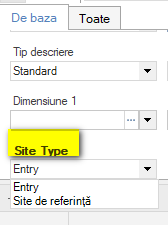
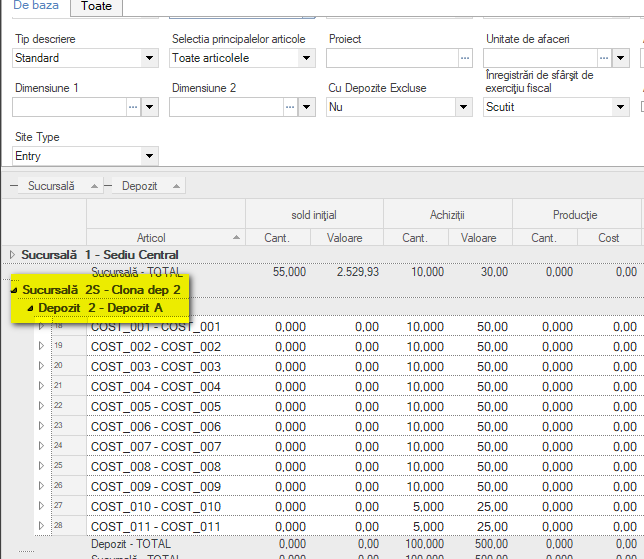
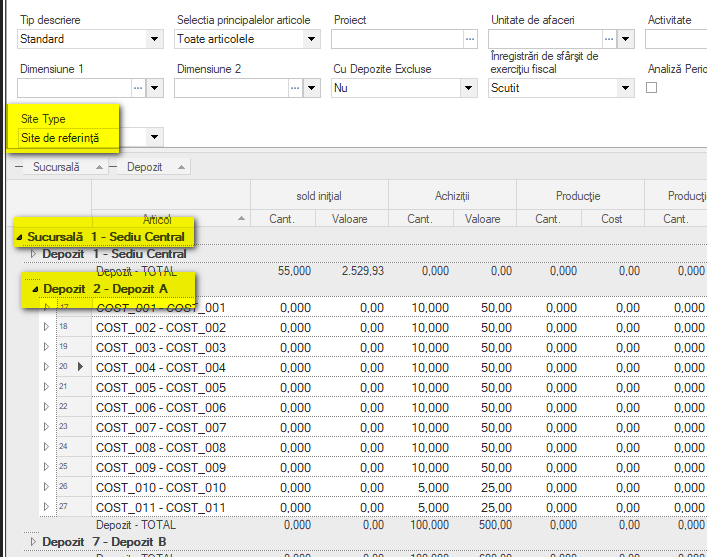
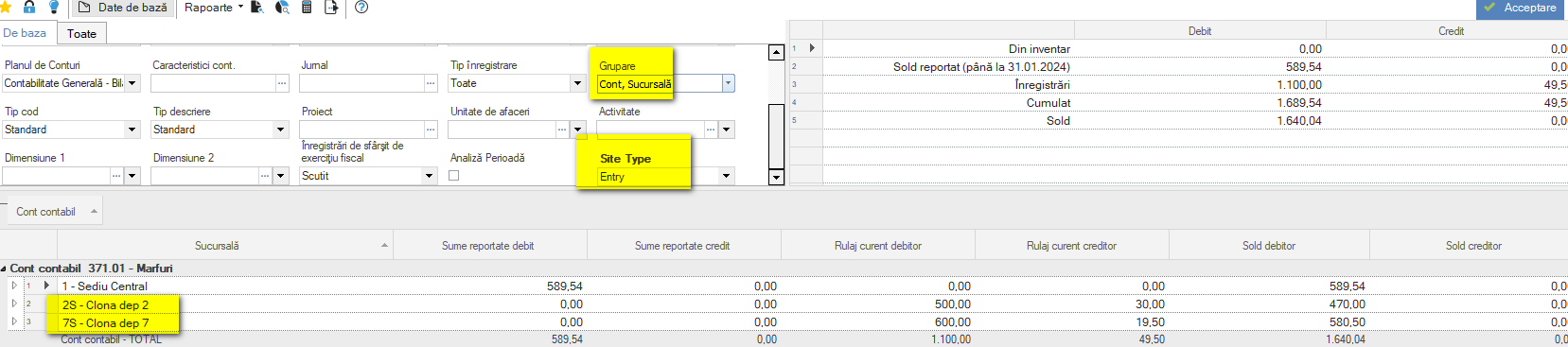
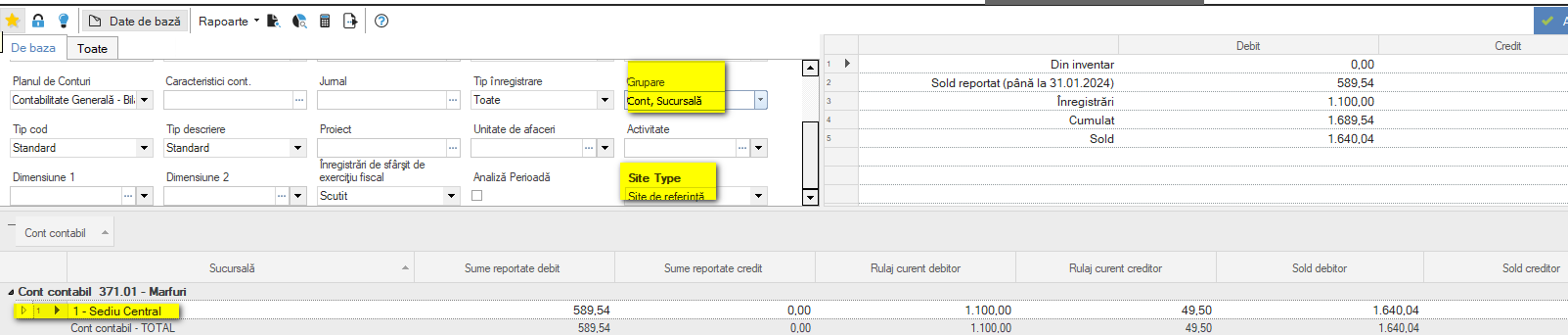
In reports a new parameter Site type has been added. It refers to the branch that will be displayed in the report.
It has 2 possible values:
Entry
Reference site
Option Entry will bring the amounts according to the alternative branch.
Option Reference Site will bring the amounts grouped by the main (official) branch of the warehouse.
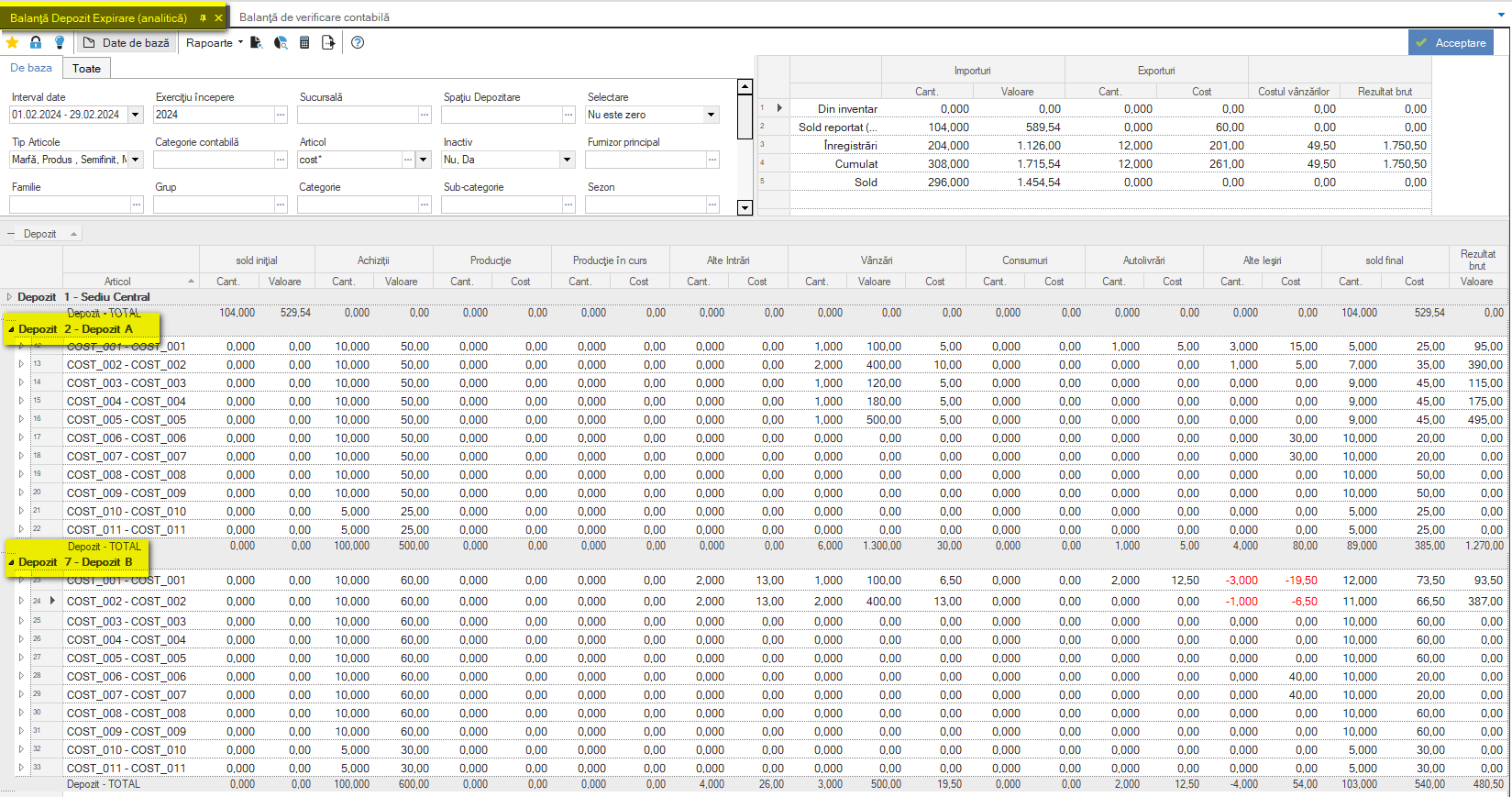
Stock balances
Stock balances can be run with grouping by warehouse:
Regarding the branch:
If you choose Site Type = Entry, the branch displayed will be the newly created (alternative) one,
If Site Type = Reference Site is chosen, the branch displayed will be the main branch.
Register report
Any Item Register report can be run on the warehouse.
The branch display functionality is identical to that described for the stock balance.
Trial balance sheet
In the case of stock accounts, the trial balance can be run on both the alternative and the main branch. This makes the reconciliation mechanism with the stock balance easier as the alternative branch is linked to a single warehouse.
Configurations for new VAT rates 1.1. Creation of new VAT analytical accounts For VAT accounts - 4426, 4427, 4428, new codes will be defined with suffix:
for the rate of 21%: .06 - 4426.06, 4427.06 and 4428.06;
for the rate of 11%: .07 - 4426.07, 4427.07, and 4428.07.
{class=“children children-type-tree children-sort-weight”}
Subsections of Finance & Accounting
The new VAT rates
1. Configurations for new VAT rates
1.1. Creation of new VAT analytical accounts
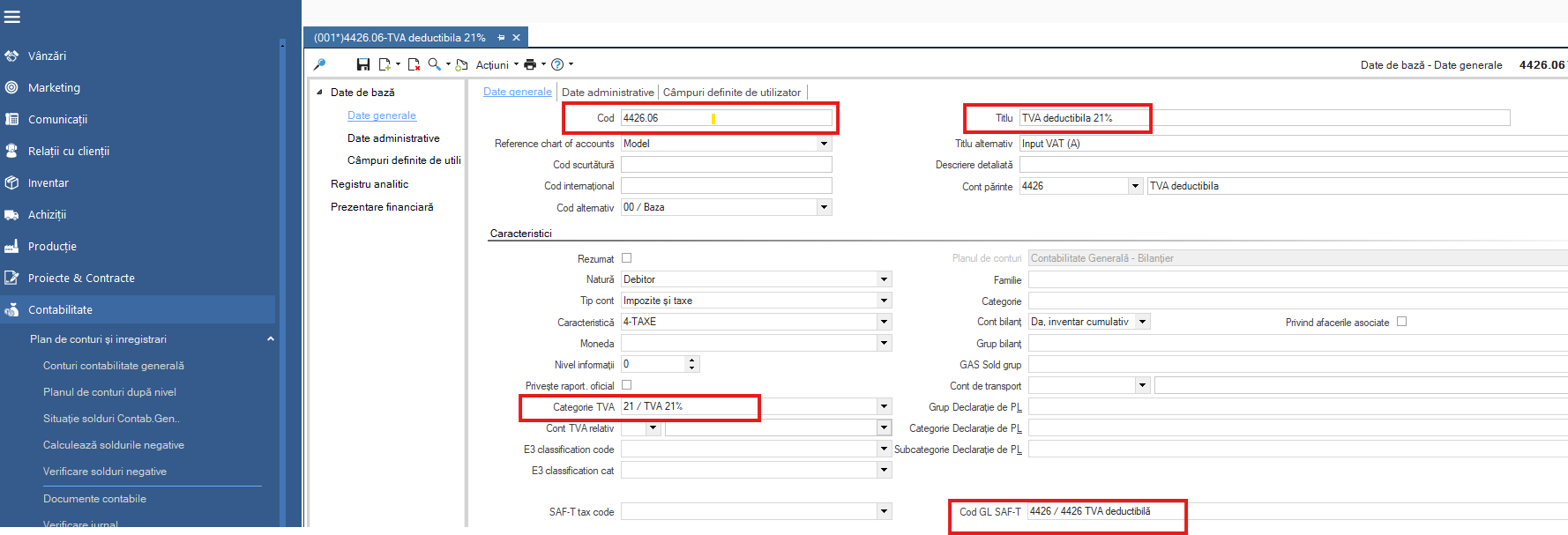
For VAT accounts - 4426, 4427, 4428, new codes will be defined with suffix:
for the rate of 21%: .06 - 4426.06, 4427.06 and 4428.06;
for the rate of 11%: .07 - 4426.07, 4427.07, and 4428.07.
Fields to be completed:
Code;
Name;
VAT category;
SAFT Code.
For example:
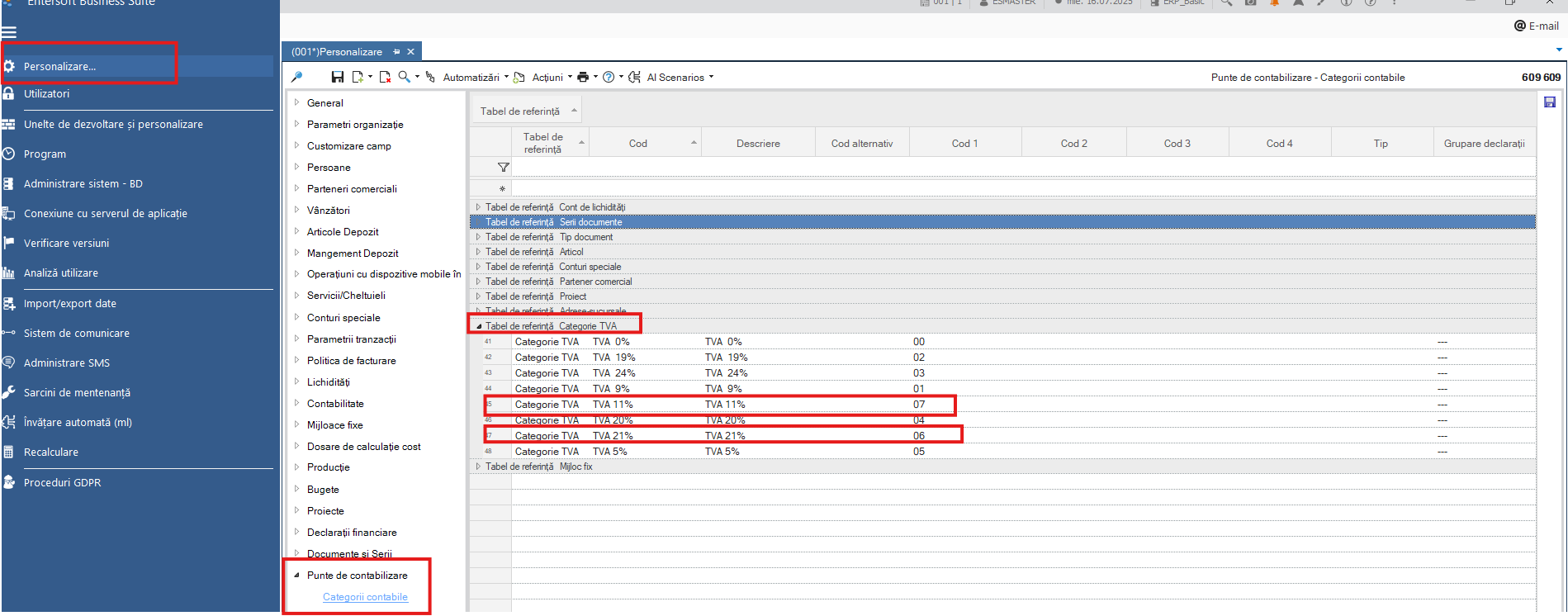
1.2. Creation of VAT accounting categories
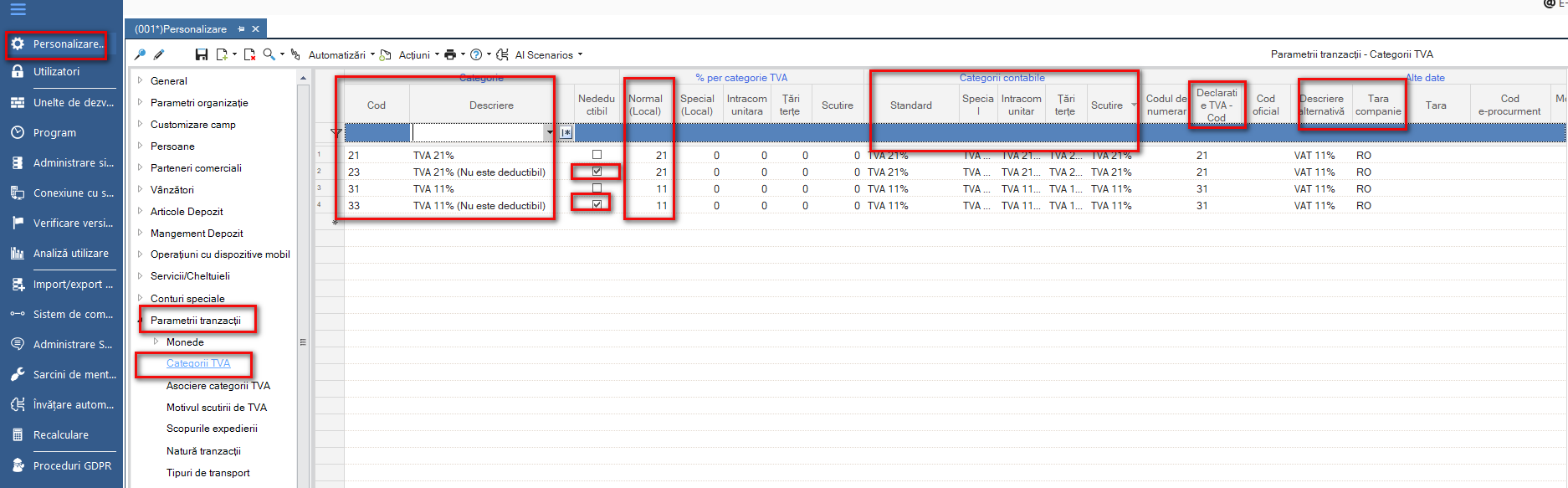
1.3. Creation of new category of VAT (deductible and non-deductible)
21: VAT 21% deductible;
23: VAT 21% non-deductible;
31: VAT 11% deductible;
33: VAT 11% non-deductible.
Attention: For customers with a common multi-country database (RO/GR/BG) it is necessary to use the prefix or suffix RO (following the existing VAT categories model).
For example: RO_1 is for 19% and for 21% the model will be RO_21.
1.4. Creation of generic items for non-exempt VAT
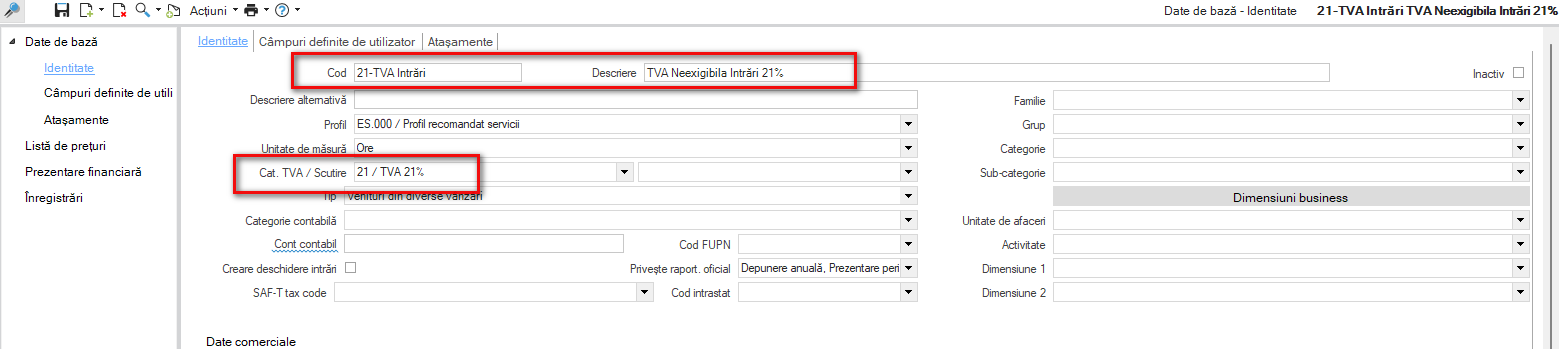
In the area of Expenses 2 items will be defined according to the following model, e.g.: 21-OutflowVAT.
In the Services area 2 articles will be defined according to the following model, e.g.: 21-InflowVAT.
Important: The previous steps (Chapters 1.1.-1.4.) can be done at any time. Subsequent steps will be done before the first transaction on August 1, 2025.
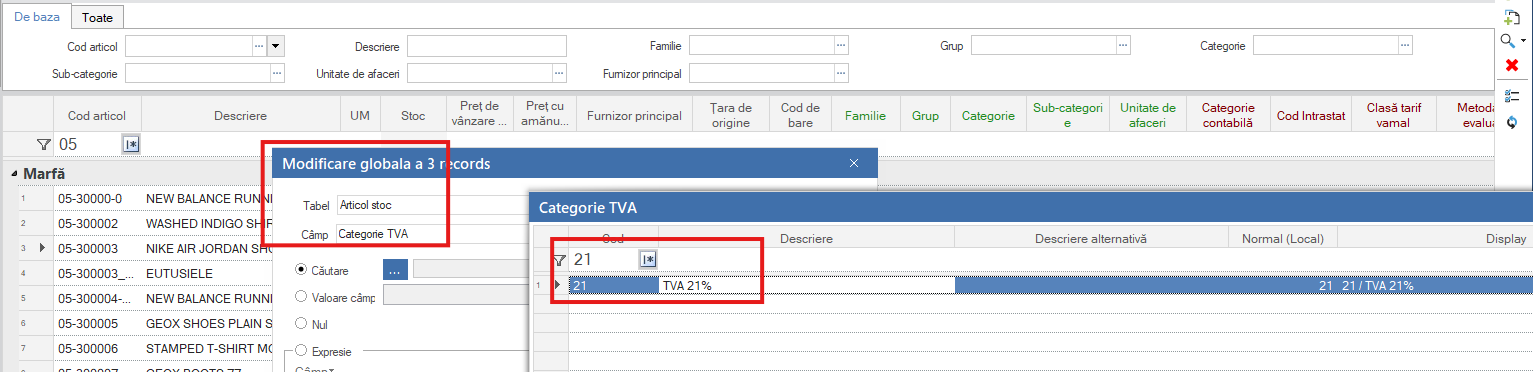
1.5. Global change of VAT category items
Before starting the invoicing for the following month, a global change of the VAT category of the items shall be made. In Inventory > Inventory Items > Items select the items for which the VAT rate needs to be changed and from Actions > Global Change select the field VAT Category.
This must also be done for generic items of type Expense or Service.
1.6. The following transitions need to be monitored:
From customer order to the delivery note: whether or not the VAT category is taken from the line;
From delivery note to invoice: whether or not to take the VAT category from the line;
Rebook/return: the original VAT category must be kept;
From Supplier Order to receipt;
From Purchase Receipt to Purchase Invoice;
Cancellation/return;
Note: for orders remaining open at the end of the day on 31.07 we recommend that you make a mass change on the items to the new rates. Using the Sales > Detailed Unfilled Orders and Purchases > Detailed Forecast Orders scrollers you can identify the open orders.
Also, in Inventory > Warehouse Items > Items - the related reports below allow you to globally modify order type documents so that the VAT rate in the document lines is the one on the item card.
Sales document lines for global modification;
Purchase document lines for global change.
1.7. Documents registered for the previous period
The documents recorded for the previous period must be manually recorded/modified in lines for the VAT rate.
For example, recording an expense, energy invoice for the month of July, will be modified in the line of the document with the previous rate, because the energy item already has the new rate.
1.8. Updating price lists
In cases where retail price lists (VAT included) are used, they need to be updated.
1.9. Monitoring possible integrations with third-party systems
It is recommended to spot-check how the documents generated by the automated processes pick up the correct VAT rate. Usually, the current VAT rate set at item level is picked up, but there might be exceptions.
1.10. VAT rate settings at cash register level
If working with cash registers, they will be set separately with the new VAT rates.
2. Hotfixes and further in-app developments
In order to start using the new VAT rates as of their effective date - 1.08.2025, Hotfixes have been created for all versions currently in use by our customers, starting from 5.9.0.0 to the latest recently released - 5.12.0.4.
2.1. New parameters in the Accounting Segment section
Two parameters for the sales flow (corresponding to each quota) and two parameters for the purchases flow related to VAT input transactions.
For each parameter the corresponding generic items (defined in step 1.4) will be set.
These are presented in the table below:
Parameter code
Parameter name
Generic article code
Explanation
VAT_PAYMENT_ITEM_SALES_STANDARD_CATEGORY
VAT on payment scheme: VAT on payment Article (standard rate from 01.08.2025)
21-InflowVAT
VAT_PAYMENT_ITEM_PURCHASES_STANDARD_CATEGORY
VAT on payment scheme: VAT on payment Article (standard rate from 01.08.2025)
21-OutflowVAT
VAT_PAYMENT_ITEM_SALES_REDUCED_CATEGORY
VAT on payment scheme: VAT on payment Article (reduced rate from 01.08.2025)
11-InflowVAT
VAT_PAYMENT_ITEM_PURCHASES_REDUCED_CATEGORY
VAT on payment scheme: VAT on payment Article (reduced rate from 01.08.2025)
11-OutflowVAT
2.2. Updates to flows for VAT on payment
All flows involving VAT on payment have also been updated.
Thus:
The scrollers have been updated to cover VAT payments on payment at the new rates. The scrollers are used when searching for invoices with VAT on payment on documents of type:
DPV – Supplier payment,
DPE – Issue bills to suppliers,
ICT – Collection (from customers),
ICE – Receive bills from customers,
CPB – Partner account offsets (debit),
CPT – Partner account offsets (credit).
The Pending Documents scroller has been updated to also display invoices with VAT on payment containing the new VAT rates.
The automation of Reverse Charge Document Creation (TXV) now also covers the new VAT rates.
The BR (Business Rule) applicable to AMV/AMP documents – BO/CEC payment/collection with VAT on payment has also been updated. When selecting a BO/CEC, the related invoices must be completed automatically.
2.3. Amendments for D300 Declaration
A new version 5.12.0.7 has been released, which includes changes to the application to enable the generation of the D300 declaration for August 2025 and subsequent months. Detailed information is provided in both the Instructions for completing the D300 declaration - Chapter 12 and the Release Notes for 5.12.0.7.
__________________
Note: For the following sub-chapters we are waiting for the specifications from ANAF, so that the August declarations, to be submitted at the end of September, will also include the new quotas introduced.
Introduction The main role of SAF-T is to standardize the transfer of information between tax authorities and large taxpayers, providing benefits to both parties. The SAF-T involves the regular reporting of a set of information that facilitates the tax authorities’ review of taxpayers’ transactions.
In order to realize the SAF-T declaration, it is necessary to make some settings (coding) so that the information is transmitted according to the indications provided.
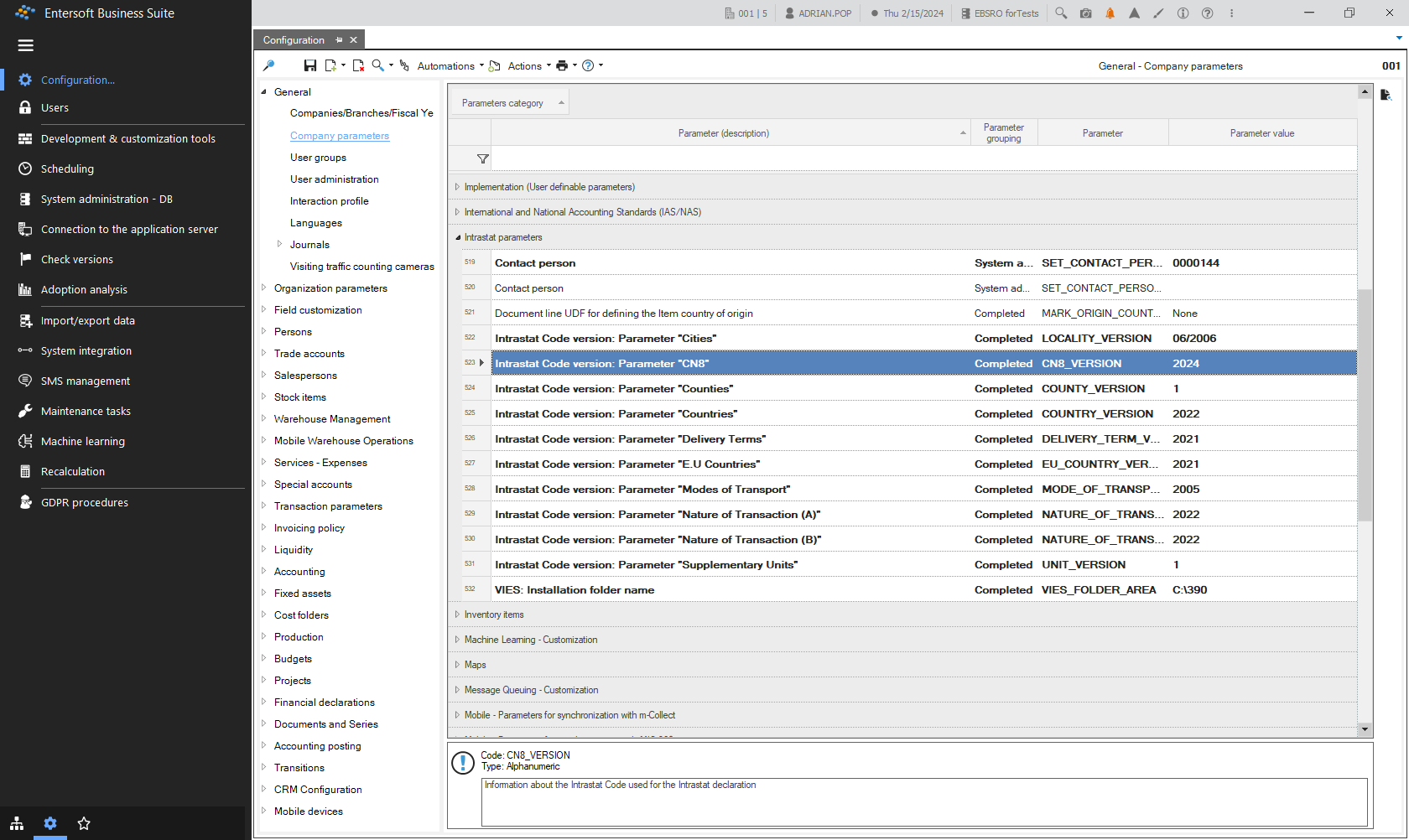
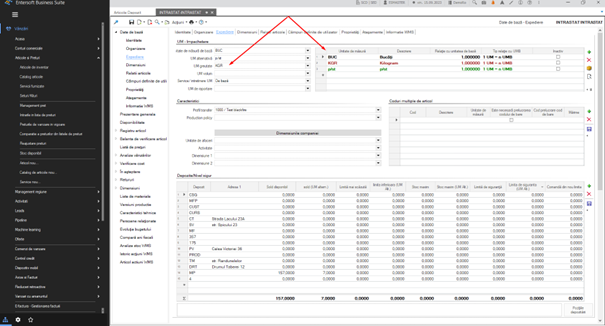
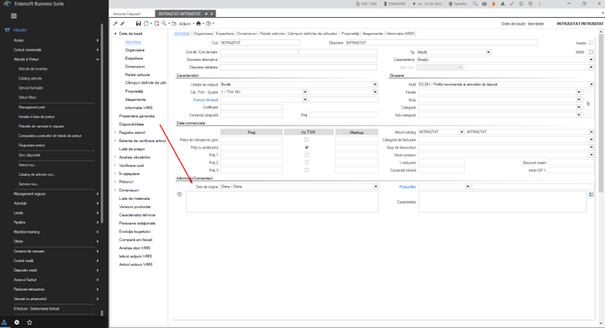
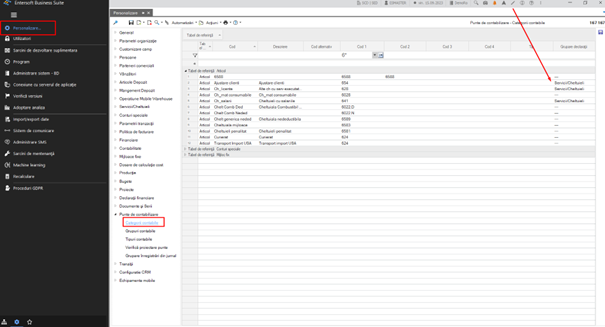
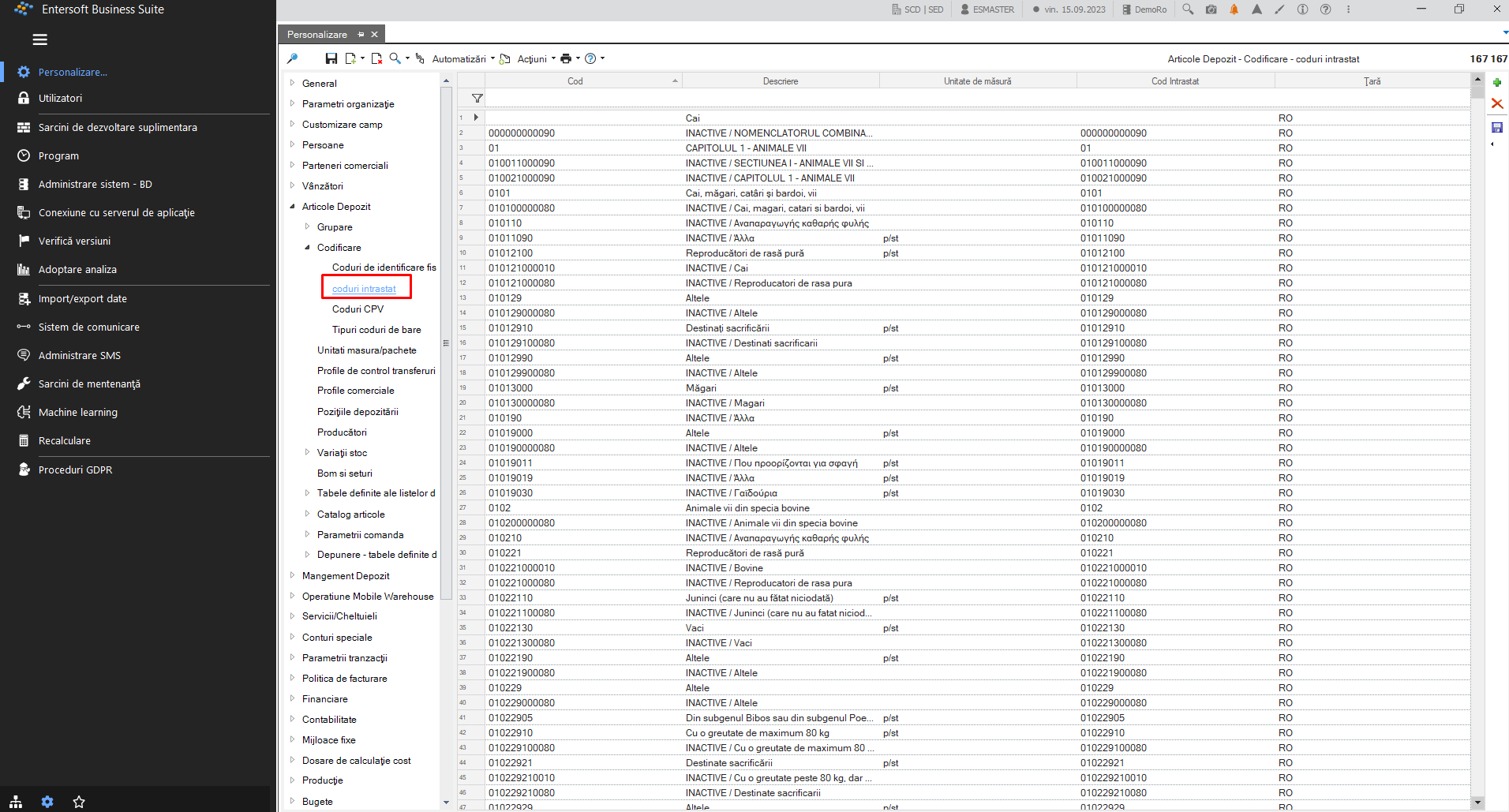
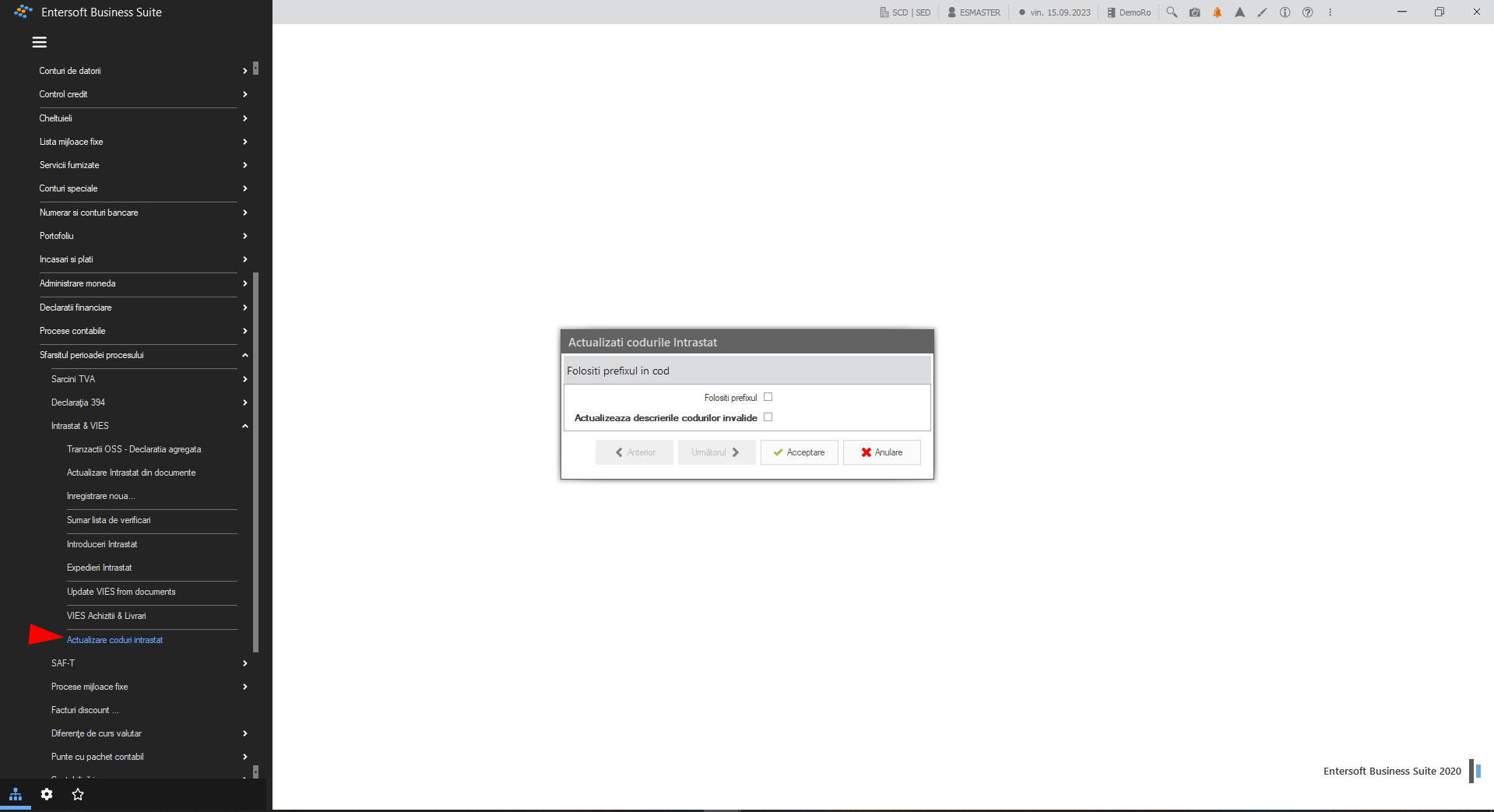
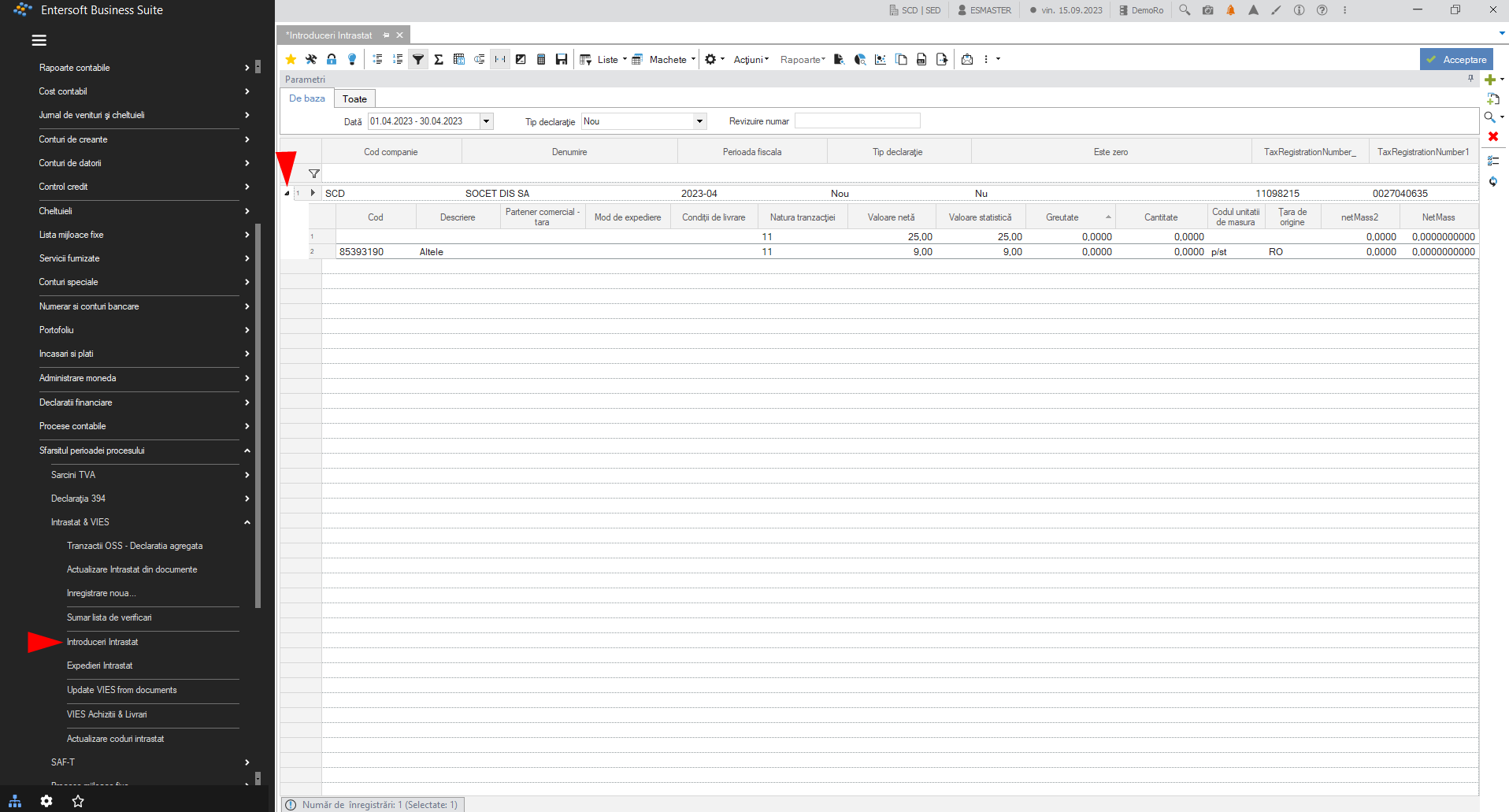
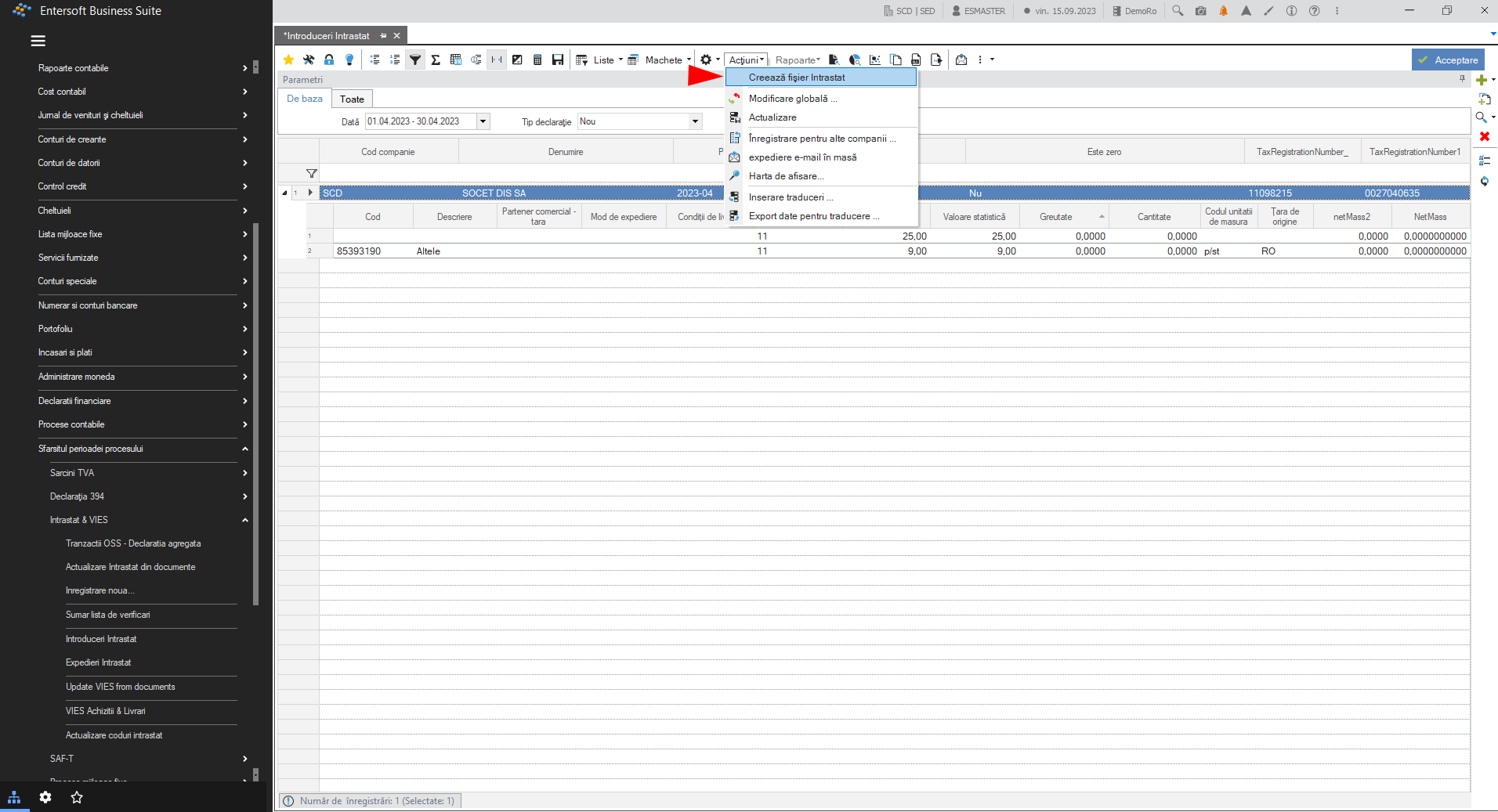
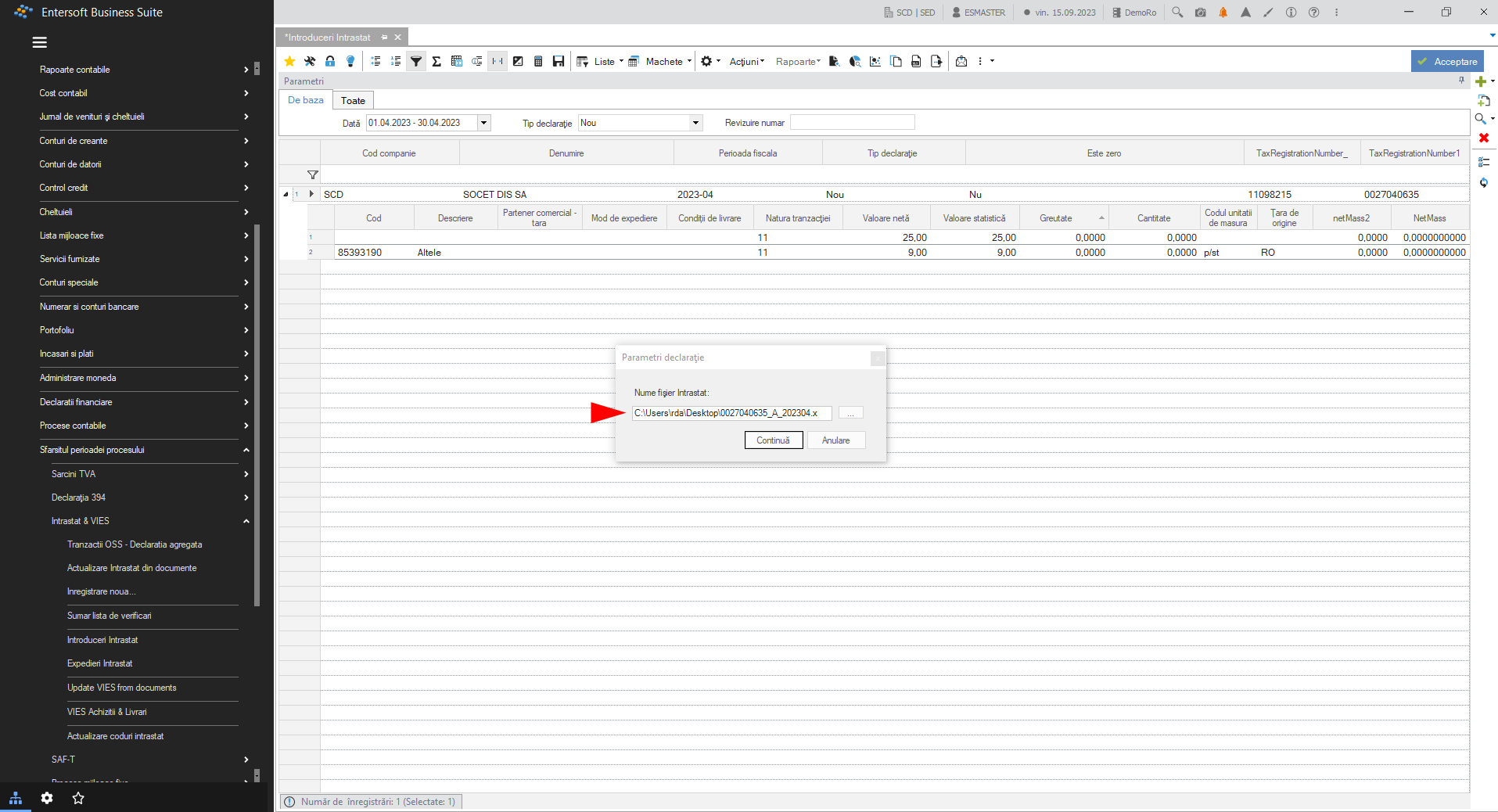
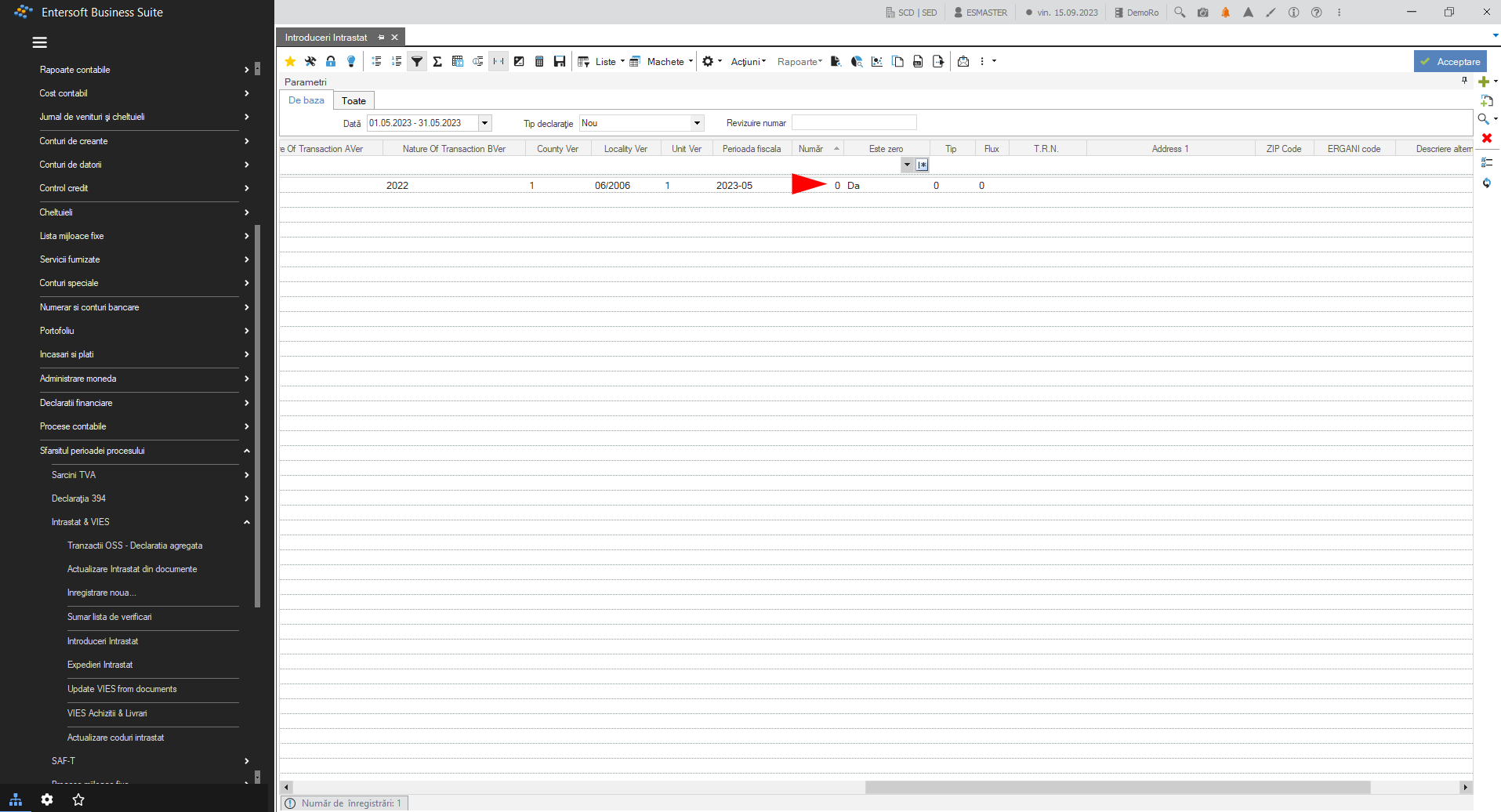
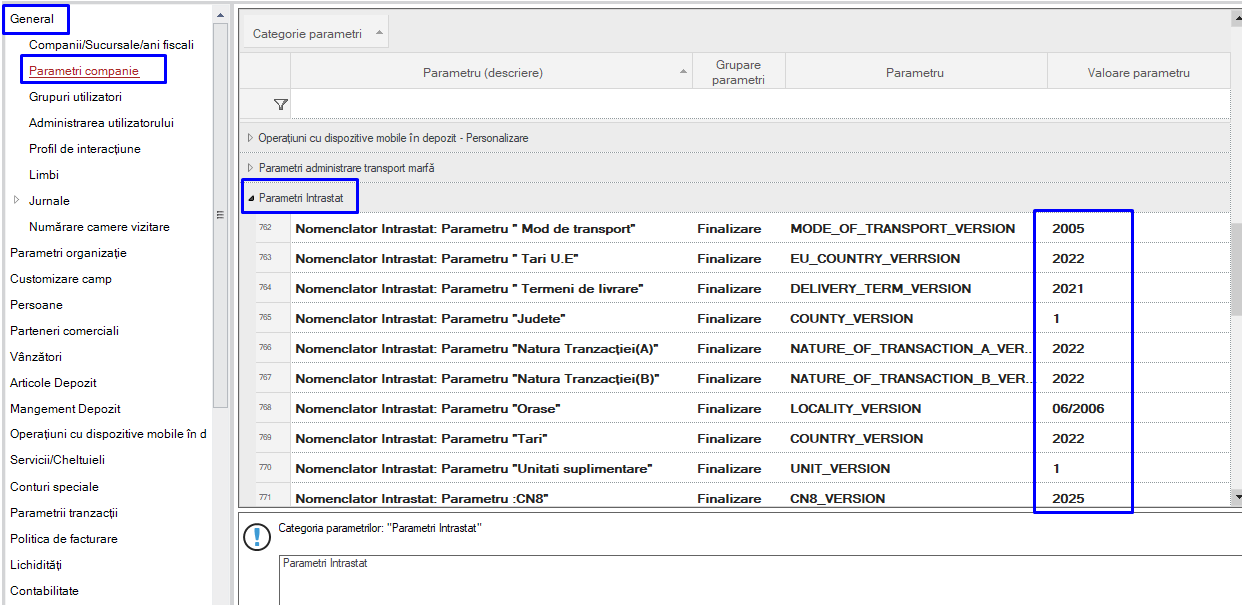
Settings 1.1. Company settings In order to run the Intrastat declaration several fields need to be filled in the company parameters:
Go to menu (Configuration and tools) > Customization… in General > Company parameters Category: Intrastat parameters
In the parameter field CN8 fills in the year in which the declaration is made (2022, 2023, etc.)
{class=“children children-type-tree children-sort-weight”}
Subsections of Declarations
D406 - SAF-T
1. Introduction
The main role of SAF-T is to standardize the transfer of information between tax authorities and large taxpayers, providing benefits to both parties. The SAF-T involves the regular reporting of a set of information that facilitates the tax authorities’ review of taxpayers’ transactions.
In order to realize the SAF-T declaration, it is necessary to make some settings (coding) so that the information is transmitted according to the indications provided.
These encodings and settings will be detailed below.
2. Required information on the company card
A first step is to check the information entered on the company card. In order to avoid errors when validating the declaration, it is advisable to make sure that the following details are mentioned:
Company CIF
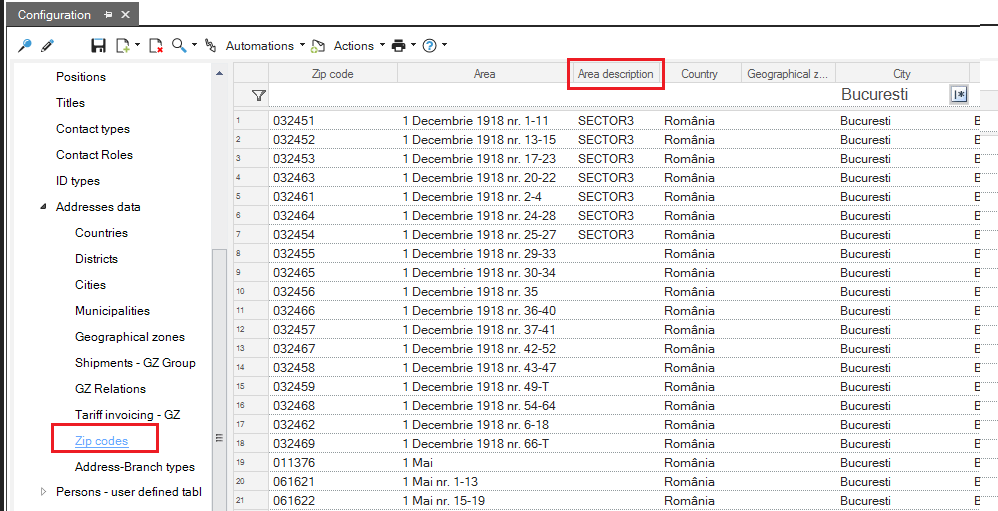
Address: city/sector/town/postcode
E-mail address
Telephone number
Bank account - as applicable, one or more, one of which must be ticked as main account
Legal entity, attached to the company, on whose card the e-mail address and telephone number must be mentioned;
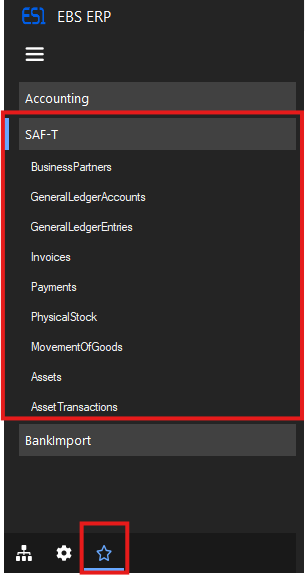
3. SAF-T Scrollers
The following list of scrollers, in the list of shortcuts, represents all the information to be transmitted to the Tax Authorities, through the SAF-T declaration.
In the following, we will exemplify the content of each scroller.
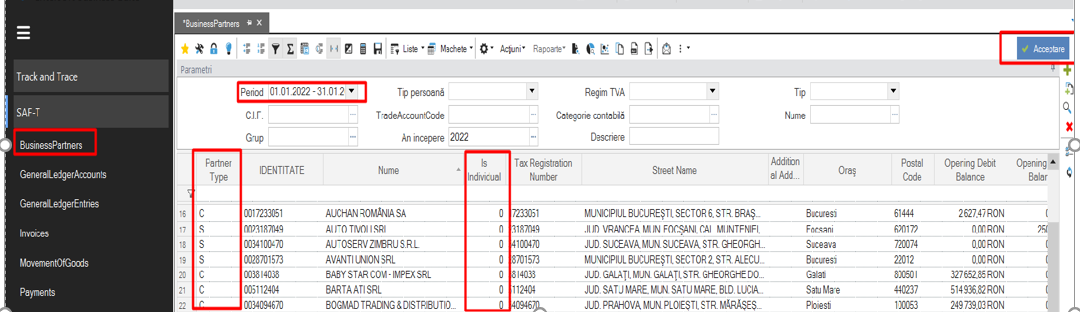
3.1. Business Partners
Here you can find information about all partners (customer/suppliers/debtors/creditors) for a selected period.
Very important, before starting the process of running the declaration for a given month, is to check if all the partners have the following details mentioned on their cards (either export the details generated from the scroller to an excel file or filter the information directly from it):
CIF (if it is a legal entity) For individuals, who do not have their CNP added in the EBS, the ID number will be composed in the system by concatenating the country code (TRN) and its unique code in the EBS. The TRN code is automatically assigned to the partners in the system, there is no need for manual processing.
Country
City
County (valid only for partners in Romania)
Accounting Category
Accounting Account (not a summary, but an analytical one, taken from the chart of accounts).
Is Individual “0” means that the partner is a natural person and “1” a legal person.
Attention! For situations where there are partners such as: Sundry Creditors, Sundry Debtors, State Budget, it is advisable to set them as individuals to avoid errors that may occur when running the return.
Attention! Avoid using special characters when creating a partner, e.g. quotation marks, *.
From this scroller, with a double-click you can access the partner’s card, in order to make the necessary changes in an easy way.
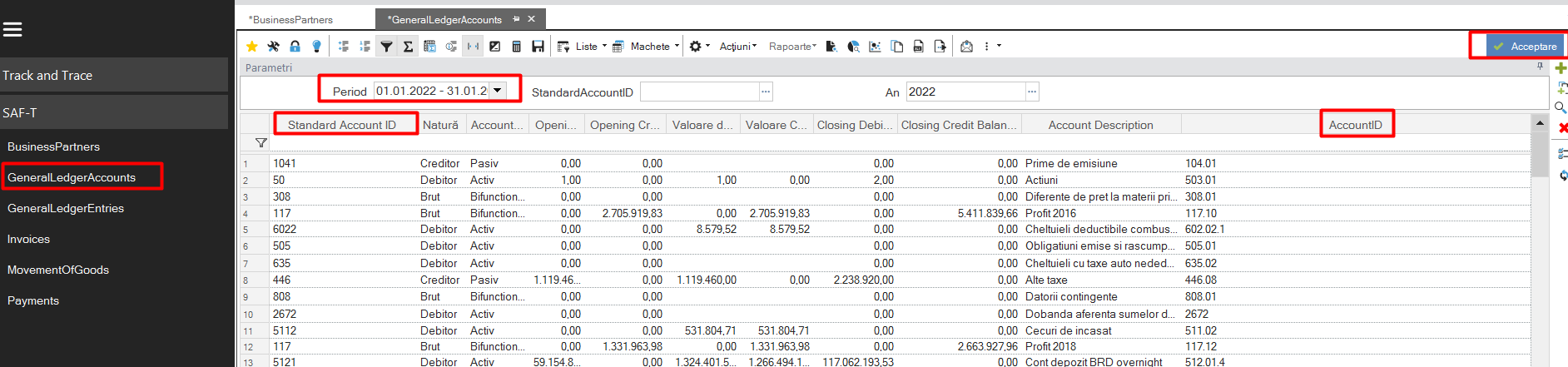
3.2. General Ledger Accounts
Contains information about the company’s chart of accounts, as well as its mapping to the SAF-T chart of accounts.
In case a new analytic is created, it will have to be mapped according to its SAF-T correspondent.
The Standard Account ID column represents the corresponding SAF-T account.
With a double-click, the account card can be accessed directly from this scroller.
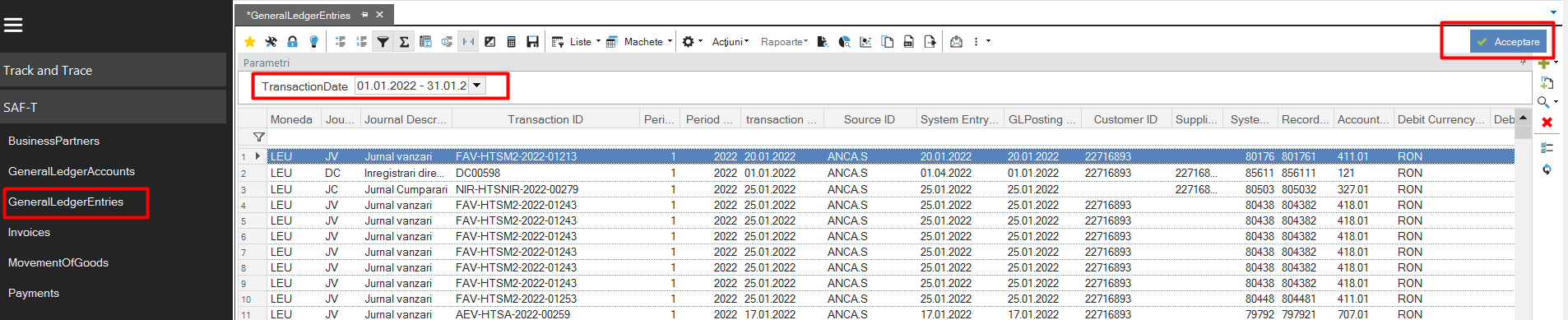
3.3. General Ledger Entries
This scroller extracts the totality of the accounting notes obtained by registering the documents of the chosen month to analyze.
Attention! A very important aspect that can generate errors in the declaration process is the fact that the items (either stock or generic) do not have mentioned on their card the Categories and Accounting (analytical) Accounts.
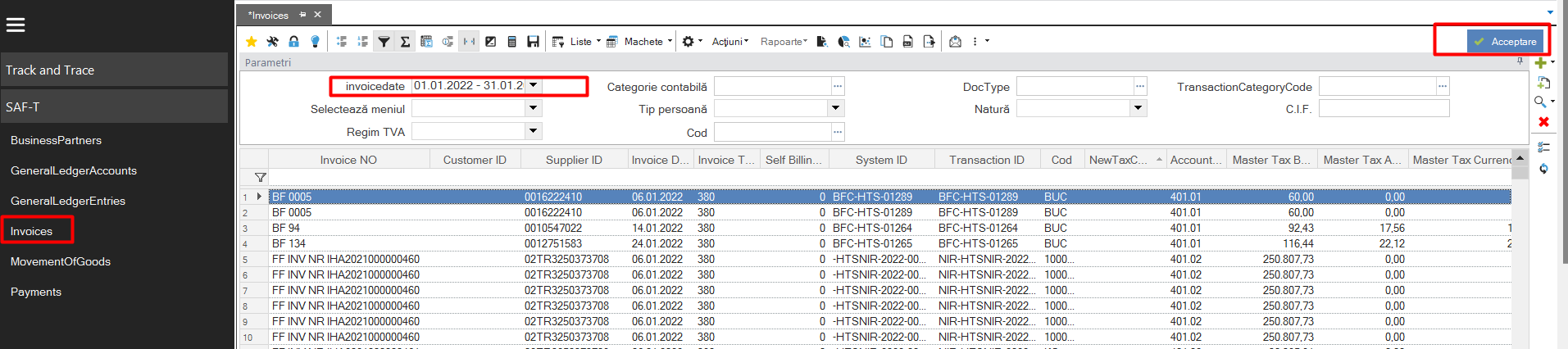
3.4. Invoices
Includes all the lines of the documents issued/received during the time period selected for analysis.
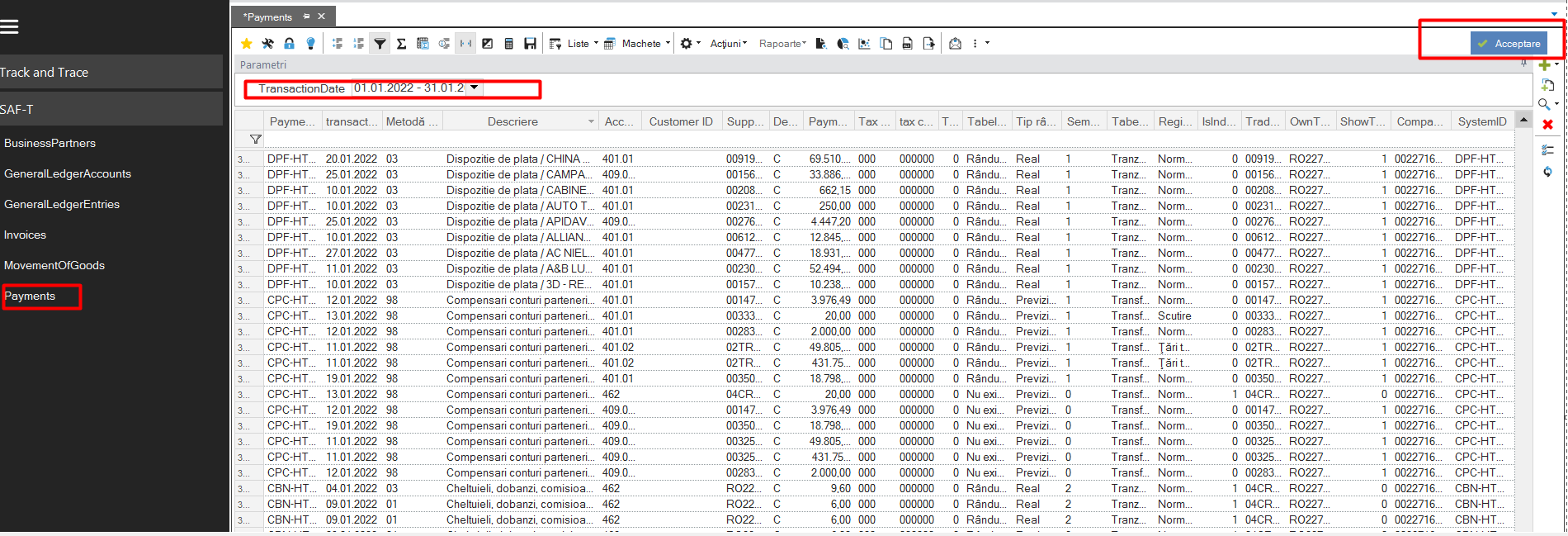
3.5. Payments
It contains payment and collection documents from the analyzed period.
This is the required information to be submitted through the SAF-T return, other scrolls will be submitted only upon request.
It is intended to map the information in the system to be consistent with the data provided by the Tax Authorities.
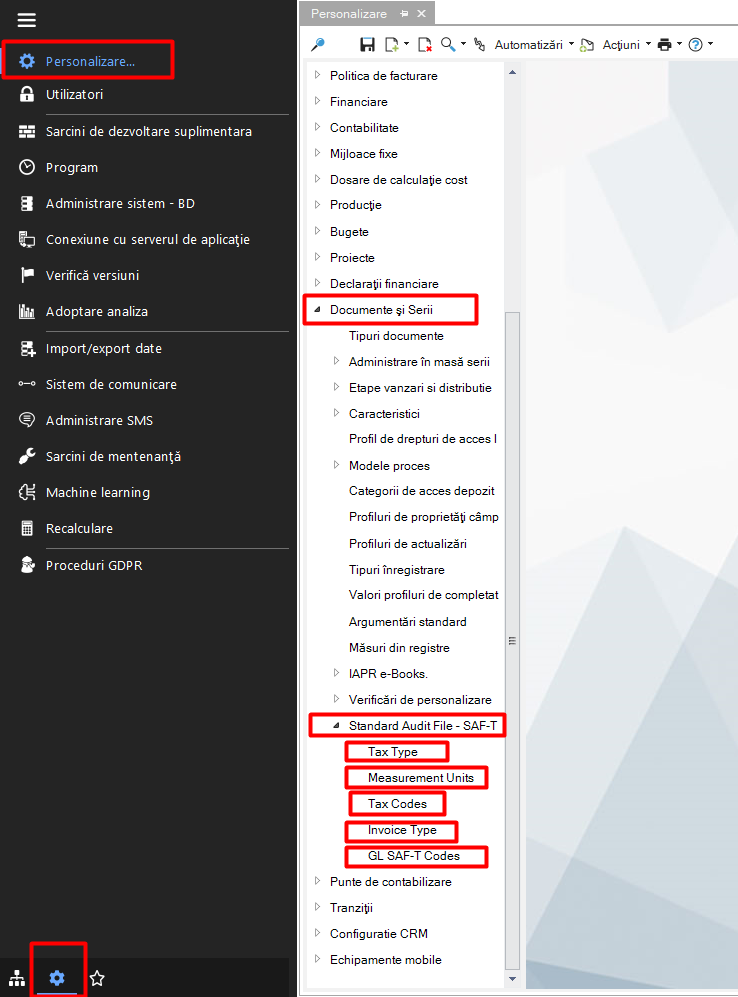
In order to standardize the information, the following nomenclatures have been added in version 5 of the application, which can be visualized as follows:
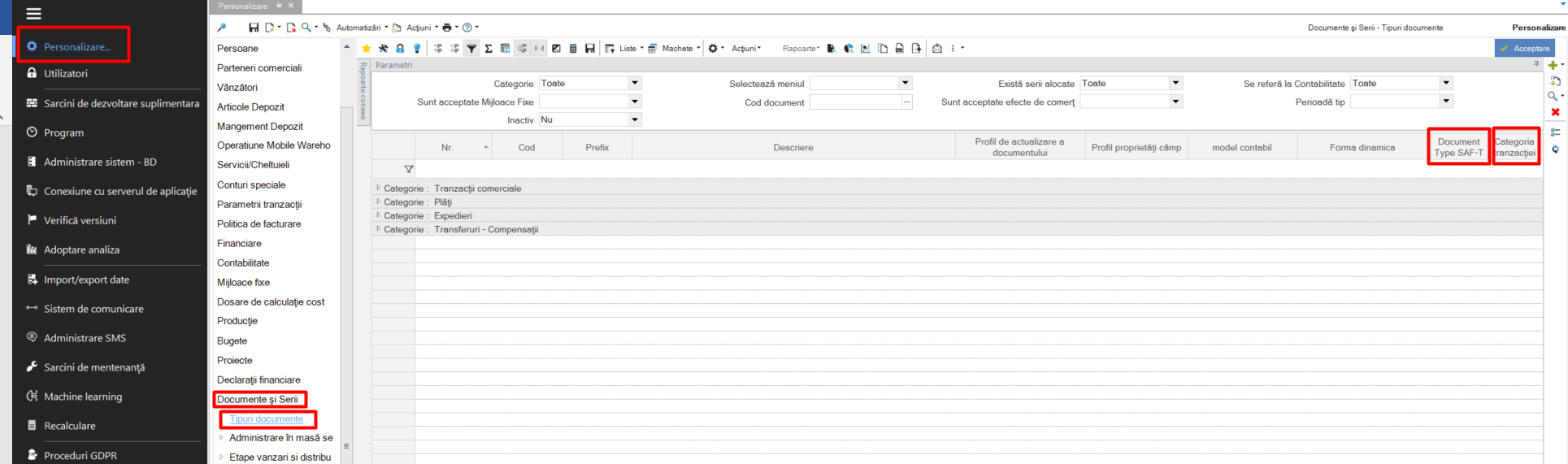
From the menu Tools and Configuration > Customize > Documents and Series > Standard Audit File - SAF-T.
4. Units of measurement
Units of measurement are part of the list of settings that need to be made in order to realize the SAF-T declaration.
The list of codifications taken from the information from ANAF, which must be taken into account for parameterization, can be found as follows:
Tools and configuration > Personalization > Documents and series > Standard Audit File - SAF-T > Measurement Units
According to this coding list, the units of measurement used in transactions for each company will have to be mapped according to the ones taken from the ANAF list.
An easy way to retrieve the list of units of measurement used in the records is to run the Invoices (Shortcuts -> SAF-T ->Invoices) scroller, filtering the desired period of analysis, because in the information extracted from here there is the “Code” column, which gives indications on the units of measurement used in the documents.
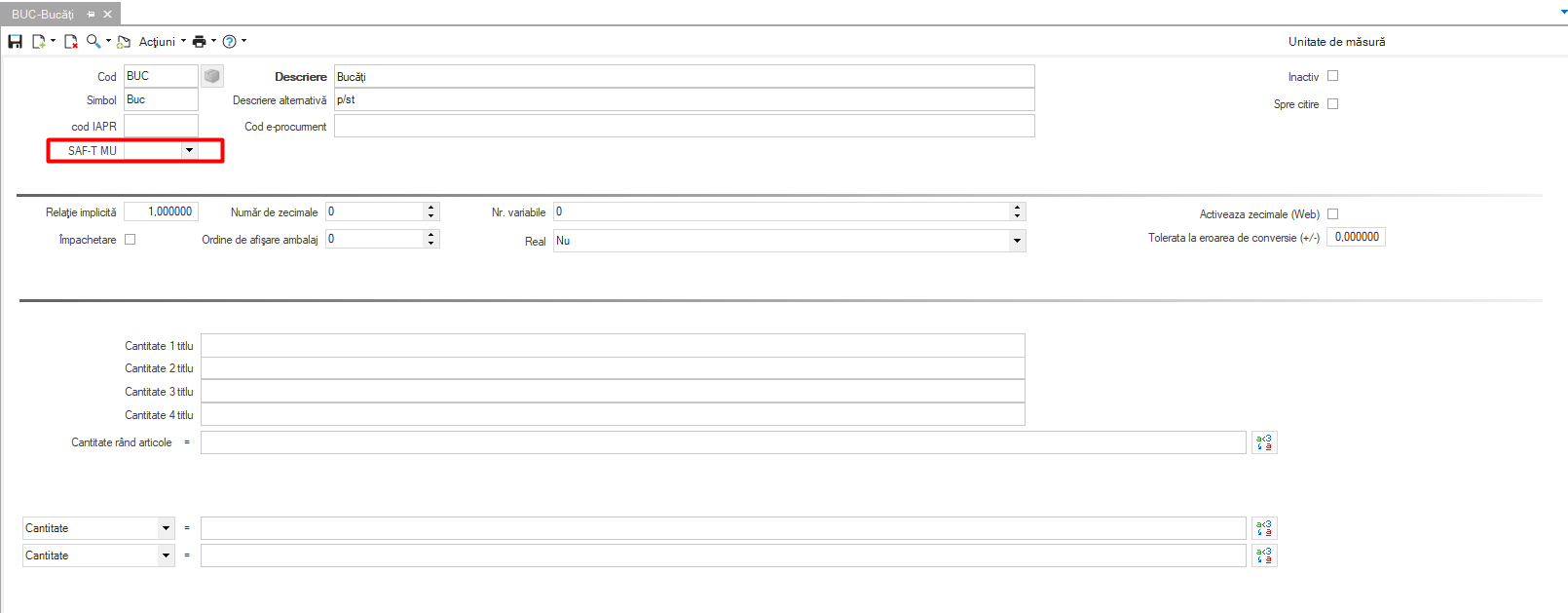
Each unit of measurement here should be mapped using the SAF-T code. In case of using a new measurement unit, this mapping must be done.
This setting is done by entering on the card of each unit of measurement, from:
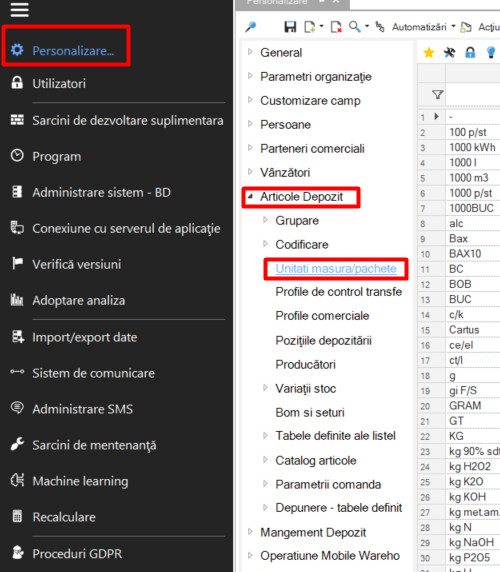
Personalization > Warehouse Items > Units of Measure/Packages
5. Document types
For each type of document, it is necessary to codify it, so that the SAF-T declaration can be executed accordingly.
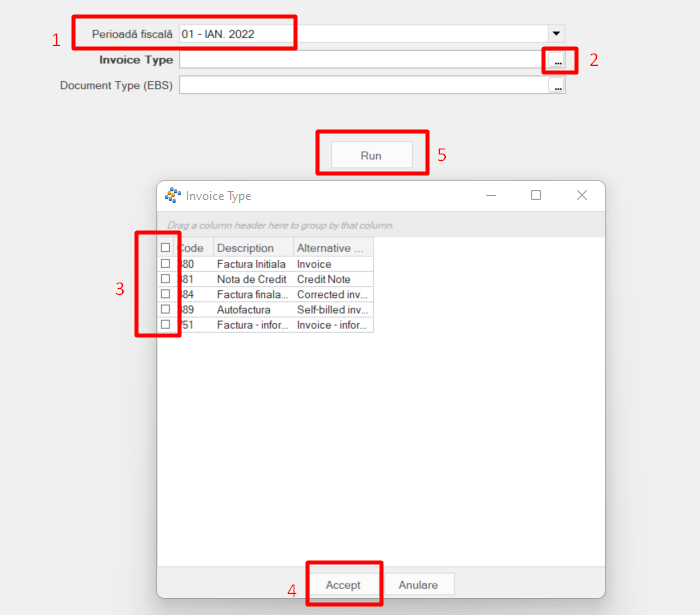
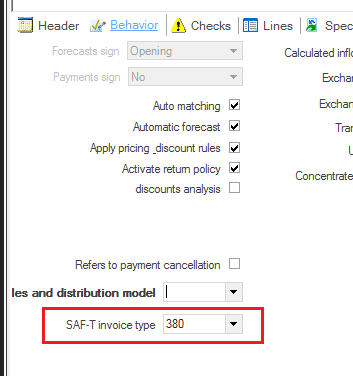
Before mapping by document type, depending on the transaction category, it will be necessary to manually enter the codes below:
To complete the field, select one of the four codes below:
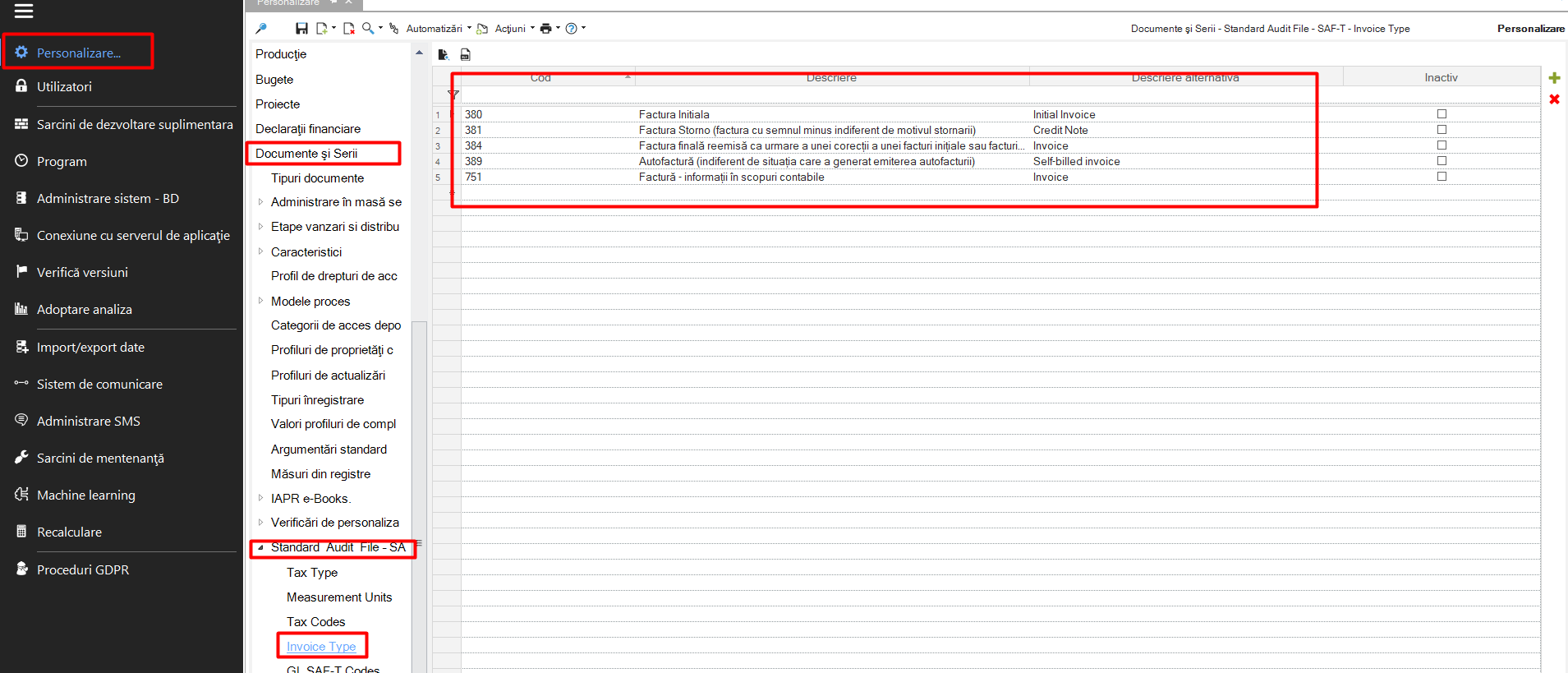
code 380 - Initial invoice,
code 381 - Revert invoice (invoice with a minus sign regardless of the reason for the reversal),
code 384 - Final invoice reissued following a correction of an initial invoice or revert invoice,
code 389 - Self-billing invoice (irrespective of the situation which led to the issue of the self-billing invoice)
code 751 - Invoice - information for accounting purposes
So, the way documents can be coded is as follows:
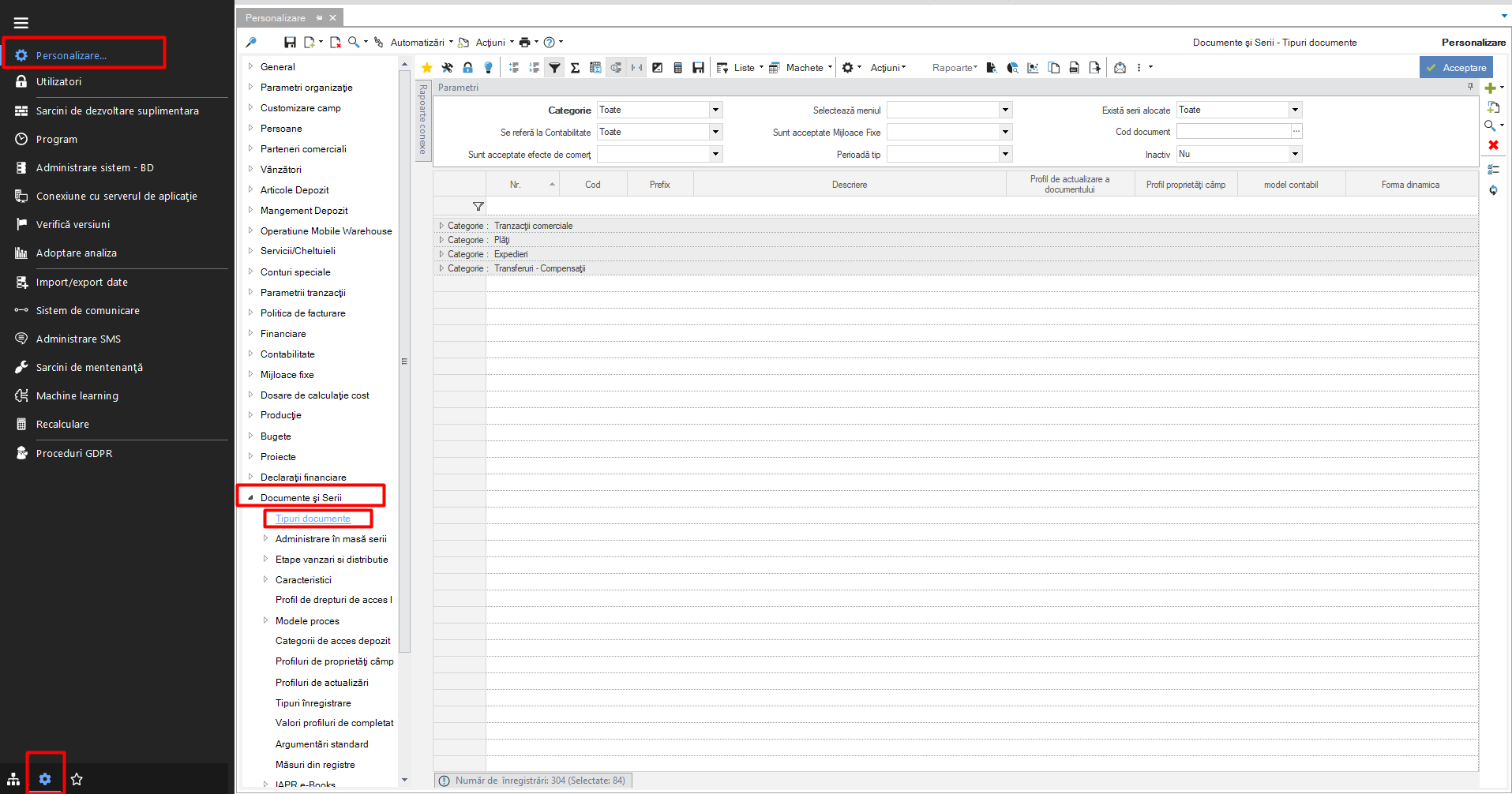
Tools and Configuration > Customize > Documents and Series > Document Types
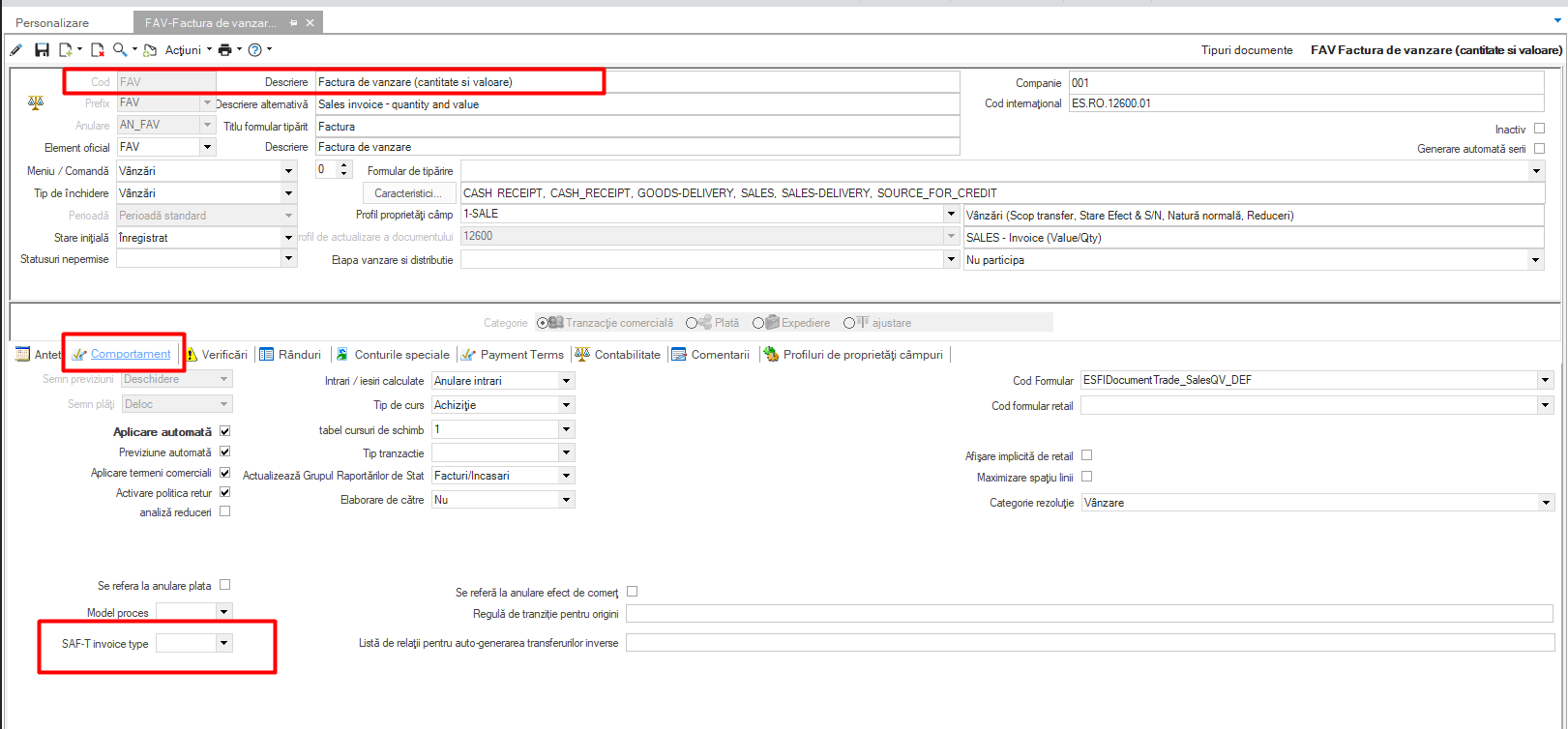
The setting is done in the document type card > Behavior tab > SAF-T Invoice type field
For the SAF-T declaration were mainly used codes 380 for standard invoices, 381 for credit notes.
The documents can be mapped either individually, or by calling the Global Modification taking into account the Transaction Category, as follows:
For the Transaction Category 01 the invoice code 380 (Document type SAF-T) will be used. The exception are SCCT type documents which have Transaction Category 01 but are not declared in SAFT, being the initial balance of the partners with VAT on receipt.
For Category 03384 will be used. This is confirmed by ANAF as appropriate for SAFT.
For the use of the other codes, it is recommended to access the appropriate documents individually.
6. Types of taxes
Coding is also required for tax categories. The list of codes is as follows:
Tools and Configuration > Personalization > Personalization > Documents and Series > Standard Audit File - SAF-T > Tax Codes.
Through the statement run process, at the tax information preparation/update stage, the SAF-T Tax Code field will be populated according to the tax category that applies.
These codes can be identified when running the General Ledger Entries scroller, “TaxCodeCalc” column
The following code has been added to the list of Tax Codes, for the exempt VAT regime:
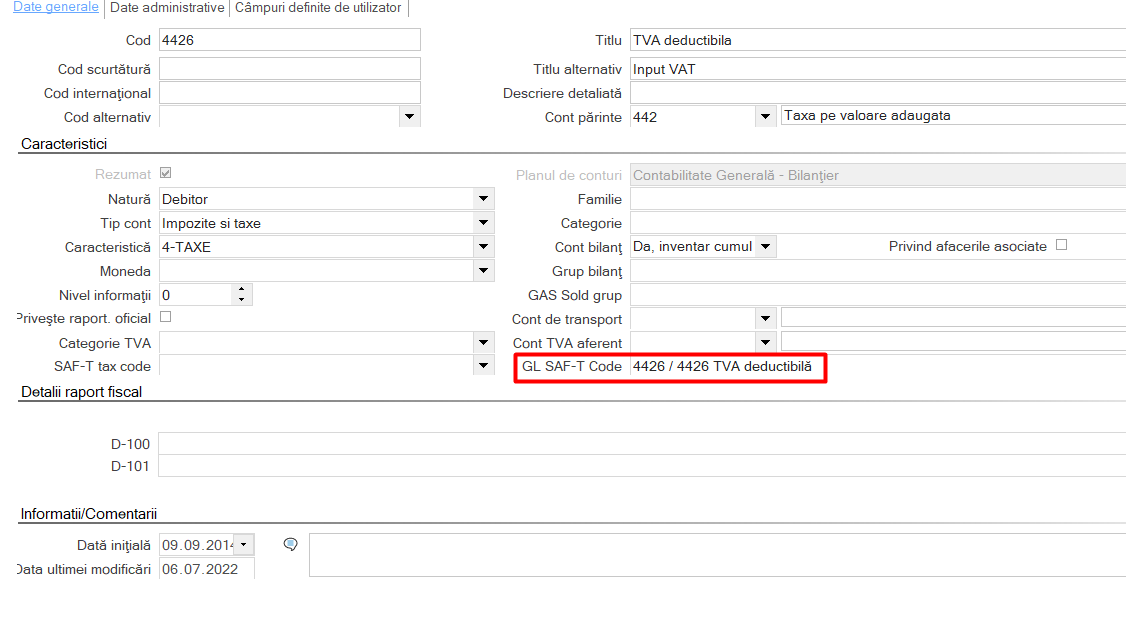
7. Chart of accounts
The necessary coding instructions for the chart of accounts accounts can be found as follows:
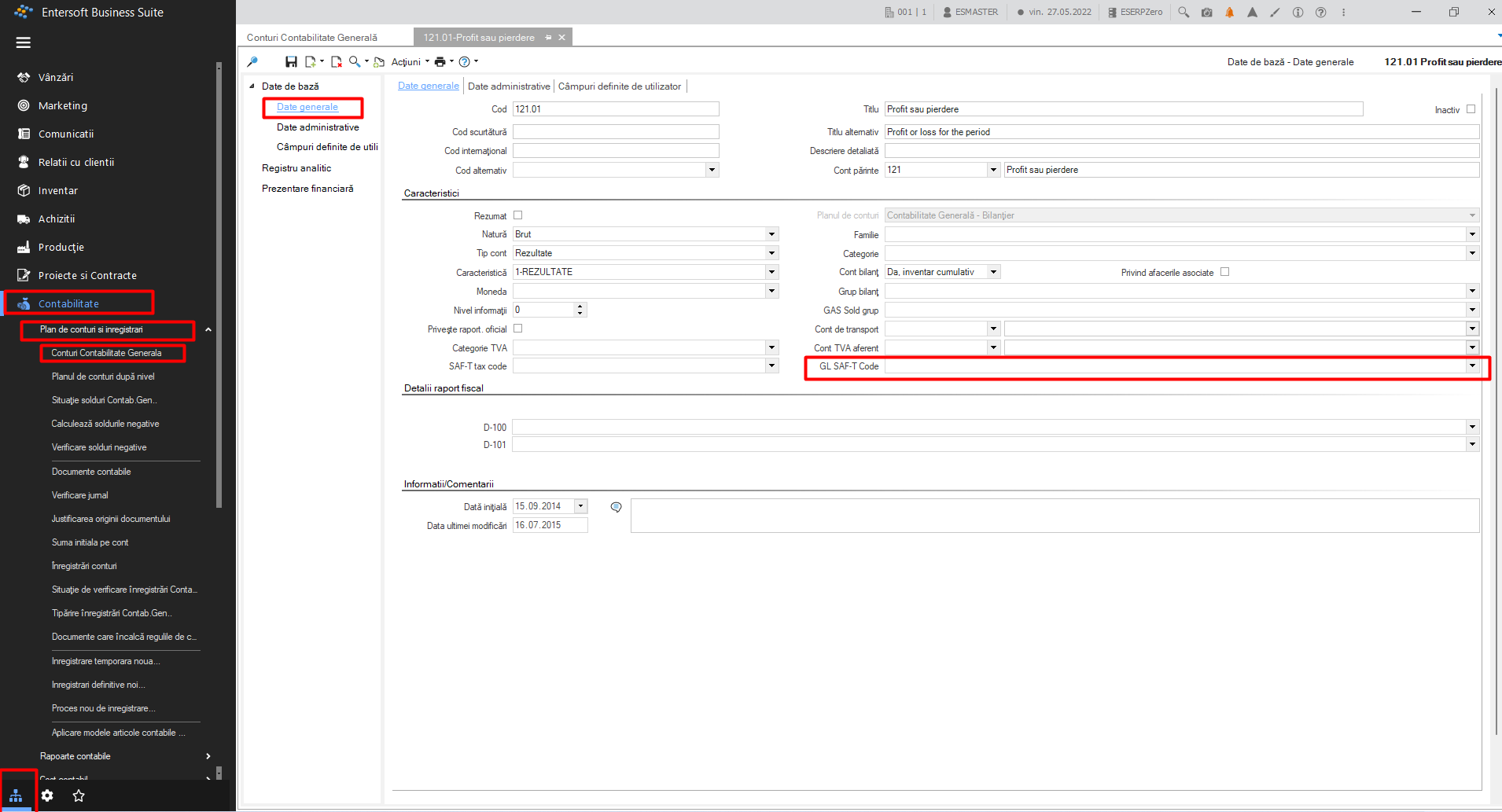
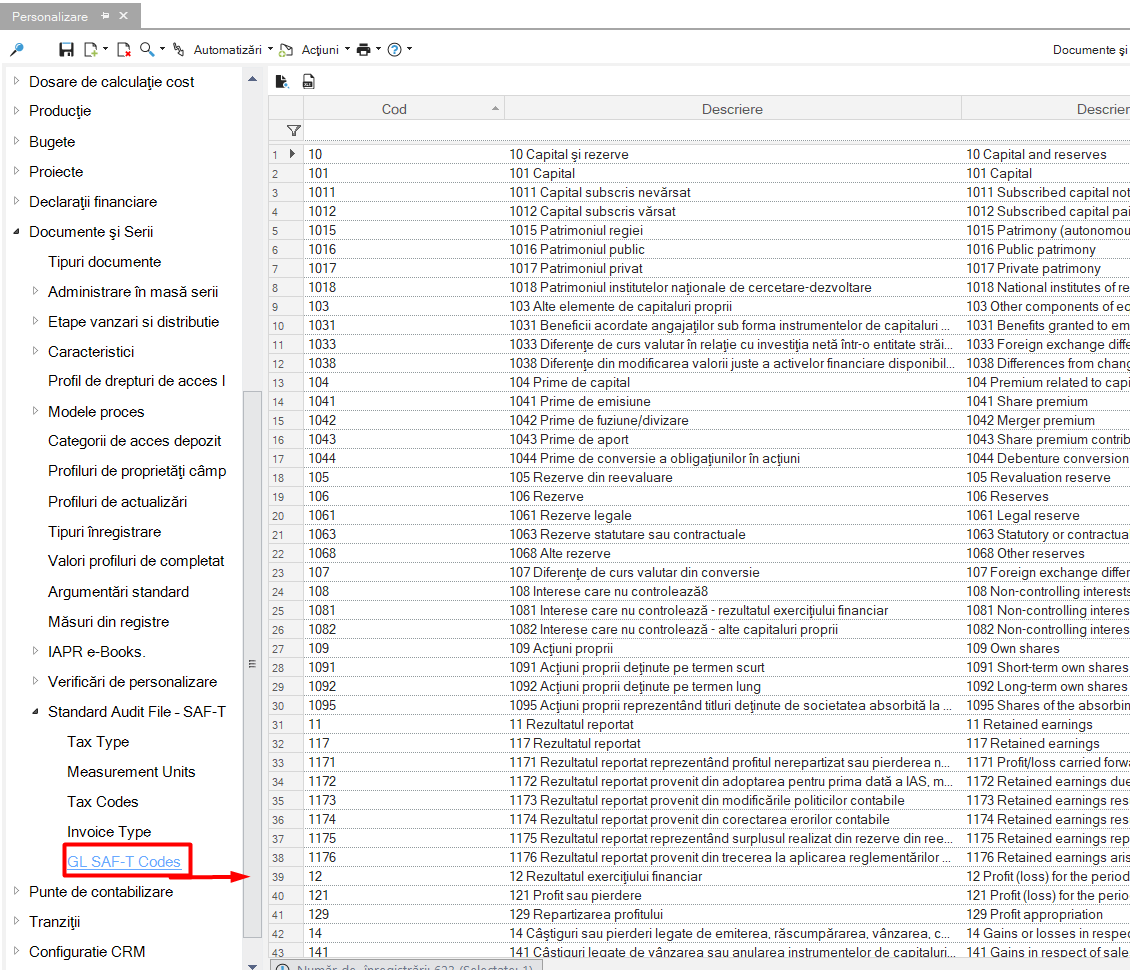
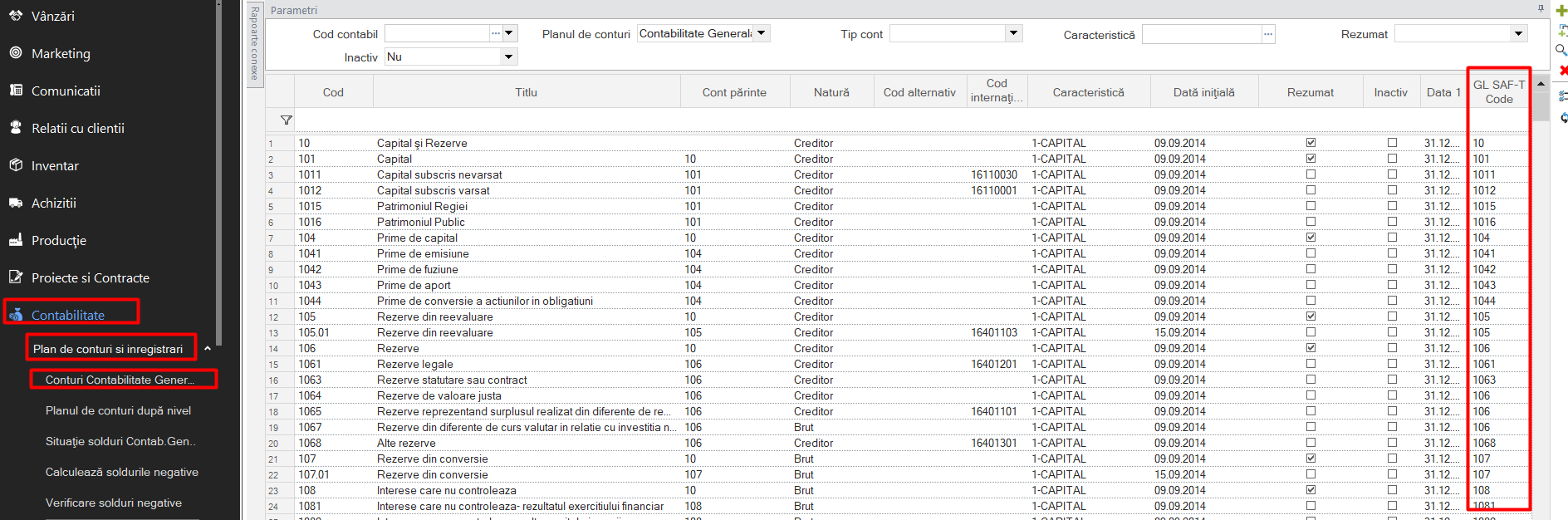
Tools and Configuration > Customize Documents and Series -> Standard Audit File - SAF-T > GL SAF-T Codes
Following the SAF-T chart of accounts import process, the field below will be populated by the corresponding SAF-T account.
Attention! When creating a new analytic, it must be mapped according to the SAF-T chart of accounts.
8. Special accounts
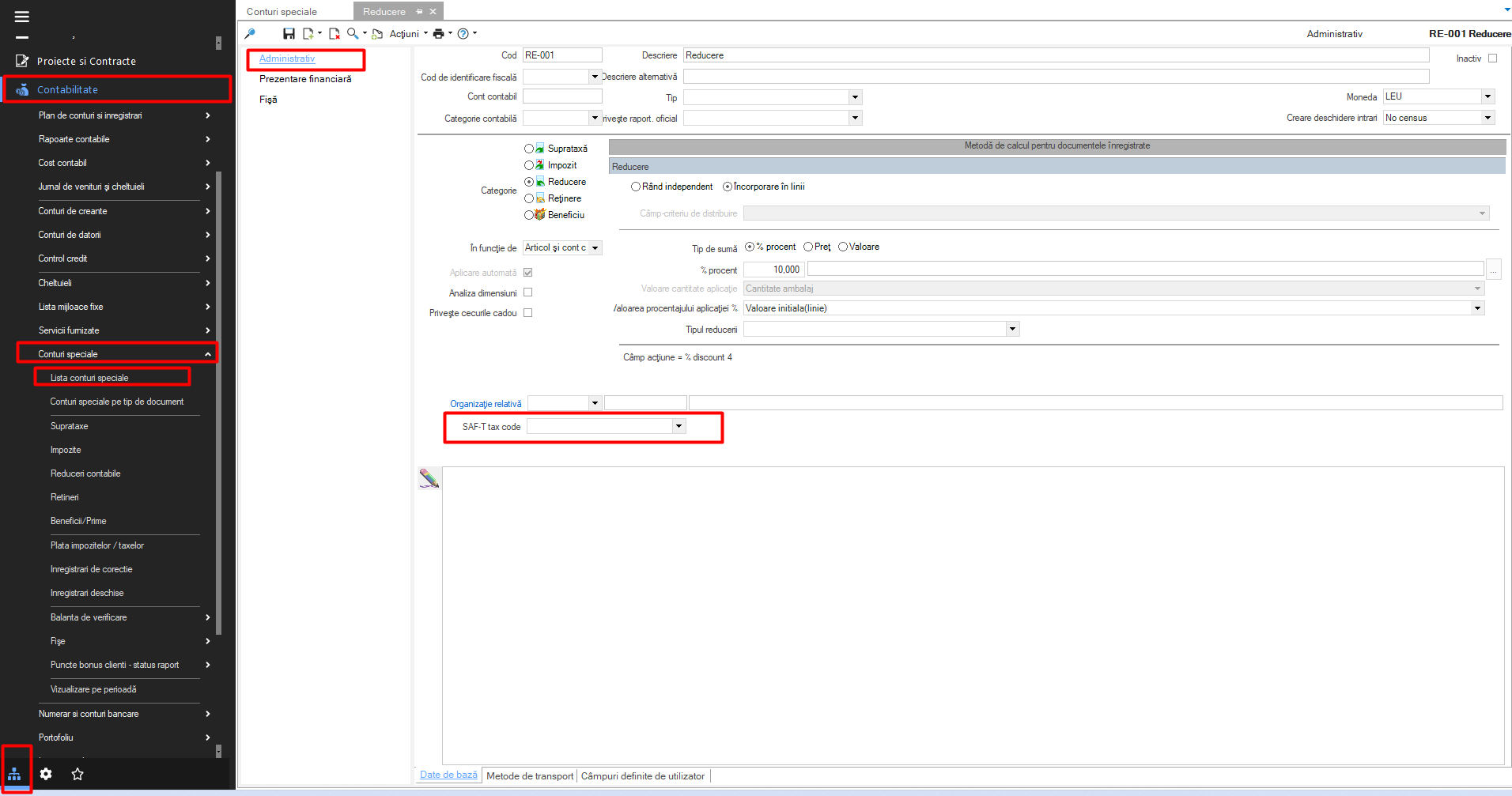
Like bookkeeping accounts, special accounts will have the same treatment. They will be mapped using the corresponding account in SAF-T.
Their mapping can be found by entering on the card, as follows:
Accounting > Special accounts > Special accounts list
Or it can be accessed from the chart of accounts, directly on the account card:
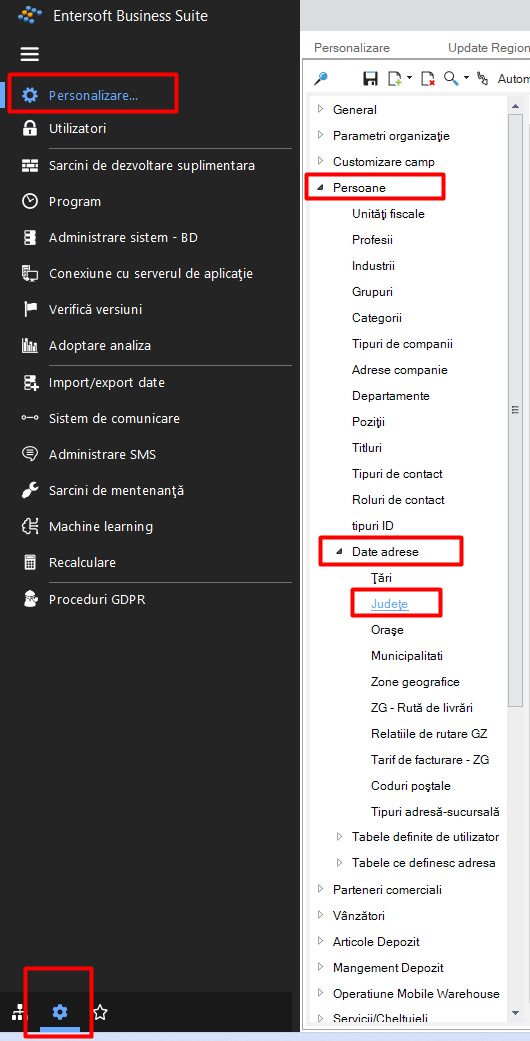
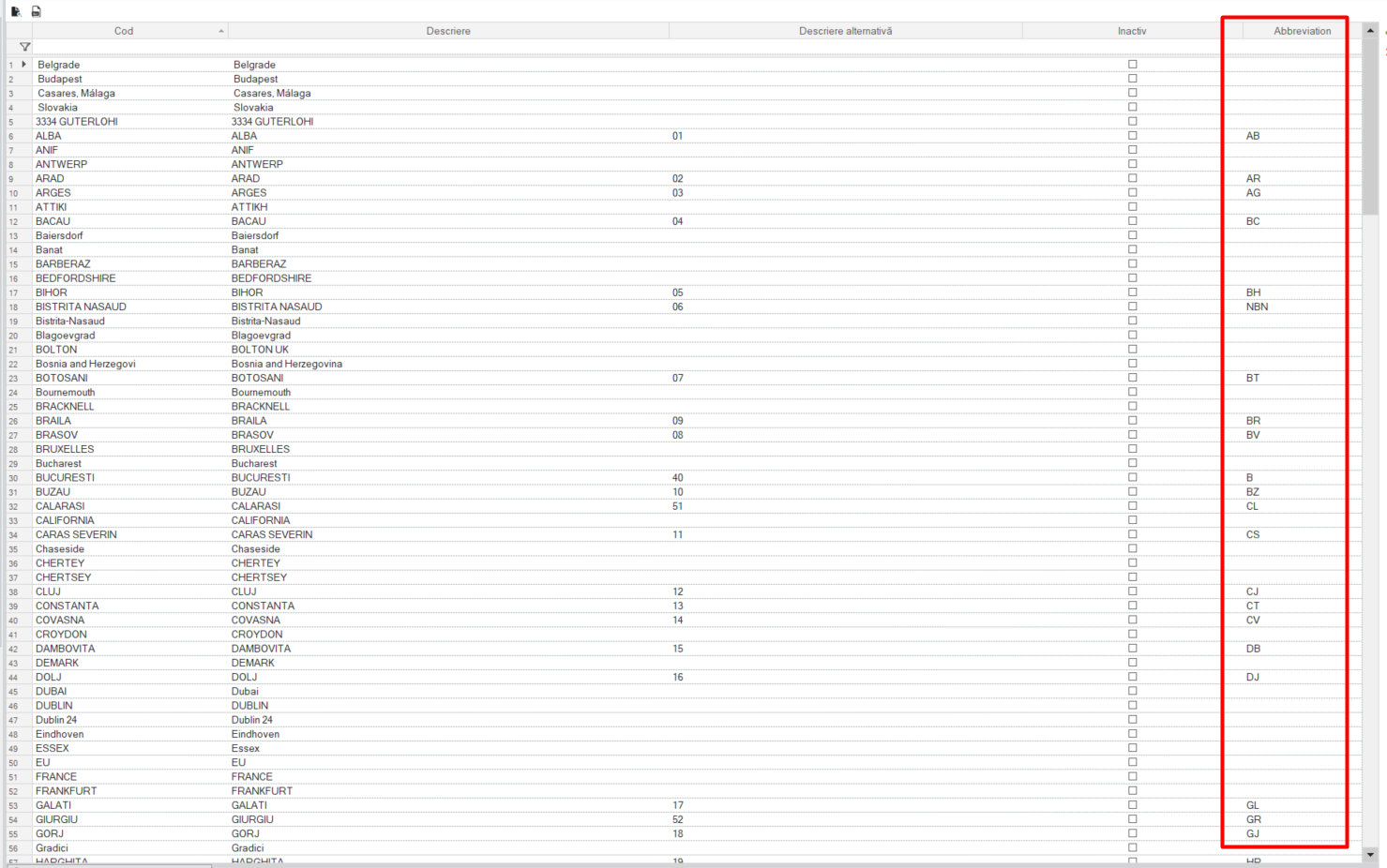
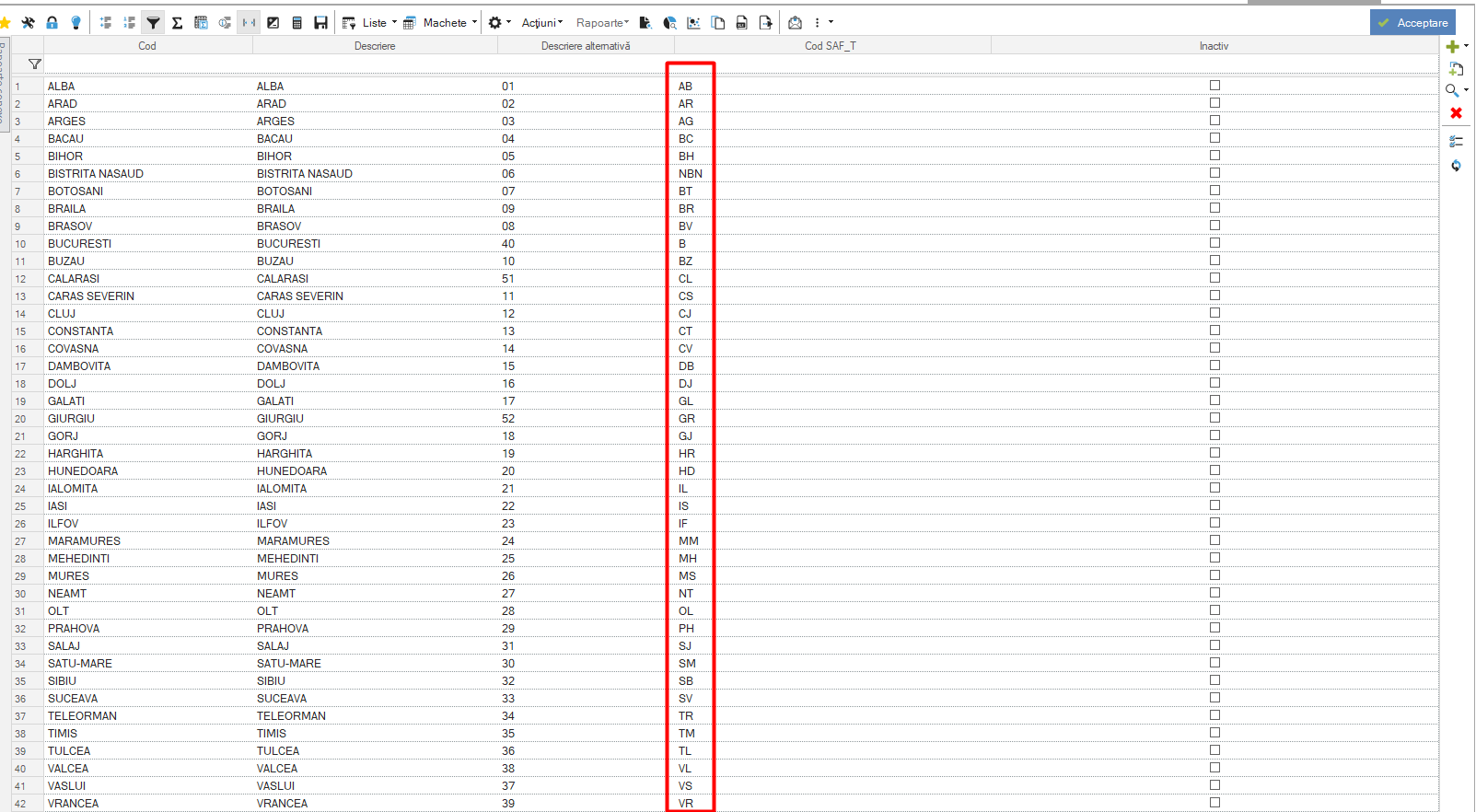
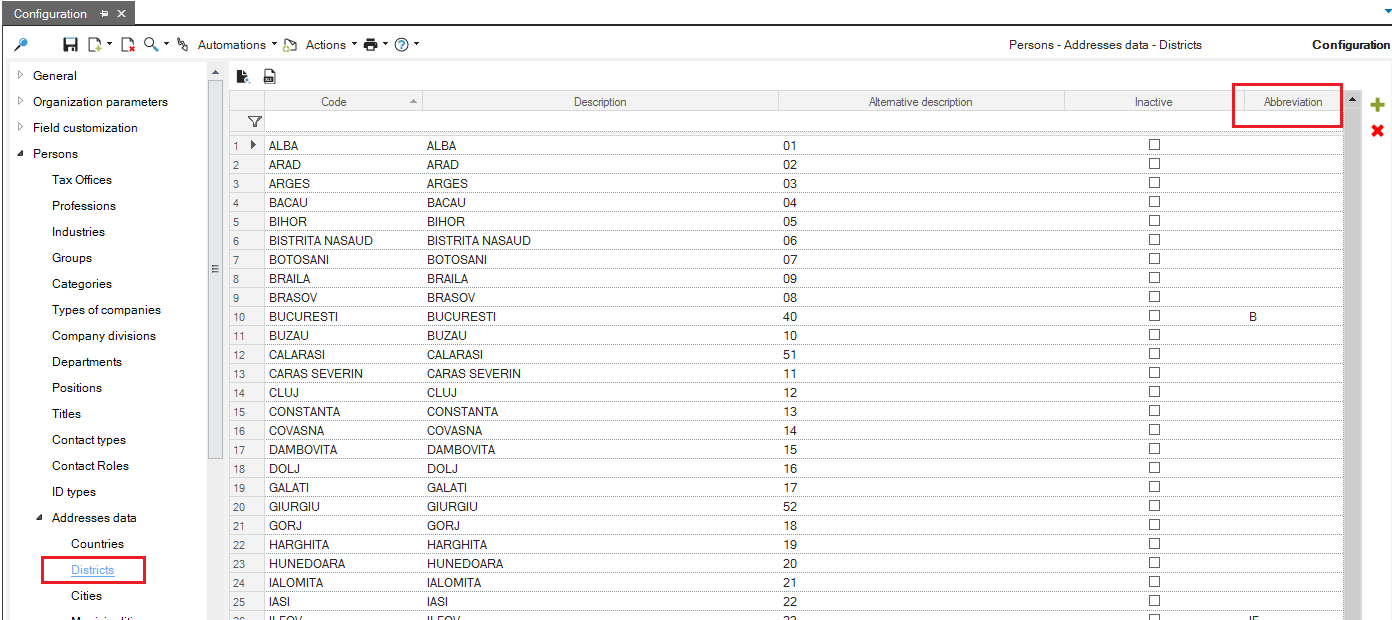
9. County codes
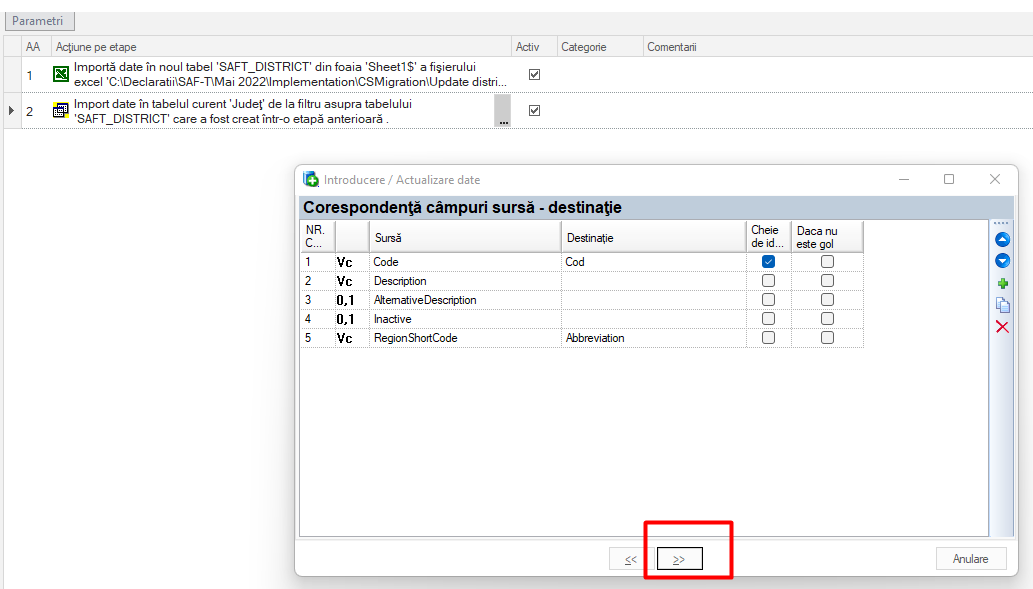
Another aspect to take into account in order to prepare the SAF-T declaration refers to the counties and the abbreviation column.
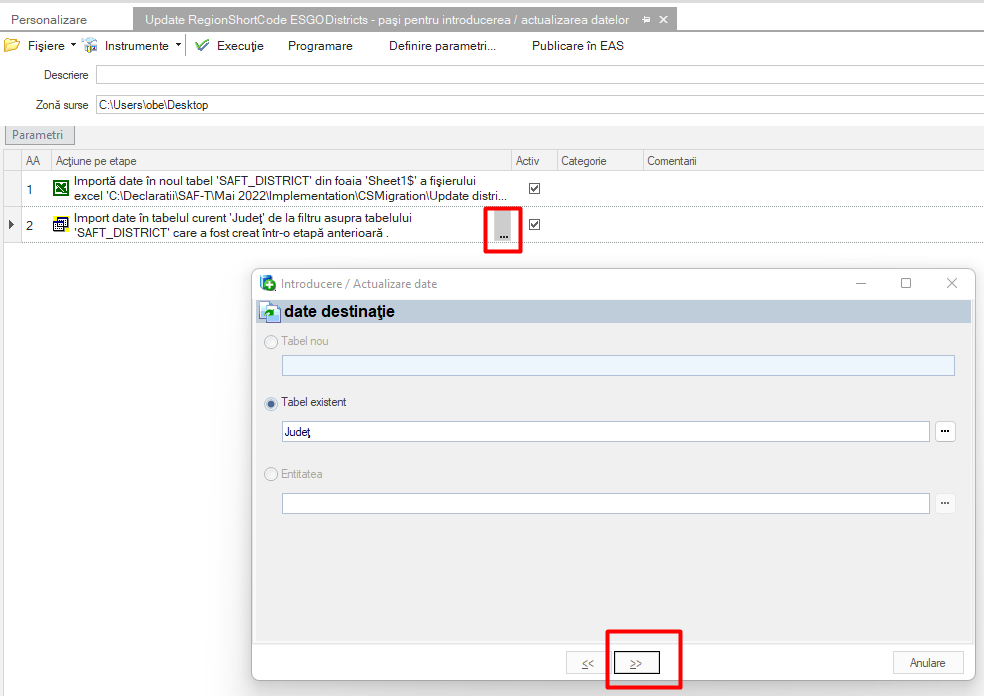
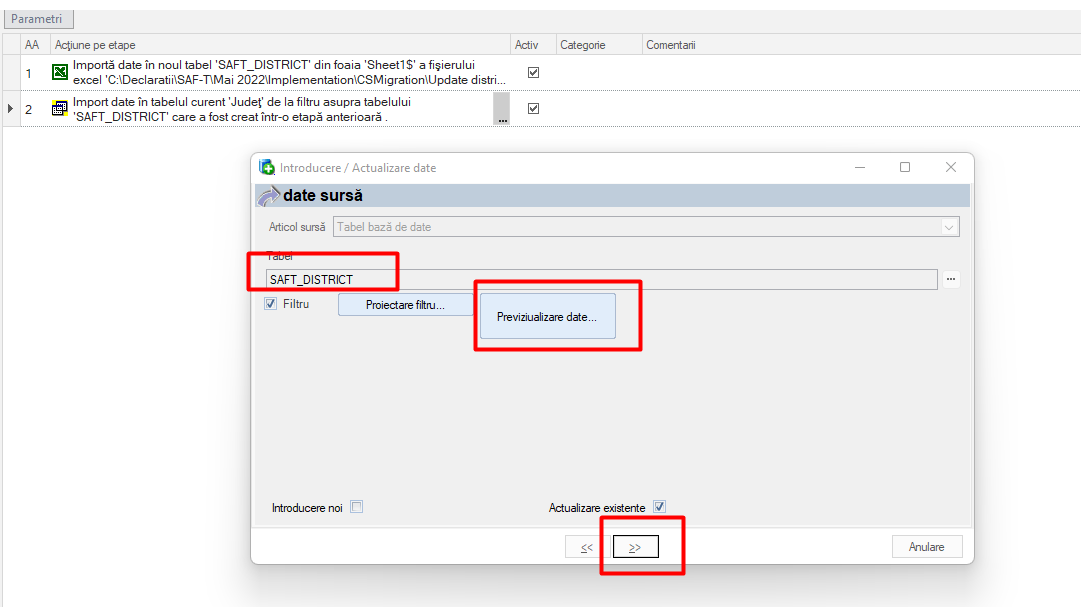
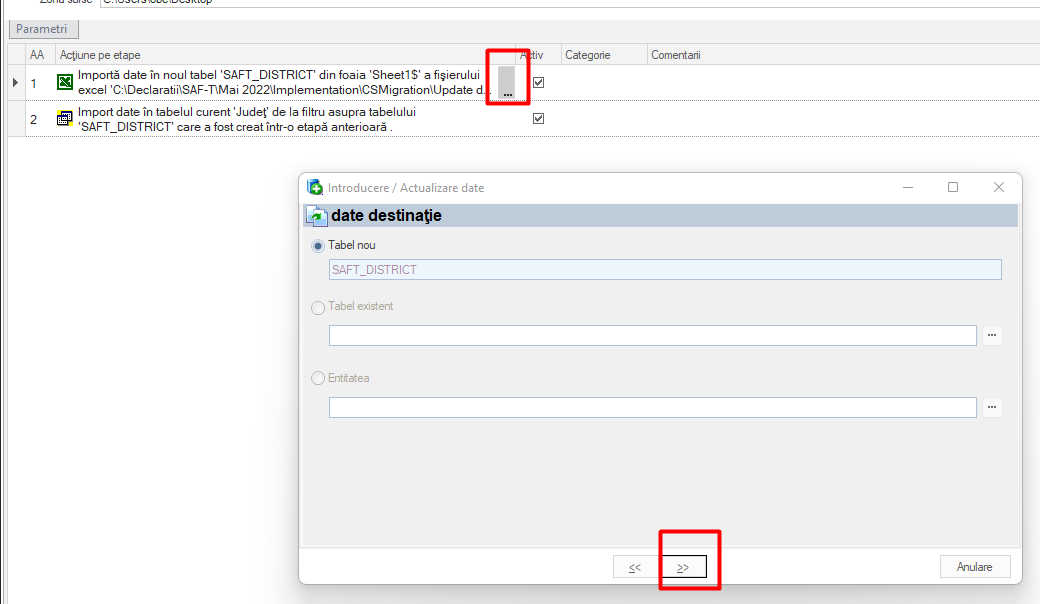
After parameterization, they will be found in: Tools and configuration > Personalization > Persons > Address data > Counties
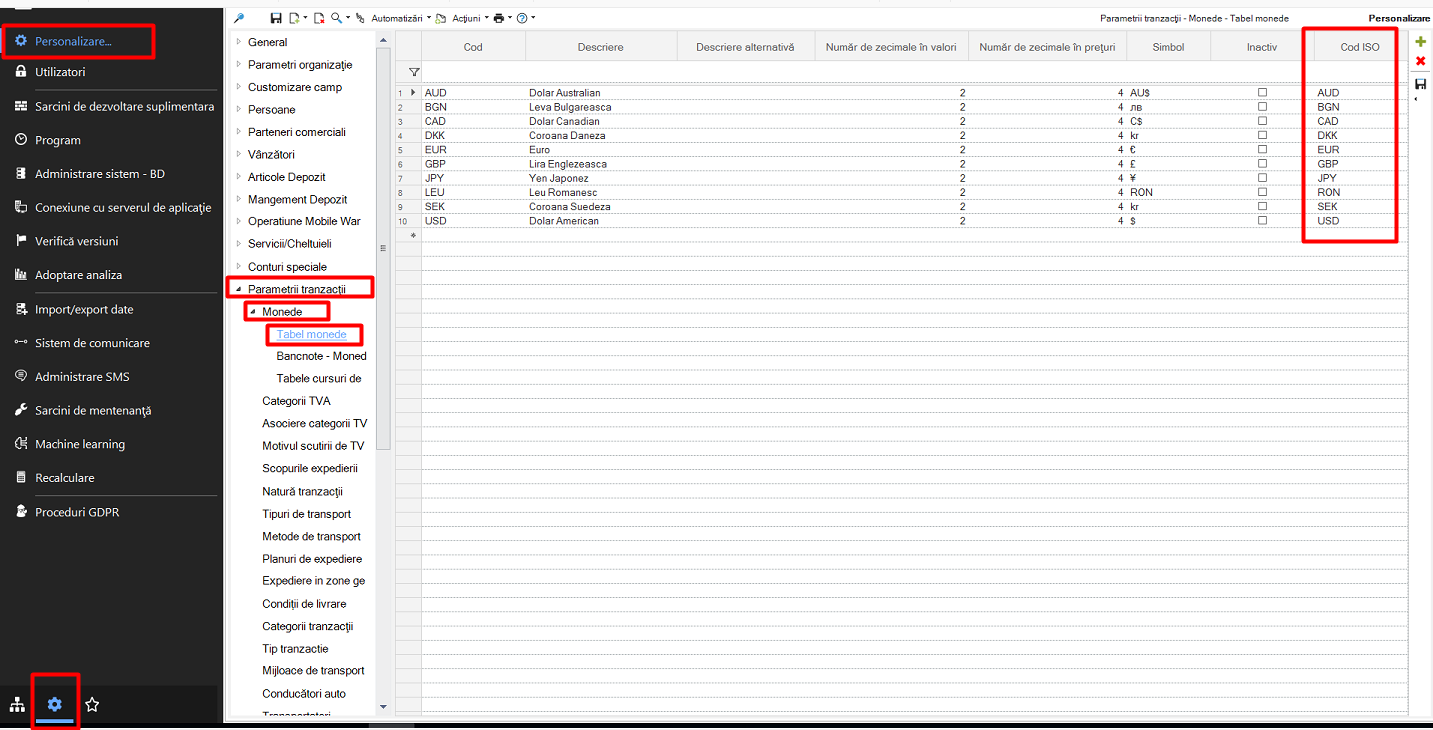
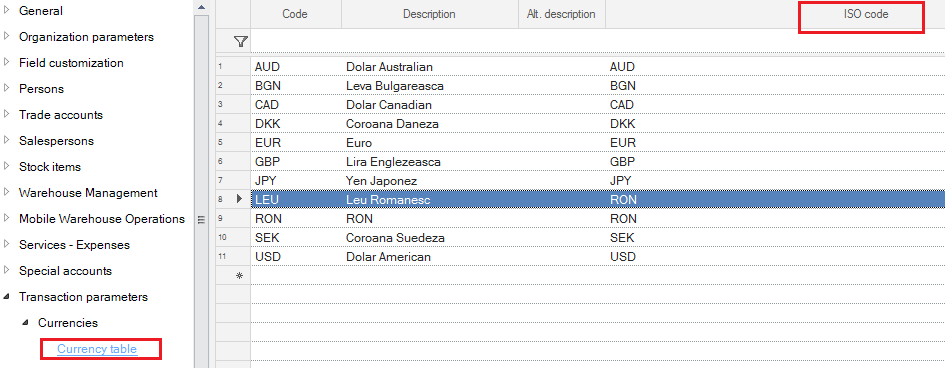
10. Currencies
Another aspect to mention is the use of currencies in company transactions.
It is very important to fill in the column “ISO code” with the corresponding code.
To verify, the information is found by following these steps:
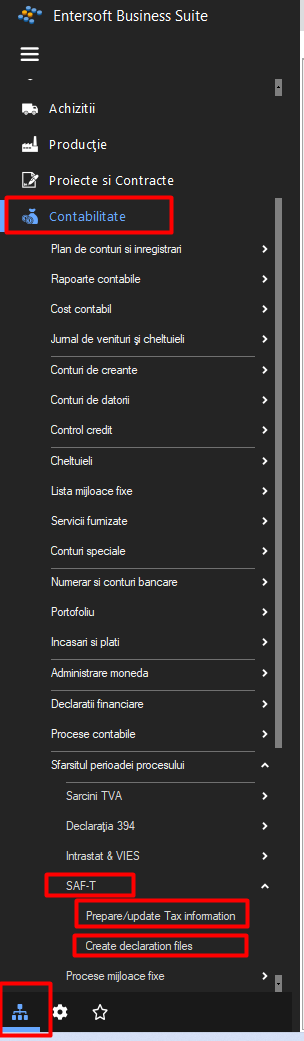
A first step in generating files for the SAF-T declaration is to prepare and update the tax codes, so it is necessary to access the following menu:
Accounting > End of period process > SAF-T > Prepare/Update Tax Code
Choose the tax period for which you want to generate the declaration and follow the steps below:
11.2. Xml file generation
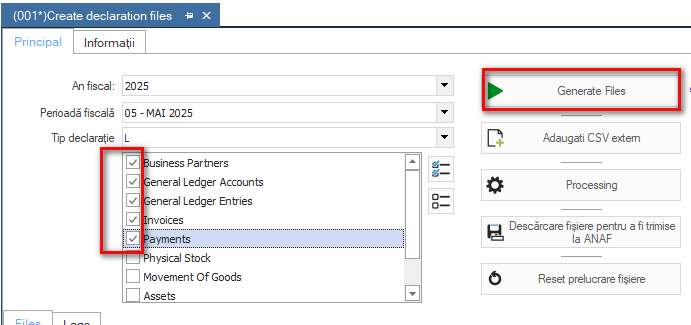
The generation of the XML file of the declaration is generated from the menu Accounting > End of process period > SAF-T > Create declaration files.
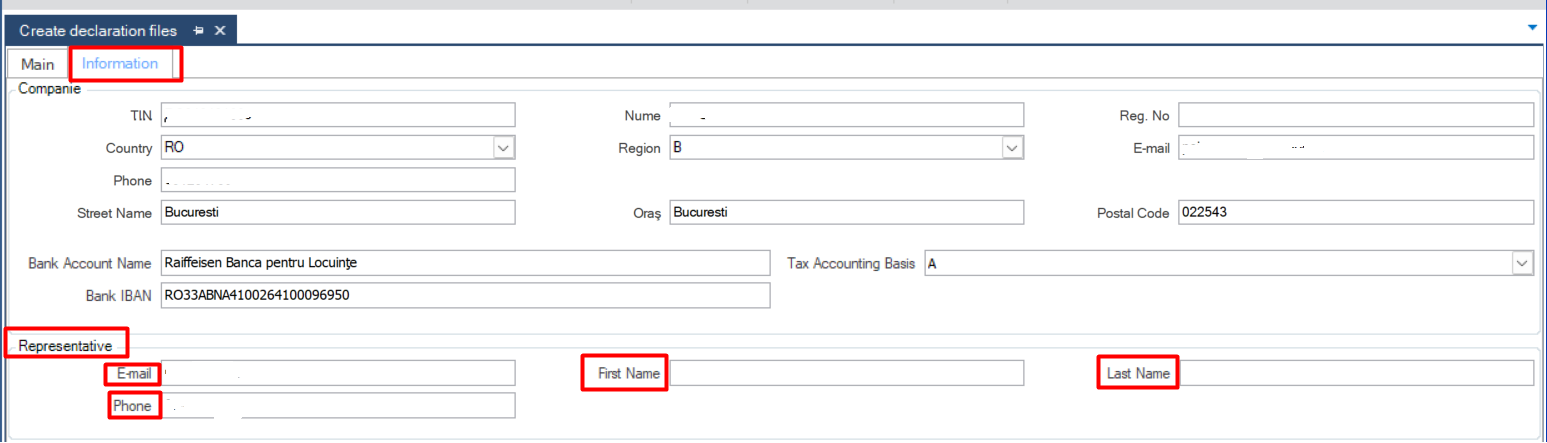
First of all, before running, you need to make sure that in the Information Tab the following fields are populated with the data of the person who is going to submit the declaration.
Otherwise, the system will warn you and an error will appear when generating the declaration.
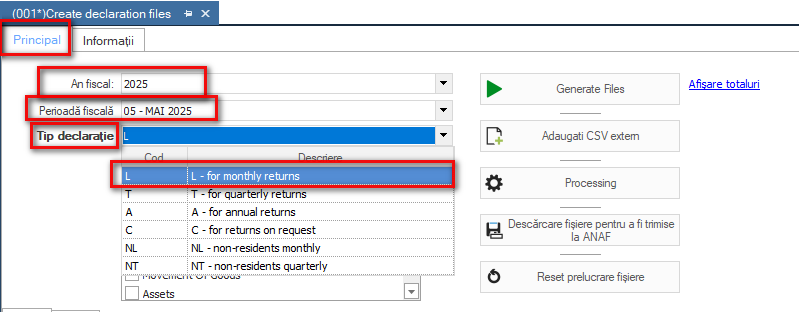
The declaration generation is performed from the Main Tab, for each month for which you wish to submit the declaration.
Choose the first unclosed tax year (even if the year for which the return is being filed is
different), return type L, tax period is the desired month for filing.
For the quarterly return the return type T will be chosen and the month will be the last month of
of the quarter for submission.
It is recommended to start generating the CSVs first for the General Ledger Accounts scroller, continuing with Business Partners, General Ledger Entries, Invoices and Payments. The other scrollers will be run and transmitted only on request.
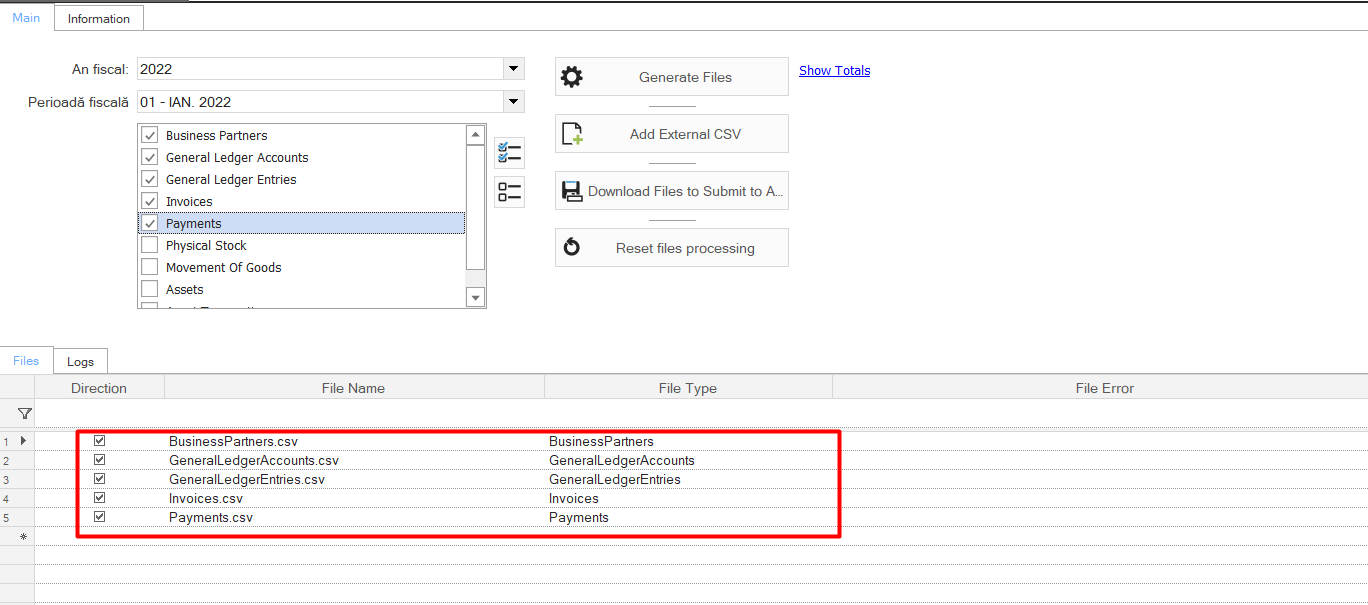
In case you are trying to generate files, errors occur in a certain month that are resolved and you want to restart the process for the same month, it is recommended to access the “Reset file processing” button. It acts as a refresh and deletes the generated csv from the application folder.
If the declaration was processed successfully, the following CSVs will appear in the system:
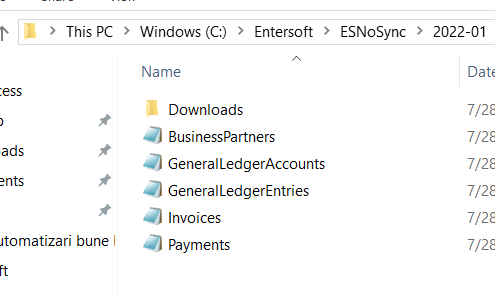
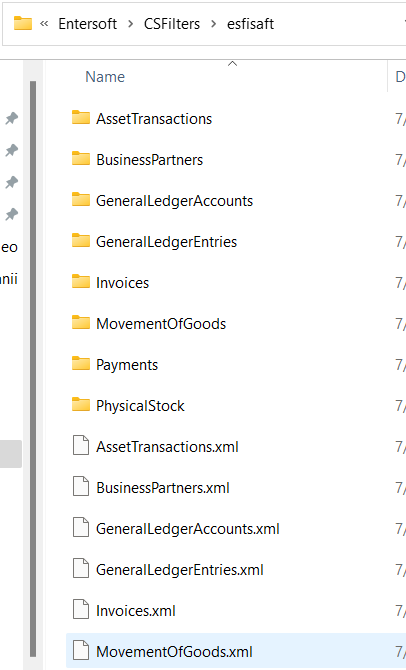
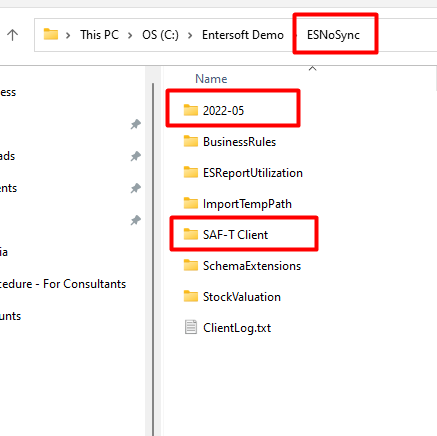
The CSVs will also be placed in the application folder > ESNoSync folder, where a folder with the year and month of the declaration is automatically created.
After generating the .csv files click the “Processing” button to generate the .xml files.
In the Downloads folder you will find the .xmls that need to be checked for errors in Duk Integrator and, if there are no errors, converted to PDF, signed and submitted.
This .xml is based on the information aggregated from the run CSVs.
12. Instructions, parameterization
Adding the elements corresponding to the SAF-T declaration in EBS, implies some actions detailed in the following.
A first step is to check the application version. The SAF-T declaration requires at least version 5.2.0.
Therefore, the application should contain the following information:
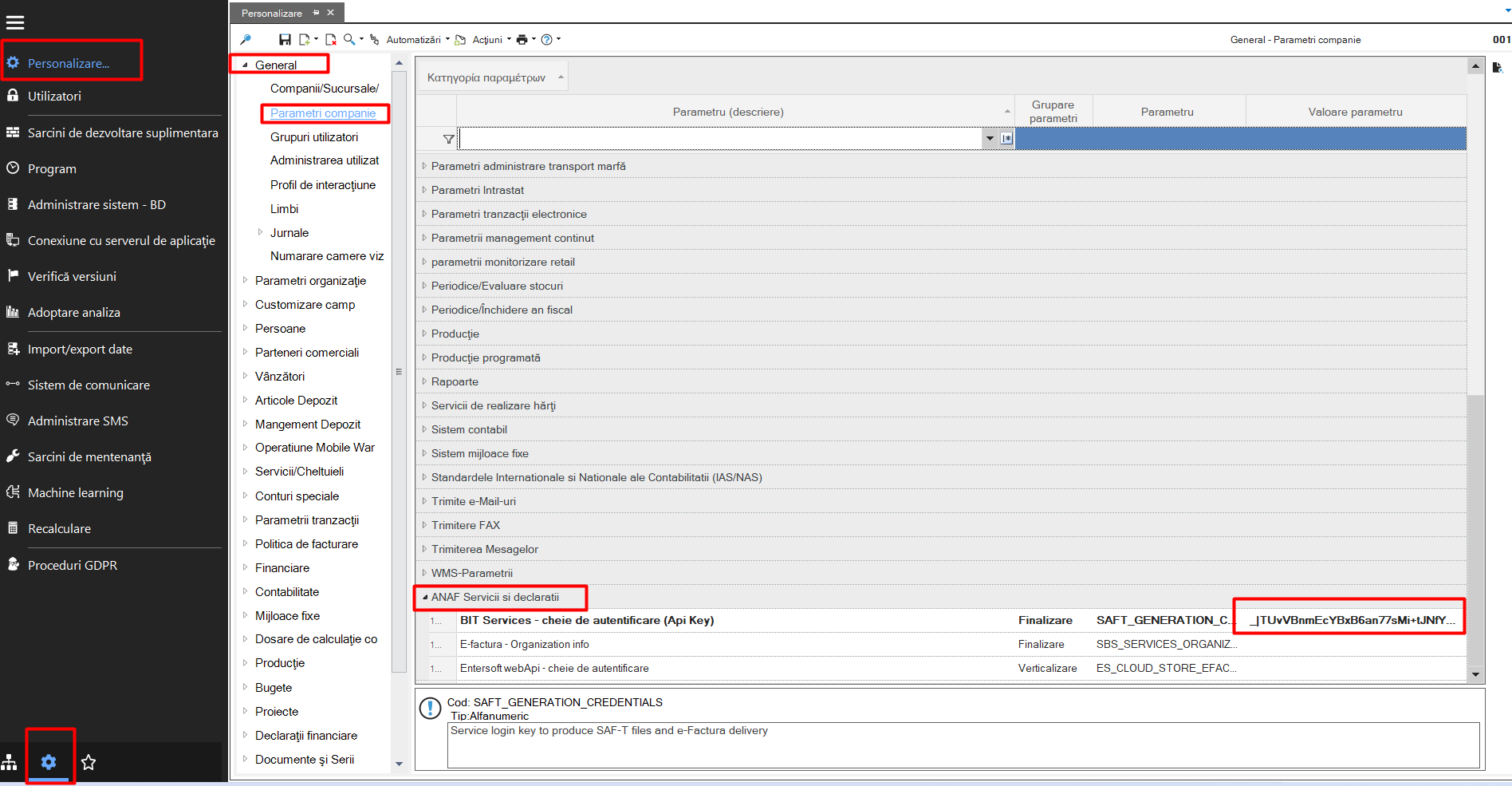
12.1. Enter API key
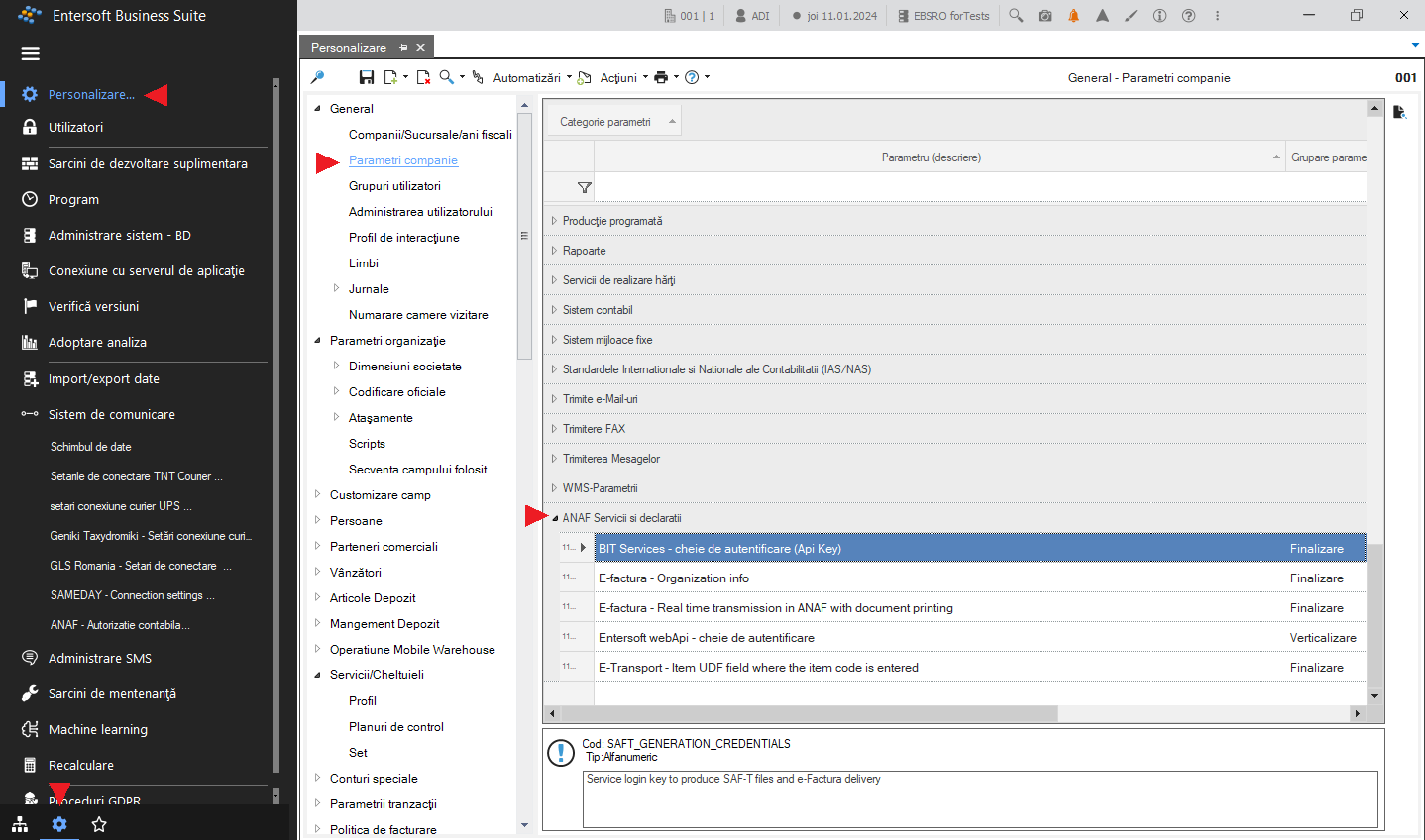
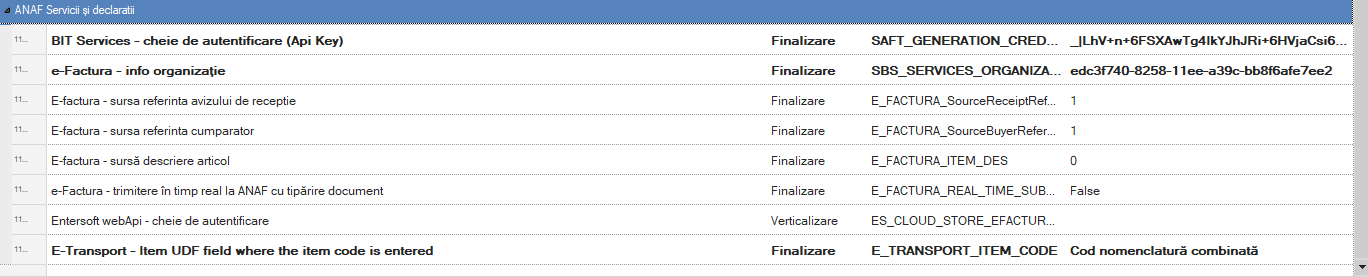
API Key, a verification key available separately for each client, This key will be introduced as follows: Customization > Company Settings > Anaf Services and Declarations > Bit Services
12.2. SAF-T Shortcuts
By adding this .json file:
12.3. SAF-T files
In the application folder CS Filters/ESFISAFT, you will find the following files, related to the scrollers whose information is the basis for the generation of the SAF-T declaration.
Business Partners
General Ledger Accounts
General Ledger Entries
Invoices
Payments
Movement of Goods
12.3. Files saved in the ESNoSync folder
The ESNoSync application folder will contain:
SAF-T Client: where CSV validation errors will be saved
One folder for each month where the created CSV files will be stored. They are created when running the statement.
12.4. Import county codes
Adding the following files helps to map the county codes according to the requirements provided in the preparation of the SAF-T declaration.
To bring the field exemplified below, the following steps are required:
In the menu Tools and Configuration > Import/Export Data > Import Data (advanced mode) attach the .xml file:
Urmatorul dupa fisier .xml este fisierul de tip excel:
The path mentioned below is updated, when the excel file is added, followed by pressing the “>>” button:
We can preview the format of the columns that will appear in the scroller like this:
Very important, after adding these files, in order to save the changes made, it is necessary to press the “Execute” button.
After completing the process, following the path below, the scroller should look like this:
Tools and Configuration > Personalization > Personalization > People > Address Data > Counties
12.5. Import GL accounts
Import SAFT GL Accounts, following the same steps for import as in point 4 above.
This import updates the BOM in the path below.
Thus, on the card of an accounting account in the chart of accounts, you can select the corresponding account in the “GL SAF-T Code” field. For the mass update of this field, there is this migration scenario that updates the chart of accounts for the most part.
12.6. Document types and transaction category
To make it easier to map the document types according to the transaction category, this .espak file was used, following the following procedure:
Intrastat
1. Settings
1.1. Company settings
In order to run the Intrastat declaration several fields need to be filled in the company parameters:
Go to menu (Configuration and tools) > Customization… in General > Company parameters Category: Intrastat parameters
In the parameter field CN8 fills in the year in which the declaration is made (2022, 2023, etc.)
In the field Contact person fill in the code of the person signing the Intrastat declaration.
This person must be set on the company card in persons/associates.
The person must have completed the Intrastat position, telephone number and email address. The following fields must be completed on the person’s card:
If these fields are not completed, the declaration is not visible.
In the field UDF document line to define the country of origin of the item choose Comment 1, 2, 3, 4 or 5 from the document line, if nothing is filled in the declaration, the country of origin of the product bought/sold will be the one on the item card.
1.2. Document settings
It is necessary to set the purchasing documents specifically for the type of declaration.
This setting is done on the document card and is accessed via:
(Configuration and tools) > Customize…> General / Documents & Series - document type - document search.
1.3. Partner settings
The following fields must be completed on the trading partner card:
VAT - Intra-community;
The country set on the commercial account card must have the Eurostat code filled in;
If the partner has more than one delivery address, check that the delivery address is set to the country.
The partner’s tax code must be completed.
If changes need to be made to the country table, it can be set using the path below:
If new lines are to be inserted, click on the green plus sign on the right side of the report and fill in the report line.
1.4. Stock item settings
A stock item must have the following set
Intrastat code (can be found on the item card in the Organisation area)
Unit of measurement for weight, which must be related to the base unit of measurement.
Alternative unit of measurement (for Intrastat codes requiring such a setting). This unit of measurement must be set in relation to the base unit of measurement.
Country of origin
1.5. Generic item settings
Generic articles are of two types:
services;
expenses.
They must be set with the accounting category on their card and this must be set as such in order to be highlighted on statements:
1.6. Intrastat codes
Intrastat codes can be found in the menu (Configuration and tools) > Customisation > Warehouse items > Coding > Intrastat codes.
1.7. Importing new nomenclatures with Intrastat codes
To update Intrastat codes, perform the Update Intrastat codes operation found in the menu:
Accounting > End of process period > Intrastat and Vies > Update Intrastat codes
File type IntrastatCodes.xlsx should be saved to the application folder following the path:
After saving the file, run the Intrastat Codes Update process:
In the open window we make the following selections as appropriate:
Check the box Use prefix ONLY if the company HAS shared database with other countries; Warning! If you use a common database in more than one country, in the next screen use the SAME prefix for Romania as already used so far, so that mapping [Prefix]+[IntrastatCode] does an update not an insert into the database**.** If you have not checked the use of the prefix, or if in the next window you do not enter the prefix, the update in the DB will be done in the default country for which the application works.
Check the box Update descriptions of invalid codes to “inactivate” the old codes. Inactivation of codes is achieved by changing the item name (e.g. INACTIVE / Weighing less than 50 kg); Attention! The Intrastat code update process will not delete codes that are no longer valid but will add the word INACTIVE to their description.
Important! The update process will update not only the Intrastat codes but also the units of measurement so it is recommended to check the units of measurement after running this process.
After “Accept” the process of updating Intrastat codes will start.
In the case of bases with more than one country, when running the update of the nomenclature the system will send a warning that there are Intrastat codes for other countries, the warning can be ignored if the prefix is ticked.
1.8. Delivery conditions
Delivery conditions are set in the menu:
(Configuration and tools) > Customize…> General > Transaction parameters > Delivery conditions
With the green plus on the right, new delivery conditions are added.
1.9. Shipping method
Shipping methods are set in the menu:
(Configuration and tools) > Customize…> General > Transaction parameters > Shipping methods
With the green plus on the right, new transport methods are added.
1.10. Nature of the transaction
The nature of the transaction is set in the menu:
(Configuration and tools) > Customize…> General > Transaction Parameters > Transaction Nature
With the green plus on the right, new transaction types are added.
Attention! After any changes are made, the information needs to be saved and the Cache Administration run.
sau
2. Document registration
The following fields must be completed on the documents
Intra-Community VAT system
Currency - Euro
Delivery conditions
Shipping Method
Nature of the transaction, and the nature of the transaction must be among those accepted by Intrastat.
3. Intrastat manual records
In order to manually enter an Intrastat record the following steps must be taken:
Accounting > End of process period :> Intrastat and Vies > New record.
4. Intrastat declaration
Intrastat records can be
Sale/Purchase Documents;
Documents entered manually by the user.
5. Generate declaration
Pași pentru generarea declarației sunt:
Call Intrastat update from documents Accounting > End of process period > Intrastat and Vies > Intrastat update from documents
Select the period in which you want to update.
The type of declaration can be:
New - records will be created for all documents in the selected tax period;
Review - the process will delete records from the original return and create new records;
Review without deletion - the process will create new records, old records will remain untouched as historical data.
6. Check declaration data
In the menu: Accounting > End of process period > Intrastat and Vies > Checklist summary you can see if the records in the declaration have incomplete data.
In this window, fields that are not completed will be marked in red.
By double-clicking on one of the records, a window will appear in which we can access the document where the fields are missing and correct them.
By pressing the button to the right of each field type you can access the area of the document/item where the records are located in order to fill in the missing information.
Attention! Changes will be visible after the Intrastat Update operation in the documents.
7. View Intrastat results and file generation
To view and generate the Intrastat purchases file, go to: Accounting > End of process period > Intrastat and Vies > Intrastat entries.
Intrastat entries will appear in the Intrastat entries scroller:
To view and generate the Intrastat Entries file call ActionsCreate Intrastat file.
This will generate the Intrastat .xml file in the path set in the declaration parameters:
If in a month there are no transactions, the statement will be run and in the column It is zero the value will be - Yes, and the .xml file will have the field extension “AN” in its name: 11098215_AN_202305.xml
For a period where data exists, the statement will have column It is zero value - No. The file will have the extension “A” in its name.
Accounting > End of process period > Intrastat and Vies / Intrastat dispatches
All Intrastat deliveries will appear in the shipment scroller:
Calling Actions > Create Intrastat file will generate the Intrastat delivery file:
This generated the Intrastat .xml file:
If in a month there are no transactions the statement will have in column This is zero the value will be From and the .xml file will have in field extension DN in its name:
For a period in which data exists, the statement will have It is zero - Not in the column It is zero - Not and the .xml file obtained by export will have the extension D in its name.
8. Intrastat updates
Every year the National Statistical Institute makes important changes/updates in the completion of the Intrastat statistical declaration. These are provided in a file named intrastat-nomenclatures.xlsx, on the basis of which a new file IntrastatCodes.xlsx is created for generating the Intrastat declaration in EBS-RO. You can find these files in the sub-folders corresponding to the desired year (e.g. 2024, 2025, etc.) in the folder nomenclatures, from where you can also download them.
To be able to update the information in the EBS-RO you need to perform the following steps:
Download the file IntrastatCodes.xlsx and save it in the application folder on the server, using the path below. Attention! It is important that the file be saved on the application server; if it is uploaded to the folder in the local application, the import will not be performed.
At the end, change Intrastat parameters as follows: Navigate to menu (Configuration and tools) > Customize… > Company parameters, Category: Intrastat Parameters. Parameter Intrastat Nomenclator Parameter :CN8 is filled with the value 2025 (or the current year for which you are updating).
After setting this parameter it is necessary to restart the server from the application: (Configuration and tools) > Application server connection > Restart server.
Attention! Restarting should be done when users are not in the application so as not to disrupt daily activity.
Introduction Entersoft Business Solution offers a complete integration with the RO e-Factura system from ANAF, via the cloud services platform Socrate Business Services, SBS eFactura. The person who needs to enter the connection data for setting the authentication to ANAF will need to have the ANAF authentication token for its digital signature with him in order to successfully complete the process.
Overview It is possible to send the invoice content with a special type of file (xml) to ANAF.
Sending invoices is mandatory, starting 1.07. 2022, for the following transactions:
B2G (business-to-government) transactions.
B2B (business-to-business) transactions containing at least one ‘high risk’ element.
B2C (business-to-consumer) transactions with holiday vouchers payment method.
Attention: As of January 1, 2024, the e-Factura system becomes mandatory for all VAT-registered companies in Romania and as of January 1, 2025, all B2C transactions must be sent to the e-Factura system.
Introduction The legislative basis for this implementation is OUG 41/2022, amended by OUG 115/2023. The Ministry of Public Finance, through ANAF, has made available a guide that can be found here.
Implementing e-Transport requires the following steps:
Upgrade to the latest version of EBS (at least 5.8.0-1).
SaaS agreement based on the number of operations (documents).
{class=“children children-type-tree children-sort-weight”}
Subsections of ANAF Integrations
Authentication
1. Introduction
Entersoft Business Solution offers a complete integration with the RO e-Factura system from ANAF, via the cloud services platform Socrate Business Services, SBS eFactura. The person who needs to enter the connection data for setting the authentication to ANAF will need to have the ANAF authentication token for its digital signature with him in order to successfully complete the process.
As this is an additional SaaS service, it must be purchased in advance, via Entersoft Cloud Store. Access data (API keys) will be registered in
Configuration & Tools > Customize… > General > Company Parameters under the ANAF services and declarations category.
2. Authentication procedure
To set or modify your ANAF login data, go to the menu Configuration & Tools > Communication system > ANAF - Accounting authorization… then choose the Authorize for e-Factura button from the dialog that opens.
You will be redirected to the ANAF website where you will log in with the key/certificate in the system.
If the authentication was successful, you will receive the following message:
e-Factura
1. Overview
It is possible to send the invoice content with a special type of file (xml) to ANAF.
Sending invoices is mandatory, starting 1.07. 2022, for the following transactions:
B2G (business-to-government) transactions.
B2B (business-to-business) transactions containing at least one ‘high risk’ element.
B2C (business-to-consumer) transactions with holiday vouchers payment method.
Attention: As of January 1, 2024, the e-Factura system becomes mandatory for all VAT-registered companies in Romania and as of January 1, 2025, all B2C transactions must be sent to the e-Factura system.
1.1. General considerations
EBS installation version should be at least 5.8.0.1, or newer.
Each time, get and install the latest hotfixes
Some of the configurations are common with SAF-T.
1.2. New coding for counties
These can be found in the menu: Tools & Configuration > Personalization > People > Address data > Counties
It is mandatory and the Addresses column must be completed.
If SAF-T has already been set up, this step is no longer necessary as it is also included in that instruction.
This column contains the code of each county in RO and can be different from the one used for the D394 declaration.
Information can be added manually or by running an .emi
There is an .emi that we can use to update that column.
1.3. Company Person Card
A first step is to verify the information entered on the company’s person card. To avoid errors, it is advisable to make sure that the following details are mentioned:
VAT type,
Commercial Register registration number,
Address: postal code / town / (zone/sector) / county / country,
Main bank account,
E-mail address.
Attention: A service restart is required for any changes.
2. Company parameters
In the category ΑNAF Services and Declarations new parameters have been added for entering all the necessary authentication data to communicate with ANAF services for e-invoice:
BIT Services - Connection Key (Api Key). Provided by BIT Software. It is the same for SAF-T.
E-Factura - Organization Information. Click the three dots and in the pop-up window all fields must be completed. If a field is not complete, you should go back to the company person and fill in the missing information. Not in the pop-up window.
Entersoft web API - connection key. It is necessary that the client has a subscription in ES API and add the application Entersoft RO ANAF e-Factura. After that we create an endpoint key and it automatically fills in the parameter.
We first finalize the BIT services - authentication key (Api Key) and press save. It is necessary to restart the service.
Fill in E-Factura - Organization Information and press save. A restart of the service is required.
Configure the subscription in ES Cloud and create the EndPoint; *)instructions for creating a subscription in ES Cloud are detailed in the EBS-Cloud_Subscription_EN.pdf manual.
There are other parameters in the same section that manage:
real-time e-Factura transmission to ANAF This parameter will control whether the invoice will automatically go to ANAF or not. It is recommended to keep the default value = FALSE. This means that the user will press the button to send the invoice.
UDF field of the document type where the CPV code is declared (related to BT-158) This parameter requires configuration under the following conditions:
B2G transactions are involved;
The CPV code of an item is not the same in all transactions.
Customer receipt source (related to BT-158);
Buyer reference source (BT-10 related);
Item description source (related to BT-153 and BT-154).
La categoria Implementare parametri definiți, se vor utiliza:
Număr 10 (aferent BT-153 și BT-154, cazul serviciilor);
Număr 8 (aferent BT-127).
3. Document series
In the series of documents involved in the electronic invoice, select the relevant values in the following fields:
Electronic Invoice. Select the value By Vendor.
Transaction type. Select one of the values B2B or B2G, as appropriate. Only document series with the above values can be sent to ANAF.
You can use bulk modification to mass update more than one series of documents.
Warning: if the series has Direct Call Method, when we parametrize the series and the user registers a document, it will be automatically uploaded to ANAF. For any modification a re-cache is required.
4. Document types
For the document types involved in e-Factura, select the value in the SAF-T Invoice Type field, to be sent to the Invoice Type field of the file.
You can use bulk modification to mass update multiple document types.
If the values do not exist, manually open the values in the table:
Configuration and Tools > Configuration… > Documents and Series > Standard Audit File - SAF-T > Invoice Type
A re-cache is required for any changes.
5. Sectors
Another column that is mandatory and should be filled in is the Area Description column.
These can be found in Configuration and Tools > Configuration… > People > Address data > Postal codes
In that column we fill in the Sector only for ZIP Codes where the city is Bucharest.
The possible values are:
SECTOR1,
SECTOR2,
SECTOR3,
SECTOR4,
SECTOR6,
SECTOR6.
6. Customer card
For each customer for which we have a B2B or B2G transactions the following fields must be filled in:
VAT
Address: postcode, city, zone, district, country.
7. Currency
The currency code LEU should exist and the ISO code should have RON.
Warning: A service restart is required.
8. Item card
The user must fill in the following fields for items, as applicable:
Intrastat Code. For transactions categorized as B2B, the Intrastat code for all items used in the transactions must be filled in the document field of the same transaction type.
Related to e-invoicing. Any item must have this field selected.
CPV Code. For transactions that have been categorized as B2G, the document field of the same transaction type must be filled in with the CPV code, for all items used in this type of transaction.
9. CPV codes
The CPV (Common Procurement Vocabulary) code is a numerical symbol specific to a particular product or service. The CPV code establishes a single classification system for public procurement with the aim of standardizing the references used by contracting authorities and entities to describe the subject matter of public procurement contracts (B2G). The use of CPV has been mandatory in the European Union since February 1, 2006. CPV codes are used in contract award documentation and in electronic public procurement platforms, such as SEAP in Romania.
We should run an .emi to populate the table with all possible CPV codes. There is an .emi that can be used to import the list of CPV codes.
After that, the CPV codes need to be added at item level.
Below are some links we recommend for further help.
The automation that created the .xml to ANAF exports the first non-null value for the item description (chap. 16. BT-15) based on the following sequence:
Together with the client’s accountant, we should proceed with authorization by using the USB device (token) for authentication with ANAF, which each client has.
We connect to the ANAF website from the accountant’s computer using their token.
From the menu, select ANAF Authorization – Accountant and click Authorize.
The application will open your browser and ask you to select the certification under that user.
If successful, we receive the following message:
12. Transaction kind
In the document forms we have to make visible the Transaction kind field and also and in the scroller with the Sales Invoices.
13. Sent invoices - e-Factura outbound
The main screen for the management of the sent (outbound) invoices is done via the scroller accessible from the Sales > e-Factura - Management of sales invoices menu. All transaction documents to be sent to the ANAF are displayed here. The documents are grouped according to their dispatch status:
Failure - Sent but failed due to errors
Success - Delivery was successfully completed
To be sent - Not yet sent.
Pending - Has been sent but is still being processed by ANAF.
For any documents that have not been sent due to errors, the user can display the errors by clicking on the Errors field.
The following Actions are available to manage pending documents and documents that have not been sent due
to an error:
Send Invoices - Send a document that could not be sent.
Refresh status - Update the delivery status of all documents in the pending state.
Download Zip - If a document fails to send, you can download the file to disk, along with a full report of its errors. Useful when contacting support.
Download XML - If an invoice is rejected by ANAF, you can download the generated file that failed to be sent.
13.1. Retrieving the CPV code
Starting with version 5.14.0.0, the CPV code retrieval mode has been extended due to the introduction of the CPV Code field in document lines.
At the same time, in the parameters area, we have a new parameter MARK_CPV_CODE - go to menu: Configuration and Tools > Customization… > General > Company parameters > Online transaction parameters: UDF field of the document line where the item CPV code is declared.
Depending on the value of the MARK_CPV_CODE parameter, the retrieval mechanism is as follows:
If set to None, the CPV code will be taken from the document line.
If set with Comment 1 to Comment 5, it will be taken from the lines in the document (fields Comment 1 to Comment 5). However, if nothing is filled in the corresponding comment, the CPV code from the document line will be taken.
13.2. Special cases
13.2.1. Invoices with total VAT value 0
Self-invoices from suppliers who are not VAT payers,
Sales invoices exempt with/without deduction rights or non-taxable (the information in Table 5 differs).
For all of the above cases, the reason for VAT exemption is mandatory.
This may be:
If the supplier is a non-payer, the reason is VATEX-EU-O.
If it is a reverse charge sale, the reason is VATEX-EU-AE and the VAT regime on the document must be Exemption.
If it is a VAT-exempt sale (for other reasons), one of the reasons from the list can be selected, but the VAT regime must be Exemption and Table 5 must be completed correctly for VAT journal calculation.
13.2.2. Invoices with VAT category 0 lines
Although EBS does not allow the registration of an invoice with Normal VAT and lines with both 0 and non-zero VAT categories, for sales journal reasons, such cases may still arise.
In these cases, no reason for exemption shall be provided.
13.2.3. Recyclable packaging invoices
(VAT category 1 and VAT exemption regime) + special environmental tax account (excluding VAT).
13.3. Restrictions on sent invoices
Once an invoice has been successfully sent to ANAF, any changes to the invoice will produce an error. This is when the status of the invoice is Successful not the fact that it has received the Charge ID.
Verification is only done on the fields considered by EBS to be official ID data.
It is not part of this verification:
User defined fields
Business dimensions (Business Unit, Activity, Dimension1, Dimension2, Project)
Variations stock items (Lot, Serial Number, Color, Size, Dimension1, Dimension2)
Other informative fields (Alternative Argumentation, Development Step, Means of Transportation, Task etc).
In order to allow some changes for a specific group of users, it is necessary to create a document access profile by accessing the Configuration and Tools > Customize… > Documents and Series > Document access rights profile menu.
14. Received invoices - e-Factura inbound
Starting with version 5.8.0-1, the e-Factura functionality has been extended to receive SPV invoices from suppliers.
The functionalities covered are the following:
Download supplier invoices,
Download invoices list report,
Bulk saving of invoices in .pdf, .xml. and .zip format in a user selected path,
Correlate invoice downloaded from SPV with invoice already registered in EBS,
Create a new document with header data retrieval.
A new report has been added to the Purchasing & Procurement > e-Factura - inbound invoices management menu.
In addition to displaying the downloaded data, the report contains the following options:
Automation for downloading supplier invoices,
List of downloaded invoices and link (if any) to invoices already registered,
Automations to download invoices in .pdf, .zip, .xml format.
The report contains the following filter parameters:
Invoice issue number and date,
Invoice loading date,
Supplier CUI,
Supplier.
The report displays the following information;
Invoice number and date,
SPV ID and charge date,
CUI and supplier name,
Currency, values,
Upload date in EBS.
The following Actions can be executed through the available automations:
Download invoices - Download received invoices to EBS.
The automation parameters are Start date and End date for uploading invoices to SPV.
After running the automation, the report will display the invoices as selected.
Even if run multiple times over a period of time, invoices are only loaded once.
As a result of running this automation, some downloaded invoices may appear in the list with the Core check mark and an EBS document number already recorded.
The criteria by which it attempts to identify a document in the EBS are as follows:
Current company,
Trading partner with CUI similar to the one received (can be with/without RO),
Alternative document EBS = Supplier invoice number,
Alternative document date = Vendor invoice date,
Net amount = TaxExclusiveAmount or Total amount = TaxInclusiveAmount.
14.1. Download .xml
The invoice is exported in .xml format.
If the user selects a single invoice, a new screen will open with the following fields:
filename, automatically prefilled,
file path - the user will fill in the path.
If the user selects multiple invoices, the screen that will open will contain only the path that the user needs to fill in/select for the bulk saving of the invoices.
The pre-filled name of each invoice file has the following format:
Company,
Supplier name,
Invoice number,
Invoice date,
SPV ID.
14.2. Download .pdf
Export invoice in .pdf format.
The functionality is similar to the previous one (for saving .xml).
14.3. Download .zip
Export invoice in .zip format.
The functionality is similar to the previous ones (for saving .xml, .pdf).
The .zip archive contains the .xml file of the invoice and the .xml file with the signature from the SPV.
14.4. Correlations
The automation allows “matching/linking” invoices received from the SPV with invoices already registered in EBS.
In the selection screen, the supplier will be pre-filled from the line on which the cursor is positioned.
In the Documents field, select the invoice to be linked to. Only uncorrelated invoices are already displayed.
Once the automation is completed, the document number in the EBS will already be displayed in the report.
14.5. De-correlations
The automation allows you to de-match an invoice registered in EBS with one downloaded from SPV.
The purpose may be to re-match the invoice from the SPV with another document already recorded in the EBS.
14.6. Create document
If the invoice is not yet registered in EBS, the automation allows opening a new document directly from the report.
The document type will be chosen.
The following data are pre-filled:
Supplier code,
Document Date - date of upload to SPV (but can be changed),
Alternative document date - date issued by the supplier,
Invoice number - invoice number from the supplier.
The other invoice information is filled in as usual (items, quantities, prices).
Once the document has been saved, it will be automatically matched to the invoice in the SPV from which the automation was started.
14.7. e-Factura information received in other scrollers of interest
Starting with version 5.14.0.0, the functionality for downloading and correlating/decorrelating invoices received from SPV has been extended to the Purchases/Receipts scrollers (menu: Purchases & Procurement > Receipts & Purchase invoices > Purchases/Arrivals ) and Expense Documents (menu: Accounting > Expenses > Expense documents).
Three new automations are available in these:
Download e-Factura invoices
e-Factura correlation
De-correlation
The automation for Download invoices is identical in terms of functionality to that existing in the e-Factura - Management of purchase invoices scroller. More specifically, invoices received from SPV are stored in the database without, however, being correlated with invoices already registered in EBS.
The e-Factura correlation automation allows one or more selected invoices to be matched with a single invoice received from SPV. The list of invoices in SPV contains only those invoices that have not already been correlated with an invoice in EBS.
The De-correlation automation “unlinks” the SPV invoice from the invoice(s) in EBS.
These scrollers have also been expanded by adding three new columns:
e-Factura document: supplier’s invoice number;
RequestID: e-Factura ID downloaded from SPV;
Correlated: indicates whether the invoice in EBS is correlated with a document in SPV.
These columns are initially hidden, but can be displayed in the scroller by right-clicking on the column header and selecting the Add/Remove Columns command.
The three columns are updated through the specific e-Factura automations mentioned above.
15. Source fields eFactura
To view how to fill in the form manually in SPV, please use the link below:
The unique document number from EBS (ADCode) is transmitted.
BT-2 Invoice issue date
The date of registration of the document (ADRegistrationDate) is transmitted.
The section in xml where the field appears is: /Invoice/cbc:Issued.
BT-3 Invoice type code
The SAFT document type is transmitted from the series or, if there is no value, from the Document type.
Possible values:
380 – Standard invoice
381* – Credit note
384 – Correction invoice
389 – Self-invoicing
The section in xml where the field appears is: /Invoice/cbc:InvoiceTypeCode.
The invoice type affects the overall sign of the document.
With the exception of type 381, all invoice types are interpreted by ANAF exactly as transmitted, regardless of the sign.
The sign transmitted in xml can be:
380 – plus or minus;
381 - more;
three hundred and eighty-four – less;
389 – plus or minus.
From the EBS application perspective, the document sign, as a functionality for the VAT declaration, comes from the Transaction category*, set at the document type level.
*) There are exceptional cases where this field is not filled in even though the invoice is sent to SPV.
The transaction category can be:
01 – Invoice with surplus;
02 - Debit note;
03 – Credit note (negative invoice).
Therefore, in order to avoid changing the current settings, this field will be sent as follows:
If it is 380 and the transaction category is 01/02 or not filled in: code 380 and positive sign;
If it is 380 and the transaction category is 03 - code 380 and negative sign;
If it is 381 - code 381 and positive sign;
If it is 384 - code 384 and negative sign;
If it is 389 and the transaction category is 01/02 - code 389 and positive sign;
If it is 389 and the transaction category is 03 - code 389 and negative sign.
BT-5 Invoice currency code
The ISO code of the currency of the document is transmitted. This affects whether or not the BT-111 field is transmitted. If RON is specified here, the BT-111 field is not transmitted in the e-Invoice.
The section in xml where the field appears is: /Invoice/cbc:DocumentCurrencyCode
BT-6 Invoice currency code of VAT
Transmit RON.
The section in xml where the field appears is: /Invoice/cbc:TaxCurrencyCode.
BT-7 Invoice VAT date effective
The first non-zero value between the Delivery Date and the Document Date is transmitted;
The section in xml where the field appears is /Invoice/cbc:TaxPointDate.
BT-9 Payment due date
Either the first due date (in the Payment Order tab or Trade Bills tab) or the document date (if the remaining total to be paid is 0) is sent.
The section in xml where the field appears is: /Invoice/cbc:Due or /CreditNote/cac:PaymentMeans/cbc:PaymentDueDate.
Starting with version 5.13.0.0, a new parameter in the ANAF services and declarations section, E_FACTURA_DueDate_Source, will allow the selection of the date used for this field.
Possible values are:
0 – current method (i.e., either the earliest due date* in the Payment Order/Commercial Paper tab) or the document date (if the payment amount of the document is 0);
1 – the earliest estimated date** in the Payment disposition or document date table (if the total amount is 0).
*) Due date = Valeur Date.
**) Estimated date = Collection Date.
BT-10 Buyer Reference
This field must contain the supplier code for the customer to whom the invoice is issued.
Since there is no dedicated field for this information, the field will be filled in either in one of the UDF fields on the customer card or in the invoice header.
To determine the field from which the information will be retrieved, set the new parameter in the ANAF services and declarations area E_FACTURA_SourceBuyerReference.
Possible values range from 1 to 19 with the following meanings:
Values from 1 to 10 correspond to the Comment 1 to 10 field on the customer card;
Values from 11 to 15 correspond to Comment fields 1 to 5 in the document header;
Values from 16 to 19 correspond to fields Table 1 to Table 4 in the document header.
The section in xml where the field appears is: /Invoice/cbc:BuyerReference.
BT-11 Project Reference
The source is the alternate code of the project selected on the document.
The section in xml where the field appears is: /Invoice/cac:ProjectReference/cbc:ID.
BT-12 Contract reference
The source is the alternative code of the contract selected on the document.
The section in xml where the field appears is: /Invoice/cac:ContractDocumentReference/cbc:ID.
BT-13 Purchase order reference
The source is an alternative document from the invoice header or one of the user-defined fields (Comment 1 to 5), depending on the value of the parameter E_FACTURA_SourcePurchaseOrderReference_BT13:
0 – Alternative document;
1 – Comment 1;
2 – Comment 2;
2 – Comment 3;
3 – Comment 4;
4 – Comment 5.
The section in xml where the field appears is: /Invoice/cac:OrderReference/cbc:ID.
BT-14 Sales order reference
The source is the Reference Document field (ConcerningDocCode*) in the Information tab. It must always be the COV number or the first document registered as an order in EBS.
Considering that existing transitions do not inherit this field by default, the implementation proposal is:
The first transition from a command (COV/CVR) copies the ADCode field from the source to DocConcerningCode in the destination.
All other transitions should take DocConcerningCode from source to destination.
This is also useful in other cases, especially when reports on orders are requested and the flow is very long. Having a field across the entire flow that indicates the initial order is extremely useful.
The section in xml where the field appears is: /Invoice/cac:OrderReference/cbc:SalesOrderID.
BT-15 Receipt reference
This field must contain the receipt number provided by the customer to whom the invoice was issued.
Since there is no dedicated field for this information, one of the UDF fields in the document header will be used.
To determine the field from which the data will be retrieved, set the parameter E_FACTURA_SourceReceiptReference to a value between 1 and 5.
Each value corresponds to a Comment from 1 to 5 in the header.
The section in xml where the field appears is: /Invoice/cac:ReceiptDocumentReference/cbc:ID.
BT-16 Despatch Note Reference
The field Relative document is taken over.
The section in xml where the field appears is: /Invoice/cac:DespatchDocumentReference/cbc:ID.
BT-20 Payment terms
The description of the payment method in the document is transmitted.
The section in the XML where the field appears is: /Invoice/cac:PaymentTerms/cbc:Note.
BT-22 Invoice note
The Comment, argumentation, or alternative argumentation field from the document header is transmitted, depending on the value of the E_FACTURA_SourceInvoiceNote_BT22 parameter:
0 - Comment;
1 - Argumentation;
2 – Alternative argument.
The section in xml where the field appears is: /Invoice/cbc:Note.
BT-27 Seller’ name
Transmitted:
Name of the company representative if it is a sales document;
Name of the supplier if it is an invoice issued by the taxable person as the beneficiary (self-invoice).
The section in xml where the field appears is: /Invoice/cac:AccountingSupplierParty/cac:Party/cac:PartyLegalEntity/cbc:RegistrationName.
BT-28 Seller’ trade name
Transmitted:
Name of the company representative if it is a sales document
Name of the supplier if it is an invoice issued by the taxable person as the beneficiary (self-invoice).
The section in xml where the field appears is: /Invoice/cac:AccountingSupplierParty/cac:Party/cac:PartyName/cbc:Name
sau /CreditNote/cac:AccountingSupplierParty/cac:Party/cac:PartyName/cbc:Name.
BT-29 Seller identifier
The seller’s GLN is taken from the main company address or the main supplier address, if it is a self-invoice.
The section in xml where the field appears is: /Invoice/cac:AccountingSupplierParty/cac:Party/cac:PartyIdentification/cbc:ID.
BT-30 Seller legal registration
The seller’s Trade Reg. No. (own company or supplier) is taken over.
The section in the XML where the field appears is: /Invoice/cac:AccountingSupplierParty/cac:Party/cac:PartyLegalEntity/cbc:CompanyID.
BT-31 Seller VAT identifier
The company’s own CUI or the supplier’s CUI is used if it is a self-invoice issued by the taxable person as the beneficiary.
The section in xml where the field appears is: /Invoice/cac:AccountingSupplierParty/cac:Party/cac:PartyTaxScheme/cbc:CompanyID.
Note: The field is not transmitted at all if the reason for exemption is VATEX-EU-O (according to ANAF specifications).
BT-33 Additional legal information about the Seller
The company type field (SA, SRL, etc.) is taken from your own company or supplier.
The seller’s address 1 is taken from the main company address or the main supplier address, if it is a self-invoice.
The section in the XML where the field appears is: /Invoice/cac:AccountingSupplierParty/cac:Party/cac:PostalAddress/cbc:StreetName.
BT-36 Seller additional address
The seller’s address 2 is taken from the main company address or the main supplier address, if it is a self-invoice.
The section in the XML where the field appears is: /Invoice/cac:AccountingSupplierParty/cac:Party/cac:PostalAddress/cbc:AdditionalStreetName.
BT-37 Seller city
The seller’s city is taken from the company’s main address or the supplier’s main address, if it is a self-invoice.
The section in the XML where the field appears is: /Invoice/cac:AccountingSupplierParty/cac:Party/cac:PostalAddress/cbc:CITYNAME.
BT-38 Seller postal code
The seller’s postal code is taken from the company’s main address or the supplier’s main address, if it is a self-invoice.
The section in the XML where the field appears is: /Invoice/cac:AccountingSupplierParty/cac:Party/cac:PostalAddress/cbc:PostalZone
sau /CreditNote/cac:AccountingSupplierParty/cac:Party/cac:PostalAddress/cbc:PostalZone.
BT-39 Seller country subentity (judet)
The abbreviation of the seller’s county is taken from the main company address or the main supplier address, if it is a self-invoice.
The section in xml where the field appears is: /Invoice/cac:AccountingSupplierParty/cac:Party/cac:PostalAddress/cbc:CountrySubentity.
BT-40 Seller country
The ISO code for the seller’s country is taken from the main company address or the main supplier address, if it is a self-invoice.
The section in the XML where the field appears is: /Invoice/cac:AccountingSupplierParty/cac:Party/cac:PostalAddress/cac:Country/cbc:IdentificationCode.
BT-42 Seller contact phone
The phone number is taken from the company’s main address.
The section in xml where the field appears is: /Invoice/cac:AccountingSupplierParty/cac:Party/cac:Contact/cbc:Telephone.
BT-43 Seller contact email
The email address set at the interlocutor level in the document header is retrieved.
The section in xml where the field appears is: /Invoice/cac:AccountingSupplierParty/cac:Party/cac:Contact/cbc:Telephone.
BT-44 Buyer’s name
The name of the buyer (your own company, if it is a supplier self-invoice, or the customer in the document) is taken.
The section in xml where the field appears is: /Invoice/cac:AccountingCustomerParty/cac:Party/cac:PartyLegalEntity/cbc:RegistrationName.
BT-45 Buyer’s trade name
The name of the buyer (your own company, if it is a supplier self-invoice, or the customer in the document) is taken.
The section in xml where the field appears is: /Invoice/cac:AccountingCustomerParty/cac:Party/cac:PartyName/cbc:Name.
BT-46 Buyer identifier
The GLN of the buyer’s main address is taken (business partner document or company, if it is a supplier self-invoice).
The section in xml where the field appears is: /Invoice/cac:AccountingCustomerParty/cac:Party/cac:PartyIdentification/cbc:ID.
BT-47 Identifier for a legally registered Buyer
The buyer’s Trade Reg. No. is taken (business partner document or company, if it is a supplier self-invoice).
For individuals, if the CNP is filled in on the person’s card, it will be transmitted. Otherwise, the fixed value 0000000000000 will be transmitted.
The section in xml where the field appears is: /Invoice/cac:AccountingCustomerParty/cac:Party/cac:PartyLegalEntity/cbc:CompanyID.
BT-48 Buyer’s tax identifier
The buyer’s CUI (business partner document or company, if it is a supplier self-invoice) is taken over.
The section in xml where the field appears is: /Invoice/cac:AccountingCustomerParty/cac:Party/cac:PartyTaxScheme/cbc:CompanyID.
BT-50 Buyer address line 1
The Address 1 field is taken from the main address of the customer or company, if it is a supplier self-invoice.
The section in the XML where the field appears is: /Invoice/cac:AccountingCustomerParty/cac:Party/cac:PostalAddress/cbc:StreetName.
BT-52 Buyer city
The city is taken from the customer’s or company’s main address - for supplier invoices (for Bucharest, the description of the area from the postal code of the main address).
The section in the XML where the field appears is: /Invoice/cac:AccountingCustomerParty/cac:Party/cac:PostalAddress/cbc:CITYNAME.
If the postal code is not filled in on the customer’s card, for customers in Bucharest, it will be filled in as SECTOR1, SECTOR2, etc.
BT-53 Buyer postal code
The Postal Code field is taken from the main address of the customer or company, if it is a supplier self-invoice.
This field is not mandatory.
The section in xml where the field appears is: /Invoice/cac:AccountingCustomerParty/cac:Party/cac:PostalAddress/cbc:PostalZone.
BT-54 Buyer county
The abbreviation of the county corresponding to the main address of the customer or your own company is taken (for supplier self-invoices).
The section in xml where the field appears is: /Invoice/cac:AccountingCustomerParty/cac:Party/cac:PostalAddress/cbc:CountrySubentity.
BT-55 Buyer country
The ISO code of the country corresponding to the main address of the customer or your own company is taken.
The section in xml where the field appears is: /Invoice/cac:AccountingCustomerParty/cac:Party/cac:PostalAddress/cac:Country/cbc:IdentificationCode.
BT-57 Buyer’s contact phone
The phone number is taken from the business partner’s address in the document.
The section in xml where the field appears is: /Invoice/cac:AccountingCustomerParty/cac:Party/cac:Contact/cbc:Telephone.
BT-58 Buyer’s contact email address
The email address is taken from the Interlocutor field in the document header.
The section in xml where the field appears is: /Invoice/cac:AccountingCustomerParty/cac:Party/cac:Contact/cbc:ElectronicMail.
BT-70 Shipping on Behalf of a Party
The name of the recipient is taken (it may be different from the customer itself).
sau /CreditNote/cac:Delivery/cac:DeliveryParty/cac:PartyName/cbc:Name.
BT-71 Delivery location Identifier
The GLN delivery address is taken over.
The section in xml where the field appears is: /Invoice/cac:Delivery/cac:DeliveryLocation/cbc:ID.
BT-72 Actual delivery date
The delivery date is taken from the document or the date of issue (if the delivery date is NULL).
The section in xml where the field appears is: /Invoice/cac:Delivery/cbc:ActualDeliveryDate.
BT-75 Delivery address, line1
The Address 1 field corresponding to the delivery address in the document is retrieved.
The section in the XML where the field appears is: /Invoice/cac:Delivery/cac:DeliveryLocation/cac:Address/cbc:StreetName.
BT-77 Delivery City
The city corresponding to the delivery address in the document (if not Bucharest) or the area description from the postal code corresponding to the delivery address is taken.
The section in the XML where the field appears is: /Invoice/cac:Delivery/cac:DeliveryLocation/cac:Address/cbc:CITYNAME.
BT-78 Delivery postal code
The postal code corresponding to the delivery address is taken.
The section in the XML where the field appears is: /Invoice/cac:Delivery/cac:DeliveryLocation/cac:Address/cbc:PostalZone.
BT-79 Delivery county
The Abbreviation field is taken from the county corresponding to the delivery address.
Secțiunea din xml la care câmpul apare este: /Invoice/cac:Delivery/cac:DeliveryLocation/cac:Address/cbc:CountrySubentity.
BT-80 Delivery country
The ISO code is taken from the country corresponding to the delivery address.
The section in the XML where the field appears is: /Invoice/cac:Delivery/cac:DeliveryLocation/cac:Address/cac:Country/cbc:IdentificationCode.
BT-81 Payment means code
The section in xml where the field appears is: /Invoice/cac:PaymentMeans/cbc:PaymentMeansCode.
The values that can be sent are as follows:
10 - Flat rule = Cash or Cash Advance or Cash on Due Date;
42 - Flat rule = On Credit;
20 - Flat rule = Check/BO =>;
49 - Flat rule = Direct Debit or Direct Deposit;
48 - Flat rate = Credit card;
ZZZ - Flat rule = Gift vouchers;
97 - Flat rule = Compensation;
One of the following values is transmitted from the EBS:
48 - there is data in the Payment Order/Credit Card tab;
20 - there is data in Payment Order/Commercial Paper;
10 - there is data in the Payment Order/Cash tab;
42 - there is data in Payment Order/on Credit and the cash account has an associated bank;
10 - for any other case. (Gift cards, for example).
For mixed payments, the order in which the information is verified to determine which payment is sent first is:
Lines: Payment Order/Cash Tab; Payment Order/Cash Tab; Payment Order/Credit Tab. If all three are filled out, the line number matters — that is, the order in which they were entered. The forecast line (Credit) is usually the last one.
Payment Orders/Commercial Paper
Gift card lines.
BT-84 Payment Account Identifier
Either the IBAN field corresponding to the seller’s main account (own company or supplier, in the case of self-billed invoices) or a list of IBAN accounts is transmitted.
The configuration is done through the parameter E_FACTURA_BankAccount_Source, where the values mean:
0 (Default): only the IBAN for the main account;
1: IBANs for accounts that have Feature 1 checked;
2: IBANs for accounts that have checked Feature 2.
3: IBANs for accounts that have checked Feature 3.
The section in xml where the field appears is: /Invoice/cac:PaymentMeans/cac:PayeeFinancialAccount/cbc:ID.
BT-85 Payment Account Name
The name of the bank associated with the seller’s main account (own company or supplier, in the case of self-billed invoices) is provided.
The section in xml where the field appears is: /Invoice/cac:PaymentMeans/cac:PayeeFinancialAccount/cbc:Name
Depending on the parameter set for BT-84, multiple banks associated with IBANs from BT-84 can also be transmitted in BT-85.
BT-106 Total of all Net Amounts for Invoice Items
The net value in foreign currency is taken from the item lines and special account lines.
The sign is calculated correctly according to the row type. Only independent special accounts are transmitted.
The section in xml where the field appears is: /Invoice/cac:LegalMonetaryTotal/cbc:LineExtensionAmount
sau /CreditNote/cac:LegalMonetaryTotal/cbc:LineExtensionAmount.
BT-107 Total of Document- level Discounts
0 is transmitted because the values are already included in the lines.
The section in xml where the field appears is: /Invoice/cac:LegalMonetaryTotal/cbc:AllowanceTotalAmount
sau /CreditNote/cac:LegalMonetaryTotal/cbc:AllowanceTotalAmount.
BT-108 Total of Document- level Charges
0 is transmitted because the values are already included in the lines.
The section in the XML where the field appears is: /Invoice/cac:LegalMonetaryTotal/cbc:ChargeTotalAmount
sau /CreditNote/cac:LegalMonetaryTotal/cbc:ChargeTotalAmount.
BT-109 Total Invoice Amount Without VAT
The net value in foreign currency is taken from the item lines and special account lines.
The section in xml where the field appears is: /Invoice/cac:LegalMonetaryTotal/cbc:TaxExclusiveAmount
sau /CreditNote/cac:LegalMonetaryTotal/cbc:TaxExclusiveAmount.
BT-111 Total Amount of VAT in the Accounting Currency
The VAT amount is transmitted both from the item lines and from the special accounts (if any).
This field is transmitted only if the transaction currency is different from RON (BT-5).
The section in xml where the field appears is:
/Invoice/cac:TaxTotal/cbc:TAXAMOUNT
sau /CreditNote/cac:TaxTotal/cbc:TAXAMOUNT.
BT-112 Total Amount of Invoice with VAT
The total value in currency from the item lines + special account lines is transmitted.
sau /CreditNote/cac:TaxTotal/cac:TaxSubtotal/cac:TaxCategory/cbc:Percent.
BT-120 Reason for VAT Exemption
Starting with version 5.13.0.0, this information will also be transmitted in eFactura.
The source of this field will be configured based on the values set in the E_FACTURA_TaxExemptionReason_Source parameter in the ANAF Services and Declarations area.
Possible values:
0 – Alternative description of the reason for VAT exemption (from ESFIZVatExemptionReasoning). For example: Reverse charge – for VATEX-EU-AE or Not subject to VAT – for VATEX-EU-O;
1 – Comment 1;
2 – Comment 2;
3 – Comment 3;
4 – Comment 4;
5 – Comment 5;
6 – Argumentation;
7 – Alternative argumentation;
8 – Alternative description in Table 5 (ESFIZDocumentHeadersTable5). For example: Exempt - Reverse charge under the conditions of Article 331 (for VATEX-EU-AE).
BT-121 Code for the Reason for VAT Exemption
The reason for VAT exemption is transmitted in the document header.
sau /CreditNote/cac:TaxTotal/cac:TaxSubtotal/cac:TaxCategory/cbc:TaxExemptionReasonCode.
BT-122 Reference to Supporting document
Depending on the value of the E_FACTURA_ReferenceSupportingDocument_BT122 parameter, the information can be retrieved:
0 – NULL;
1 – Comment 1 from invoice header;
2 – Comment 2 from invoice header;
3 – Comment 3 from invoice header;
4 – Comment 4 from invoice header;
5 – Comment 5 from invoice header;
6 – Amount 1 from the invoice header;
7 – Amount 2 from the invoice header;
8 – Amount 3 from the invoice header;
9 – Amount 4 from the invoice header;
10 – Amount 5 from the invoice header.
BT-123 Description of Supporting document
Depending on the value of the E_FACTURA_DescriptionSupportingDocument_BT123 parameter, the information can be retrieved:
0 – NULL;
1 – Comment 1 from invoice header;
2 – Comment 2 from invoice header;
3 – Comment 3 from invoice header;
4 – Comment 4 from invoice header;
5 – Comment 5 from invoice header;
6 – Amount 1 from the invoice header;
7 – Amount 2 from the invoice header;
8 – Amount 3 from the invoice header;
9 – Amount 4 from the invoice header;
10 – Amount 5 from the invoice header.
BT-126 Invoice Item Identifier
The line number is transmitted if it concerns articles.
The lines of the special accounts are numbered consecutively.
The section in xml where the field appears is: /Invoice/cac:InvoiceLine/cbc:ID.
BT-127 Item Notes
If it is NOT a stock item, send a fixed value Line Item.
If it concerns stock items, depending on the parameter E_FACTURA_SourceItemNotes_BT127, the following can be sent:
0 – Fixed value Line Item;
1 – Comment 3 Document series + Number 1 line article;
2 – Comment 3 Document series + Number 1 line article;
3 – Comment 3 Document series + Number 1 line article;
4 – Comment 3 Document series + Number 1 line article;
5 – Comment 3 Document series + Number 1 line article;
11 – Comment 1 in the article line;
12 – Comment 2 in the article line;
13 – Comment 3 in the article line;
14 – Comment 4 in the article line;
15 – Comment 5 in the article line.
The section in xml where the field appears is: /Invoice/cac:InvoiceLine/cbc:Note.
BT- 129 Invoiced Quantity
The amount in the document lines or fixed value 1 (for special accounts) is transmitted.
The section in xml where the field appears is: /Invoice/cac:InvoiceLine/cbc:InvoicedQuantity.
BT-130 Code for Unit of Measurement for Invoiced Quantities
The code SAFT of the UM in the document lines or a fixed value (H87) for special accounts is transmitted.
The section in xml where the field appears is: /Invoice/cac:InvoiceLine/cbc:InvoicedQuantity/@unitcode.
BT-146 Net Item Price
The result of dividing the net value in foreign currency by the quantity is reported, if the quantity is not zero.
The section in xml where the field appears is: /Invoice/cac:InvoiceLine/cac:Price/cbc:PriceAmount.
BT-149 Item Unit Price
Starting with version 6.0.0-0, the value 1 is transmitted. This column reflects the quantity to which the unit price applies. In EBS, it can only be 1.
The section in the XML where the field appears is: /Invoice/cac:InvoiceLine/cac:Price/cbc:BaseQuantity.
BT-150 Code for Measuring a Quantity of Items as a Unit
The section in xml where the field appears is: /Invoice/cac:InvoiceLine/cac:Price/cbc:BaseQuantity/@unitcode.
BT-151 VAT Category Code for Invoiced Items
The section in xml where the field appears is: /Invoice/cac:InvoiceLine/cac:Item/cac:ClassifiedTaxCategory/cbc:ID
If the line has a VAT value, S is transmitted.
If the line has a VAT value of 0, then:
If there is no reason filled in the header: Z;
If the reason VATEX-EU-O exists: O
If there is a VATEX-EU-AE reason: E (this cannot be filled in if the line has VAT category 0, but only if the VAT regime of the document is Exemption);
If there is another reason (apart from VATEX-EU-AE): E.
BT-152 VAT Rate for Invoiced Items
The section in xml where the field appears is: /Invoice/cac:InvoiceLine/cac:Item/cac:ClassifiedTaxCategory/cbc:Percent
The field is not transmitted at all if the reason for exemption is VATEX-EU-O.
0 can be transmitted even if the VAT category in the line is <> 0 (if Document VAT regime = Exemption).
Grouping is done at the level of the VAT percentage transmitted (VATPercentage field), which comes from the VAT line value and not from the VAT line category.
BT-153 Item description
The section in xml where the field appears is: /Invoice/cac:InvoiceLine/cac:Item/cbc:Name,
Described in BT-154.
BT-154 Product name
Both fields take the first non-null information in the following order:
The Description field in Multiple Item Codes for Comment 1 = customer code;
Comment field 1 of related persons on the article/client;
Another source:
If it concerns stock items: send the description according to the parameter E_FACTURA_ITEM_DES (from the ANAF area) as follows:
From 1 to 5 – Comment 1 to 5 in the document line;
6 – Inline comment;
7 – In-line argumentation.
If generic items are involved, the description is sent according to the parameter Number 10 (from the Implementation – definition parameters area). The values can be: From 1 to 5 – Comment 1 to 5 in the document line;
If the parameter is set to a field other than the item description and that field is not filled in, the item description will be sent.
The section in xml where the field appears is: Invoice/cac:InvoiceLine/cac:Item/cbc:Description.
BT-155 Item identifier of seller
The item code is sent.
The section in xml where the field appears is: /Invoice/cac:InvoiceLine/cac:Item/cac:SellersItemIdentification/cbc:ID.
BT-156 Item identifier of buyer
The first non-zero value is sent in the following order:
Multiple codes: Comment 1 = partner code;
Multiple codes: Comment 1 = partner name;
Related persons: Code;
Item code.
The section in xml where the field appears is: /Invoice/cac:InvoiceLine/cac:Item/cac:BuyersItemIdentification/cbc:ID.
BT-157 Standard Item identification
Depending on the parameter E_FACTURA_SourceStandardItemIdentifier_BT157, the source can be:
Value 0: the first non-zero value is taken in the following order:
Code field in Multiple codes: UM = UM document line and comment 1 NULL;
Item barcode;
Code field in Multiple codes: Comment 1 = Partner code;
Code field in Multiple Codes: Comment 1 = Partner name.
Value 1: the first non-zero value is taken in the following order:
Item barcode;
Code field in Multiple codes: UM = UM document line and comment 1 NULL;
Code field in Multiple codes: Comment 1 = partner code;
Code field in Multiple codes: Comment 1 = partner name.
The section in xml where the field appears is: /Invoice/cac:InvoiceLine/cac:Item/cac:StandardItemIdentification/cbc:ID.
BT-158 Item Classification Identifier
The Intrastat code or the CPV code shall be transmitted.
The CPV code can be taken from different sources depending on the value of the MARK_CPV_CODE parameter (in the Electronic Transaction Parameters area):
If set to None: the CPV code will be taken from the item card;
If set to Comment 1 to Comment 5: will be taken from the lines in the document.
The section in xml where the field appears is: /Invoice/cac:InvoiceLine/cac:Item/cac:CommodityClassification/cbc:ItemClassificationCode.
BT-159 Country of Origin of Item
The ISO code of the country of origin set on the item card is transmitted. If it does not exist, nothing is transmitted. The field is optional.
The section in xml where the field appears is: /Invoice/cac:InvoiceLine/cac:Item/cac:OriginCountry/cbc:IdentificationCode.
BT-160 Item Attribute Name
This field can transmit an attribute type such as color, size, batch, SN.
Currently sending NULL.
The section in XML where the field appears is: /Invoice/cac:InvoiceLine/cac:Item/cac:AdditionalItemProperty/cbc:Name.
BT-161 Item Attribute Value
This field can transmit the value of an attribute such as color, size, batch, SN.
Currently sending NULL
The section in XML where the field appears is: /Invoice/cac:InvoiceLine/cac:Item/cac:AdditionalItemProperty/cbc:Value
The legislative basis for this implementation is OUG 41/2022, amended by OUG 115/2023. The Ministry of Public Finance, through ANAF, has made available a guide that can be found here.
Implementing e-Transport requires the following steps:
Upgrade to the latest version of EBS (at least 5.8.0-1).
SaaS agreement based on the number of operations (documents).
Implementation—this involves both activities performed by consultants (e.g., creating new document types) and the client filling in their own nomenclatures and mandatory data in documents.
Training - this is optional if the current procedure covers the flows.
support.
2. General aspects
According to the legislative basis, ANAF will monitor in real time the movement of goods with high fiscal risk on Romanian territory, the transport of goods purchased and delivered within the EU, the transport of goods subject to customs operations, and the transport of goods between two locations on national territory.
The types of operations involving road transport of goods are:
purchases of goods,
sales of goods and
transfers of goods.
The necessary data to be defined in EBS may include:
New nomenclatures: Customs offices, border crossing points, and operation purpose. Starting with version 5.8.0-2 EBS-RO, these nomenclatures, together with the related migration scenarios, can be found in the application folder ESMigration.
Own nomenclatures (carriers, means of transport, etc.).
3. Nomenclature management
3.1. Customs offices
The list of customs offices can be found in the menu Configuration and Tools > Customization… > Transaction parameters > Customs.****
3.2. Border crossing points
The list of border crossing points can be found in Configuration and Tools > Customization… > Transaction Parameters > Border crossing points.
3.3. Purpose of the operation
The list of operation purposes can be found in Configuration and Tools > Customization… > Transaction parameters > Shipping purposes.
3.4. Type of operation
Currently, the type of operation is represented by the first two characters of the Operation Purpose.
There is no separate nomenclature.
However, considering that four new types of operations have been introduced, a separate nomenclature for operation types will be available in a later version.
Code
Meaning
Changes from the previous version
10
Intra-Community acquisition
12
Contract manufacturing (EU) - entry
new entry
14
Call-off stock - entry
new entry
20
Intra-Community supply
22
Contract manufacturing (EU) - output
new entry
24
Call-off stock - outbound
new entry
30
Transportation within the country
40
Import
50
Export
60
Intra-Community transaction - Entry for storage/formation of new transport
70
Intra-Community transaction - Removal after storage/formation of new transport
3.5. Transporters
These can be updated by accessing the Configuration and Tools > Customization… > Transaction parameters > Transporters or via Main menu >Sales > Trade Accounts > Carriers menu. Click on the green “+” icon in the upper right corner to add.
All details must be filled in: tax registration number, address, city, county, country.
3.6. Means of conveyance
These are updated in the Configuration and Tools > Customization… > Transaction parameters > Means of conveyance menu.
In the Code column, enter the registration number (without spaces, lines, or dots—e.g., B111CMD).
3.7. Trailers
These are updated in the Configuration and Tools > Customization… > Transaction parameters > Means of conveyance menu.
In the Code column, enter the registration number (without spaces, lines, or dots—e.g., B111CMD).
3.8. Routes
These are updated in the menu Configuration and Tools > Customization… > Transaction parameters >Routes.
The purpose of the route is to create the necessary combinations between the border crossing point (RO: customs crossing point) and/or customs office (RO: customs offices).
The code is not important, but it should be suggestive for your own use, as you will need to select the itinerary on each document. What is important is to select the values for the Border crossing code and/or Customs code column for each itinerary.
Attention: Depending on the type of operation, there are certain restrictions on filling in this information.
For example, the customs office is only filled in for imports and exports, but only if the customs formalities take place on national territory, at a customs office. If the customs formalities take place outside the national territory, the border crossing point will be filled in.
Type
Code
Stage
Selectable location
Description of type of place/case
10
AIC
Start
codPtf
PTF (The road route begins at a border crossing point - entry direction)
10
AIC
Final
codPtf
PTF (The road route ends at a border crossing point - exit direction)
12
LHI
Start
codPtf
PTF (The road route begins at a border crossing point - entry direction)
14
SCI
Start
codPtf
PTF (The road route begins at a border crossing point - entry direction)
20
LIC
Final
codPtf
PTF (The road route ends at a border crossing point - exit direction)
22
LHE
Final
codPtf
PTF (The road route ends at a border crossing point - exit direction)
24
SCE
Final
codPtf
PTF (The road route ends at a border crossing point - exit direction)
40
IMP
Start
codPtf
PTF (Customs formalities take place outside the national territory)
40
IMP
Start
codBirouVamal
BV (Customs formalities take place on national territory, at an import customs office)
50
EXP
Final
codPtf
PTF (Customs formalities take place outside the national territory)
50
EXP
Final
codBirouVamal
BV (Customs formalities take place on national territory, at an export customs office)
60
DIN
Start
codPtf
PTF (The road route begins at a border crossing point - entry direction)
70
DIE
Final
codPtf
PTF (The road route ends at a border crossing point - exit direction)
\
4. Company parameter settings
Go to the menu Configuration and Tools > Customization… > General > Company parameters
to set the following parameters:
Implementation (User definable parameters) > User defined parameter - Number 9 (UDEFNUM09)
The impact is the source of the gross weight for each item.
It can be set to values from 0 to 15.
0: Net weight - the weight in the Weight field in the document line.
from 1 to 10: Quantity in UMB from the document line * Numbers 1-10 on the item card.
from 11 to 15: Amount 1-5 in the document line.
The default value is 0 - the weight field in the document line.
Regardless of the source, the gross weight will be rounded to 2 decimal places.
ANAF services and declarations > e-Transport - Item UDF field where the item code is entered (E_TRANSPORT_ITEM_CODE)
This parameter defines the source for retrieving the item code.
Possible values:
1: Code
2: Alternative code
3: Tax code
4: International code
5: Net profit factor code
6: Intrastat code
7: Customs tariff class
8: From 8 to 17: Comment 1 to 10 from the item card.
The default value is 3 - tax identification code. The recommended value is 6.
5. Connection with ANAF
Go to the Configuration and Tools > System integrations > Connection settings > ANAF - Accountant authorization menu and click the Authorization for e-Transport button.
6. Documents
For each shipment, a document must be created containing several details in order to submit a complete request to ANAF and obtain the shipment code - UIT.
Two new types of documents will be used, ETR_S and ETR_P, related to delivery and purchase operations, respectively. The two types of documents have no impact on the system other than being the source for obtaining the UIT code. Their functionality is as follows:
allow obtaining a UIT code for multiple orders
allow management of the date of obtaining the UIT code: other than that of the initial order.
The two types of documents are generated by the newly created transitions from the source documents.
Possible flows at Acquisition:
CCOC-NIR-FRC
COC-PRC-NIR-FRC
COC-PRC-RO.FRC-RO.NIR, etc.
Since the UIT code must be obtained when the goods are loaded, it is very important that the ETR_* document be generated from the source document(s). More specifically, either from the COC if working on the first flow above, or from the PRC if working on the second flow.
Below are the fields that must be completed on the document for e-Transport purposes in the “Other data” tab:
Transporter
Route
Means of transportation
Trailer no. 1 - optional
Trailer no. 2 - optional
Purpose of shipment
Doc. type (e-Transport) - here you can set a default value with the possibility of modification.
It is also important to have the measurement units for weight on all items.
7. Special fields
Loading area
This field is only transmitted when road transport begins on national territory.
The source is the warehouse field, which must contain information about the city, county, country, and postal code. The most common cases are related to deliveries:
Type
Code
Stage
Selectable location
Description of type of place/case
Source: EBS
20
LIC
Start
location
ADR (The road route begins on national territory)
Warehouse
30
TTN
Start
location
ADR (The road route begins on national territory)
Warehouse
50
EXP
Start
location
ADR (The road route begins on national territory)
Warehouse
70
DIE
Start
location
ADR (The road route begins on national territory)
Warehouse
In the case of intra-community acquisitions or imports, this field may be transmitted if the road transport starts on national territory but at a border crossing point (AIC case) or customs office (IMP). Note: This case is not currently covered; it is under review to identify the appropriate data source.
Type
Code
Stage
Selectable location
Description of type of place/case
10
AIC
Start
location
ADR (The road route begins at a place on national territory other than a BCP - border crossing point)
40
IMP
Start
location
ADR (Customs formalities take place on national territory, at a location other than a customs office)
60
DIN
Start
location
ADR (The road route begins at a place on national territory other than a BCP)
Unloading location
This field is only transmitted if the place of unloading is on national territory.
Type
Code
Stage
Selectable location
Description of type of place/case
Source: EBS
10
AIC
Final
location
ADR (The route ends within the national territory)
Warehouse/Shipping address
30
TTN
Final
location
ADR (The route ends within the national territory)
Warehouse/Shipping address
40
IMP
Final
location
ADR (The route ends within the national territory)
Warehouse/Shipping address
The most common cases are related to purchases. Considering that, in the case of purchases, the destination within the country can be a warehouse or a customer address in Romania, the source of this field can be Warehouse or Shipping address. To align the working method, the Shipping address will be used to assign the final location.
Considering that, as standard in EBS-RO, this field is always filled in with the business partner’s details, and that, in the case of purchases, it must be either a customer’s address in RO or your own address in RO, an FPP will be installed that will automatically fill in:
Recipient: own company
Address: warehouse
Both fields can be modified with a client address.
In the case of deliveries, this field may be transmitted if the route ends on national territory but not at a border crossing point or customs office.
Please note: This case is not currently covered; it is under review.
Type
Code
Stage
Selectable location
Description of type of place/case
20
LIC
Final
location
ADR (The road route ends at a location within the national territory other than a BCP)
50
EXP
Final
location
ADR (Customs formalities take place on national territory, at a location other than a customs office)
60
DIN
Final
location
ADR (The route ends within the national territory)
70
DIE
Final
location
ADR (The road route ends at a location within the national territory other than a BCP)
Trading partner
The data transmitted for the trading partner is:
TRN
Country (ISO code)
Name
The data source is the field Agent (which is in most cases identical to the trading partner). However, there are cases where the two fields are not identical.
For example, an import purchase where customs formalities are carried out at a customs office in Romania. However, the invoice is issued by a supplier in the EU.
The purpose of the operation for eTransport will be related to import, and in the field Agent the trading partner from where the goods are sent will be filled in.
Transport document number
There is an e-Transport parameter found in Configuration and Tools > Customization… General > Company parameters menu in the ANAF services and declarations group: Source of document number (E_TRANSPORT_SOURCE_DOC_NO).
It can accept various values depending on which the Document No. field will be taken.
Current document number
Comment 1 to 5
Argumentation
Alternative argumentation
Comment
AWB number (if EBS integration was used)
\
8. e-Transport scroller
To request the transport code from ANAF, access the menu: Inventory > e-Transport - Shipment management.
The related automations are:
8.1. Create UIT
The Create UIT button sends all data associated with the selected document to ANAF, and if everything is OK, you will receive the ID for the associated transport - UIT code.
8.2. UIT Confirmation
There is also an option to receive confirmation of the UIT code. This is possible through the UIT Confirmation automation launched by the button of the same name.
8.3. Modify UIT
The next button, Modify UIT, launches an automation that allows resending a modified document that already had a valid UIT code.
8.4. Update UIT status
The Update UIT status button calls the automation to update the information in the Update status column for the selected documents (lines).
8.5. Download UIT
The Download UIT button should be used to download the UIT file in xml format.
8.6. Delete UIT
The option to delete an obtained UIT code has also been added. This is possible through the automation called by the last button - Delete UIT.
9. e-Transport v2
In order to introduce new functionalities, ANAF has developed a new version of e-Transport. This still works in parallel with the first version. To simplify things, SBS e-Transport, which is the basis for ensuring the integration of e-Transport into EBS-RO, can differentiate, depending on the parameters in which the request is formulated, which of the versions will be used to continue communication with ANAF. Therefore, only minimal parameterization is required for the EBS-RO user.
Important: Only e-Transport v2 covers intermodal transport.
9.1. Preliminary considerations
In order for EBS-RO to use these new features, the following are required in advance:
The latest Hotfix for EBS-RO version 5.13.0-3 must be installed.
Configure the shipping goals.
Configure itineraries (only for intermodal transport).
9.2. Purpose of shipment
Go to the settings page: Configuration and Tools> Customization… > Transaction Parameters > Shipping Purposes.
Two pieces of information are extracted from the Shipping value field for UIT:
Type of operation and
Scope of the operation - purpose of the shipment.
The scope of the operation will indicate whether the UIT structure is v1 or v2.
The purpose of shipping in v1
The shipping purpose will contain:
Shipping purpose: all digits.
Operation type: first 2 digits.
The purpose of shipping in v2
The value of the goal contains:
Shipping purpose: first digits before #.
Operation type: the 2 digits after #.
List of examples of types of operations in v2 (same as in v1):
Code
Description
Descriere RO
10
Purchase from EU
Achiziţie intracomunitară
20
Sales to EU
Livrare intracomunitară
30
Transport within RO
Transport pe teritoriul naţional
40
Purchase non EU
Import
50
Sales non EU
Export
List of examples for shipping purpose in v2 - (these are different from v1):
Code
Description
Descriere RO
101
Commercial
Comercializare
201
Production
Producție
301
Grants
Gratuități
601
Own use
Consum propriu
704
Transfer between warehouses
Transfer între gestiuni
801
Leasing
Leasing financiar/operațional
9901
Other
Altele
9.3. Routes
For intermodal transport, routes must contain:
Address
City
District
Country
Postal code
No customs codes or border crossing points will be established for this type of route.
The route will be used in documents in the same way as it is currently used.
To define a route, go to the settings page: Configuration and Tools > Customization… > Transaction Settings > Routes.
\
10. Legal basis details
The Ministry of Public Finance has a section entirely dedicated to e-Transport legislation, which can be consulted here.
Applicability of ordinances:
Reporting obligations - from December 15, 2023
Penalties - from July 1, 2024
Legislative summary:
Government Emergency Ordinance 115/2023 amends and supplements Government Emergency Ordinance 41/2022 establishing the national system for monitoring road transport of goods with high fiscal risk, RO e-Transport, as follows:
The RO e-Transport System monitors domestic road transport of goods with high fiscal risk and international road transport of goods.
Declaration of shipments of goods with high fiscal risk on national territory, based on the UIT code, taking into account the limitations provided - goods with high fiscal risk with a total gross weight exceeding 500 kg or a total value exceeding 10,000 lei)
Declaration of international road transport of goods, based on the UIT code (note that this does not specify only high fiscal risk, but generalized risk, all goods subject to international transport, without specifying limitations on total mass or total value)
Excerpt from GEO 115, Art. 1, para. 2: The RO e-Transport System monitors domestic road transport of goods with high fiscal risk and international road transport of goods.
*Who declares data relating to international freight transport in the RO e-Transport system?*
The obligation to declare in the RO e-Transport System the data provided for in Article 4(1)(a) relating to international transport of goods (intra-Community acquisitions and deliveries, imports, and exports) lies with the following users: (a) persons who, in their capacity as economic operators, carry out international transport of goods; (b) persons who, in their capacity as economic operators, carry out intra-Community acquisitions and deliveries, imports, and exports; (c) persons who, in their capacity as economic operators, carry out international transport of goods; (d) persons who, in their capacity as economic operators, carry out intra-Community acquisitions and deliveries, imports, and exports; (e) persons who, in their capacity as economic operators, carry out international transport of goods; (f) persons who, in their capacity as economic operators, carry out intra-Community acquisitions and deliveries, imports, and exports; (g) persons who, in their capacity as economic operators, carry out international transport of goods; (h) persons who, in their capacity as economic operators, carry out intra-Community acquisitions
the consignee listed in the import customs declaration, or the consignor listed in the export customs declaration, in the case of goods subject to import or export operations, as applicable.
the beneficiary in Romania, in the case of intra-Community acquisitions of goods.
the supplier in Romania, in the case of intra-Community deliveries of goods.
the depositary, in the case of goods subject to intra-Community transactions in transit, both for goods unloaded on Romanian territory for storage or for the formation of a new transport from one or more consignments of goods, and for goods loaded after storage or after the formation of a new transport on national territory from one or more consignments of goods. The novelty consists of the measure implemented regarding the reporting obligations and the definition of users relating to the international transport of goods, while the provisions regarding the reporting of the transport of goods with a high fiscal risk on national territory remain unchanged, in accordance with Article 8 of GEO 41/2022.
*UIT code:*
To generate the UIT code, users referred to in Article 8(1) and Article 8^1 may declare data relating to the transport of goods in the RO e-Transport System no later than three calendar days before the date declared for the start of transport, but before presenting themselves at the border crossing point at the entrance to Romania or at the place of import, or before the vehicle is actually set in motion, as the case may be (note for users: the consignee listed in the customs declaration, the beneficiary and the supplier in Romania in the case of intra-Community acquisitions and deliveries, both for goods with fiscal risk and for those that are not subject to fiscal risk classification, are required to generate the UIT code, to be made available to the transport operator/driver). Regarding the validity of the UIT code (the provisions of GEO 41/2022 remain unchanged): The UIT code is valid for 5 calendar days, or 15 calendar days in the case of intra-Community purchases of goods, as well as in the case of commercial operations referred to in Article 2(9)(g) and (j), starting from the date declared for the start of transport. The use of the UIT code by the road transport operator beyond its period of validity is prohibited.
*Road vehicle weight*
The categories of road vehicles monitored by the RO e-Transport System are those with a maximum technically permissible weight of at least 2.5 tons, loaded with high-risk goods with a total gross weight exceeding 500 kg or a total value exceeding 10,000 lei.
*Obligations of carriers*
Road transport operators are required to equip transport vehicles with telecommunications terminal devices that use satellite positioning and data transmission technologies referred to in Article 4(1)(b^1), and also to provide drivers with the ITU code received.
Offenses and penalties - applicable from July 1, 2024.
A fine ranging from 20,000 lei to 100,000 lei for legal entities, as well as confiscation of the value of undeclared goods and a fine ranging from 10,000 lei to 50,000 lei for individuals, for: Failure to declare in the RO e-Transport System data relating to the transport of goods with a high fiscal risk (national transport), as well as data relating to all international transport of goods, so that they can be identified by the UIT code (intra-Community/extra-Community import/export) and declaring in the RO e-Transport System quantities different from those that are the subject of the transport of goods.
A fine ranging from 10,000 lei to 50,000 lei for individuals or a fine ranging from 20,000 lei to 100,000 lei for legal entities for:
Art. 8: The transport organizer or transport operator, as applicable, is required to update, during the period of validity of the UIT code, the information regarding the identification of the road transport vehicle whenever it changes, before the vehicle is put back into service (if, when the vehicle loaded with goods with a high fiscal risk is put into service or during transport, the RO e-Transport System is not operational, the reporting obligation provided for in paragraph (1) and the updating obligation provided for in paragraph (1^1) shall be suspended until the system is back in operation – For the situations provided for in paragraph (1^2), the obligations provided for in paragraph (1) and/or paragraph (1^1) shall be fulfilled by the end of the next working day after the system is back in operation, including for completed transports). The RO e-Transport System shall be used to notify the parties involved in the transport of high-risk goods on national territory.
Art. 11 – paragraph 3: It is prohibited to modify the data recorded in the RO e-Transport System regarding the transport of goods after presentation at the border crossing point upon entry into Romania or at the place of import, respectively after the actual movement of the vehicle on public roads, as the case may be.
Art. 12 – paragraph 1: If a consignment of goods includes both high-risk goods and other goods that do not fall within the category of high-risk goods established for this purpose by order of the president of the National Agency for Fiscal Administration, the users referred to in Art. 8 paragraph (1) shall be required to declare in the RO e-Transport System the data relating to the transport of all goods transported in a consignment of goods.
Art. 12 – para. 2: If the documents held by the users referred to in Art. 8 para. (1) letter d) do not show that the goods transported fall into one of the categories of goods referred to in para. (1), they are required to declare in the RO e-Transport System the data related to the transport of all goods transported within a consignment of goods.
Art. 8^2:
The road transport operator is required to ensure the transfer of current positioning data for the transport vehicle, which is subject to declaration, throughout the entire transport route of the goods being monitored by the RO e-Transport System.
The road transport operator is required to equip transport vehicles with telecommunications terminal devices that use satellite positioning and data transmission technologies referred to in Article 4(1)(b^1). The telecommunications terminal devices referred to in Article 4(1)(b^1) are installed in the vehicle’s engine compartment and are equipped with a power supply that is independent of the vehicle’s electrical system.
The provisions of paragraph (2) shall not apply where the positioning data of the transport vehicle is transferred by its devices.
The road transport operator is obliged to provide the driver with the UIT code received in accordance with the provisions of Art. 8 para. (2).
Fine ranging from 5,000 lei to 10,000 lei for:
Failure by the road transport operator to comply with legal provisions (GPS, satellite positioning data transmission terminal equipment + presentation of the UIT code received by the driver):
Art. 8^3: In the case of transport of goods referred to in Article 1(2), the driver of the transport vehicle is required to start the positioning device before starting transport on national territory and to stop the positioning device only after delivery of the goods to the declared place of delivery on national territory or after leaving national territory.
Art. 10, paragraph (1): The driver of the transport vehicle is required to present, at the request of the competent authorities within the National Agency for Fiscal Administration or the Romanian Customs Authority, or at the request of police officers and agents within the Romanian Police, the documents accompanying the transport of goods subject to monitoring through the RO e-Transport system, together with the UIT code provided in accordance with the provisions of Article 8^2(4).
Legal basis:
Government Emergency Ordinance 41/April 8, 2022 – establishing the National System for Monitoring Road Transport of Goods with High Fiscal Risk RO e-Transport and repealing Art. XXVIII of Government Emergency Ordinance No. 130/2021 on certain fiscal and budgetary measures, the extension of certain deadlines, and the amendment and supplementation of certain normative acts
Government Emergency Ordinance 115/December 14, 2023: Articles LXXIV, LXXV - on certain fiscal and budgetary measures in the field of public expenditure, for fiscal consolidation, combating tax evasion, amending and supplementing certain normative acts, as well as extending certain deadlines
ORDER No. 2545/6316/2022 of December 21, 2022 - approving the Procedure for the use and operation of the national system for monitoring the transport of goods with high fiscal risk RO e-Transport.
User manuals
Entersoft application user manuals, in Romanian (RO) and English (EN). The links open in Google Drive.